
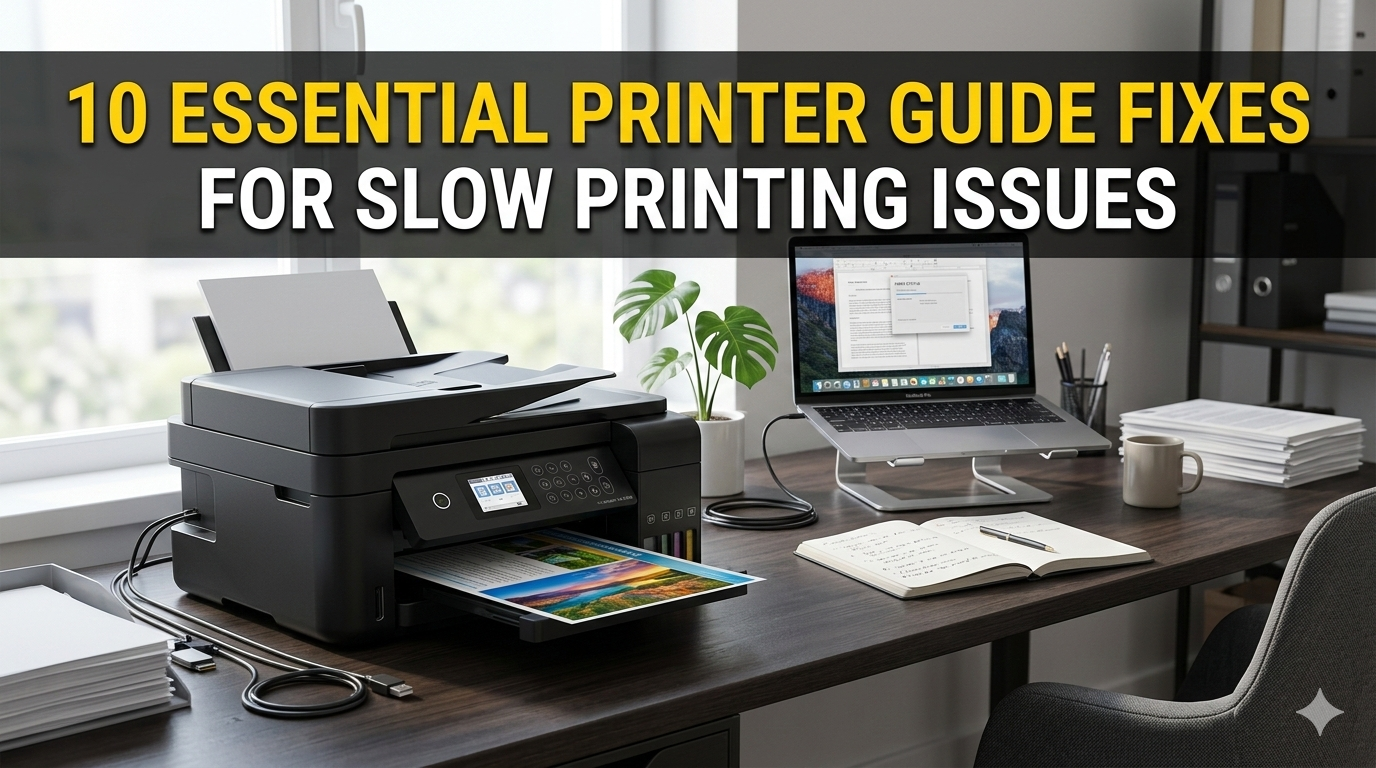
Meta Description: Slow printing issues can be fixed with printer guide fixes. These 10 methods are guaranteed to make your printer start faster immediately.
TOP 10 PRINTER GUIDE FIXES TO SLOW PRINTING ISSUES
Is your printer dragging like a snail? You’re not alone. Slow printing is one of the more common tech headaches people encounter at home and in the office. Looking to print out a school essay or an important work report only to have the pages take forever to come out is more than just annoying.
The good news? Most slow printing issues are easily corrected. You don’t have to be a tech genius to crack them. In this printer guide, we show you 10 practical, easy-to-follow fixes that actually work.
Let’s get that printer running fast again.
First, Why Is Your Printer So Slow?
Before diving into the fixes, it helps to understand why printers slow down. There are several common reasons:
- Jobs queued but no print jobs available
- Outdated or corrupted printer drivers
- Wrong print quality settings
- Low ink or toner levels
- Weak Wi-Fi connection
- Old or overheated hardware
- Applications running in the background consuming memory
If you know what the problem is, then solving it is a lot easier. Let’s walk through each of the fixes, one by one.
Solution 1: Delete the Print Queue
No. 1 cause of printer slow-down: A jammed print queue. If a bunch of print jobs pile up — one of them sticks, and the rest gets blocked.
How to Clear It
- Open Settings on your computer
- Navigate to Devices → Printers & Scanners
- Select your printer then click Open Queue
- Cancel all pending jobs
On a Mac, open System Settings → Printers & Scanners, then select your printer and delete the queue there.
Once the queue is clear, print a single test page. You will, in most cases, get an instant speed up.
Note: After clearing the queue, restart the Print Spooler service on Windows. Open Task Manager → Services → search for Spooler → right-click and restart.
Solution 2: Update Your Printer Drivers
Outdated printer drivers are a stealth performance killer. Drivers are the small programs that allow your computer to communicate with the printer. When they’re out of date, communication grinds to a halt — and so does your printing.
Steps to Update Printer Drivers
- Windows: Device Manager → Printers → right-click your printer and choose “Update Driver”
- Mac: System Settings → General → Software Update
- Manual way: Go to the website of your printer brand (HP, Canon, Epson, Brother), and download the newest driver for your model
Always restart after installing a new driver. This will cause the update to fully apply.
Keeping drivers up to date also resolves bugs that could be causing your printer to freeze or misbehave.
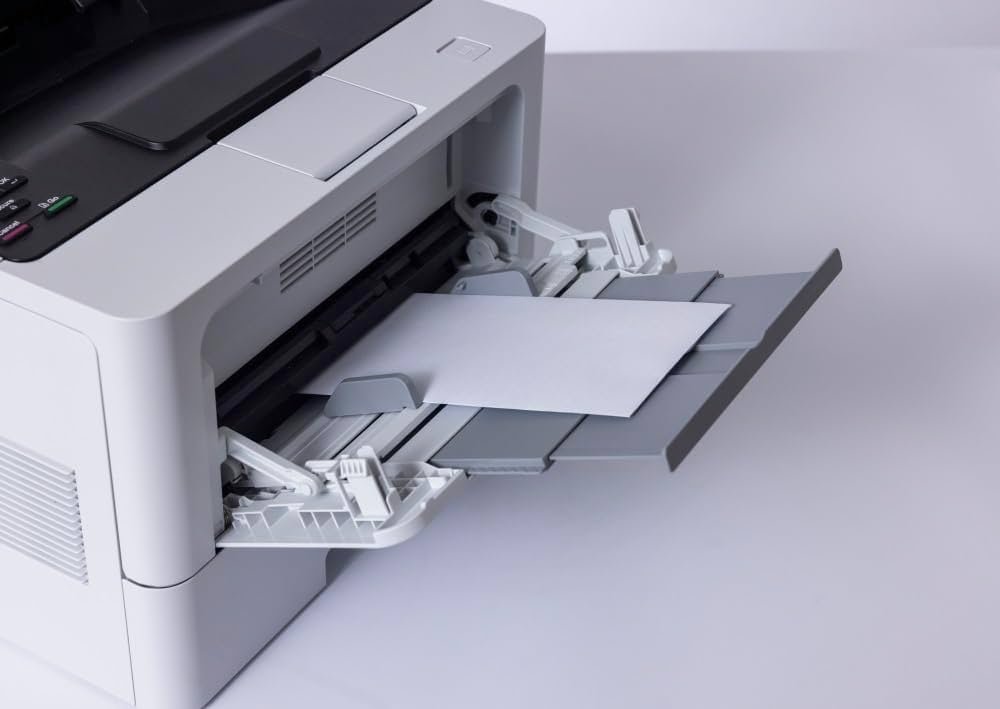
Solution 3: Change to Standard Print Mode From High Quality
Here’s something many people overlook. If your printer is in “Best” or “High Quality” mode, it spends more ink to get a richer look and takes significantly longer to print each page.
Print Quality Settings Comparison
| Print Mode | Speed | Ink Usage | Best For |
|---|---|---|---|
| Draft | Very Fast | Very Low | Internal notes, rough copies |
| Standard | Fast | Moderate | Everyday documents |
| High Quality | Slow | High | Photos, presentations |
| Best/Photo | Very Slow | Very High | Professional photos only |
For general documents — emails, text files, reports — Standard or Draft mode is sufficient.
How to Change Print Settings
- Click File → Print in any app
- Open Printer Preferences or Properties
- Find Quality or Print Mode
- Select Standard or Draft
Make this one change and it can reduce your print time by 50%.
Fix 4: Verify Your Wi-Fi Connection and Printer Position
Wireless printers are nice, but they rely on a good Wi-Fi signal. A sporadic or shaky connection makes your printer halt, buffer, and slow down a ton.
Indications That Your Wi-Fi Is the Culprit
- Printer works fine when connected via USB but struggles wirelessly
- Pages print slowly and inconsistently
- Printer frequently goes offline
Quick Fixes for Wi-Fi Issues
- Try moving the printer closer to the router
- Eliminate physical barriers between the router and printer (walls, furniture)
- If applicable, set your printer to the 2.4GHz instead of the 5GHz band for better range
- Restart your router and printer
- Set a static IP address to your printer for a reliable connection
Try directly connecting your printer with a USB cable if Wi-Fi problems continue. If the speed is significantly better, you can safely blame the wireless connection.
For more detailed wireless troubleshooting steps, visit Printer Troubleshoot Guide — a complete resource for fixing all kinds of printer problems.
Fix 5: Restart Print Spooler Service (Windows Only)
The Windows Print Spooler is a background service responsible for handling all print jobs in the operating system. When it becomes overloaded or corrupted, your printer slows down or fails to work entirely.
How to Restart the Print Spooler
- Press Windows + R and type
services.msc - Scroll down to locate Print Spooler
- Right-click and select Restart
- Wait a couple of seconds and try printing again
You can also disable the service, delete files in the spooler folder (C:\Windows\System32\spool\PRINTERS) manually, and then start the service again. This will perform a complete clean reset of the spooler.
Note: This solution is only for Windows users. On Mac, users may reset the printing system via System Settings instead.
Fix 6: Make the File Size Smaller Before You Print
Sometimes the issue isn’t the printer — it’s the file you’re trying to print. Large PDF files or files with massive, detailed images and graphics take longer to process and print.
How to Reduce File Size
- For PDFs: Compress with Adobe Acrobat or a free tool such as Smallpdf before printing
- For images: Downsize them (150–300 DPI is sufficient for printing)
- For Word documents: Do not embed large images; compress them inside the document
- For web pages: Use Print Preview in your browser to simplify the layout before printing
A print-optimized document will transmit to the printer faster and print faster as well.
Solution 7: Upgrade Your Computer’s RAM or Release Memory
Your computer needs enough memory (RAM) to handle print jobs. If you’re running lots of apps concurrently, your system gets slower — and so does printing.
Symptoms of Slow Printing Caused by Low RAM
- Computer feels sluggish while printing
- The printer begins printing but stops intermittently
- Other apps lock up or crash as you print
How to Free Up Memory Fast
- Close any unused applications
- Reboot the computer before sending a large print job
- Turn off the applications that launch during the startup process
- Search for and close RAM-hungry apps with Task Manager (Windows) or Activity Monitor (Mac)
If your computer tends to choke every time you attempt printing, it is well worth investing in more RAM.
Fix 8: Check the Levels of Ink and Toner
Low ink or toner doesn’t just make a poor print — it can actually slow down your printer. If the ink is running out, the printer struggles to maintain high speed prints.
How to Check Ink/Toner Levels
| Printer Brand | How to Check |
|---|---|
| HP | Via the HP Smart App or Printer Toolbar |
| Canon | Through Canon IJ Status Monitor |
| Epson | Use of the Epson Status Monitor |
| Brother | From Status Monitor or LCD Panel |
Most newer printers also display ink levels on their built-in display screen.
If a cartridge is under 10–15%, replace it. Replacing it with a new cartridge usually returns printing speed to normal right away.
Also check: Verify that the cartridge is properly seated. An improperly seated or loose cartridge can lead to slow, patchy printing.
Solution 9: Disable “HP ePrint,” “Quiet Mode,” and Other Speed-Limiting Features
Many printers have built-in features that sound helpful, but they quietly slow down print speed. Quiet Mode, for example, reduces noise by slowing down the print mechanism. Eco Mode uses less ink — and often slows you down.
Features to Check and Disable
- Quiet Mode — Makes printing almost silent but much slower
- Eco Mode / Toner Save Mode — Cuts ink/toner consumption, but print time increases
- Sleep Mode Delay — If set too short, your printer sleeps between pages and has to wake up repeatedly
- Duplex Printing (Two-Sided) — Slower by nature; turn off if you never use it
Where to Find These Settings
- On the printer’s display panel
- In Printer Preferences on your computer
- Within the printer’s software app (HP Smart, Epson Connect, etc.)
Go through each setting carefully. Disable just one of these, and you can see a dramatic speedup.
Solution 10: Restore Your Printer Back to Its Default Settings
If none of the above fixes work, a full factory reset can wipe out deep-seated software glitches, corrupted settings, and memory overflow problems that may keep your printer dragging.
Instructions for Factory Resetting Popular Printer Brands
HP Printers:
- Settings → Printer Maintenance → Restore Defaults
Canon Printers:
- Setup → Device Settings → Reset Settings → All Settings
Epson Printers:
- Settings → Restore Default Settings
Brother Printers:
- Press Menu → Initial Setup → Reset → Factory Reset
You will have to reconnect your printer to Wi-Fi and reinstall it on your computer after a reset. It adds a few minutes, but it frequently solves stubborn slowdowns outright.
Overview: All 10 Fixes at a Glance
| Fix | What It Does | Difficulty Level |
|---|---|---|
| 1. Clear the Print Queue | Removes stuck jobs blocking new ones | Easy |
| 2. Update Drivers | Your PC will communicate with the printer easily | Easy |
| 3. Modify Print Quality | Reduces time per page | Easy |
| 4. Repair Wi-Fi Connection | Stabilizes wireless printing | Moderate |
| 5. Restart Print Spooler | Resets the print management service | Moderate |
| 6. Reduce File Size | Speeds up processing large documents | Easy |
| 7. Free Up RAM | Makes your computer more capable of printing | Easy |
| 8. Check Ink/Toner | Prevents cartridges from slowing things down | Easy |
| 9. Turn Off Quiet/Eco Mode | Eliminates built-in speed limiters | Easy |
| 10. Factory Reset | Clears deep software issues | Moderate |
Long-Term Ways to Keep Printing Speed Up
Fixing slow printing once is great. Keeping it fast is even better. Here are some helpful habits to keep in mind:
Regular Maintenance Tips
- Update drivers every 3–6 months — Do not wait until issues occur
- Run a monthly printer cleaning cycle — Most printers have this functionality in settings
- Use a cooler, ventilated space for your printer — Heat slows down the hardware
- Don’t let the ink run completely dry — Replace cartridges before they hit zero
- Weekly printer restart — Similar to a computer, printers do well with a reboot
- Update firmware — Firmware is the software that resides within the printer, and updates can deliver speed optimizations
It’s little habits like these that keep most speed problems at bay.
How to Tell If You Should Replace Your Printer Instead of Repairing It
Sometimes, a slow printer is simply an outdated printer. Here are indications that it may be time for a new one:
- Your printer is older than 5–7 years
- Repair charges exceed half the new printer price
- Fixes are in place but the printer still slows down
- Replacement parts or cartridges are difficult to come by
- The printer keeps disconnecting, getting jammed, or erroring out
Printers have become much faster than previous generations. If your existing printer is a daily battle, upgrading could be the most intelligent, budget-friendly solution.
FAQs: Slow Printer Problems Answered
Why does my printer all of a sudden print so slowly?
Sudden slowdowns are typically due to a stuck print queue, outdated drivers, or a lost Wi-Fi connection. The first steps are to clear the print queue and restart your computer and printer. In most cases, that clears up the problem.
Does printing in color really slow down my printer?
Yes. It usually takes longer than black-and-white because the printer has to work with multiple ink cartridges at once. If speed is more important than color, change to grayscale or black-and-white mode in your print settings.
Can a virus slow down my printer?
Indirectly, yes. Malware running on your computer can use memory and processing power, which slows everything down — including printing. If your machine generally feels sluggish, run a full antivirus scan.
Are wireless printers slower than wired printers?
Wireless printing introduces extra steps — your computer transmits data via Wi-Fi, the router interprets it and passes it on to the printer. Any interference or weak signal along this path slows things down. Connecting via USB or Ethernet is always faster and more reliable.
How long would a regular print job take?
A typical black-and-white text page should print in 5–15 seconds on most recent printers. A full-color picture could take 30–60 seconds. If you wait longer than that for basic documents, something needs repairing.
Does more RAM help speed up printing on my computer?
Yes, particularly if you frequently print large files or run multiple apps simultaneously. More RAM allows your computer to process and send print data faster, cutting down the time between clicking “Print” and the printer actually starting.
Is factory resetting my printer safe?
Yes, factory resets are totally safe. They do not harm the printer hardware. All they do is reset the software settings to where they were originally set up. You will have to configure your printer again (connection to Wi-Fi, preferences, etc.) after the reset.
Wrapping It All Up
Your new normal does not need to be slow printing. With the right printer guide fixes, you can get your printer running at full speed again — in just a couple of minutes sometimes.
Start with the easiest fixes first: clear the print queue, check your Wi-Fi, and switch to Standard print mode. If those don’t do it, then update your drivers, free up some RAM, and turn off any speed-limiting features. And if nothing else works, a factory reset usually does the job.
The key takeaway? Most slow printing issues have solutions. Work your way through this list, and chances are you’ll find your fix before reaching the end.
Got your printer running fast again? Great. Bookmark this guide for next time — because printers have a weird sense of when to get feisty.






