
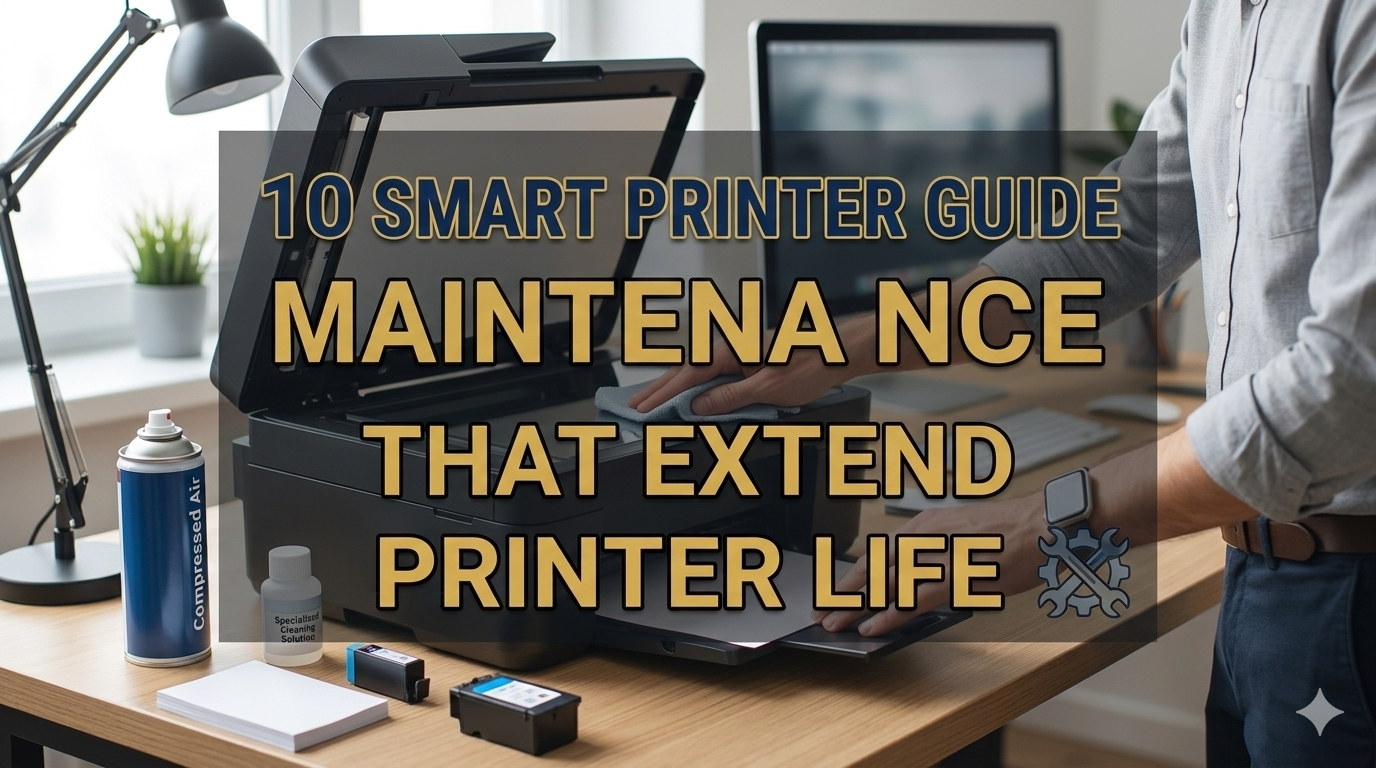
Meta Description: Printer guide maintenance habits can make or break your printer’s lifespan. Discover 10 smart, easy-to-follow tips that keep your printer running like new for years.
10 Maintenance Habits That Extend Printer Life | Smart Printer Guide
Your printer sits there silently on your desk — until it doesn’t work. A paper jam here. A streaky print there. Then one day, it just stops.
The good news? Most of the problems most printers encounter are entirely preventable.
By avoiding many repairs and also saving money on replacing parts in the long run, you will manage to add years of life to your machine — and the frustration of a broken printer when you need it most is avoided in one go.
This guide lays out 10 simple and effective habits that apply to most any printer — inkjet, laser, or all-in-one. Let’s get into it.
Why Printer Maintenance Actually Matters
The majority only consider their printer when a problem occurs. That’s a mistake.
Printers have moving parts, sensitive cartridges, rollers, and other internal components that gather dust, dry out, and wear out. Even a well-made printer will start to fail within a few years without routine maintenance.
Here’s a quick rundown of what neglect could cost you:
| Problem Caused by Neglect | Average Repair or Replacement Cost |
|---|---|
| Clogged print heads | $20–$80 (cleaning kit or technician) |
| Worn paper feed rollers | $30–$100 |
| Dried ink cartridges | $15–$60 per cartridge |
| Full printer replacement | $80–$400+ |
| Lost productivity | Priceless |
Regular maintenance? It costs almost nothing. A bit of time and care makes a difference.
Habit 1: Wipe Down the Outside of Your Printer Weekly
This sounds too simple. But dust is a printer’s silent foe.
Dust collects on exterior vents, gets sucked into the machine, and settles on rollers and print heads. Over time, this leads to paper jams, bad print quality, and overheating.
What to Do
- Wipe down the outside of the printer with a gentle, lint-free cloth.
- Pay extra attention to vents and air slots that can be found on the sides or back.
- Do not spray any cleaning liquid directly on the printer.
- For stubborn smudges, use a slightly damp cloth, then dry immediately.
Do this once a week. It takes under two minutes and avoids a lot of headaches down the line.
Habit 2: Clean the Inside as Well
The interior of your printer also requires a little love — just more gently.
Every time you print, paper dust, ink residue, and debris accumulate inside the machine. This impacts print quality and can ultimately lead to mechanical failures.
Safe Interior Cleaning Steps
- Before cleaning inside, turn off and unplug the printer.
- Use a canister of compressed air to clear dust from paper trays and internal compartments.
- Clean exposed rollers with a lightly moistened cotton swab.
- Never handle the print head with your fingers.
- Refer to the manufacturer’s guide for cleaning instructions specific to your model.
Most printer brands suggest a deeper internal cleanup every one to three months, depending on how often you print.
Habit 3: Use Your Printer Regularly (Yes, Really)
Here’s something most people have wrong — they imagine that leaving the printer alone keeps it safe.
Actually, the opposite is true.
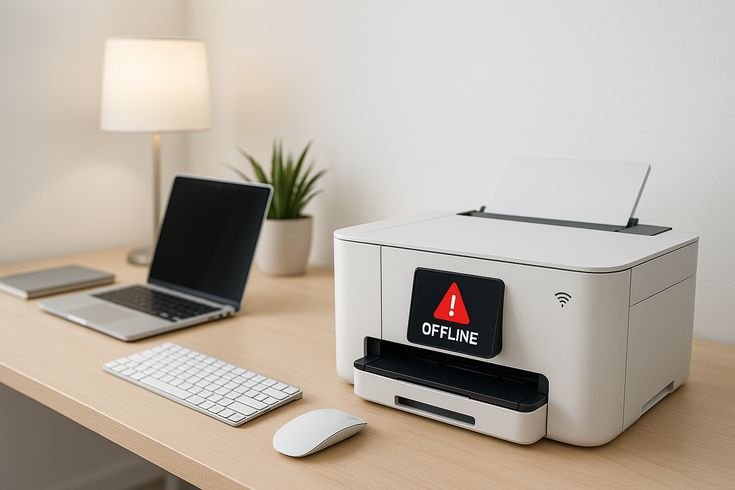
Inkjet printers in particular require regular use. When ink remains stagnant and unused in the print head for a while, it eventually dries out and causes the little nozzles to become clogged. Clogs in those nozzles lead to streaky or blank prints.
How Often Should You Print?
| Printer Type | Recommended Minimum Use |
|---|---|
| Inkjet | At least once every 1–2 weeks |
| Laser | Once a month is generally acceptable |
| All-in-One | Weekly is recommended |
Run a test page if you have nothing to print. Most printers incorporate the option to generate a test print from within their settings menus. It uses an almost minuscule amount of ink, but keeps everything flowing smoothly.
Habit 4: Run Print Head Cleaning Cycles Properly
Every inkjet printer comes with a print head cleaning function. It’s there for a reason — go ahead and use it, but don’t overuse it.
The cleaning cycle uses ink. Doing so too frequently wastes ink and can even stress the print head. Running it less than recommended allows clogs to get worse.
Finding the Right Balance
- Run a nozzle check first. This prints a test pattern to see if you have any clogged nozzles.
- If streaks or gaps are present, run a cleaning cycle.
- After the cycle is completed, print another nozzle check.
- If still clogged, wait a few hours and try again.
- Only repeat 2–3 times max before seeking other solutions.
For most users, running a cleaning cycle once a month — or whenever print quality starts to dip — is the sweet spot.
Habit 5: Always Load Paper Correctly
Paper may feel like a passive element in the printing process. Yet improper loading is among the most frequent causes of paper jams, misfeeds, and roller damage.
The Right Way to Load Paper
- Fan the paper stack before loading. This helps separate the sheets, preventing them from sticking together.
- Fit the paper guides firmly against the stack — not too tight, not too loose.
- Don’t overfill the paper tray. Most trays have a fill line at the top. Stay below it.
- Use the paper size and type that matches your printer’s specifications.
- Keep unused paper in a resealed bag or box. Humidity causes paper to warp and creates problems with feeding.
Paper Types That Can Damage Your Printer
| Paper Type | Risk |
|---|---|
| Wrinkled or bent paper | Causes jams and roller stress |
| Extremely thin paper | Tears inside the printer |
| Glossy paper in wrong printer | Can stick to rollers |
| Damp or humid paper | Leads to misfeeds and smearing |
Always refer to your printer’s owner manual for recommended paper types. Using the wrong sort is a surprisingly common error.
Habit 6: Replace Ink or Toner Cartridges as Needed
This is a big one. Cartridges are not one-size-fits-all.
To save money, many people buy inexpensive no-name cartridges. Sometimes they work fine. Other times, they spill out, clog the print head, or generate error messages that are difficult to troubleshoot.
OEM vs. Compatible vs. Refilled Cartridges
| Cartridge Type | Pros | Cons |
|---|---|---|
| OEM (Original Brand) | Best compatibility, reliable quality | Most expensive |
| Compatible (Third-Party) | Cheaper, widely available | Variable quality |
| Refilled Cartridges | Very cheap | Risk of leaks, inconsistent ink |
If you are going to use third-party cartridges, get one from a reputable brand with good reviews. Stay away from the cheapest ones that have no brand name or guarantee of quality.
Also, never allow cartridges to run completely dry. Printing on an empty cartridge can ruin the print head, which costs much more to replace than a new cartridge.
Habit 7: Always Update Your Printer Drivers and Firmware
What’s installed software-wise is just as important as what’s under the hood when it comes to printer guide maintenance.
Printer makers often publish driver and firmware updates. These updates may fix bugs, improve performance, and sometimes add support for newer operating systems.
Not updating them can lead to everything from print errors and connectivity issues to outright hardware failures caused by incorrect software instructions.
If you ever run into recurring software-related printer problems, Printer Troubleshoot Guide is a helpful resource that covers a wide range of printer error fixes and step-by-step solutions.
How to Keep Your Printer Software Updated
- Check your printer brand’s official website about every few months.
- Look for your printer model and see if there is a “Support” or “Downloads” section.
- Download and install any available driver or firmware updates.
- Some printers can update automatically over Wi-Fi — turn on this feature if it’s available.
This habit requires about 10 minutes every few months. It’s completely free and often nips problems in the bud before they even start.
Habit 8: Give Your Printer the Right Environment
Where your printer lives is more important than most people think.
Extreme heat, high humidity, and direct sunlight slowly do their damage. Ink can dry out. Plastic parts can warp. Electronic components can corrode.
Ideal Printer Environment
| Factor | Ideal Condition |
|---|---|
| Temperature | 59°F–77°F (15°C–25°C) |
| Humidity | 20%–80% (non-condensing) |
| Sunlight | Away from direct sunlight |
| Dust exposure | Low — use a printer cover when idle |
A simple printer dust cover (often costing under $10) can be a huge game changer. It keeps dust out when you aren’t using the printer, and it’s one of the most effortless investments you can make in terms of printer guide maintenance.
Also, don’t put your printer right next to a window, near a heater, or in a damp basement or bathroom.
Habit 9: Deal with Paper Jams the Right Way
Paper jams happen to everyone. But the way you handle them makes all the difference in whether you cause further damage.
Yanking paper out too fast or in the wrong direction can tear paper inside the machine, damage rollers, and bend delicate internal parts.
Step-by-Step Jam Removal
- Switch off the printer before removing any jammed paper.
- Open all access panels — front, back, and sides if possible.
- Locate the jammed paper. Look carefully — there may be torn pieces.
- Gently and evenly pull the paper in the direction it was moving.
- Never pull paper backward against the feed direction.
- Look for small torn pieces and remove them completely.
- Close all panels, power the printer back on, and run a test print.
If jams occur often, it’s an indication of a deeper problem — worn rollers, improper paper size, or overfilling. Fix the root cause, not just the symptom.
Habit 10: Use a Monthly Printer Maintenance Checklist
All of the above habits work best when blended together into a straightforward routine. Creating a checklist and sticking to it on a monthly basis is the best way to remain consistent.
Monthly Printer Maintenance Checklist
| Task | Time Required | Frequency |
|---|---|---|
| Wipe down exterior | 2 minutes | Weekly |
| Clean interior with compressed air | 5 minutes | Monthly |
| Run nozzle check | 2 minutes | Monthly |
| Run print head cleaning if needed | 5 minutes | As needed |
| Check ink/toner levels | 1 minute | Monthly |
| Update drivers/firmware | 10 minutes | Every 3 months |
| Inspect paper tray for debris | 1 minute | Monthly |
| Print a test page | 2 minutes | Weekly/Biweekly |
| Check for error messages | 1 minute | Monthly |
| Review manufacturer tips | 5 minutes | Every 6 months |
Post this on the wall next to your printer or store it in your phone. Regularity is what makes printer guide maintenance actually effective.
Bonus Tips: Things That Quietly Ruin Your Printer
Beyond the 10 primary habits, here are some frequent mistakes that people aren’t aware they’re making:
Running your printer all the time: Keeping your printer on even when not in use causes wear on internal components due to constant power. Make use of the auto-sleep or power-off timer feature.
Ignoring error messages: Small errors that get dismissed tend to grow into big failures. When they show up, look them up.
Using cheap USB cables: Poor connections cause communication failures between your printer and computer.
Stacking things on top of the printer: Extra weight warps the casing and obstructs ventilation.
Always printing at maximum quality: High-quality mode consumes significantly more ink and puts extra stress on the print head. According to PCMag’s printer buying guide, using draft mode for everyday documents is one of the easiest ways to extend cartridge life and reduce print head strain.
How Long Should a Well-Cared-For Printer Last?
With proper printer guide maintenance habits, here’s what you can realistically expect:
| Printer Type | Average Life (No Maintenance) | Average Life (With Maintenance) |
|---|---|---|
| Budget Inkjet | 1–2 years | 3–5 years |
| Mid-Range Inkjet | 2–3 years | 5–7 years |
| Laser Printer | 3–5 years | 7–10 years |
| Business All-in-One | 3–5 years | 8–12 years |
The numbers speak for themselves. With a little care, you will get double or even triple the life out of your machine.
FAQs About Printer Guide Maintenance
Q1: How often should I clean my printer? Wipe the outside weekly. Use compressed air on the interior on a monthly basis. If you own an inkjet printer, make a monthly habit of running a nozzle check.
Q2: Is it bad to leave my printer unplugged for long periods? For inkjet printers, yes. The ink can dry up and clog the print head. If you store your printer for a long time, run a cleaning cycle before putting it away and ensure that it is stored correctly.
Q3: Can I use any brand of ink cartridge? You can, but quality varies. OEM cartridges are the safest option. If you use third-party cartridges, do your research on the brand and stay away from budget products.
Q4: What can I do if my printer keeps jamming? Paper type and loading method are the first things to check. Wipe the paper feed rollers using a soft cloth with water. Where jams persist, rollers may be worn and require replacement.
Q5: Do laser printers require as much maintenance as inkjet printers? Laser printers are generally more robust and require less maintenance. Yet they still need regular cleaning, firmware updates, and the proper use of paper.
Q6: How can I tell if my print head is clogged? Run a nozzle check from your printer settings. If the printed pattern has gaps, missing lines, or color streaks, then your print head likely needs cleaning.
Q7: Is it better to repair an old printer or just get a new one? If the cost to fix it is 50 percent or more of what a new printer would cost, replacing it instead is typically the smarter move. For small problems such as clogged heads and dirty rollers, repair is nearly always worthwhile.
Wrapping It All Up
Your printer need not be a one-or-two-year appliance that gets tossed in the trash before its time.
Through these 10 smart printer guide maintenance habits, you give your machine the care it needs to keep running reliably year after year. Clean it regularly. Use it consistently. Load paper properly. Keep the software updated. Store it well.
None of these habits are complicated or particularly costly. But combined, they add up to a huge difference.
Start with one or two habits this week. Build from there. In short order, maintenance will feel like second nature — and your printer will reward you with years of smooth, dependable service.






