
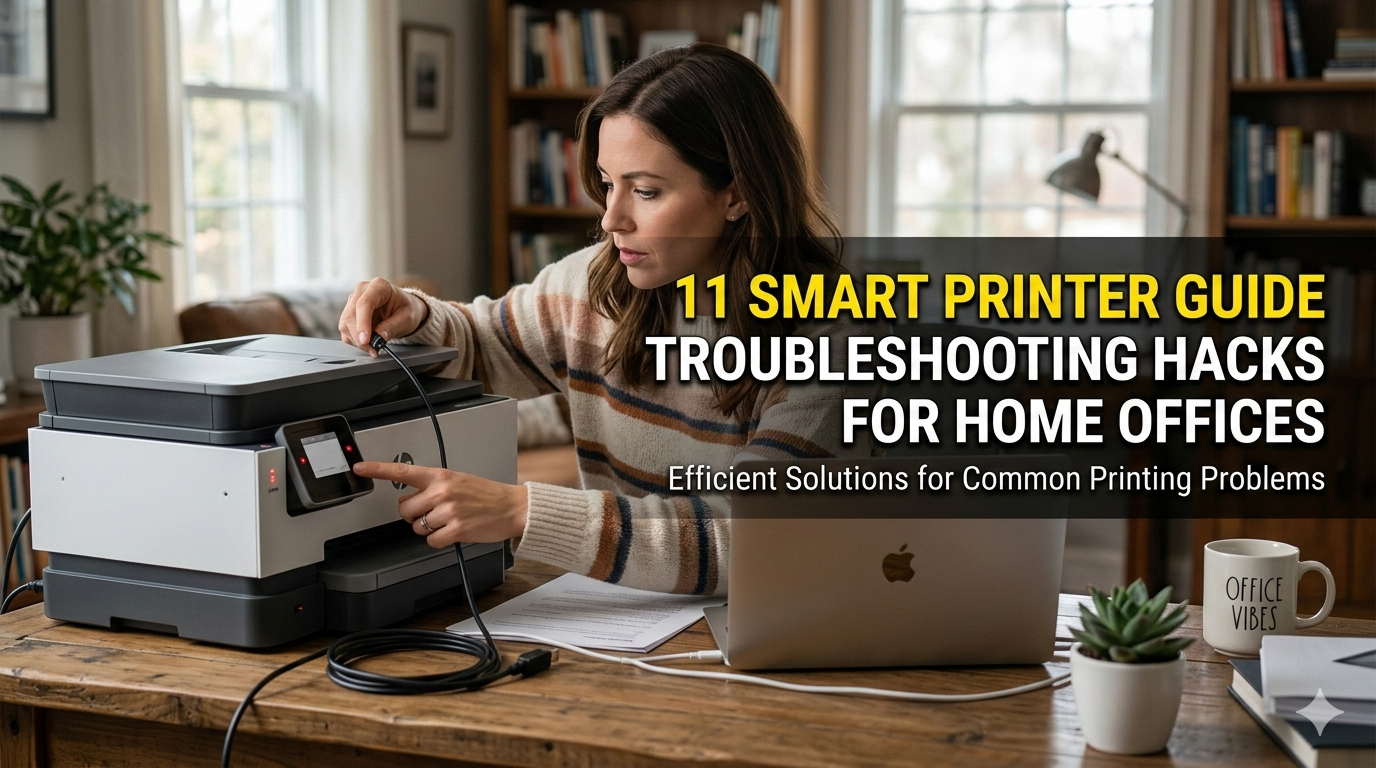
Meta Description: Smart Printer Guide troubleshooting doesn’t have to be stressful. Discover 11 powerful hacks to fix common home office printer problems fast and keep printing smoothly.
11 Quick Troubleshooting Tips for Home Offices With Smart Printers
Your Printer Is Not the Enemy — It Just Wants Some TLC
Imagine this: You’re working from home, a deadline is looming and your printer stops functioning. Sound familiar?
Printers are among the most common — and most agitating — pieces of home office tech. They jam, go offline, print out blurry pages or just fail to respond. And for the most part, people don’t know what to do other than switching them off and back on again.
That’s where this smart printer guide pays off.
In this article, we’ll take you step by step through 11 easy-to-follow troubleshooting hacks that really work. No tech degree needed. No expensive repair calls. Just clever fixes you can do yourself in minutes.
Whether you have an inkjet, laser or wireless printer, these tips will save time, money and a whole lot of stress.
Why Home Office Printers Break Down So Often
Before we get into fixes, it’s worth knowing why printers misbehave in the first place.
Home office printers are subject to unique challenges. They sit idle for days and then suddenly get slammed with a big print job. Ink dries out. Dust builds up. Wi-Fi signals drop. Software gets outdated.
Unlike printers in offices that run constantly, home printers are usually sitting idle — and idleness creates more issues than heavy use.
Here’s a quick look at the most common reasons home office printers fail:
| Problem | Common Cause |
|---|---|
| Paper jams | Overfilled tray, worn rollers, wrong paper size |
| Offline status | Wi-Fi drop, driver issues, sleep mode |
| Blurry or faded print | Low ink, dirty print head, wrong settings |
| Printer not found | Network issue, outdated driver |
| Slow printing | Large file size, low memory, wrong print mode |
| Ink smearing | Wrong paper type, wet ink, dirty rollers |
Now let’s fix them — one hack at a time.
Hack #1: Reboot Everything in the Correct Order
The only thing most people ever restart is the printer. That’s not enough.
When your printer becomes unresponsive, you must restart your whole setup in the right order. Here’s how to do it the right way:
- Fully shut down the printer — not sleep mode
- Turn off your Wi-Fi router
- Shut down your computer
- Wait 60 full seconds
- Turn the router back on first
- Wait for it to fully connect
- Turn on the printer
- Then turn on the computer
This flushes cached network data, resets the printer’s IP address and helps start everything fresh. It fixes approximately 40% of “printer won’t connect” complaints with no effort.
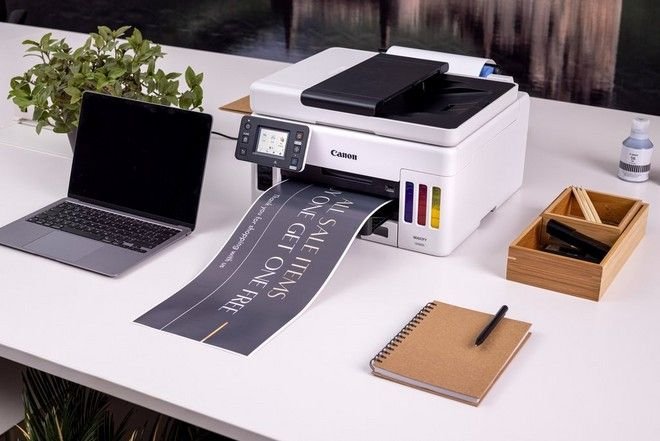
Hack #2: Clear the Print Queue (It’s Probably Hung Up)
A stalled print queue is one of the sneakiest home printing problems.
You hit print. Nothing happens. You hit print again. Still nothing. Your printer is stuck trying to process 15 copies of the same document that all got in line at the same time.
Here’s how to clear it in Windows:
- Hit the Start Menu and type “Services”
- Find “Print Spooler” and click “Stop”
- Launch File Explorer and navigate to:
C:\Windows\System32\spool\PRINTERS - Remove every file in that folder (never delete the folder itself)
- Return to Services and click “Start” on Print Spooler
- Try printing again
On Mac:
- Open System Settings → Printers & Scanners
- Click your printer and choose “Open Print Queue”
- Delete all pending jobs
- Try printing again
This fix works most of the time when a printer appears frozen or unresponsive.
Hack #3: Update or Reinstall Your Printer Driver
Outdated drivers are one of the most common causes of printer failure — and most people never think to check them.
A printer driver is the software that enables your computer to communicate with your printer. When it becomes stale or corrupted, communication fails.
Signs you need a new driver:
- Printer appears “offline” even when it’s actually turned on
- Print jobs disappear without printing
- Error messages without a clear reason
- New computer does not recognize your old printer
How to fix it:
- Go to your printer brand’s official website (HP, Canon, Epson, Brother, etc.)
- Find your specific printer model
- Download the latest driver for your operating system
- Uninstall the old driver first (Control Panel → Devices → Remove Printer)
- Install the new driver and reboot your system
This single step solves a ton of unknown printer issues.
Hack #4: Use the Built-In Printer Troubleshooter
Here’s a hack that many people miss because it sounds too easy: use your computer’s built-in printer troubleshooter.
Windows and Mac both come with built-in diagnostic tools that automatically identify and resolve common printing problems. They’re free, fast and surprisingly effective.
On Windows 10/11:
- Go to Settings → System → Troubleshoot → Other Troubleshooters
- Find “Printer” and click “Run”
- Follow the on-screen steps
On Mac:
- Go to System Settings → Printers & Scanners
- Delete and re-add your printer
- macOS will automatically reinstall the correct driver
These tools detect connection errors, driver conflicts and port problems in less than two minutes.
Hack #5: Fix Wi-Fi Printing Issues the Smart Way
Wireless printing is a great convenience — until it’s not.
Wi-Fi printers drop connections constantly. One of the smartest things you can do is assign your printer a static IP address. This way the printer always has the same network address and never gets “lost.”
How to assign a static IP (general steps):
- From your printer settings, print a “Network Configuration Page”
- Make a note of the printer’s current IP address
- Log into your router (normally by going to 192.168.1.1 in your browser)
- Find the DHCP or “Address Reservation” section
- Add your printer’s MAC address and assign it a fixed IP
- Save and restart the router
This stops your printer from switching to a different IP every time the router reboots — which is the number one cause of Wi-Fi printing problems.
For more detailed help with wireless and network printer issues, visit Printer Troubleshoot Guide — a dedicated resource packed with step-by-step solutions for all printer types.
Hack #6: Clean the Print Heads Without Spending a Dime
Streaky, faded, or patchy printouts are almost always caused by clogged print heads.
This is especially common with inkjet printers that haven’t been used for a week or more. The ink dries inside the tiny nozzles and blocks the flow.
Step 1: Use the built-in cleaning tool
Every inkjet printer has a self-cleaning option in its settings menu. Run it once or twice before trying anything else.
- On the printer itself: Go to Maintenance → Clean Print Heads
- On your computer: Open the printer software and look for “Maintenance” or “Tools”
Step 2: Manual cleaning (if Step 1 doesn’t work)
- Remove the print cartridge carefully
- Dampen a lint-free cloth with distilled water (NOT tap water)
- Gently wipe across the bottom of the print head
- Let it air dry for 10 minutes
- Reinstall and test print
Pro tip: Even if you don’t need to print anything, print a test page at least once a week. This keeps the ink flowing and prevents clogs.
Hack #7: Handle Paper Jams Like a Pro
Paper jams are a nuisance, but they’re also easy to avoid and resolve — if you know what you’re doing.
Why Paper Keeps Jamming
| Cause | Fix |
|---|---|
| Too much paper in tray | Load only 75% capacity |
| Mixed paper sizes | Use only one size at a time |
| Wrinkled or damp paper | Store paper in a dry place |
| Worn feed rollers | Clean with isopropyl alcohol |
| Wrong paper weight | Check printer specs for compatible paper |
How to Remove a Jam Without Damaging Anything
- Turn off the printer first — never pull paper while it’s running
- Open all access doors (front, back, and top if available)
- Pull the paper gently and slowly in the direction it was traveling
- Never yank or pull backward — this tears the paper and leaves bits inside
- Use a flashlight to look for torn pieces before closing up
- Close all doors and restart the printer
One torn piece of paper left inside can cause jams for weeks.
Hack #8: Fix “Printer Offline” Without Losing Your Mind
The dreaded “Printer Offline” message is one of the biggest headaches in the home office.
Here’s the thing — your printer is likely not actually offline. It’s just confused about its connection status.
Quick fixes to try in order:
- Make sure the printer is turned on and not in sleep mode
- Check that the USB or ethernet cable is properly plugged in (if not wireless)
- On Windows: Go to Devices and Printers → Right-click your printer → “See what’s printing” → Printer menu → Uncheck “Use Printer Offline”
- Set your printer as the default device
- Restart the Print Spooler (see Hack #2)
For wireless printers:
- Make sure the printer is connected to the same Wi-Fi network as your computer (not a guest network)
- Check if your router uses dual bands — most printers only work on 2.4GHz, not 5GHz
Hack #9: Speed Up Slow Printing in 3 Simple Steps
If your printer is taking forever to begin printing, almost always the issue isn’t the printer itself.
Step 1: Switch to Draft Mode
Full-quality printing is overkill for most print jobs. Switching to “Draft” or “Fast” mode can make things 3–4 times faster.
- Open print settings before printing
- Change “Print Quality” to Draft or Economy
- Use this for internal documents, notes and rough copies
Step 2: Reduce File Size Before Printing
Large PDFs and high-resolution images slow everything down.
- Use a free tool like Smallpdf to reduce PDF size before printing
- For images, resize to 150–200 DPI for standard documents
Step 3: Check Your Computer’s RAM
If your system is running slow, the print job takes longer to process and send. Close unnecessary programs before printing large documents.
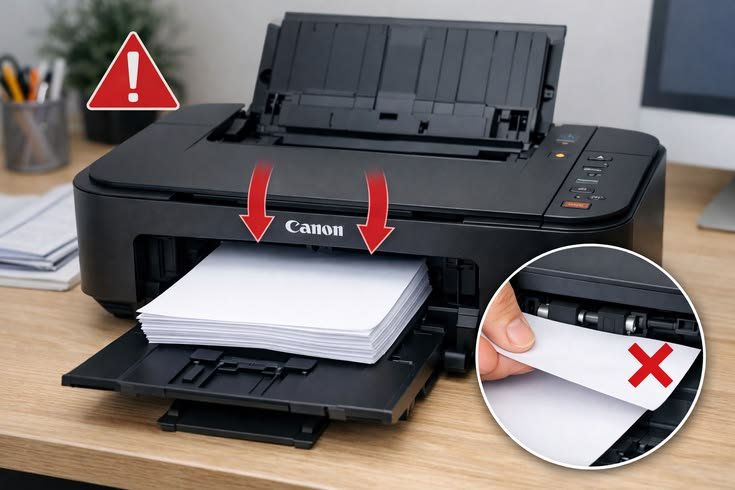
Hack #10: Stop Wasting Ink With These Smart Settings
Ink is expensive. A single cartridge can cost $20–$40 — and it runs out fast if you’re not careful.
Here’s how to make every drop count:
Use Economy or Draft Mode for Everyday Printing
As discussed above, this uses roughly 50% less ink per page with little noticeable difference in quality for text documents.
Turn Off Automatic Cleaning Cycles
Most printers have automatic cleaning cycles that waste a significant amount of ink. You can generally turn this off in the printer’s settings menu.
Print in Grayscale When Color Isn’t Needed
Color ink depletes much faster than black. Set grayscale as your default for emails, reports and text documents.
Use Third-Party Ink Wisely
Generic ink can work well, but buy from reputable brands with good reviews. Cheap, low-quality ink can clog print heads and cause more damage than it saves.
Here’s a quick comparison:
| Ink Type | Cost | Quality | Risk |
|---|---|---|---|
| OEM (Brand) | High | Excellent | Very Low |
| Reputable Third-Party | Medium | Good | Low |
| Cheap Generic | Very Low | Variable | Medium-High |
Hack #11: Set Up a Monthly Printer Maintenance Routine
The best troubleshooting hack is one that avoids problems before they even start.
Most printer problems stem from neglect, not defects. A simple monthly routine keeps your printer running smoothly all year long.
Your Monthly Printer Maintenance Checklist
Every Week:
- Print at least one test page to keep ink flowing
- Clear out any dust from the paper tray
Every Month:
- Run the built-in print head cleaning tool
- Check ink/toner levels and reorder before they run out
- Wipe down the exterior with a dry cloth
- Check for the latest driver and firmware updates
Every 3 Months:
- Clean the interior with compressed air
- Clean feed rollers with isopropyl alcohol on a cotton swab
- Verify your printer’s network settings are still correct
Once a Year:
- Consider a deeper cleaning kit for inkjet printers
- Evaluate whether your printer model still suits your needs
This routine takes no longer than 15 minutes a month and can extend your printer’s life by years.
Quick Reference: All 11 Hacks at a Glance
| # | Hack | Best For |
|---|---|---|
| 1 | Restart everything in order | General connection issues |
| 2 | Clear the print queue | Frozen or unresponsive printer |
| 3 | Update/reinstall driver | Offline status, unrecognized printer |
| 4 | Run built-in troubleshooter | Unknown errors |
| 5 | Assign static IP address | Wi-Fi printing drops |
| 6 | Clean print heads | Streaky or faded prints |
| 7 | Remove paper jams properly | Jams and feed issues |
| 8 | Fix “Printer Offline” error | Offline status errors |
| 9 | Speed up printing | Slow print jobs |
| 10 | Save ink with smart settings | High ink costs |
| 11 | Monthly maintenance routine | Long-term prevention |
FAQs: Smart Printer Guide Troubleshooting
Q: My printer goes offline every few days. Why? Your printer likely gets a new IP address every time your router restarts. Assigning a static IP (Hack #5) is the permanent solution.
Q: How can I tell if my print head is clogged? Print a test page. If you notice missing lines, streaks or faded sections, the print head is likely clogged. Start with the built-in cleaning cycle.
Q: Should I fix my old printer or just buy a new one? If your printer is over 5–7 years old and breaks down repeatedly, a new model will usually pay for itself. Today’s printers also consume less ink and have improved wireless capabilities.
Q: My printer is printing blank pages. What does that mean? That typically indicates empty cartridges, a severely clogged print head, or a software error. Check ink levels first, then run the cleaning cycle.
Q: Can I use my printer on both 2.4GHz and 5GHz Wi-Fi? The majority of home printers only support 2.4GHz Wi-Fi. If your router broadcasts both bands, make sure your printer is connecting on the correct one.
Q: When should I replace my ink cartridges? Replace them when ink levels drop to around 10–15%. Printing with near-empty cartridges can dry out and damage the print head.
Q: My printer prints slowly even in draft mode. Why? This is often caused by large file sizes. Compress your PDF or image before printing. Closing other programs can also help free up computer memory.
Q: Does leaving a printer plugged in waste electricity? Most printers consume very little power in standby mode (1–2 watts). Generally it’s fine to leave them plugged in, but switching off at the power strip when not in use for extended periods is a good practice.
The Bottom Line: Your Printer Doesn’t Need to Be a Headache
Printers are fairly simple machines that only require some routine care and attention.
The 11 hacks in this smart printer guide address just about every problem a home office user is ever likely to encounter — Wi-Fi drops, paper jams, slow printing, ink waste and more. None of them require a technician. None of them cost money. All they take is a few minutes of your time.
Start with the basics: reboot in the proper sequence, clear the print queue and check your drivers. Then work up to the monthly maintenance routine, and you’ll likely never have to deal with a serious printer problem again.
Your home office works better when everything does. And with this guide, your printer finally will too.






