
Introduction
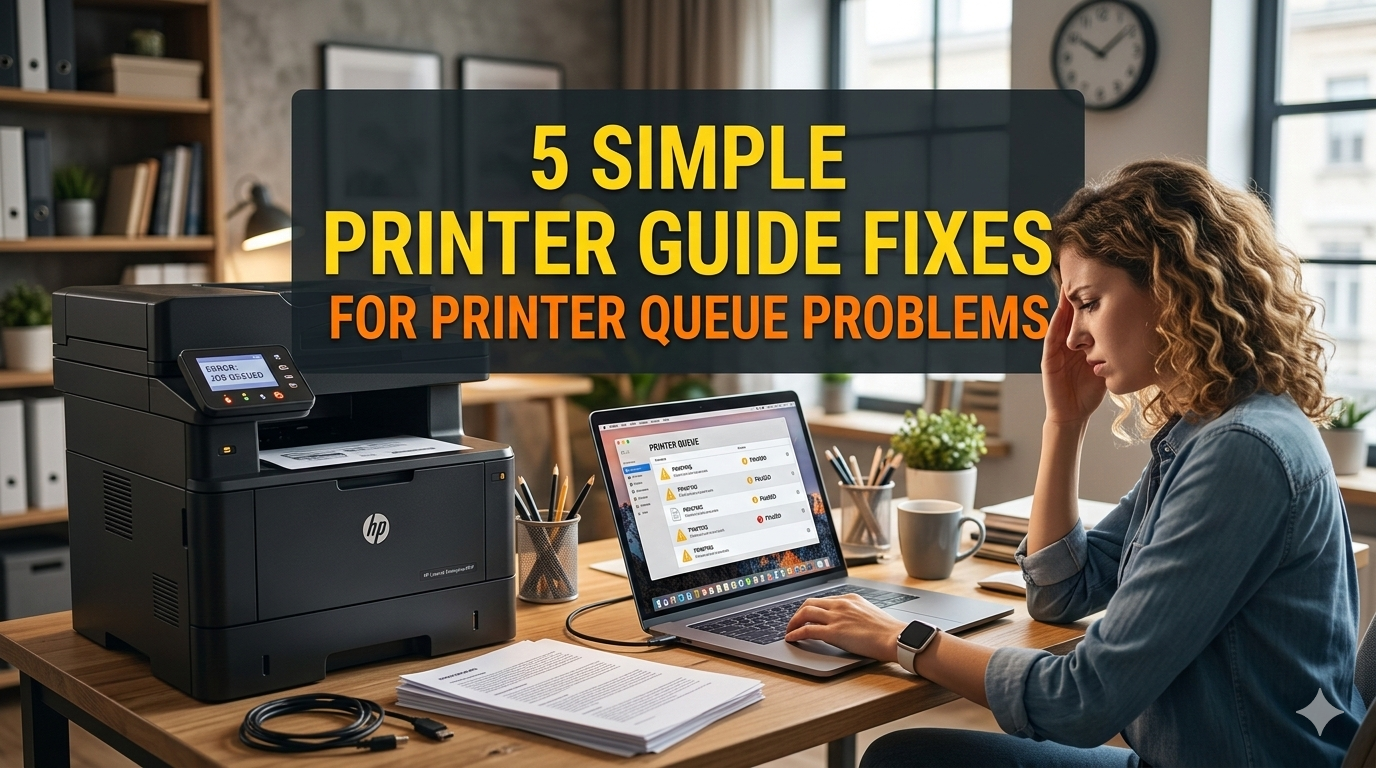
Printers have been a staple in homes and offices for decades, but let’s face it, they can be finicky machines. One of the most common headaches people encounter is printer queue problems. You know the drill: you send a document to print, and nothing happens. Or worse, it gets stuck in a never-ending loop, with error messages popping up left and right. I’ve dealt with this myself more times than I care to admit, especially during those late-night work sessions when the last thing you need is a tech glitch. In this guide, I’m going to walk you through five simple fixes for printer queue issues. These aren’t complicated hacks; they’re straightforward steps that anyone can try, whether you’re on a Windows PC, a Mac, or even dealing with a network printer. The goal here is to get your printer back on track without calling in the pros or throwing the thing out the window.
Before we dive into the fixes, it’s worth understanding what a printer queue actually is. Think of it as a waiting line for your print jobs. When you hit “print,” your computer sends the file to this queue, where it’s processed and sent to the printer. Problems arise when something disrupts that flow—maybe a corrupted file, a software glitch, or a connection hiccup. These issues can manifest as jobs that won’t delete, printers that appear offline, or endless “printing” status updates that go nowhere. According to various tech forums and support sites I’ve browsed over the years, queue problems affect millions of users annually, often stemming from outdated drivers or overloaded systems. But don’t worry; with a bit of patience, most can be resolved in minutes.
Fix 1: Restart the Print Spooler Service
One of the quickest and most effective ways to clear up printer queue woes is by restarting the print spooler service. This service is essentially the traffic cop for your print jobs, managing the queue and ensuring everything gets to the printer in order. If it gets bogged down or crashes, your queue can freeze up. I’ve found this fix particularly handy on Windows machines, where it’s a built-in feature.
To start, you’ll need to access the Services app on your computer. On Windows, you can do this by pressing the Windows key + R, typing “services.msc,” and hitting Enter. Scroll down until you find “Print Spooler.” Right-click it and select “Restart.” If it’s not running, choose “Start” instead. Sometimes, if the service is really stuck, you might need to stop it first, clear out any temporary files, and then restart it. To clear those files, navigate to C:\Windows\System32\spool\PRINTERS (you’ll need admin privileges), delete everything inside, and then restart the spooler.
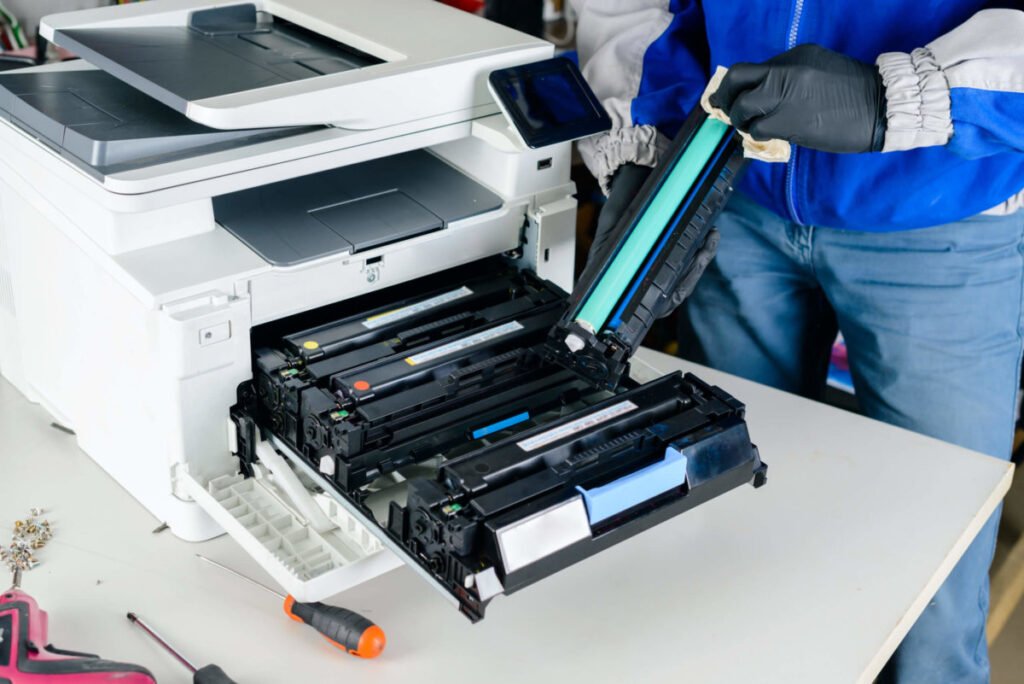
Why does this work? Well, the spooler can accumulate errors over time, especially if you’ve been printing a lot or if there’s been a power interruption. Restarting it flushes out those temporary glitches without affecting your overall system. On a Mac, the equivalent is resetting the printing system. Right-click in the Printers & Scanners preferences pane and select “Reset printing system.” This wipes the queue clean and often resolves similar issues.
Let me share a quick story: a friend of mine was pulling his hair out over a home office setup where documents just wouldn’t print. After hours of fiddling, a simple spooler restart did the trick. He had multiple jobs piled up from a failed batch print, and clearing them manually was a nightmare. This fix saved him from buying a new printer unnecessarily.
Of course, if you’re on a Linux system like Ubuntu, the process is a bit different. You’d open a terminal and type “sudo service cups restart” since CUPS is the common printing system there. Always make sure to back up important files before tinkering, though printer queues don’t usually hold critical data.
Expanding on this, consider the role of user permissions. Sometimes, if you’re logged in as a standard user, the spooler might not have the rights to process certain jobs. Switching to an admin account or running the services app as administrator can make a difference. Also, keep an eye on antivirus software; some overzealous programs flag spooler activities as suspicious and block them. Temporarily disabling your security suite (just for testing) can help isolate if that’s the culprit.
In networked environments, like in an office, the spooler might be on a print server. In that case, restarting the service on the server itself is key. I’ve seen entire departments grind to a halt because of one faulty spooler on a central machine. If you’re the IT person in your household or small business, it’s worth checking event logs for errors related to the spooler—on Windows, that’s in the Event Viewer under Windows Logs > System.
To prevent future issues, set the spooler to automatic startup. In Services, right-click Print Spooler, go to Properties, and set Startup type to Automatic. This ensures it boots up with your computer. Over the years, Microsoft has patched many spooler vulnerabilities, so keeping your OS updated is crucial too.
All in all, this fix is my go-to starter because it’s non-destructive and quick. If it doesn’t work, no harm done—you can move on to the next one.
Fix 2: Clear the Print Queue Manually
If restarting the spooler doesn’t cut it, the next step is to manually clear the print queue. This is like emptying a clogged drain; sometimes you just need to remove the buildup. Print queues can get jammed with old jobs, corrupted data, or even jobs from other users on shared printers.
On Windows, the easiest way is through the Settings app. Go to Devices > Printers & scanners, select your printer, and click “Open queue.” From there, you can right-click and cancel individual jobs or all of them. But if the queue is frozen, this might not work. That’s when you dive deeper: stop the print spooler (as in Fix 1), delete the files in the PRINTERS folder, and restart the spooler. It’s a bit more hands-on, but effective.
For Mac users, open System Preferences > Printers & Scanners, select the printer, and click “Open Print Queue.” You can then delete jobs from the list. If it’s stubborn, resetting the printing system (as mentioned earlier) will wipe everything.
I’ve had experiences where a single large PDF file caused the queue to stall. It was a scanned document with high-resolution images, and the printer couldn’t handle it. Canceling it freed up the queue for smaller jobs. Always check the size and format of your files; sometimes converting to a simpler format like plain text or lower-res PDF helps.
On mobile devices, if you’re printing from an Android or iOS phone, the queue might be managed through apps like Google Cloud Print (though that’s deprecated now) or AirPrint. For Android, go to Settings > Connected devices > Connection preferences > Printing, and manage services there. Clearing app caches can also help if the print job originated from a phone.
In enterprise settings, queues might be managed by software like PaperCut or similar. If that’s the case, logging into the admin portal to release or cancel jobs is necessary. I once worked in a place where print quotas caused queues to back up—users exceeded limits, and jobs sat idle.
To avoid recurrence, consider setting up print job notifications. Some printers have apps that alert you to issues. Also, regularly checking for firmware updates on the printer itself can prevent compatibility problems that lead to queue jams.
This fix is great because it’s targeted; you can see exactly what’s stuck and remove it. If you’re dealing with wireless printers, ensure the connection is stable first—weak Wi-Fi can cause partial job transmissions that clog the queue.
Fix 3: Update or Reinstall Printer Drivers
Drivers are the unsung heroes of hardware; they’re the software that lets your computer talk to the printer. Outdated or corrupted drivers are a prime cause of queue problems, as they can misinterpret commands or fail to process jobs properly.
Start by checking for updates. On Windows, use Device Manager: right-click Start, select Device Manager, expand Printers, right-click your printer, and choose “Update driver.” Let it search automatically. If that fails, visit the manufacturer’s website—HP, Epson, Canon, etc.—and download the latest drivers for your model and OS version.
For Macs, drivers often come via Software Update. Go to System Preferences > Software Update, and install any available printer-related updates. If needed, download from the maker’s site.
Reinstalling can be a fresh start. Uninstall the printer from Devices (Windows) or Printers & Scanners (Mac), then add it back. This often pulls in fresh drivers.
I remember upgrading to Windows 10 and having my old laser printer refuse to cooperate. The queue would fill up, but nothing printed. A driver update fixed it instantly. Drivers evolve with OS changes, so compatibility is key.
If you’re using a universal driver, like those from Microsoft, they might not have all features. Stick to OEM drivers for best results.
In some cases, third-party software conflicts with drivers. Programs like PDF creators or virtual printers can interfere. Disabling them temporarily can test this.
For network printers, ensure the driver matches the network protocol—IPP, LPD, etc. Mismatched settings lead to queue errors.
Updating firmware on the printer itself is also wise. Access the printer’s web interface (usually by typing its IP in a browser) and check for updates.
This fix requires a bit of research, but it’s worthwhile. Once done, test with a simple print job to confirm.
Fix 4: Check for Hardware and Connection Issues
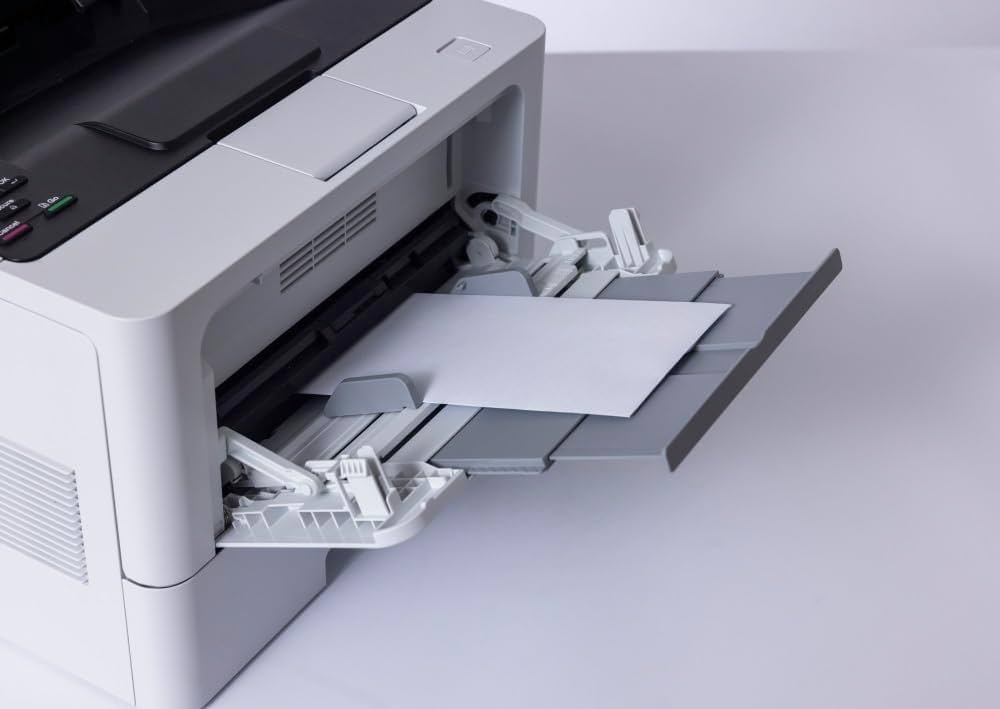
Sometimes, the problem isn’t software—it’s hardware or connections. A faulty cable, low ink, or even paper jams can halt the queue, as the printer sends error signals back.
First, inspect physical connections. For USB printers, try a different cable or port. I’ve fixed issues by swapping USB ports; some are finicky.
For wireless, ensure the printer is on the same network as your computer. Restart the router if needed. Check signal strength; walls or distance can weaken it.
Power cycle everything: turn off the printer, unplug it, wait a minute, plug back in, and turn on. Do the same for your computer. This resets temporary glitches.
Check for error lights on the printer. Low toner? Paper out? Address those first.
If it’s a shared printer, verify network permissions. Firewalls might block print traffic.
In one instance, my printer queue stalled because the device was in sleep mode and wouldn’t wake properly. Adjusting power settings fixed it.
Test printing from another device. If it works from your phone but not PC, it’s likely a computer issue.
For older printers, compatibility with new OSes can be tricky. Consider a print server device if direct connection fails.
This fix emphasizes basics, but they’re often overlooked.
Fix 5: Run the Built-in Printer Troubleshooter
Most OSes have troubleshooters that automate diagnostics. On Windows, go to Settings > Update & Security > Troubleshoot > Other troubleshooters, and run the Printer one. It scans for issues like queue problems and fixes them.
On Mac, the Printers & Scanners pane has a “Diagnose & Fix” option in some versions, or use the reset as before.
These tools check drivers, services, connections, and more, often resolving queues automatically.
I’ve used the Windows troubleshooter countless times; it’s surprisingly effective for common issues.
If it finds nothing, it at least rules out basics, pointing to deeper problems.
For Linux, commands like “cupsfilter” or GUI tools in system settings can help.
Combining this with other fixes maximizes success.
Conclusion
Printer queue problems can be frustrating, but with these five fixes—restarting the spooler, clearing the queue, updating drivers, checking hardware, and running troubleshooters—you’re equipped to handle most. Patience is key; start simple and escalate. If all fails, consult support or consider replacement. Happy printing!






