
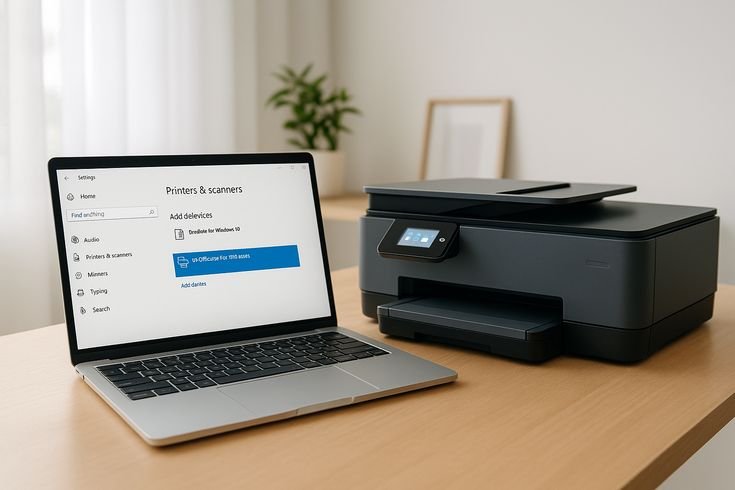
5 Simple Printer Guide Troubleshooting Tricks That Saved My Printer
Printers have a strange way of failing exactly when you need them the most. Whether it’s printing an urgent document, a boarding pass, or an important contract, a printer that refuses to cooperate can instantly turn a productive day into a frustrating one.
A few years ago, I found myself in this exact situation. My printer constantly showed errors, printed blank pages, and sometimes refused to connect to my computer. Like many people, my first thought was that the printer was broken and needed replacement.
But after spending hours researching, testing solutions, and learning how printers actually work, I discovered something surprising.
Most printer problems are not serious hardware failures.
In fact, many issues can be fixed in minutes with simple troubleshooting techniques that anyone can learn.
In this guide, I’ll walk you through five simple printer troubleshooting tricks that completely changed how I deal with printer problems. These practical solutions saved my printer from being thrown away and saved me hundreds of dollars in repair costs.
Understanding Why Printers Fail
Before diving into the troubleshooting tricks, it’s important to understand why printers commonly stop working.
Many people assume that printers fail due to hardware damage, but most problems are actually caused by:
- Software glitches
- Driver conflicts
- Paper jams
- Ink cartridge issues
- Connectivity problems
Below is a quick overview.
| Common Printer Problem | Possible Cause | Difficulty to Fix |
|---|---|---|
| Printer not responding | Driver or connection issue | Easy |
| Blank pages printing | Ink cartridge problem | Easy |
| Paper jams | Paper alignment issue | Easy |
| Printer offline | Network or system issue | Medium |
| Slow printing | Spooler overload | Easy |
As you can see, most printer problems are surprisingly simple to fix.
Now let’s explore the tricks that saved my printer.
Trick 1: Restart the Printer and Clear the Print Queue
This might sound too simple to work, but restarting the printer and clearing the print queue solves an incredible number of problems.
Many printers stop responding because the print queue gets stuck. When this happens, the printer cannot process new tasks.
What is the Print Queue?
The print queue is a list of all documents waiting to be printed.
If one document gets stuck, it can block every other job.
Signs Your Print Queue is Stuck
- Printer shows “Printing” but nothing happens
- Multiple documents waiting in queue
- Printer repeatedly prints the same page
How to Clear the Print Queue
Follow these steps:
- Open Control Panel
- Select Devices and Printers
- Right-click your printer
- Click See what’s printing
- Cancel all documents
Then restart the printer.
Quick Restart Method
| Step | Action |
|---|---|
| Step 1 | Turn off the printer |
| Step 2 | Unplug the power cable |
| Step 3 | Wait 60 seconds |
| Step 4 | Plug it back in |
| Step 5 | Turn the printer on |
This process resets the printer’s internal memory and clears temporary errors.
I was shocked the first time this fixed my printer instantly.
Trick 2: Update or Reinstall Printer Drivers
Another major cause of printer errors is outdated or corrupted drivers.
Drivers act as the translator between your computer and your printer.
If the driver becomes corrupted, your computer cannot communicate properly with the printer.
Signs of Driver Problems
You may have a driver issue if:
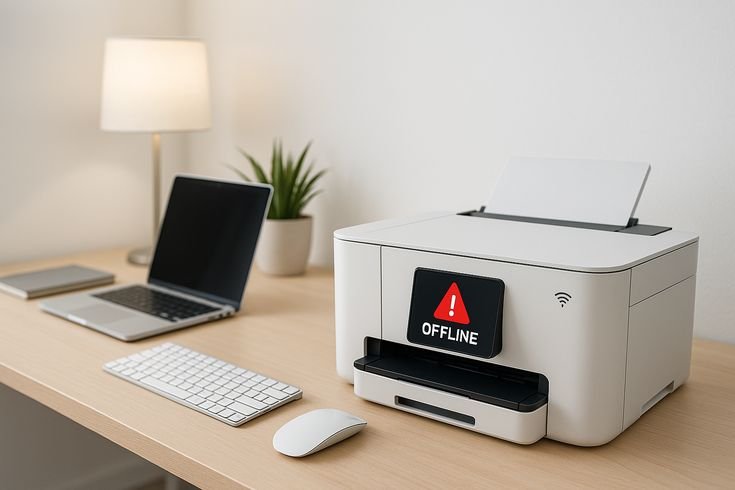
- Printer appears offline
- Printer does not appear in device list
- Error messages appear during printing
- Printer works on another computer but not yours
Driver Troubleshooting Table
| Problem | Likely Cause | Solution |
|---|---|---|
| Printer not detected | Missing driver | Install driver |
| Printer offline | Driver conflict | Reinstall driver |
| Random printing errors | Corrupted driver | Update driver |
| Slow printing | Old driver | Update driver |
How to Reinstall a Printer Driver
Follow these steps carefully.
Step 1: Remove Old Driver
- Open Device Manager
- Expand Printers
- Right-click your printer
- Select Uninstall device
Step 2: Download the Latest Driver
Visit the official printer manufacturer website and download the newest driver for your printer model.
Step 3: Install the Driver
Run the installer and follow the instructions.
After restarting your computer, the printer should work properly again.
This single fix restored my printer after weeks of constant errors.
Trick 3: Check Ink Cartridges and Clean the Print Heads
One of the most common printer problems is poor print quality.
If your printer prints:
- faded text
- missing lines
- blank pages
- streaks
the issue is usually related to the ink cartridges.
Common Ink Cartridge Issues
| Issue | Cause | Solution |
|---|---|---|
| Faded prints | Low ink | Replace cartridge |
| Blank pages | Cartridge not detected | Reinsert cartridge |
| Streak lines | Dirty print head | Clean print head |
| Smudged ink | Overfilled cartridge | Replace cartridge |
How to Clean Print Heads
Most printers include a built-in cleaning tool.
Follow these steps:
- Open printer settings
- Select Maintenance
- Choose Clean Print Head
- Run the cleaning process
This usually takes 2–3 minutes.
Print Head Cleaning Cycle Chart
| Cleaning Cycle | Purpose | Time Required |
|---|---|---|
| Light cleaning | Remove minor clogs | 2 minutes |
| Deep cleaning | Remove heavy clogs | 5 minutes |
| Alignment | Improve print quality | 3 minutes |
Running the cleaning process twice completely fixed my streaking print issue.
Trick 4: Fix Paper Jams the Right Way
Paper jams are one of the most frustrating printer problems.
However, many people actually make the problem worse by pulling paper out incorrectly.
Improper paper removal can damage printer rollers.
Common Causes of Paper Jams
| Cause | Explanation |
|---|---|
| Overloaded paper tray | Too many sheets inserted |
| Damaged paper | Bent or wrinkled pages |
| Dust inside printer | Rollers lose grip |
| Wrong paper size | Printer cannot align pages |
Proper Way to Remove Jammed Paper
Follow these steps carefully.
- Turn off the printer
- Open the rear access panel
- Slowly pull the paper in the direction of the paper path
- Check for torn pieces
- Close the printer and restart it
Never force paper out from the front.
That mistake can permanently damage the rollers.
Paper Loading Guide
| Paper Type | Recommended Stack |
|---|---|
| Standard A4 | 100 sheets |
| Thick paper | 30 sheets |
| Photo paper | 20 sheets |
Following these limits greatly reduces paper jams.
Trick 5: Reset the Printer Network Connection
Wireless printers are incredibly convenient, but they can also create connectivity problems.
If your printer suddenly appears offline, the issue may be related to your network.
Signs of Network Printer Issues
- Printer works with USB but not WiFi
- Printer appears offline
- Computer cannot detect the printer
- Printing takes extremely long
Quick Network Reset Method
Try this simple process.
Step-by-Step Reset
- Turn off the printer
- Restart your WiFi router
- Turn on the printer
- Reconnect the printer to WiFi
- Re-add the printer on your computer
Printer Connectivity Troubleshooting Chart
| Issue | Cause | Fix |
|---|---|---|
| Printer offline | Router disconnect | Restart router |
| Cannot find printer | Network change | Reconnect printer |
| Slow printing | Weak signal | Move printer closer to router |
| Random disconnects | Network interference | Change WiFi channel |
After reconnecting my printer to the network, the “Printer Offline” error disappeared immediately.
Preventative Printer Maintenance Tips
Preventing printer problems is much easier than fixing them.
Here are some simple habits that dramatically extend printer life.
Monthly Printer Maintenance Checklist
| Task | Frequency | Benefit |
|---|---|---|
| Clean printer exterior | Monthly | Prevent dust buildup |
| Run print head cleaning | Monthly | Maintain print quality |
| Update printer drivers | Every 3 months | Prevent software errors |
| Check ink levels | Monthly | Avoid blank prints |
| Print test page | Monthly | Detect issues early |
These habits keep your printer running smoothly for years.
Printer Troubleshooting Decision Chart
Below is a quick reference chart that summarizes the entire troubleshooting process.
| Problem | First Step | Second Step | Final Fix |
|---|---|---|---|
| Printer not responding | Restart printer | Clear print queue | Reinstall driver |
| Blank pages | Check cartridges | Clean print head | Replace cartridge |
| Paper jam | Remove paper | Check rollers | Reset printer |
| Printer offline | Restart router | Reconnect printer | Reinstall driver |
| Slow printing | Clear queue | Update driver | Reset printer |
Using this chart can help diagnose most printer issues in minutes.
When to Repair vs Replace a Printer
Sometimes a printer truly reaches the end of its life.
Here is a simple rule.
| Printer Age | Recommendation |
|---|---|
| 0 – 3 years | Repair |
| 3 – 5 years | Evaluate repair cost |
| 5+ years | Consider replacement |
However, many printers last much longer with proper care.
My printer was almost six years old when these troubleshooting tricks brought it back to life.
Final Thoughts
Printer problems can feel overwhelming, especially when they appear during important moments.
But after years of dealing with printer issues, I learned something valuable:
Most printer problems are surprisingly simple to fix.
The five troubleshooting tricks covered in this guide helped me avoid expensive repairs and keep my printer running smoothly:
- Restarting the printer and clearing the queue
- Updating or reinstalling drivers
- Checking ink cartridges and cleaning print heads
- Fixing paper jams correctly
- Resetting the printer network connection
These techniques are simple, practical, and effective.
If your printer ever stops working again, try these steps before assuming the worst. You might be surprised how quickly your printer starts working again.
Frequently Asked Questions (FAQs)
1. Why does my printer say offline even when it is connected?
This usually happens because the printer lost its network connection or the driver is outdated. Restarting the printer and reconnecting it to the network often fixes the issue.
2. How often should I clean my printer print heads?
Most experts recommend running a print head cleaning cycle once every month or whenever you notice faded prints or missing lines.
3. Can outdated drivers cause printer errors?
Yes. Outdated or corrupted drivers can cause communication problems between the computer and printer, leading to printing failures or error messages.
4. What should I do if my printer keeps jamming paper?
Check that the paper tray is not overloaded, ensure the paper is not bent or damaged, and remove jams carefully by pulling the paper in the direction of the paper path.
5. Why is my printer printing blank pages?
This usually happens due to empty ink cartridges, clogged print heads, or improperly installed cartridges.
6. How long should a typical home printer last?
Most home printers last between 3 and 7 years, depending on usage and maintenance.






