
Meta Description: Printer won’t connect? This guide helps you troubleshoot a printer that won’t work in 9 ways to get your printer back on the network as soon as possible — no technical skills required.
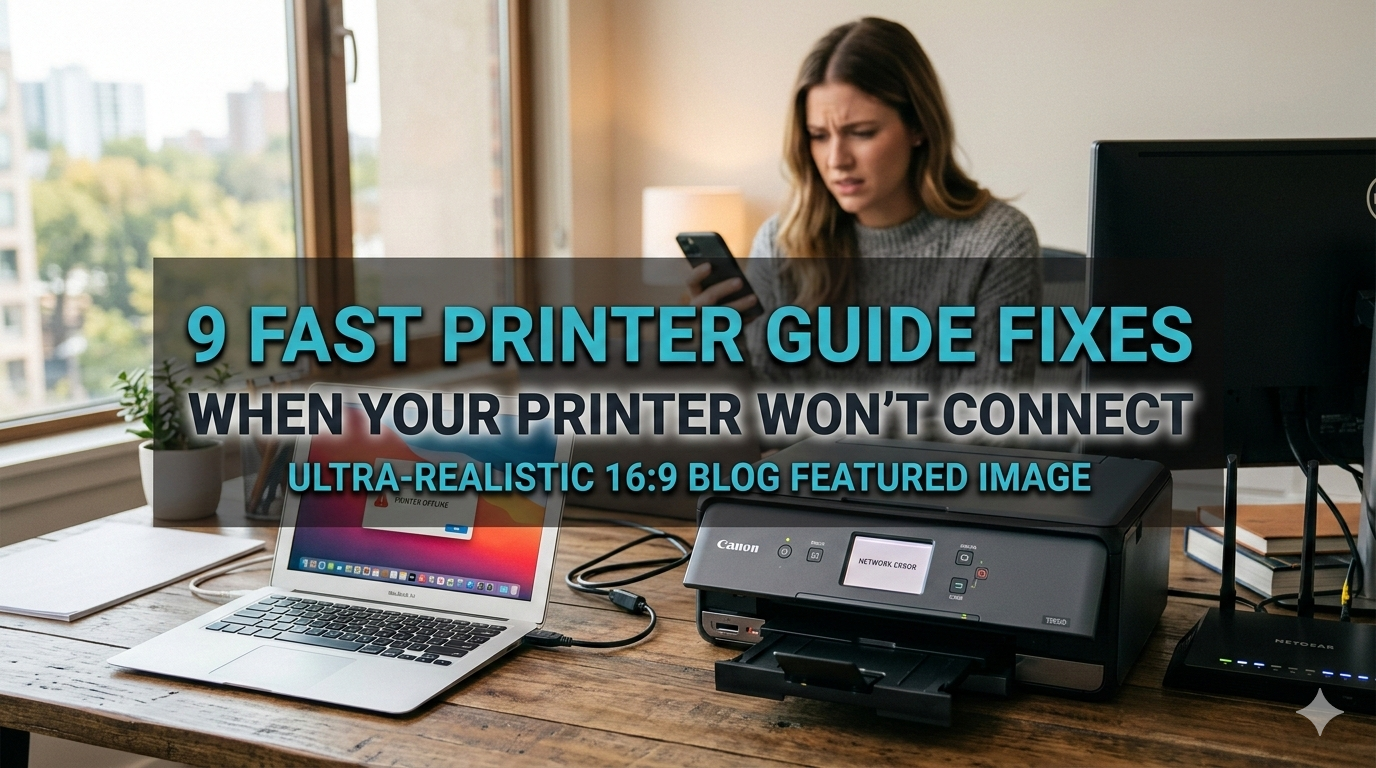
9 Fast Printer Guide Fixes When Your Printer Will Not Connect
One of the most frustrating things you can do is send a document to print — and have nothing happen.
Your printer just sits there. No sound. No movement. No page. Only silence and a blinking light that feels like it’s mocking you.
The good news? Most problems with a printer connection can be fixed in minutes. No tech expertise required. There’s no need to call support for assistance. You just need the right steps, in the right order.
This fast printer guide covers exactly that — 9 practical, proven fixes which work for most printers and computing platforms including Windows, Mac, or a smartphone. Time to get your printer back online.
What Could Be Causing a Printer to Disconnect in the First Place?
Before working on fixes, it’s useful to understand why this occurs.
Printers disconnect for a few common reasons:
| Cause | How Common |
|---|---|
| Loose or damaged cables | Very Common |
| Outdated or corrupted drivers | Very Common |
| Wrong default printer set | Common |
| Wi-Fi signal issues | Common |
| Firewall blocking the printer | Moderate |
| IP address conflict | Moderate |
| Printer offline status stuck | Very Common |
| Spooler service errors | Moderate |
Many of these issues can be solved at home relatively easily. Let’s go through each one.
Fix 1: Start With the Obvious — Check All Physical Connections
This sounds too simple. But it works far more often than people will admit.
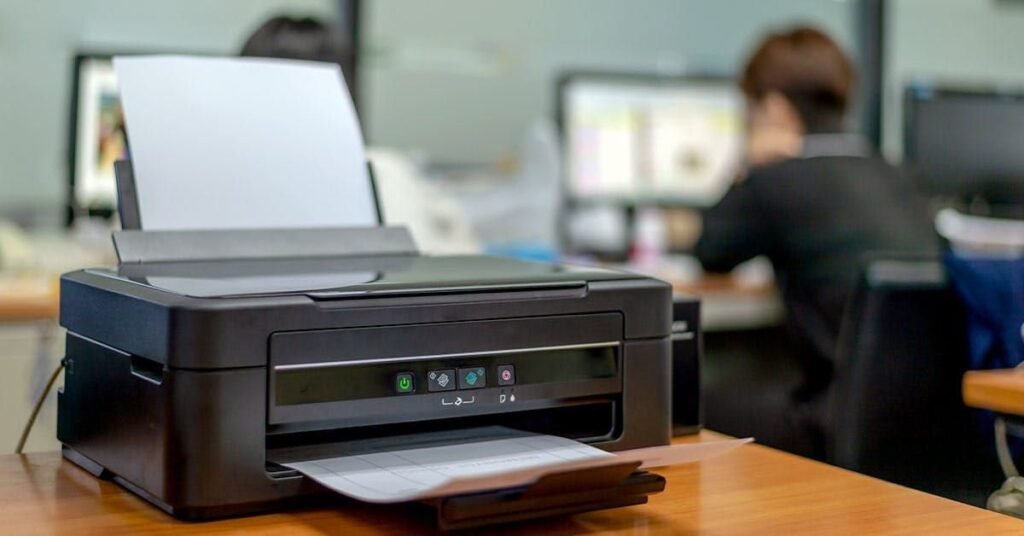
First off, start with a full physical check.
What to Look For
- Is the printer powered on? Check the power light.
- Is the USB cable securely plugged in on both ends?
- If you are using a network cable (Ethernet), is it clicked in properly?
- Does the printer panel show any error lights blinking?
Sometimes a cable gets jostled loose. A pet strolls by, someone steps on a cord, or the cable simply unplugs itself over time.
Unplug the cable completely. Wait 10 seconds. Plug it back in firmly. Then try printing again.
If you have a wireless printer, jump to Fix 4. But if you’re using a wired connection and it still won’t work after reseating the cable, proceed to Fix 2.
Fix 2: The Good Old Restart — It Works, Really
Technology loves a fresh start.
Restarting clears away temporary errors, refreshes network connections, and resets small software issues — all of which are common culprits when printers drop off the radar.
The Right Way to Restart
Don’t just restart one device. Restart all three:
- Turn off your printer. Wait half a minute, then turn it back on.
- Restart your computer. Not sleep, not hibernate — an actual full restart.
- Restart your router. Unplug it, wait 30 seconds, and plug it back in.
Give everything a moment to fully boot up before printing again.
Surprisingly often, this three-step fix restores your connection. It’s quick, free, and risk-free. This should always be tried before doing anything more complicated.
Fix 3: Make Sure the Printer Is in Online Mode
Windows has this quirky behavior where it flags printers as “offline” — even if they’re sitting right in front of you, powered up and ready.
When a printer appears to be offline, your computer won’t send it any jobs. Once you know where to look, the fix is simple.
How to Fix It on Windows
- Open Start Menu → Settings.
- Click Bluetooth & Devices, then Printers & Scanners.
- Click on your printer’s name.
- Select Open Print Queue.
- Click the Printer menu at the top.
- If “Use Printer Offline” is checked, click it to uncheck it.
That’s it. This should bring the printer back online immediately.
How to Fix It on Mac
- Open System Settings (or System Preferences on older Macs).
- Click Printers & Scanners.
- Click on your printer.
- If you see a “Resume” button, click it.
- If it says “Paused,” click Resume Printer.
After doing this, try printing a test page to make sure it’s working.
Fix 4: Re-Establish Your Printer’s Wi-Fi Connection
If you’re using a wireless printer and it won’t connect, the Wi-Fi link between your printer and router might have dropped.
This happens when:
- Your router rebooted and allocated a new IP address
- The printer moved too far from the router
- The Wi-Fi password was recently changed
- Too many devices are connected on the network
Steps to Reconnect
Option A — Use the Built-In Screen on Your Printer
Many newer printers have a small touchscreen or button menu. Look for Wi-Fi Setup or Wireless Settings. From there, you can scan for your network and re-enter your password.
Option B — Use the WPS Button
If your router includes a WPS button (look for the WPS label on the back):
- Press the WPS button on your router.
- Press the WPS button on your printer within 2 minutes.
- They will connect automatically — no password required.
Option C — Use the Printer Software
Many printers include setup software that you can reinstall from the manufacturer’s website. Run it, select Wireless Setup, and follow along to connect step by step.
Always print a wireless test page (found in the printer’s settings menu) after reconnecting to make sure the connection is strong.
Fix 5: Update or Reinstall the Printer Driver
Drivers are the software that enables your computer to “talk” to your printer. When they are outdated or corrupted, your printer can stop working — even if everything else is in good condition.
This is also one of the most overlooked reasons for printer connectivity issues.
Signs You Have a Driver Problem
- The printer appears in the device list but won’t print
- You just upgraded Windows or macOS and the printer stopped working
- You get error messages like “Driver unavailable”
How to Update the Driver on Windows
- Right-click the Start Button and select Device Manager.
- Expand the Printers section.
- Right-click your printer and select Update Driver.
- Choose Search automatically for drivers.
- Windows will find and install the latest version.
If automatic search turns up nothing new, visit your printer brand’s website directly:
| Brand | Driver Download Page |
|---|---|
| HP | support.hp.com |
| Canon | usa.canon.com/support |
| Epson | epson.com/support |
| Brother | support.brother.com |
| Lexmark | lexmark.com/support |
Download the driver for your specific model and run the installer.
How to Reinstall the Driver (Clean Install)
The old driver is sometimes best removed and you start all over.
- Open Settings → Bluetooth & Devices → Printers & Scanners.
- Click your printer and choose Remove.
- Restart your computer.
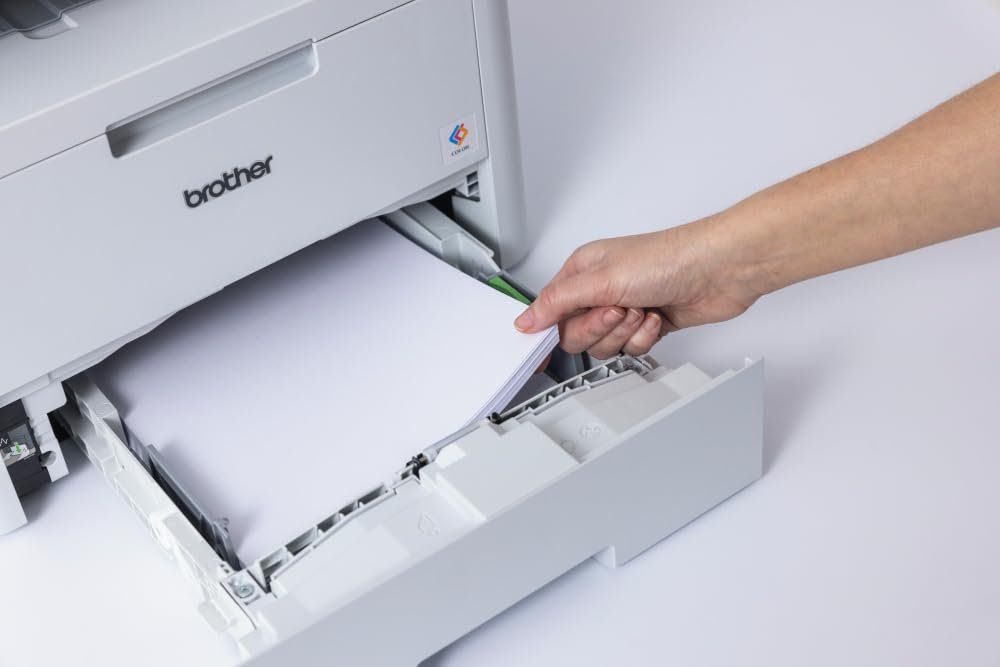
- Get the most recent driver from the manufacturer’s website.
- Run the installer to add the printer back fresh.
Most stubborn driver issues will be resolved with this clean install method.
Fix 6: Clear the Print Queue
Your printer may become unresponsive because it has an old print job stuck in the queue that never completed. New jobs stack up behind it, and nothing moves.
This is known as a stuck print queue, and it happens more often than you might think.
If you’re regularly running into printer problems, Printer Troubleshoot Guide is a dedicated resource that covers a wide range of printer fixes and connection issues in plain, easy-to-follow steps.
How to Clear the Queue on Windows
Quick Method:
- Open Settings → Bluetooth & Devices → Printers & Scanners.
- Select your printer and then click Open Print Queue.
- Click Cancel on all jobs.
If jobs won’t cancel:
You will have to restart the Print Spooler service.
- Press Windows + R, type
services.msc, and press Enter. - Scroll down to Print Spooler.
- Right-click it and choose Stop.
- Navigate to:
C:\Windows\System32\spool\PRINTERSin File Explorer. - Delete all files in that folder (but not the folder itself).
- Return to Services, right-click Print Spooler, and select Start.
- Try printing again.
How to Clear the Queue on Mac
- Open System Settings → Printers & Scanners.
- Click your printer.
- Click Open Print Queue.
- Click the X next to each job to cancel it.
Send a fresh test print after clearing the queue.
Fix 7: Check Your Firewall and Security Software
Your computer’s firewall or antivirus may be preventing your computer and printer from communicating. This tends to happen quite frequently after installing new security software or performing a major Windows update.
How to Find Out if Your Firewall Is the Problem
Disable your firewall temporarily and attempt to print. If it works, the firewall was the problem.
Important: Re-enable your firewall immediately after testing. Don’t leave it off.
How to Fix It Without Turning Off the Firewall
The more robust solution is to add your printer as an exception in your firewall settings.
On Windows Defender Firewall:
- Search for Windows Defender Firewall in the Start Menu.
- Click Allow an app or feature through Windows Defender Firewall.
- Scroll through the list and locate your printer software.
- Make sure that both Private and Public boxes are checked.
- Click OK.
For third-party antivirus programs (Norton, McAfee, Bitdefender, etc.), look in the settings for an “Exceptions” or “Exclusions” section and add your printer software there.
Fix 8: Resolve an IP Address Conflict
Every device on your network needs a unique IP address. When two devices accidentally get the same address, they conflict — and one of them stops working. Printers are often the victim.
This is usually what happens when a router starts reassigning addresses after a restart.
According to Microsoft Support, assigning a static IP address to your printer is one of the most reliable ways to prevent recurring connection issues on a home or office network.
How to Check and Fix It
Step 1 — Find your printer’s current IP:
You can usually print a network configuration page from your printer’s settings menu. Look for “Print Network Settings” or “Print Configuration Page.” The IP address will be listed there.
Step 2 — Assign your printer a Static IP:
A static IP doesn’t change, so conflicts can’t happen.
- Sign in to your router’s admin page (typically at 192.168.1.1 or 192.168.0.1 in your browser).
- Look for DHCP Reservation or IP Reservation.
- Locate your printer by its MAC address (also found on the config page).
- Assign it a permanent static IP address.
- Save the changes and restart your router.
This is one of the most dependable long-term fixes for wireless printers that keep disappearing from the network.
Fix 9: Remove and Re-Add the Printer to Your Computer
If all else fails, it’s time for a fresh start.
Removing and re-adding the printer clears any corrupted settings, old configurations, and stuck errors.
How to Do It on Windows
- Open Settings → Bluetooth & Devices → Printers & Scanners.
- Click your printer, then select Remove.
- Restart your computer.
- Return to Printers & Scanners and click Add a Printer or Scanner.
- Windows will search for and find your printer. Click it and follow the prompts.
How to Do It on Mac
- Open System Settings → Printers & Scanners.
- Select your printer, then press the minus (–) button to delete it.
- Click the plus (+) button to add a new printer.
- Choose your printer from the list and click Add.
After re-adding, print a test page to ensure everything is operating as expected.
Quick Reference: Summary of All 9 Fixes
| Fix # | What It Does | Time Needed |
|---|---|---|
| Fix 1 | Check physical connections | 2 minutes |
| Fix 2 | Restart printer, computer, router | 5 minutes |
| Fix 3 | Turn off “Use Printer Offline” mode | 2 minutes |
| Fix 4 | Reconnect printer to Wi-Fi | 5–10 minutes |
| Fix 5 | Update or reinstall printer driver | 10–15 minutes |
| Fix 6 | Clear the stuck print queue | 5–10 minutes |
| Fix 7 | Fix firewall or antivirus block | 5–10 minutes |
| Fix 8 | Assign a static IP to avoid conflicts | 10–15 minutes |
| Fix 9 | Remove and re-add the printer | 20 minutes |
How to Avoid Printer Connection Issues Going Forward
Fixing the problem is great. Even better to not have it return.
Here are some habits to help you avoid the headaches that printers cause:
- Keep your drivers updated. Check for updates every few months, or after a significant OS update.
- Assign your printer a static IP. This alone avoids most of the connection drops you might encounter.
- Reboot your printer monthly. Starting fresh avoids the accumulation of small errors.
- Keep it within a good range of your router. Wi-Fi signals are weakened by walls, floors, and distance.
- Clear pending print jobs before shutting down your computer.
- Don’t skip OS updates. They frequently contain fixes for device compatibility.
Small habits can make a big difference over time.
FAQs — Printer Won’t Connect
Q: Why does my printer keep going offline even after I fix it?
This typically means your printer’s IP address is constantly changing. Assign a static IP via your router settings (see Fix 8). That permanently solves the problem for most users.
Q: My printer is connected but doesn’t print. What’s wrong?
Check the print queue first (Fix 6). The most common reason is a stuck job. You can reinstall the driver (Fix 5) if there is no queued job.
Q: How can I tell if my printer driver is out of date?
Open Device Manager, locate your printer, right-click, and choose “Update Driver.” If Windows finds a newer version, your driver was out of date. You can also check the manufacturer’s website directly.
Q: Does a VPN cause printer connection issues?
Yes. VPNs can redirect your network traffic in a way that prevents local device communication. Disable the VPN and try to print again.
Q: My wireless printer worked yesterday but doesn’t work today. Why?
Most likely, your router rebooted and allocated a new IP address to the printer. Your computer is still trying to contact the old one. Fix 8 (assigning a static IP) will keep this from happening again.
Q: Should I disable my firewall to resolve printer problems?
Only for testing purposes and only temporarily. Re-enable it immediately. The better fix is to add your printer software as a firewall exception (see Fix 7).
Q: What if none of these solutions work?
Call the printer manufacturer’s support line. They can guide you through model-specific troubleshooting. If the printer is older, it might be a hardware issue — and you may need to replace it.
Wrapping It Up
A printer that won’t connect is a frustration — but it’s almost never hopeless.
This fast printer guide has taken you through 9 fixes, from the simplest (check your cables) all the way up to deeper solutions (static IP, clean driver reinstall, removing and re-adding the printer). Typically, you will solve the issue within the first three or four fixes.
The key is to go in order. When a simple restart could be all you need, don’t rush straight to the complex solutions.
Save this guide. The next time your printer goes quiet, you’ll know just what to do — and have it printing again in no time.






