
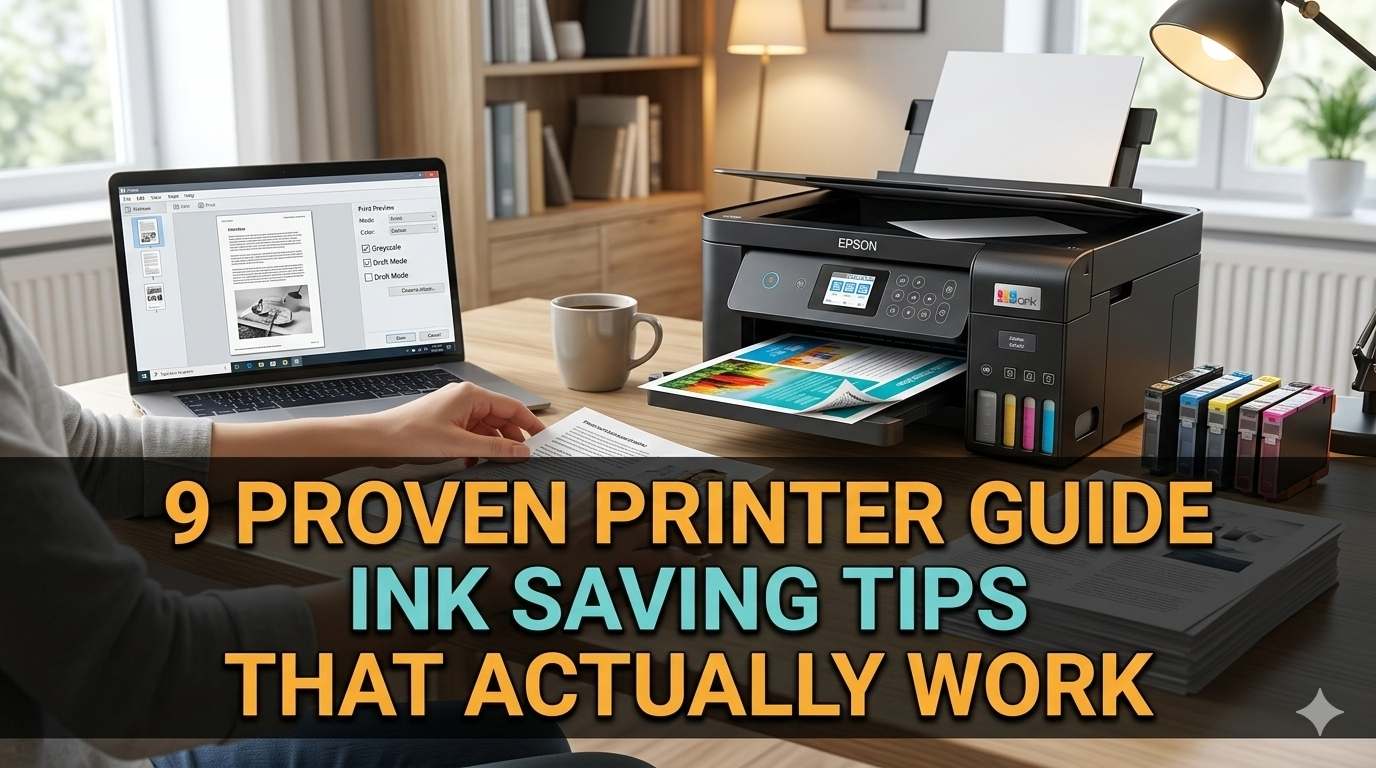
Meta Description: Printer guide ink saving tips can cut your printing costs dramatically. Discover 9 proven strategies that actually work to save ink, money, and time.
9 Printer Guide Ink Saving Tips That Work
Ink cartridges are shockingly expensive. Printer ink, in fact, is one of the priciest liquids on Earth — at times more costly than champagne or even human blood by the milliliter.
If you’ve ever changed out a cartridge after only several dozen prints, you know the pain. Your wallet suffers and you end up wondering where all the ink went.
The good news? You don’t have to keep losing money like this.
The printer guide ink saving tips discussed in this article provide you 9 practically tested strategies, which can drastically reduce the quantity of ink you use — without compromising on print quality where it matters most.
These tips can help you get the most out of every single cartridge, whether you print at home, school, or a small office.
Why Your Printer Is Eating Ink Faster Than You Realize
Before diving into the tips, it can be helpful to understand why printers go through ink so quickly.
The most common assumption is that they use excessive ink because they print too often. But what so often trips you up is lurking in your printer’s settings.
Here are the biggest ink-wasting habits that most people aren’t even aware of having:
- Printing in high-quality mode for common documents
- Printing in color when black-and-white would suffice
- Cleaning the print head too frequently (yes, this wastes ink)
- Using manufacturer default settings without customization
- Unintentionally printing full-page backgrounds or heavy graphics
Now that you know what’s killing your cartridges, here’s how to fix it.
Tip #1 — Use Draft Mode for Everyday Printing
This is the single simplest thing you can do right now.
Most printers come out of the box in “Normal” or “High Quality” mode. But for everyday documents — emails, notes, internal reports — you just don’t need that much quality.
Draft mode uses up to 50% less ink than standard mode. The text is a little lighter, but still perfectly legible.
How to Change Your Print Mode
- Open your document and press Ctrl + P (or Cmd + P on Mac)
- Click “Printer Properties” or “Preferences”
- Search for the option “Print Quality” or “Quality Settings”
- Choose “Draft,” “Economy,” or “Fast” mode
- Save as default so you don’t have to change it every time
Make high-quality mode something you switch on for special occasions — not the default you forget to switch back off.
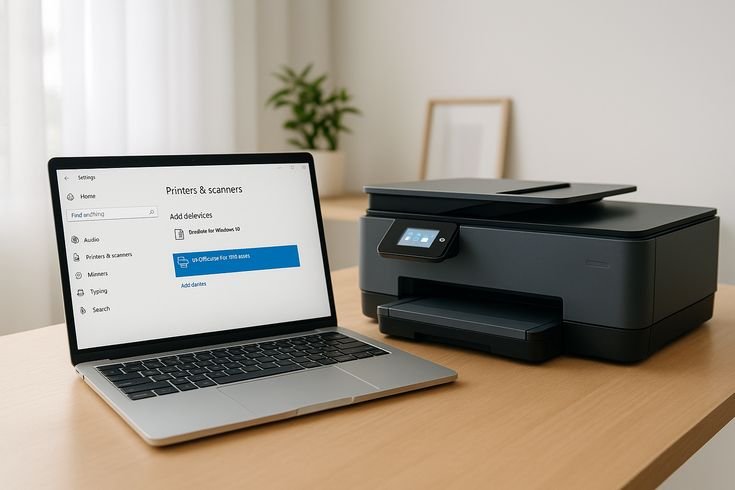
Tip #2 — Stop Printing in Color When You Don’t Have To
Color ink cartridges deplete quickly. And they often cost more than black ink does.
Here’s the thing: most documents don’t require color at all. Emails, homework, contracts, meeting notes — black and white works great for all of these.
The Simple Fix
Open your printer settings and change your default print mode to black-and-white (grayscale). Only switch to color when you’re printing photos, presentations, or other materials that actually need it.
| Print Type | Recommended Mode |
|---|---|
| Emails & letters | Black & White |
| Internal reports | Black & White |
| Homework & notes | Black & White |
| Presentations (shared externally) | Color |
| Photos | Color |
| Marketing materials | Color |
Making this one change can extend the life of your color cartridge for months.
Tip #3 — Choose the Right Font and Font Size
Your font choice can affect how much ink you use.
Certain fonts are inherently “heavier” — they have thicker strokes and require more ink to print. Others are lean and efficient.
Ink-Friendly Fonts to Use
These fonts are known to consume significantly less ink:
- Times New Roman — a classic, efficient serif font
- Garamond — uses up to 24% less ink than Arial
- Century Gothic — eco-friendly, clean appearance
- Ecofont — specially designed with small holes in letters to reduce ink use
Fonts That Waste More Ink
- Arial — popular but ink-heavy
- Impact — very thick strokes
- Verdana — wider letters consume more space and ink
Also, dropping your font size from 12pt to 11pt saves paper and ink without making text hard to read.
Small changes like these add up across hundreds of prints.
Tip #4 — Use Print Preview Every Time
This advice may seem basic, but it saves a tremendous amount of wasted ink and paper.
How often have you printed something and discovered the layout was wrong, there was a blank page at the end, or a large image printed when you only wanted text?
Print Preview shows you exactly how it will print before a single drop of ink is used.
What to Check in Print Preview
- Are there any blank pages at the end?
- Does any content get cut off on the edges?
- Are there unnecessary images or graphics you don’t need?
- Is the page count what you expected?
Getting into the habit of using Print Preview helps you avoid reprinting documents again and again — and reprints are one of the fastest ways to waste ink.
Tip #5 — Only Print What You Need
This is a big one that most people overlook.
When printing a webpage or a long document, you often end up with much more content than you need — ads, navigation bars, footers, sidebars, and blank space.
Three Smart Ways to Cut Down on Printing
1. Print only specific pages Instead of printing the whole document, enter just the page numbers you want. For example: “2-4, 7” prints only pages 2, 3, 4, and 7.
2. Select and print only the text you need Highlight what you’d like to print, press Ctrl + P, and choose “Print Selection.”
3. Use a browser extension for web pages Tools like “Print Friendly & PDF” remove ads, menus, and unnecessary images from a webpage before you print it. This can reduce a 6-page web printout down to just 2 pages.
Tip #6 — Adjust Your Margins to Fit More on Each Page
Default margins are generous. Most word processors set margins at 1 inch on all sides.
By reducing margins slightly, more content fits on each page — so you use fewer sheets and less ink overall.
Recommended Margin Settings for Everyday Use
| Margin Position | Default | Adjusted |
|---|---|---|
| Top | 1.0 inch | 0.75 inch |
| Bottom | 1.0 inch | 0.75 inch |
| Left | 1.0 inch | 0.75 inch |
| Right | 1.0 inch | 0.75 inch |
Combine this with double-sided printing and you can halve your paper use. Using less paper also means the printer runs for less time — which means less ink used per session.
Tip #7 — Avoid Frequent Automatic Print Head Cleanings
This surprises a lot of people.
When your printer performs a print head cleaning cycle, it flushes ink through the nozzles to remove clogs. The problem is — that ink just goes to waste. It doesn’t print anything. It simply gets absorbed by a pad inside your printer.
Some printers run these cycles automatically every time you turn them on or leave them idle. That means ink is literally running out before you’ve even printed one page.
If you’re already dealing with printer issues beyond ink waste, the Printer Troubleshoot Guide is a helpful resource for diagnosing and fixing common printer problems quickly.
How to Take Control of Cleaning Cycles
- Only run a cleaning cycle if print quality is truly suffering — such as when you see streaks or missing colors
- Check your printer settings and disable auto-cleaning where possible
- Leave your printer on if you use it regularly — repeatedly switching it off and on can trigger excess cleaning cycles
- Print a small test page once a week if you don’t print often. This prevents nozzles from drying out naturally, minimizing the need for forced cleaning
Signs You Actually Need a Cleaning Cycle
- Horizontal lines or streaks in your prints
- Missing sections of text or color
- Colors appear faded or uneven
If you don’t see these issues, skip the cleaning cycle altogether.
Tip #8 — Use Compatible or Refillable Cartridges Wisely
Brand-name cartridges are expensive. Everyone knows it.
Compatible (third-party) cartridges can cost 50–80% less than OEM (original equipment manufacturer) cartridges and perform well for most everyday printing.
Compatible vs. OEM Cartridges — A Quick Comparison
| Feature | OEM Cartridges | Compatible Cartridges |
|---|---|---|
| Price | High | Low to Medium |
| Print Quality | Excellent | Good to Very Good |
| Warranty Risk | None | Low (varies by brand) |
| Availability | Limited to brand | Wide selection |
| Eco-Friendliness | Standard | Often recycled materials |
Refillable cartridges go even further. You purchase the cartridge once and refill it with ink bottles when it runs dry. That can mean hundreds of dollars in savings over a year.
A Word of Caution
Not all compatible cartridges are created equal. Only purchase brands with good reviews on Amazon or printing specialty stores. Some lower-quality inks can clog your print heads over time.
Do your homework before you buy, and look for recent customer reviews specifically mentioning your printer model. According to Consumer Reports, third-party ink cartridges can deliver solid performance at a fraction of the cost when chosen carefully.
Tip #9 — Go Digital First, Print Only When You Have To
The best printer guide ink saving tip of all? Print less.
This might sound obvious, but millions of people print out of habit — not necessity.
Before every print job, ask yourself: “Do I really need a hard copy of this?”
Things You Can Stop Printing Right Now
- Emails — read and file them digitally
- Meeting agendas — share via Google Docs or email
- Invoices and receipts — archive as PDFs on your computer or in the cloud
- Reference documents — load them on your phone or tablet for easy access
- Draft versions — review on screen and only print the final copy
Digital Tools That Replace Printing
| Old Habit | Digital Alternative |
|---|---|
| Printing notes | Google Keep, Notion, OneNote |
| Printing forms | DocuSign, Adobe Fill & Sign |
| Printing directions | Google Maps on your phone |
| Printing receipts | Email receipts, PDF storage |
| Printing reports | Shared Google Docs or Dropbox |
Even reducing your print volume by 30% will significantly extend the life of every cartridge you purchase.
How Much Can You Actually Save? A Real-World Example
Let’s put some real numbers behind these tips.
Let’s say you’re currently paying $25/month on ink cartridges to print around 200 pages a month.
| Change Made | Estimated Monthly Savings |
|---|---|
| Switch to Draft Mode | Save ~$5 |
| Grayscale instead of color | Save ~$6 |
| Print only what’s needed | Save ~$3 |
| Use compatible cartridges | Save ~$8 |
| Reduce total print volume | Save ~$4 |
| Total Estimated Savings | ~$26/month |
That’s potentially over $300 a year — simply by adjusting a few habits and settings.

Quick-Reference Summary: 9 Tips for Saving Ink
Here’s a quick summary you can bookmark or print (just once!):
- Use Draft Mode for everyday documents
- Print in grayscale unless color is necessary
- Use ink-efficient fonts such as Garamond or Century Gothic
- Always use Print Preview before clicking print
- Print only the pages or text you really need
- Adjust your margins to fit more content per page
- Avoid unnecessary print head cleanings
- Switch to compatible or refillable cartridges
- Go digital first — print only when absolutely needed
FAQs About Saving Printer Ink
Q: Is Draft Mode going to make a noticeable difference in print quality?
For most text documents, Draft Mode is almost indistinguishable from Normal mode. The difference is more obvious for graphics or photos, but for regular text printing, it’s perfectly fine.
Q: Will using compatible cartridges void my printer warranty?
In most countries, using third-party cartridges will not void your warranty. Printer manufacturers might claim otherwise, but in many places consumer protection laws prevent them from artificially voiding a warranty for this reason. Check your local consumer rights laws to be certain.
Q: How do I disable automatic cleaning cycles on my printer?
This varies by printer model. Look in your printer software settings on your computer (typically under “Maintenance” or “Tools”). Some printers allow you to turn off auto-cleaning. Leaving your printer on instead of switching it off every night can also reduce the frequency of auto-cleaning.
Q: What font uses the least amount of ink?
Garamond is widely considered one of the most ink-efficient common fonts, using about 24% less ink than Arial at a similar size. Ecofont is another great option, specifically designed for eco-friendly printing.
Q: Does double-sided printing save ink?
Double-sided printing saves paper more than ink, but less paper used per job can reduce overall print volume over time, which indirectly helps save ink. Combined with other tips, it all adds up.
Q: How often should I run a print head cleaning?
Only run a cleaning cycle when visible print quality problems appear — streaks, lines, or missing colors. Do not run it as a preventive measure. A small amount of ink is wasted with each cleaning cycle.
Q: Can I refill my cartridges at home?
Yes, refill kits are available for many popular cartridge types. They take some practice to use properly, but can save a lot of money. Use ink specifically matched to your printer to avoid clogging.
Wrapping It All Up
Saving ink isn’t complicated. It’s largely about breaking old habits and making smart adjustments to the way you print.
The printer guide ink saving tips discussed in this article don’t require expensive equipment or technical skills. All it takes is a few minutes to adjust your settings, a bit more mindfulness before you print, and the willingness to go digital whenever possible.
Start by switching to Draft Mode, setting grayscale as your default, and installing Print Friendly on your browser. Just making these three changes will significantly affect the lifespan of your cartridges.
Then work your way through the rest of the list. Over weeks and months, these small habits add up to real, measurable savings.
Your printer will still be there when you need it. But your ink? It’s going to last a whole lot longer.






