
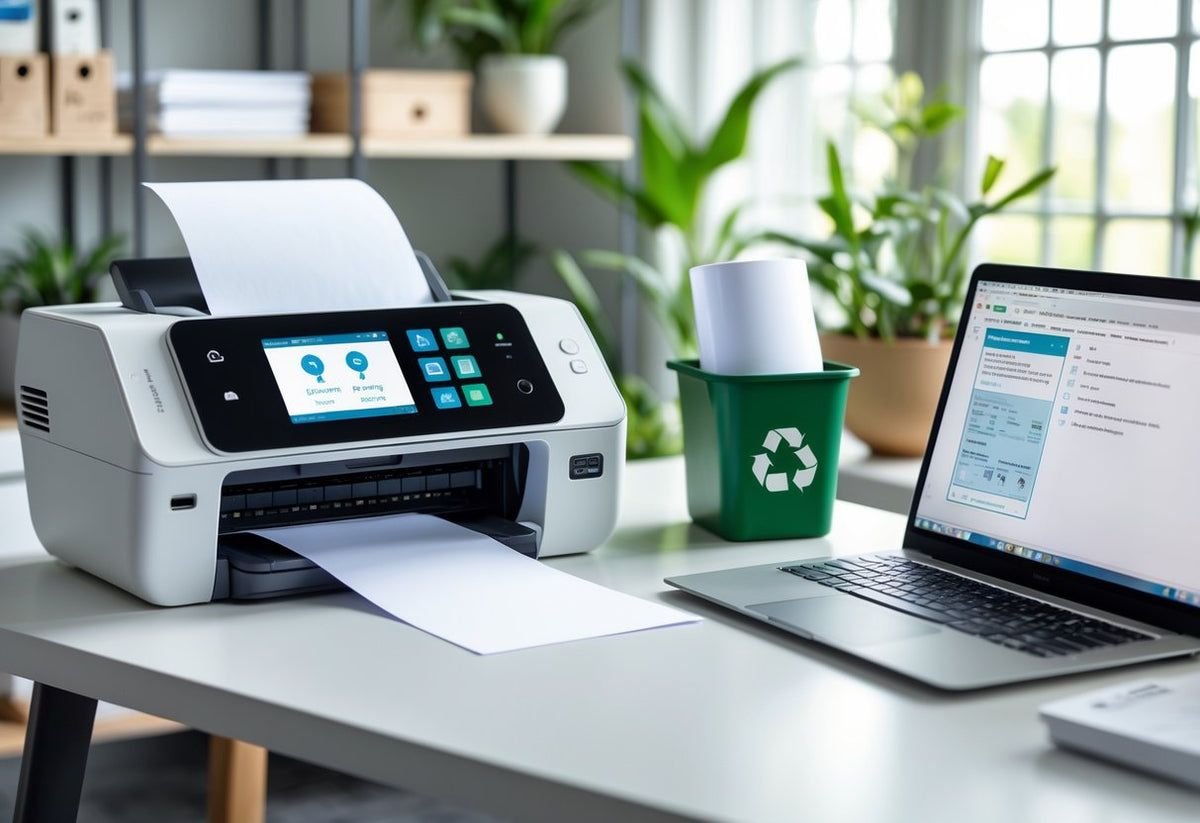
5 Secret Printer Troubleshooting Tips for Cartridge Errors
There’s a quiet kind of frustration that only a printer can deliver. You sit down, ready to print something important, maybe a document you’ve already postponed twice, and suddenly the screen flashes a message about cartridge errors. Not low ink. Not paper jam. Cartridge error. It sounds technical enough to be intimidating and vague enough to be unhelpful.
Over time, I’ve realized that cartridge errors are rarely as complicated as they seem. In fact, most of them fall into patterns—small mechanical quirks, overlooked settings, or simple communication failures between the printer and its ink system. What makes them feel like “secrets” is not their complexity, but how rarely they’re explained in a practical, human way.
This article is not a dry list of instructions. It’s a collection of lessons, observations, and practical fixes that go beyond the obvious. These are the kinds of troubleshooting tips people usually discover only after hours of trial and error.
Let’s get into it.
understanding cartridge errors before fixing them
Before jumping into solutions, it helps to understand what a cartridge error actually means. In most printers, especially inkjet models, the cartridge is not just a container of ink. It’s part of a system that includes sensors, electronic contacts, firmware checks, and sometimes even microchips embedded in the cartridge itself.
When a printer shows a cartridge error, it’s essentially saying one of the following:
- It can’t recognize the cartridge
- It thinks the cartridge is incompatible
- It believes the cartridge is empty or damaged
- It’s unable to communicate with the cartridge properly
The key takeaway is this: the problem isn’t always the ink. Sometimes, it’s the connection, the alignment, or even the software.
secret tip 1: the “invisible dust” problem
Most people clean their printers occasionally, but very few pay attention to the cartridge contacts—the tiny metallic strips that allow the printer and cartridge to communicate.
These contacts can accumulate microscopic dust, ink residue, or even oils from your fingers. The buildup is often invisible, but it can disrupt the electrical signals just enough to trigger an error.
Here’s how to deal with it properly:
Turn off the printer and unplug it. Remove the cartridge carefully. Look at the gold or copper-colored contacts on both the cartridge and inside the printer. Using a lint-free cloth slightly dampened with distilled water (not tap water), gently wipe the contacts. Let everything dry completely before reinstalling.
What makes this a “secret” tip is how subtle the issue is. You might look at the contacts and think they’re clean—but a barely visible layer can still cause problems.
Also, avoid using tissues or paper towels. They can leave fibers behind, making things worse.
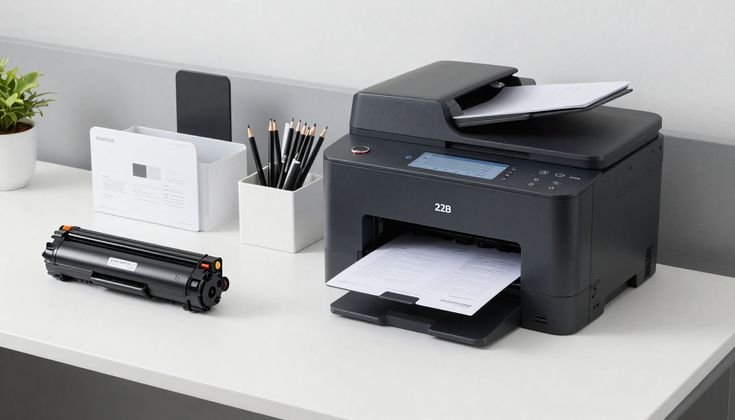
secret tip 2: reseating isn’t just “take it out and put it back”
You’ve probably heard the classic advice: remove the cartridge and reinstall it. But there’s a right way to do this that many people miss.
When you reseat a cartridge, you’re not just reconnecting it—you’re helping the printer recalibrate its internal recognition system.
Try this:
Remove the cartridge, then wait at least two minutes before putting it back. During that time, keep the printer powered on. This allows the printer to reset its cartridge detection cycle.
When reinstalling, don’t just push it in casually. Apply firm, even pressure until you hear or feel a click. That click matters—it confirms proper alignment.
Some printers are surprisingly sensitive. Even a slight misalignment can trigger an error, especially in models with multiple cartridges.
secret tip 3: firmware lockouts and how to outsmart them
Here’s something many users don’t realize: modern printers often use firmware to enforce cartridge compatibility. This means that even if your cartridge physically fits, the printer might reject it if it doesn’t recognize the chip.
This is especially common with third-party or refilled cartridges.
One workaround that often works:
Remove all cartridges, then power off the printer completely. Unplug it from the wall for about five minutes. Plug it back in, turn it on, and insert only one cartridge at a time.
Why does this help?
It forces the printer to rebuild its cartridge database step by step, instead of rejecting everything at once.
In some cases, you may also need to disable automatic firmware updates in the printer settings. Updates can introduce stricter compatibility checks, which may suddenly cause previously working cartridges to fail.
secret tip 4: temperature and environment matter more than you think
This is one of the most overlooked factors. Printers are sensitive to their environment, especially when it comes to ink cartridges.
If your printer is placed in a very cold room, the ink can thicken slightly, affecting how the cartridge performs. In hot environments, the ink can expand or evaporate faster, leading to inconsistent readings.
Even humidity plays a role. Excess moisture can interfere with electrical contacts, while extremely dry conditions can cause static buildup.
If you’re facing persistent cartridge errors, try this simple experiment:
Move the printer to a room with moderate temperature and humidity. Let it sit for an hour before turning it on again.
It sounds almost too simple, but environmental adjustments can resolve issues that seem purely technical.
secret tip 5: the “ghost cartridge” issue
Sometimes, the printer remembers a cartridge that isn’t even there anymore. This can happen after repeated replacements, especially if errors occurred during previous installations.
The result is a kind of “ghost” memory that confuses the printer.
To fix this:
Remove all cartridges. Turn off the printer and unplug it. Press and hold the power button for about 15–20 seconds (while unplugged). This helps discharge residual electrical memory.
After that, plug the printer back in, turn it on, and reinstall the cartridges.
This process acts like a soft reset, clearing temporary memory that may be causing the error.
why cartridge errors feel worse than they are
Part of the frustration comes from how printers communicate. Error messages are often vague, offering little guidance. You’re left guessing whether the issue is serious or trivial.
But in reality, most cartridge errors fall into three categories:
- Contact issues
- Recognition issues
- Environmental or alignment issues
Once you understand this, troubleshooting becomes less intimidating. Instead of feeling stuck, you start narrowing things down logically.
a small mindset shift that makes a big difference
One thing that helps is treating printer troubleshooting like a process of elimination rather than a single fix. Instead of expecting one solution to work instantly, think in steps.
Check the contacts. Then reseat. Then reset. Then consider environmental factors.
This approach not only increases your chances of success but also reduces frustration. You’re no longer guessing—you’re systematically solving.
practical checklist you can keep
Here’s a quick checklist you can follow whenever a cartridge error appears:
- Turn off and unplug the printer
- Remove cartridges carefully
- Clean contacts with a lint-free cloth
- Wait before reinstalling
- Ensure cartridges click into place
- Restart the printer properly
- Reinsert cartridges one by one if needed
- Check room temperature and humidity
- Perform a soft reset if the issue persists
Having a checklist turns a stressful situation into a manageable one.
real-world example: a stubborn cartridge error
I once dealt with a printer that refused to recognize a brand-new cartridge. It kept showing an error, even after multiple attempts.
At first, it seemed like a defective cartridge. But after cleaning the contacts, reseating it properly, and performing a soft reset, the printer suddenly recognized it.
The issue wasn’t the cartridge—it was a combination of minor factors that added up.
This kind of experience is surprisingly common. The problem feels big, but the solution is often a series of small adjustments.
when to stop troubleshooting
Of course, not every issue can be fixed at home. If you’ve tried everything and the error persists, it might be time to consider:
- A faulty cartridge chip
- A damaged printer contact
- Internal hardware failure
In such cases, replacing the cartridge or consulting a technician may be the best option.
The key is knowing when you’ve done enough. Endless troubleshooting can be more frustrating than helpful.
looking ahead: preventing cartridge errors
Prevention is always easier than fixing. Here are a few habits that can reduce the chances of cartridge errors:
- Store cartridges in a clean, dry place
- Avoid touching the contacts
- Use cartridges compatible with your printer model
- Keep the printer in a stable environment
- Turn off the printer properly instead of unplugging it abruptly
These small habits can make a noticeable difference over time.
closing thoughts
Printer cartridge errors have a reputation for being unpredictable and annoying. But once you understand the underlying causes, they become much more manageable.
The “secrets” aren’t really secrets—they’re just details that are often overlooked. Dust, alignment, memory, environment—these are simple factors, yet they have a big impact.
The next time your printer throws a cartridge error at you, don’t panic. Take a step back, follow a logical process, and remember that most problems have straightforward solutions.
And sometimes, the fix is as simple as cleaning something you can barely see.
frequently asked questions
- why does my printer say cartridge error even with a new cartridge
This usually happens due to contact issues, improper installation, or firmware compatibility checks. Even a new cartridge can fail if the printer cannot communicate with it properly. - can I use third-party cartridges without errors
Yes, but it depends on the printer. Some models accept them easily, while others may reject them due to firmware restrictions. Disabling automatic updates can sometimes help. - how often should I clean cartridge contacts
Only when you encounter issues. Over-cleaning isn’t necessary, but occasional cleaning during errors can prevent bigger problems. - does refilling cartridges cause more errors
Refilled cartridges can sometimes trigger errors if the chip isn’t reset or if the refill process affects the cartridge’s internal structure. - can temperature really affect printer cartridges
Yes, extreme temperatures can change ink behavior and interfere with cartridge detection, especially in sensitive printers. - what should I do if none of the fixes work
If you’ve tried all troubleshooting steps, consider replacing the cartridge or checking for hardware issues in the printer itself.






