
7 Real Printer Troubleshooting Fixes That Actually Worked
There’s something oddly frustrating about printers. They sit quietly for days, sometimes weeks, and then the moment you need them urgently, they decide to protest. A blinking light, a vague error message, or worse, complete silence. Over the years, I’ve dealt with enough printer issues to realize one thing: most problems are not as complicated as they seem, but they rarely fix themselves without a bit of patience and a smarter approach.
This isn’t a list of generic advice you’ve already read a hundred times. These are real fixes—practical, sometimes unexpected, occasionally frustrating—that actually worked in real situations. Think of it as a field guide, not a manual.
Let’s get into it.
- The “phantom offline” problem that wasn’t really offline
The situation:
Everything looks fine. The printer is powered on, connected to Wi-Fi, and even shows as “ready.” Yet your computer insists it’s offline.
What actually worked:
Instead of restarting everything (which is the usual advice), the fix came from digging into the printer queue itself.
Steps that solved it:
- Open the printer queue
- Cancel all pending jobs
- Disable “Use Printer Offline” if it’s checked
- Restart only the print spooler service (not the entire computer)
What’s interesting here is that the issue wasn’t the printer—it was a stuck print job confusing the system. Once cleared, everything resumed instantly.
Mini checklist:
- Check queue before restarting devices
- Look for paused or stuck jobs
- Toggle offline/online setting manually
Takeaway:
Sometimes the problem isn’t connectivity—it’s backlog confusion.
- The mysterious paper jam with no paper in sight
The situation:
Printer insists there’s a paper jam. You open every compartment. Nothing.
What actually worked:
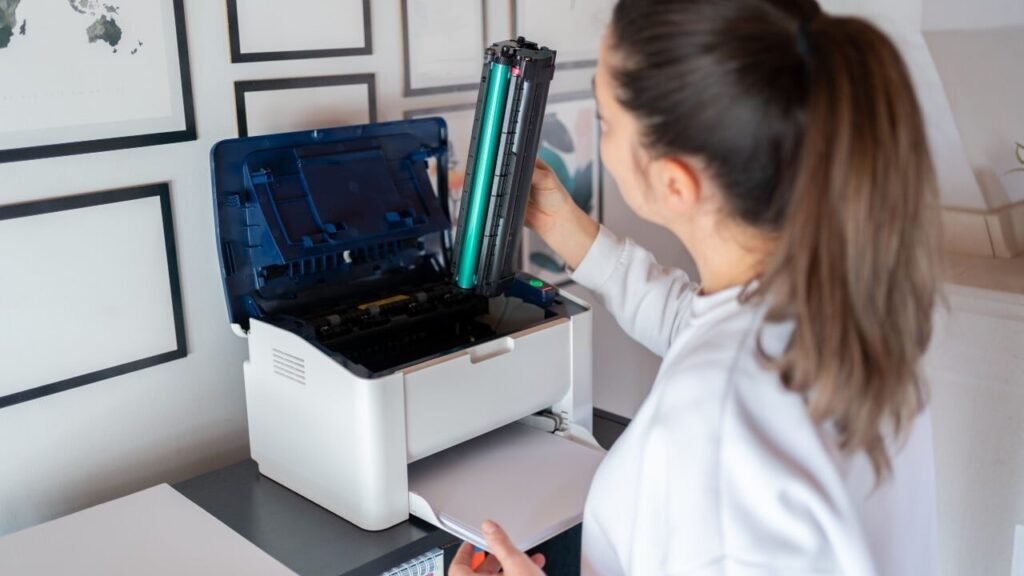
A deep clean of the paper path—not just visually, but physically.
Here’s what made the difference:
- Remove the tray completely
- Use a flashlight to inspect internal rollers
- Rotate rollers manually (if possible)
- Use a thin piece of cardstock to gently sweep through the path
In one case, the culprit was a tiny torn piece of paper stuck near a sensor. Invisible at first glance, but enough to trigger the error.
Try this quick method:
Take a thick sheet, feed it manually, and gently guide it through. If there’s resistance, something is blocking the path.
Takeaway:
Printers don’t lie about jams—but they don’t always tell you where to look.
- The “low ink” warning that wasn’t actually low
The situation:
Printer refuses to print due to low ink, even after installing a new cartridge.
What actually worked:
Resetting the cartridge recognition rather than replacing it again.
Steps that helped:
- Remove the cartridge
- Turn off the printer
- Unplug it for 2–3 minutes
- Reinsert cartridge firmly
- Restart printer
In some cases, gently cleaning the cartridge contacts with a dry cloth made a difference.
Why it happens:
The printer tracks ink levels via internal memory, not actual measurement. If that memory doesn’t reset, the warning persists.
Quick tip:
Avoid removing cartridges too frequently—it can confuse the tracking system.
Takeaway:
Ink warnings are sometimes about memory, not ink.
- The print job that disappears into nothing
The situation:
You click print. The job appears briefly… then vanishes. Nothing prints.
What actually worked:
Reinstalling the printer driver wasn’t the solution. The real fix was resetting the spooler completely.
Steps:
- Stop the print spooler service
- Delete all files in the spooler folder
- Restart the spooler
- Reconnect the printer
This cleared hidden errors that weren’t visible in the queue.
A small trick:
After resetting, send a test page before printing anything important.
Takeaway:
If jobs vanish, the spooler is often the silent culprit.
- The Wi-Fi printer that kept disconnecting randomly
The situation:
Printer connects fine… then drops off the network unpredictably.
What actually worked:
Assigning a static IP address instead of relying on automatic assignment.
Steps:
- Access printer network settings
- Set a manual IP within your router’s range
- Update printer port settings on your computer
This stabilized the connection immediately.
Why this matters:
Routers can reassign IP addresses, and printers don’t always handle that gracefully.
Quick analogy:
Think of it as giving your printer a permanent home address instead of letting it move around.
Takeaway:
Stability often comes from consistency, not stronger signals.
- The faded prints that cleaning cycles couldn’t fix
The situation:
Prints come out faded or streaky. Multiple cleaning cycles don’t help.
What actually worked:
Manual printhead cleaning—not the automated kind.
Method:
- Remove printhead (if removable)
- Soak in warm (not hot) distilled water
- Let it dry completely
- Reinstall carefully
In stubborn cases, a small amount of isopropyl alcohol helped dissolve dried ink.
Important note:
This requires patience. Rushing the drying process can cause more damage.
Observation:
Automated cleaning cycles often waste ink without solving deep clogs.
Takeaway:
Sometimes hands-on cleaning beats built-in tools.
- The driver error that wasn’t about the driver
The situation:
Computer shows a driver error. Printer won’t respond.
What actually worked:
Switching the connection method temporarily.
Instead of fixing the driver immediately:
- Connect via USB instead of Wi-Fi
- Print a test page
- Then switch back to network mode
This “resets” the communication layer between devices.
Why it works:
It forces the system to re-establish a fresh connection pathway.
Bonus tip:
After reconnecting, update the driver—not before.
Takeaway:
Sometimes you fix software issues by changing hardware paths.
A quick troubleshooting mindset shift
Most people approach printer issues like this:
“Something is broken. I need to fix it.”
A better approach:
“What assumption is the printer making that isn’t true?”
This small shift helps you think differently:
- Is it really offline?
- Is it really out of ink?
- Is there really a jam?
More often than not, the printer is reacting to outdated or incorrect information.
A practical troubleshooting flow you can follow
Next time your printer acts up, try this sequence:
- Check the queue
- Look for physical obstructions
- Restart only necessary services (not everything)
- Verify connection stability
- Reset components individually
- Test with a simple print job
Avoid doing everything at once. Isolate the problem.
Real-world observation notes
- Most printer issues are software-related, even when they look mechanical
- Error messages are often misleading, not wrong
- Restarting works—but it’s usually masking the real issue
- Small things (like dust or tiny paper bits) cause big problems
Frequently Asked Questions
- Why does my printer say offline when it’s clearly on?
This usually happens due to a stuck print job or incorrect system status. Checking the print queue and disabling “Use Printer Offline” often fixes it without needing a full restart.
- Is it safe to manually clean a printhead?
Yes, but only if done carefully. Use distilled water or appropriate cleaning solutions, and always let the printhead dry completely before reinstalling.
- Why do print jobs disappear without printing?
This is often caused by a corrupted print spooler. Clearing the spooler files and restarting the service usually resolves the issue.
- How do I prevent my Wi-Fi printer from disconnecting?
Assigning a static IP address is one of the most effective ways to maintain a stable connection. It prevents the printer from “losing its place” on the network.
- Do I need to replace ink cartridges immediately when warned?
Not always. Sometimes the warning is based on estimated levels. Resetting the cartridge or reseating it can extend usability.
- What’s the first thing I should check when a printer fails?
Start with the simplest thing: the print queue. It’s surprising how often the problem starts there.
Final thoughts
Printers aren’t as unpredictable as they seem. They follow logic—sometimes flawed, sometimes outdated—but still logic. Once you understand that, troubleshooting becomes less about guesswork and more about observation.
These fixes worked not because they were complicated, but because they addressed the real cause instead of the obvious symptom. And that’s the difference between temporary relief and an actual solution.
The next time your printer misbehaves, don’t rush to replace it or reset everything blindly. Pause, observe, and test one thing at a time. You’ll likely solve it faster—and with far less frustration.






