
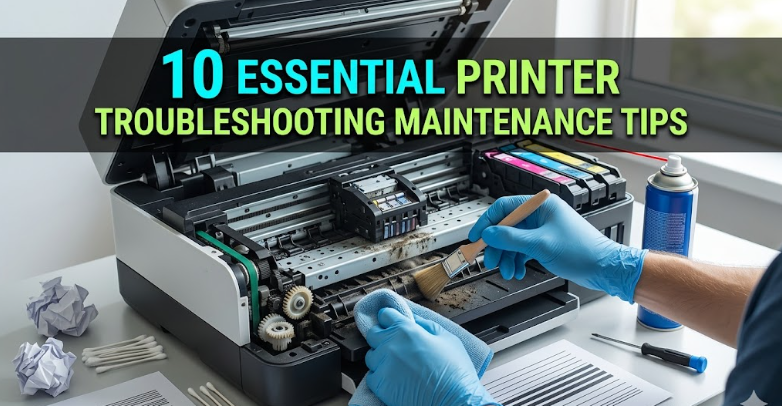
10 Essential Printer Troubleshooting Maintenance Tips
Printers are one of those devices people don’t think much about—until they stop working. One day they quietly produce clean, crisp pages, and the next they refuse to cooperate, flashing mysterious error messages or spitting out streaky, faded prints. Whether you rely on a printer for work, school, or home use, learning how to maintain and troubleshoot it properly can save time, money, and frustration.
This guide goes beyond surface-level advice. It walks through real-world, practical maintenance habits and troubleshooting steps that beginners and experienced users alike can apply. Each section focuses not only on what to do, but also why it matters, so you can develop a deeper understanding of how printers behave.
- Keep your printer clean—inside and out
Dust, paper fibers, and dried ink are silent enemies of any printer. Over time, these small particles accumulate inside the machine and interfere with its mechanical and electronic components.
Start with the exterior. Wipe down the surface with a soft, lint-free cloth to prevent dust from entering vents and paper trays. For the interior, open accessible panels and gently remove visible debris. Use compressed air cautiously—short bursts are better than prolonged spraying, which can push debris further inside.
Pay special attention to rollers and paper paths. Dirty rollers can cause paper jams or misfeeds. A slightly damp cloth (with water, not chemicals) can help clean rubber rollers effectively.
Think of this as routine hygiene. A clean printer operates more smoothly, lasts longer, and produces better output.
- Use high-quality paper and supplies
It’s tempting to save money by using cheap paper or third-party ink cartridges, but these can often lead to bigger issues. Low-quality paper sheds more fibers, increasing internal buildup. It may also be uneven in thickness, which can confuse the printer’s feeding mechanism.
Similarly, off-brand ink or toner might not be formulated for your printer model. This can result in clogged printheads, inconsistent color output, or even hardware damage over time.
This doesn’t mean you must always buy the most expensive options. Instead, look for reliable brands and ensure compatibility with your printer model. Over time, better supplies reduce maintenance needs and improve consistency.
- Run regular printhead cleaning cycles
If you’re using an inkjet printer, clogged printheads are one of the most common issues. Ink can dry up in the tiny nozzles, especially if the printer isn’t used frequently.
Most printers include a built-in cleaning function. Running this occasionally helps keep ink flowing properly. However, avoid overusing it—cleaning cycles consume ink and can wear components if done excessively.
A good habit is to print something small once every few days, even if it’s just a test page. This keeps the ink moving and reduces the risk of clogs forming in the first place.
- Keep your printer firmware and drivers updated
Printers are not just mechanical devices—they rely heavily on software. Outdated drivers or firmware can cause compatibility issues, especially after operating system updates.
If your printer suddenly stops responding, prints incorrectly, or disconnects frequently, outdated software could be the culprit.
Visit the manufacturer’s website periodically to check for updates. Many modern printers also support automatic updates, which you can enable in the settings.
Updating might feel like a minor task, but it often resolves unexplained issues and improves performance in subtle ways.
- Check connections and network settings
When a printer goes offline, people often assume it’s broken. In reality, many issues stem from simple connectivity problems.
For wired printers, check USB or Ethernet cables to ensure they are securely connected. Try a different port or cable if needed.
For wireless printers, confirm that the printer is connected to the correct Wi-Fi network. Routers can reset or switch channels, causing printers to lose connection. Restarting both the printer and router can often restore communication.
Also, verify that your computer recognizes the printer. Sometimes the system defaults to another device or marks the printer as offline.
Connectivity troubleshooting is often quick and straightforward, yet it solves a large percentage of common problems.
- Prevent and clear paper jams properly
Paper jams are among the most frustrating printer issues, but handling them incorrectly can cause lasting damage.
When a jam occurs, resist the urge to pull the paper out forcefully. Instead, turn off the printer and open the access panels. Follow the paper path and gently remove the jammed sheet in the direction it would normally travel.
Inspect for torn pieces—small fragments left behind can cause repeated jams. Also check the paper tray to ensure it isn’t overloaded or misaligned.
Preventive steps include:
– Using the correct paper type and size
– Aligning paper guides properly
– Avoiding overfilling the tray
A little care in handling paper can significantly reduce these interruptions.
- Monitor ink and toner levels proactively
Running out of ink or toner mid-job is inconvenient, but letting levels drop too low can also affect print quality.
Printers often give early warnings about low supplies. Take these seriously and plan replacements in advance. Printing with very low ink can cause fading, streaking, or incomplete pages.
Additionally, replacing cartridges before they are completely empty helps maintain consistent output and prevents air from entering the system, which can contribute to clogs.
Keeping a spare cartridge on hand is a simple but effective way to avoid disruptions.
- Align and calibrate your printer regularly
Misaligned prints—where text appears blurry or images are slightly off—are often the result of alignment issues.
Most printers include an alignment or calibration function. Running this process ensures that printheads are properly positioned and colors are accurately layered.
Calibration is especially important after installing new cartridges or moving the printer. Even slight shifts can affect precision.
Regular alignment checks help maintain professional-looking results and prevent gradual quality degradation.
- Place your printer in a suitable environment
Environmental conditions play a bigger role than many people realize. Printers are sensitive to temperature, humidity, and dust levels.
Avoid placing your printer in direct sunlight or near heat sources. Excessive heat can dry out ink and warp internal components.
High humidity can cause paper to absorb moisture, leading to curling or feeding issues. On the other hand, very dry environments can increase static, affecting paper handling.
Choose a stable, clean location with moderate conditions. It might seem like a small detail, but it contributes significantly to reliability.
- Perform periodic deep maintenance checks
Beyond daily habits, it’s important to occasionally perform a more thorough inspection.
This can include:
– Checking for worn-out rollers
– Inspecting belts and moving parts
– Cleaning internal components more carefully
– Reviewing error logs or diagnostic reports
Some printers provide built-in maintenance menus that guide you through these checks. For more complex issues, consulting a professional technician may be worthwhile.
Think of this as preventive care. Addressing small issues early prevents them from turning into costly repairs later.
Putting it all together
Printer maintenance is not about one-time fixes—it’s about building consistent habits. Most problems don’t appear suddenly; they develop gradually due to neglect, improper use, or environmental factors.
By combining cleaning, proper supply usage, software updates, and mindful operation, you create a system where issues are less likely to occur. And when they do, you’ll have the knowledge to resolve them efficiently.
A well-maintained printer doesn’t just work better—it feels reliable. You press “Print” with confidence, knowing the result will meet your expectations.
Frequently Asked Questions (FAQs)
- Why does my printer print blank pages even though the ink is not empty?
This often happens due to clogged printheads or air bubbles in the ink system. Running a printhead cleaning cycle and checking cartridge installation usually resolves the issue. - How often should I clean my printer?
Light cleaning (external and visible dust) can be done weekly, while deeper cleaning should be done every 1–2 months depending on usage. High-use environments may require more frequent attention. - Is it okay to leave my printer unused for long periods?
Leaving a printer unused, especially inkjet models, can lead to dried ink and clogged nozzles. It’s best to print at least once every few days to keep the system active. - What should I do if my printer keeps going offline?
Check network connections, restart both the printer and router, and ensure the correct printer is selected on your device. Updating drivers can also fix recurring offline issues. - Can I use third-party ink cartridges safely?
Some third-party cartridges work well, but others may cause compatibility or quality issues. If you choose to use them, ensure they are from a reputable brand and designed for your printer model. - Why do paper jams happen so frequently?
Frequent jams are usually caused by improper paper loading, worn rollers, or low-quality paper. Ensuring proper alignment and using good-quality paper can significantly reduce the problem.
By applying these tips consistently, you not only fix problems as they arise but also prevent many of them from happening in the first place. A little attention goes a long way in keeping your printer dependable and efficient.






