
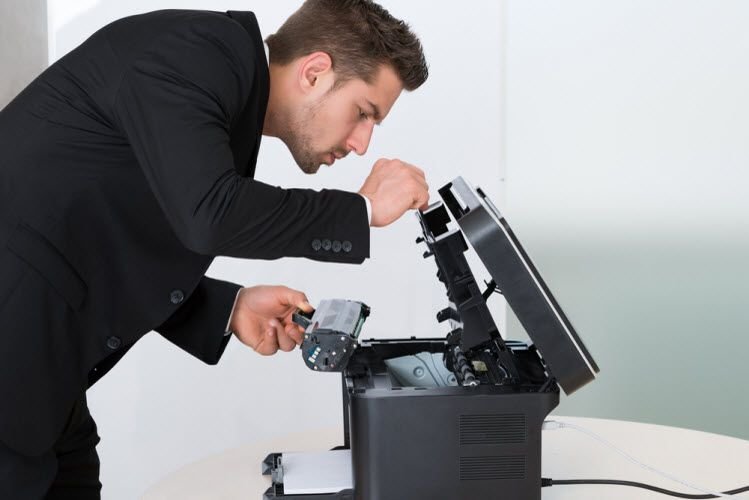
Let me tell you something embarrassing. I once stood in front of my HP OfficeJet for 45 minutes, pressing buttons, unplugging cables, restarting my laptop — all because I needed to print one single boarding pass before catching a flight. The printer kept showing “offline” even though it was clearly on and connected. I almost missed my flight. Almost.
If you’ve ever had a moment like that, you already know printer problems aren’t just annoying — they feel personal. Like the machine is doing it on purpose.
After years of dealing with printers at home, in small offices, and helping friends and family fix theirs, I’ve built up a solid list of things that actually work. Not the generic “turn it off and on again” advice you find everywhere — real, tested fixes that I’ve used myself.
Here’s everything I wish someone had told me earlier.
1. Stop Guessing — Check the Printer Queue First
This is the number one thing people skip, and it causes so much unnecessary frustration.
When your printer isn’t printing, your first instinct might be to restart everything. But half the time, there’s just a stuck print job sitting in the queue, blocking everything behind it.
Here’s how to clear it on Windows:
- Press Windows + R, type
services.msc, and hit Enter - Scroll down to Print Spooler, right-click it, and select Stop
- Now go to
C:\Windows\System32\spool\PRINTERSand delete everything inside that folder (not the folder itself) - Go back to Services, right-click Print Spooler, and click Start
On Mac, it’s even simpler. Go to System Settings > Printers & Scanners, click your printer, and check the print queue. Delete whatever’s stuck.
I’ve fixed “printer not responding” issues in under two minutes doing exactly this. No reboots, no drama.
2. The “Offline” Status Lie — And How to Fix It
Your printer shows “offline” but it’s clearly powered on and connected. Welcome to one of the most common printer lies in existence.
This usually happens because Windows caches the printer’s last known status and doesn’t update it automatically. The fix is straightforward:
Go to Control Panel > Devices and Printers, right-click your printer, and select See what’s printing. In the menu bar, click Printer and uncheck Use Printer Offline if it’s checked.
If that doesn’t work, try setting the printer as default. Sometimes Windows is just sending jobs to a ghost printer you removed six months ago.
For wireless printers specifically, this “offline” problem often comes from the printer grabbing a new IP address after a router restart. Your computer is still trying to reach the old one. I’ll cover that in tip #6.
3. Driver Problems Are More Common Than You Think
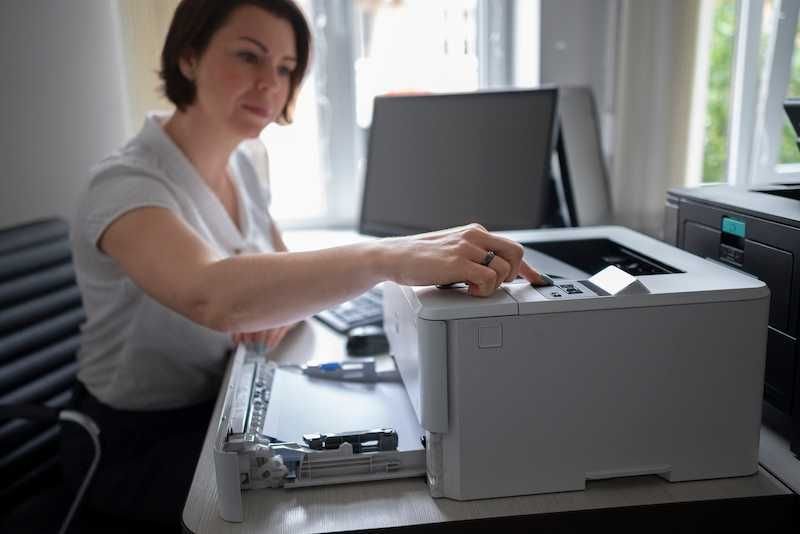
Outdated or corrupted drivers are responsible for a surprisingly large number of printer failures. This isn’t just a “new printer” issue — even printers you’ve used for years can suddenly stop working after a Windows update quietly breaks their driver.
The safest approach: go directly to the manufacturer’s website (HP, Canon, Epson, Brother — whoever made your printer) and download the latest driver manually. Don’t rely on Windows Update for this. It’s often months behind.
If you’re on Windows 11, driver conflicts have become more frequent. After a major Windows update, it’s actually worth uninstalling your printer completely from Devices and Printers, restarting, and reinstalling fresh.
For a step-by-step walkthrough on getting drivers right the first time, 4 Easy Printer Guide Methods to Install Printer Drivers Correctly is genuinely useful — covers both USB and wireless driver installs clearly.
4. Wi-Fi Connectivity Drops — The Real Culprit
If your wireless printer keeps disconnecting, especially after being idle for a while, there’s a decent chance your router’s power-saving settings are kicking it off the network.
Most home routers have something called DHCP lease time — basically, how long a device can hold an IP address before the router reassigns it. If your printer’s IP changes and your computer doesn’t know, communication breaks.
The fix that actually works long-term: assign your printer a static IP address.
Here’s how:
- Find your printer’s current IP (usually in Settings > Network Info or by printing a network status page)
- Log into your router admin panel (usually
192.168.1.1or192.168.0.1) - Find DHCP Reservation or Address Reservation
- Assign your printer’s MAC address a permanent IP
Once I did this for my Epson EcoTank, it never showed “offline” randomly again. That was two years ago.
| Problem | Likely Cause | Fix |
|---|---|---|
| Printer goes offline randomly | IP address keeps changing | Set static IP via router |
| Printer not found on network | Wrong Wi-Fi band (5GHz vs 2.4GHz) | Connect printer to 2.4GHz |
| Slow wireless printing | Network congestion | Restart router, move printer closer |
| Can’t connect after router change | Old SSID/password saved | Reconnect via printer’s Wi-Fi setup |
5. Paper Jams That Aren’t Really Paper Jams
This one surprised me the first time it happened. My Brother printer kept flashing a paper jam error, but when I looked inside — nothing. No paper. No torn bits. Nothing.
Turns out, small pieces of paper (or even dust) can get caught in sensors without being visible to the naked eye. The sensor thinks there’s a jam even when there isn’t one.
What actually helped:
- Turn the printer off and unplug it completely
- Open every access panel — front, back, and the tray underneath if your model has one
- Use a flashlight and look carefully at the rollers
- Use a slightly damp lint-free cloth to wipe the rollers gently
- Let everything dry before powering back on
Also worth checking: the paper you’re using. Printers are picky about paper thickness and quality. I once used cheap copy paper that was slightly damp from storage, and it caused three jams in a row. Switched to a fresh ream, problem gone.
6. Print Quality Looks Terrible — Before You Buy New Ink
Streaky prints, faded lines, weird colors — most people immediately assume they’re out of ink. Sometimes that’s true. But often, the problem is something else entirely.
Clogged print heads are the silent killer of print quality. If you haven’t printed in a few weeks, ink dries in the nozzles.
Every printer brand has a built-in head cleaning utility:
- HP: Go to printer software > Tools > Clean Printhead
- Epson: Maintenance > Head Cleaning (run 2-3 cycles if needed)
- Canon: Maintenance > Cleaning or Deep Cleaning
- Brother: Ink > Improving Print Quality
Run the cleaning cycle, then print a test page. Do this two or three times if needed. Fair warning — it uses a bit of ink, so don’t go overboard.
If cleaning doesn’t help, check your print settings. Accidentally printing in “Draft” or “Economy” mode will make everything look pale and rough. It’s an easy thing to overlook.
For more on this, 8 Secret Printer Guide Settings That Improve Print Quality Instantly goes into some settings I genuinely hadn’t thought to check until I read something similar years ago.
7. The Print Spooler Service — Windows’ Hidden Problem Child
If your printer jobs disappear without printing, or your printer queue shows jobs as “Error” or “Deleting” but they never actually go away, the Print Spooler service is almost certainly broken.
I mentioned clearing the spooler in tip #1, but sometimes the service itself gets corrupted and needs a more thorough reset.
Here’s the more complete fix:
- Open Command Prompt as Administrator
- Type:
net stop spoolerand press Enter - Then:
del /Q /F /S "%systemroot%\System32\spool\PRINTERS\*.*" - Then:
net start spooler
This stops the service, wipes all pending jobs, and restarts clean. It’s saved me on multiple occasions when the GUI method didn’t fully work.
If the spooler keeps crashing repeatedly, you might have a deeper driver conflict. In that case, removing and reinstalling the printer completely (drivers included) is the cleanest solution.
8. USB Connection Issues That Aren’t About the Cable
So you’re using a USB printer, everything worked fine yesterday, and now your computer doesn’t recognize it at all. You swap cables, nothing changes. You try a different USB port, still nothing.
Here’s what’s probably happening: Windows assigned a new COM port or device path and lost track of the printer’s identity.
Fix it by going to Device Manager (right-click Start > Device Manager), expanding Printers or Other Devices, finding your printer (it might show with a yellow warning triangle), right-clicking, and selecting Uninstall Device.
Unplug the USB cable, wait 30 seconds, plug it back in. Windows will reinstall the device fresh. Nine times out of ten, this works immediately.
9. Printer Works But Only From One Computer
This is a classic home/small office problem. You can print fine from your laptop, but your desktop (or your spouse’s computer) can’t find the printer at all.
If the printer is connected via USB to one computer and shared over the network, check that printer sharing is enabled:
- Go to Control Panel > Network and Sharing Center > Advanced sharing settings
- Make sure Turn on file and printer sharing is selected
- Also check that the host computer (the one the printer is physically connected to) is always on when others want to print
If it’s a network/wireless printer, the issue might be that the second computer is on a different network segment, or has a firewall blocking printer discovery. Temporarily disabling the firewall to test is a quick way to confirm this.
I once spent an hour troubleshooting this on a friend’s home network, only to realize his desktop was connected to a guest Wi-Fi network (separate from the main one the printer was on). Moved him to the main network, done in 30 seconds.
10. When Your Printer Randomly Stops Mid-Job
Printer starts, prints a few pages, then stops completely. Sometimes it resumes on its own, sometimes it doesn’t. This one’s maddening.
Common causes:
- Low memory on the printer itself (happens with large files or high-res images)
- Unstable Wi-Fi signal dropping the connection mid-job
- Power-saving mode kicking in during long print jobs
- Corrupted print file (try converting to PDF and printing again)
The fastest test: send a simple, small text document to print. If that works fine but your original file doesn’t, the file itself is likely the issue. Convert it, resize images, or split it into smaller sections.
For wireless printers, move the printer closer to the router temporarily and try again. If it works, you’ve found your problem — the signal was dropping mid-job.
Disabling power-saving/sleep mode on the printer (usually in the printer’s own settings menu) also helps if the printer is going idle between pages of a long document.
11. When Nothing Works — The Nuclear Option
Sometimes you’ve tried everything and the printer still isn’t cooperating. Before giving up or calling a technician, there’s one more thing worth trying: a factory reset on the printer itself.
Most printers have a reset option buried in their settings menu. For wireless printers, this will erase all saved networks and return settings to default — which is exactly what you want when something is fundamentally broken in the printer’s configuration.
After the reset:
- Reinstall drivers fresh on your computer
- Reconnect to Wi-Fi from scratch
- Don’t restore any old settings — set it up like new
I’ve seen printers that were “broken” for weeks work perfectly after a factory reset and clean reinstall. It feels drastic but it’s often the fastest path to a solution when nothing else is working.
For a practical checklist before you consider calling someone in, 6 Essential Printer Guide Checks Before Calling a Technician is worth going through — it might save you a service call fee.
Common Mistakes People Make (That Make Things Worse)
A few things I’ve seen — and done myself — that just make printer problems harder to fix:
Clicking “Print” repeatedly when nothing is happening. Every click adds another job to the queue. By the time the printer comes back online, it tries to print 14 copies of the same document.
Ignoring firmware updates. Most people don’t know their printer even has firmware, let alone that it needs updating. Check the manufacturer’s website or the printer’s built-in update tool occasionally.
Using third-party ink without researching compatibility. Generic ink isn’t always bad, but some printers (especially Epson) are very particular. Wrong ink can clog heads faster and trigger false “low ink” warnings.
Not restarting the router when troubleshooting network printer issues. The printer isn’t always the problem — sometimes the router just needs a refresh.
A Quick Diagnostic Checklist
Before diving into any of the fixes above, run through this fast:
| Check | Yes | No |
|---|---|---|
| Is the printer powered on with no error lights? | ✅ | Restart the printer |
| Is it connected (USB plugged in or Wi-Fi connected)? | ✅ | Reconnect |
| Is there paper in the tray? | ✅ | Add paper |
| Is the print queue clear? | ✅ | Clear stuck jobs |
| Is the correct printer selected in the app? | ✅ | Change default printer |
| Are drivers up to date? | ✅ | Update from manufacturer site |
Running through this takes about two minutes and eliminates the most common causes immediately.
Printers haven’t changed all that much in a decade, but the ways they can fail have multiplied — wireless connectivity, driver conflicts, smarter power-saving modes. Most problems, though, still have simple explanations and simple fixes. You just need to know where to look.
The boarding pass situation I mentioned at the start? It turned out my printer had assigned itself a new IP after I restarted my router the night before. Five minutes with the router admin panel, static IP set, and it’s never happened again.
For more hands-on help with common printer setup problems, check out 11 Smart Printer Guide Solutions for Network Printer Setup Problems — it covers network-specific issues in a lot more detail and is genuinely worth bookmarking if you have a wireless printer at home.