
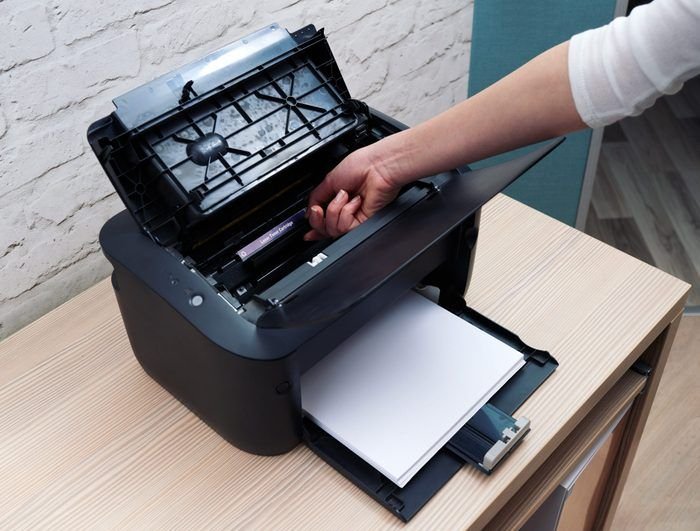
Let me be honest with you — I’ve thrown a pillow at my printer before. Not proud of it, but when you’re trying to print an urgent document 10 minutes before a meeting and your printer just sits there blinking at you like it has no idea what you want, something snaps inside.
If you’ve ever been there, this guide is for you.
I’ve dealt with paper jams, ghost offline errors, spooler crashes, ink smears, and Wi-Fi disconnects more times than I can count. Over the years — both at home and helping family members fix their setups — I’ve collected a solid set of troubleshooting moves that actually work. Not the generic “turn it off and on again” stuff (though yes, we’ll cover why that actually matters), but real, practical fixes.
Let’s get into it.
1. Start With the Obvious — But Do It Right
Everyone says restart your printer. But most people just flip the power switch off and back on within two seconds. That’s not a restart — that’s a flicker.
Here’s how to actually do it properly:
- Turn off the printer using its power button
- Unplug it from the wall (not just the USB)
- Wait a full 60 seconds
- Plug it back in, then power it on
That 60-second wait lets the internal memory fully clear. I’ve had printers that showed “offline” for hours suddenly come back to life after doing this one step correctly.
Also restart your computer or phone — whatever you’re printing from. A fresh connection on both ends solves a surprising number of issues.
2. Check the Printer Queue — It’s Probably Clogged
This one tripped me up badly when I first started working from home. I kept hitting “Print” over and over because nothing was coming out. Turns out, I had 47 pending jobs piled up in the queue, and the whole thing was frozen.
Here’s how to clear it on Windows:
- Press Windows + R, type
services.msc, hit Enter - Find Print Spooler, right-click → Stop
- Open File Explorer and go to:
C:\Windows\System32\spool\PRINTERS - Delete all files inside that folder (don’t delete the folder itself)
- Go back to Services, right-click Print Spooler → Start
On Mac, go to System Settings → Printers & Scanners, select your printer, and open the queue to cancel stuck jobs.
This fix alone has saved me more times than I’d like to admit. If your printer seems to be doing nothing even though it says it’s printing, the queue is almost always the problem.
For more detailed help on this, check out these 5 Simple Printer Guide Fixes for Printer Queue Problems.
3. Update or Reinstall the Printer Driver
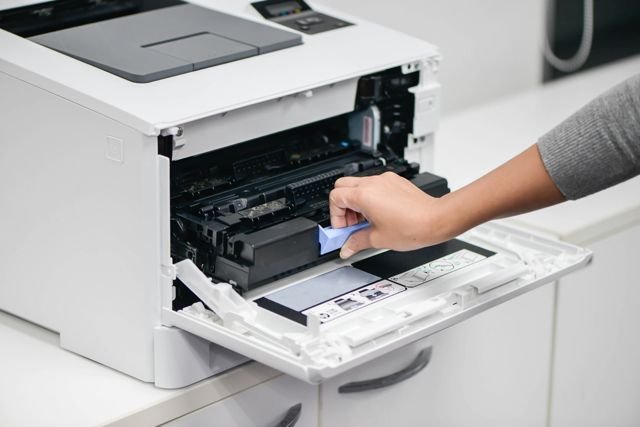
Drivers are small software files that let your computer talk to your printer. When they get corrupted — which happens after Windows updates, software conflicts, or random bad luck — things go sideways fast.
Signs your driver might be the issue:
- Printer shows up in your device list but won’t print
- You get cryptic error codes
- Print quality suddenly changed for no reason
- The printer worked fine last week and you changed nothing
What to do:
Go to the official website of your printer brand — HP, Canon, Epson, Brother — and search for your exact model. Download the latest driver directly. Don’t rely on Windows auto-installing one. Manufacturer drivers are almost always better.
Before installing, uninstall the current driver completely. On Windows, go to Device Manager, find your printer under “Print queues,” right-click → Uninstall Device, and check the box to remove the driver software too.
Then install the fresh one. Takes about 10 minutes and fixes a lot.
| Symptom | Likely Cause | Fix |
|---|---|---|
| Printer shows offline | Driver/connection issue | Reinstall driver or reset connection |
| Print queue stuck | Spooler crash | Clear spooler manually |
| Smudged/faded prints | Low ink or dirty heads | Run head cleaning utility |
| Printer not detected | USB/Wi-Fi config issue | Reconnect and update driver |
| Slow printing | Background apps, old driver | Update driver, check settings |
4. Fix the “Printer Offline” Error (This One’s Sneaky)
The offline error is probably the most frustrating because the printer is literally right there, powered on, connected — and yet Windows insists it’s offline.
Here’s what usually works:
Step 1: Go to Control Panel → Devices and Printers
Step 2: Right-click your printer → See what’s printing
Step 3: In the menu bar, click Printer and uncheck “Use Printer Offline” if it’s checked
Step 4: Also uncheck “Pause Printing” if that’s enabled
If it’s still showing offline, try setting the printer as default:
- Right-click your printer → Set as default printer
- Then go back and try printing again
For Wi-Fi printers specifically, the offline error often happens because the printer grabbed a new IP address from your router but your computer still has the old one saved. The fix? Print a network configuration page directly from the printer (most have this in the settings menu), note the IP address, and update it in your printer port settings on your PC.
I once spent two hours on this before I figured out the IP address trick. Don’t make my mistake.
5. Troubleshoot Wi-Fi Connection Problems Like a Pro
Wireless printers are convenient until they’re not. Mine drops connection every time there’s a firmware update or when the router restarts. Here’s a system that’s worked reliably for me:
Assign a static IP to your printer
Most home routers automatically assign IP addresses, which can change. Log into your router (usually at 192.168.1.1 or 192.168.0.1), find your printer in the connected devices list, and set its IP to static. This way, it never changes, and your computer always knows where to find it.
Put your printer on the 2.4GHz band
Most printers don’t support 5GHz Wi-Fi. If your router broadcasts both bands with the same name, your printer might struggle to connect properly. Create a separate SSID for 2.4GHz and connect the printer specifically to that.
Check for interference
Microwaves, baby monitors, and even some cordless phones can interfere with 2.4GHz signals. If your printer is in the kitchen or near any of those, try moving it.
These 6 Powerful Printer Guide Tips for Wireless Printer Setup go into even more depth if you want to dig into wireless issues specifically.
6. Fix Paper Jam Errors — Even When There’s No Paper Stuck
Here’s something weird that happened to me: I got a paper jam error, cleared the jam, and the error wouldn’t go away. The printer refused to work even with a completely clear paper path.
Turns out, this happens more than you’d think. The sensor that detects paper position can get confused, especially after a real jam.
How to reset it:
- Turn off the printer completely and unplug it
- Open every door — front, rear, side access panels
- Gently feel through the paper path for any tiny scraps of paper (even a tiny torn corner can trigger the sensor)
- Use a flashlight — seriously, it helps
- Once everything looks clear, close all panels, plug back in, and power on
If the error persists after a full clear and restart, check your printer’s maintenance menu. Many HP and Canon models have a built-in reset option buried in the settings menu that clears stuck error states.
Also — use the right paper. I learned this the hard way when I loaded some cheap glossy paper into a printer that wasn’t designed for it. The sheet bent mid-feed and jammed in a place I could barely reach. Stick to the paper type recommended in your printer’s manual.
7. Fix Print Quality Issues — Streaks, Smudges, and Fading
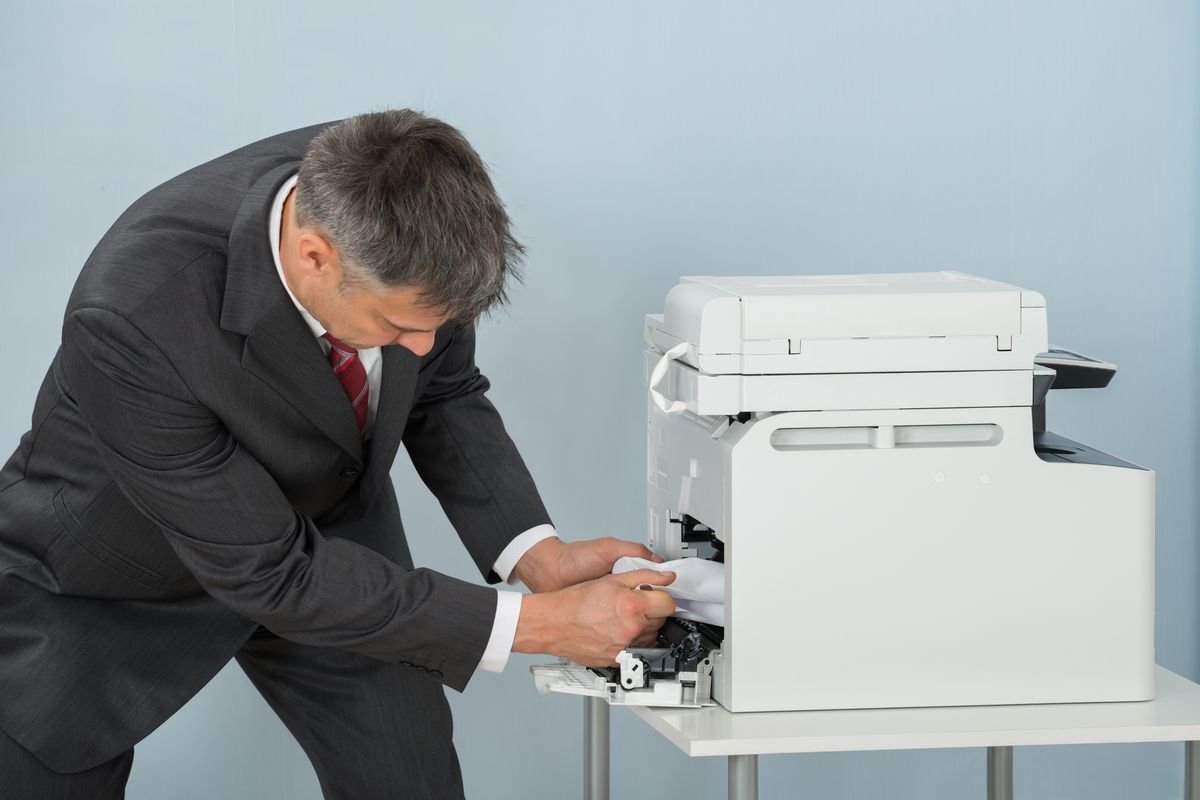
If your prints look terrible — horizontal lines across the page, faded sections, or ink smearing everywhere — the issue is usually one of these three things:
Low ink or toner — Check ink levels through your printer’s software or on the printer screen itself. Even if it says “some ink remaining,” very low levels cause poor quality before the “empty” warning triggers.
Clogged print heads — This is super common in inkjet printers that aren’t used often. Ink dries in the nozzles and blocks them.
Fix: Run the printhead cleaning utility from your printer’s software (usually under Maintenance or Tools). Do it once, print a test page. If lines are still there, run it one more time. Don’t run it more than twice in a row — it wastes a lot of ink.
Dirty drum or rollers — For laser printers, a dirty drum causes streaks. Most laser printers have a cleaning page option you can print directly from the menu. It looks like a solid black page and physically cleans the drum as it runs through.
Here’s a quick reference:
| Print Problem | Type | Likely Fix |
|---|---|---|
| Horizontal streaks | Inkjet | Clean print heads |
| Vertical lines | Laser | Clean drum unit |
| Smearing | Both | Check paper type, let dry |
| Faded prints | Both | Low ink/toner |
| Blotchy patches | Inkjet | Shake cartridge, replace |
8. Handle Driver Conflicts After a Windows Update
This one is so common after Windows updates and almost nobody talks about it. Your printer worked perfectly on Monday, Windows updated overnight, and now Tuesday morning it’s completely broken.
What happens is the update sometimes replaces your printer driver with a generic Microsoft one, which doesn’t support all your printer’s features and can cause all kinds of weird behavior.
The fix:
- Go to Settings → Windows Update → Update History
- Look for any driver updates that installed recently
- Go to Device Manager → Print queues
- Right-click your printer → Update driver → Browse my computer → Let me pick from a list
- Select the correct manufacturer driver if it’s listed, or download fresh from the brand website
Also check out these 4 Quick Printer Guide Ways to Fix Driver Error Problems for a more step-by-step breakdown of driver-specific issues.
One more thing — after a bad Windows update, sometimes the printer port gets reassigned. Go to Printer Properties → Ports tab and make sure the correct port is selected (usually USB001 for USB printers or the IP address for network ones).
9. Know When to Reset Everything and Start Fresh
Sometimes nothing works. You’ve cleared the queue, reinstalled drivers, restarted everything twice, checked connections — and the printer is still acting possessed.
That’s when you do a factory reset.
Most printers have this option in the settings menu under something like Restore defaults or Factory reset. For HP printers, you can also initiate a semi-full reset by holding specific button combinations during startup (check your model’s manual or HP’s support site for the exact combo).
After a factory reset:
- Reconnect to Wi-Fi from scratch
- Reinstall the driver on your computer
- Set the printer as default again
- Print a test page
Yes, it takes 20-30 minutes. But it’s essentially a clean slate, and about 80% of the time it fixes whatever stubbornly refused to resolve.
One mistake to avoid here: Don’t reset and then just reconnect with the same old settings copy-pasted from before. The whole point is to rebuild the connection cleanly. Take the extra few minutes to set it up properly from zero.
Common Mistakes That Make Printer Problems Worse
A few things I’ve seen people do (and done myself) that actually make things harder:
- Hitting Print 10 times when nothing’s happening — you’re just stuffing the queue
- Ignoring firmware updates — printer manufacturers push fixes through firmware; keep it updated
- Using third-party ink in the wrong printer — some printers actively reject non-OEM cartridges with a firmware check; know your printer before buying cheap ink
- Covering the ventilation slots — printers need airflow; a laser printer that overheats starts producing terrible prints
- Never cleaning the exterior — dust gets into the paper feed rollers and causes misfeeds over time
Final Thoughts
Printers have gotten better over the years, but they’re still one of those devices that can go from perfectly fine to completely unresponsive without any obvious reason. The good news is that most problems have a fix — it just takes knowing where to look.
The tips above have gotten me out of some genuinely frustrating situations. Work through them in order when something goes wrong. Start simple (the queue, the restart), then go deeper (drivers, ports, factory reset) if needed.
And if you want to make sure you’re not missing something at the maintenance level — things that prevent problems before they start — this is a great read: 10 Smart Printer Guide Maintenance Habits That Extend Printer Life