
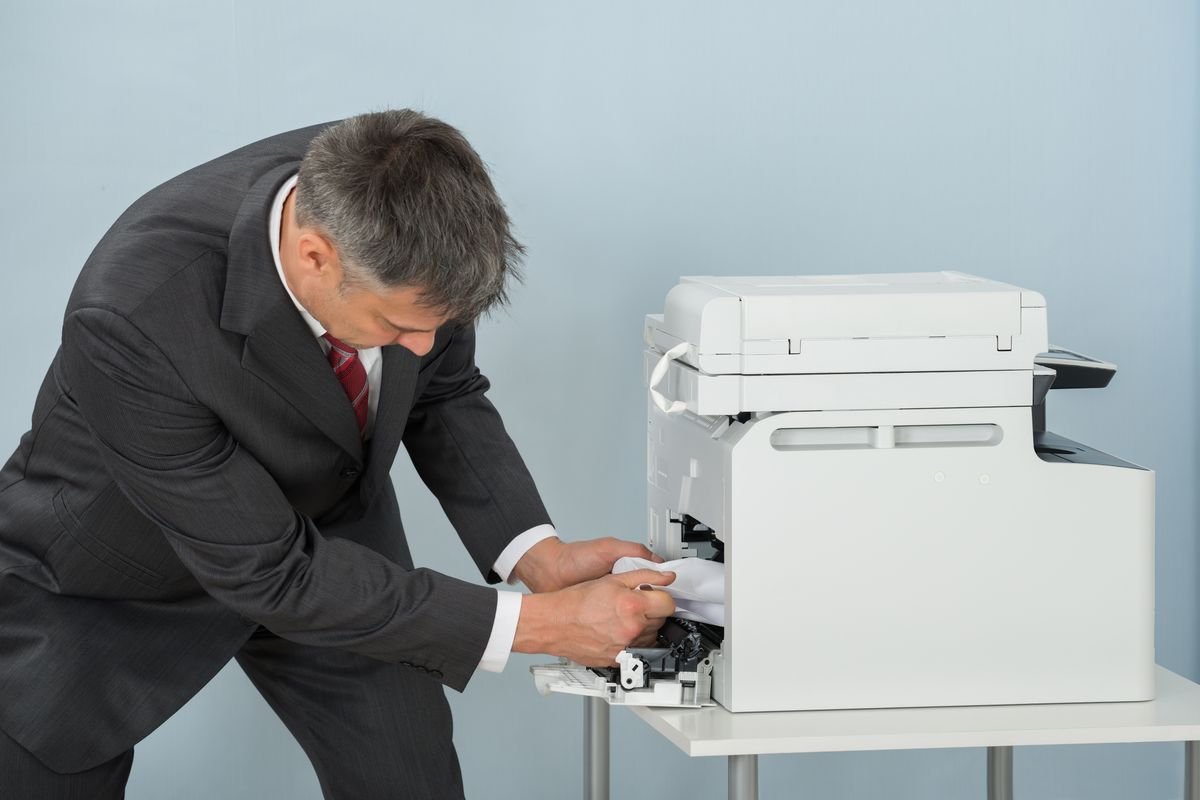
So there I was, fifteen minutes before a client meeting, trying to print a two-page proposal. The printer? Completely silent. No error sound, no blinking light — just nothing. I clicked “Print” four more times thinking maybe it just needs encouragement. Spoiler: it didn’t help. I ended up showing the proposal on my laptop screen like it was a PowerPoint presentation from 2009.
That day I decided I was done being clueless about printer issues. I started paying attention, taking notes, and slowly building a mental checklist of things that actually work. These six tips are exactly what I go through now whenever my printer decides to take an unscheduled vacation.
1. Check the Obvious Stuff First (Yes, Really)
I know this sounds embarrassing to mention, but you’d be surprised how many times the “big printer problem” turned out to be a loose USB cable or a printer that somehow got switched to offline mode. I’ve been there more than once.
Before you dive into driver reinstalls or settings menus, physically walk up to the printer and check:
- Is it powered on? (Not sleep mode — actually on)
- Is the USB or ethernet cable securely plugged in on both ends?
- If it’s wireless, is it connected to the same Wi-Fi network as your computer?
- Is there paper in the tray? Is it loaded correctly?
- Any warning lights blinking?
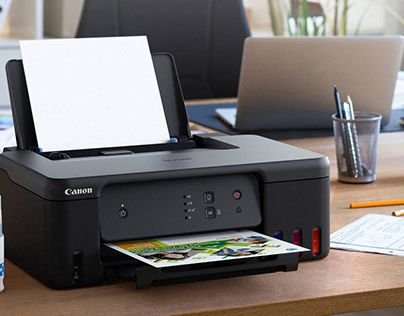
That last one catches people off guard. My Canon PIXMA has this subtle amber light that blinks when the paper isn’t seated right. It doesn’t make a sound. You’d only notice it if you actually looked at the printer instead of staring at your screen.
One more thing — check if your printer is set as the default printer on your PC. Go to Settings > Bluetooth & devices > Printers & scanners, find your printer, and make sure it’s set as default. Windows sometimes randomly assigns a different default after updates, and your print job quietly goes to a “Microsoft Print to PDF” or some virtual printer that doesn’t actually print anything.
2. Clear the Print Queue — This One Saves Me Every Single Time
The print queue is basically a waiting line for documents to get printed. When something goes wrong mid-print — power cut, paper jam, connection drop — that document can get stuck in the queue. And here’s the thing: a stuck document blocks everything behind it. Your new print jobs sit there waiting for a job that will never finish.
Here’s exactly how I clear it on Windows:
- Press Windows + R, type
services.msc, hit Enter - Scroll down to Print Spooler, right-click, and select Stop
- Open File Explorer and navigate to:
C:\Windows\System32\spool\PRINTERS - Delete all the files inside that folder (not the folder itself — just the contents)
- Go back to services, right-click Print Spooler, and select Start
- Try printing again
This whole thing takes about two minutes and fixes a surprisingly large percentage of “printer not responding” issues. I’ve done this so many times it’s basically muscle memory now.
On Mac, it’s simpler — go to System Settings > Printers & Scanners, click your printer, open the print queue, and delete the stuck jobs manually.
You can also check out this guide on 9 Powerful Printer Guide Steps to Fix Windows Printer Errors if you’re hitting Windows-specific issues that go beyond the queue.
3. Restart the Right Way (Not Just the Printer)
Most people restart just the printer. That sometimes works, but what really works is a full restart sequence in the right order. I learned this the hard way after spending 45 minutes troubleshooting a wireless connection issue that a proper restart fixed in three minutes.
Here’s the sequence I follow:
| Step | What to Do | Wait Time |
|---|---|---|
| 1 | Turn off the printer | — |
| 2 | Turn off your router | 30 seconds |
| 3 | Restart your computer | Full restart, not sleep |
| 4 | Turn the router back on | Wait for full connection |
| 5 | Turn the printer back on | Let it fully initialize |
| 6 | Try printing a test page | — |
The router restart is the part most people skip. Your printer gets an IP address from the router. Sometimes that IP gets confused, especially if the printer was off for a while and then reconnected. The router restart forces a fresh IP assignment and often clears up ghost connection issues instantly.
4. Update or Reinstall the Printer Driver
Drivers are the software that lets your computer talk to your printer. When Windows updates, sometimes the existing driver gets mismatched or partially corrupted. I’ve had this happen twice after major Windows 11 updates — printing just silently stopped working.
How I handle it:
First, I check Device Manager. Right-click Start > Device Manager > Printers. If there’s a yellow warning icon next to your printer, the driver is the issue.
To fix it:
- Go to your printer manufacturer’s website (HP, Canon, Epson, Brother — they all have support pages)
- Search for your exact printer model
- Download the latest driver for your OS version
- Uninstall the old driver first — go to Settings > Apps and search for your printer software, uninstall it completely
- Run the new installer
Don’t download drivers from random third-party sites. Stick to the official manufacturer website. I made that mistake once with a “driver updater” app that installed something I definitely didn’t ask for.
If you want a deeper look at this, 4 Easy Printer Guide Methods to Install Printer Drivers Correctly is worth reading through.
5. Run the Built-In Troubleshooter (It’s More Useful Than You Think)
Okay, I’ll be honest — I used to dismiss Windows’ built-in troubleshooter as basically useless. Just a thing Microsoft put there so you’d feel like you had options. I was wrong.
About a year ago, my HP LaserJet stopped printing after I connected it to a new router. I tried everything. Manually. For an hour. Out of frustration, I ran the printer troubleshooter, and within 30 seconds it told me exactly what was wrong: the printer port had been reassigned to an incorrect address after the network change. It fixed it automatically.
How to run it on Windows 11:
Go to Settings > System > Troubleshoot > Other troubleshooters, then scroll down to Printer and click Run.
On Windows 10, it’s under Settings > Update & Security > Troubleshoot > Additional troubleshooters > Printer.
It won’t solve everything, but it catches configuration errors, spooler problems, and connectivity mismatches that are genuinely annoying to dig into manually. Run it before you spend an hour going down rabbit holes.
On Mac, the equivalent is removing the printer from System Settings > Printers & Scanners and re-adding it. macOS often re-detects the correct driver and configuration automatically when you add it fresh.
6. Check Your Wireless Settings if It’s a Network Printer
Wireless printing is convenient until it isn’t. And when it breaks, it breaks in ways that are really hard to diagnose without knowing where to look.
The most common wireless printing problems I’ve personally dealt with:
Printer connected to wrong band: Most modern routers broadcast both 2.4GHz and 5GHz networks. Some printers — especially older ones — only support 2.4GHz. If your phone or laptop connects to the 5GHz band and your printer is on 2.4GHz, they’re technically on the same network but communication can still get flaky. Make sure your printer is connected to the same band as your computer, or check if your router has “band steering” that might be switching things around.
IP address keeps changing: If your printer gets a different IP address every time it reconnects, your computer might lose track of it. The fix is to assign your printer a static IP address — either through the printer’s own network settings menu or through your router’s DHCP reservation settings. This keeps the printer at the same address every time.
Firewall blocking printer: I’ve seen this happen on corporate networks and even on home setups with third-party antivirus software. The firewall blocks the communication port the printer uses. If everything else looks fine but wireless printing still doesn’t work, temporarily disable your firewall and try printing. If it works, you’ll need to add a firewall exception for your printer.
Here’s a quick wireless printing checklist I actually keep on a sticky note near my desk:
| Issue | Quick Check |
|---|---|
| Printer offline | Restart router + printer in sequence |
| Printer not found | Check Wi-Fi band (2.4 vs 5GHz) |
| Intermittent connection | Assign static IP to printer |
| Can’t print from one device only | Check firewall / security software |
| Setup from scratch failing | Use WPS button method on router |
For wireless-specific setups, this breakdown of 6 Powerful Printer Guide Tips for Wireless Printer Setup has some solid step-by-step guidance too.
Common Mistakes People Make (That I’ve Also Made)
Clicking “Print” multiple times: Every time you click print, another copy of the job queues up. So when the printer finally connects, it prints ten copies of your document. Clear the queue first, then send one job.
Skipping the test page: Most printers have a built-in test page option. Print one directly from the printer (not your computer) to confirm the hardware itself is working. If the test page prints but computer jobs don’t, it’s a software/driver/connection issue — not a hardware one.
Not checking ink or toner: I know it seems obvious, but I once spent 20 minutes troubleshooting before realizing my cyan cartridge was completely empty and the printer was refusing to print anything, even black-only documents, because of that. Check all cartridges. Some printers won’t print at all if even one color is out.
Ignoring error codes: Printers display error codes for a reason. Instead of dismissing them, just Google the exact code with your printer model. It almost always leads directly to the fix. I’ve solved paper jam errors, cartridge recognition errors, and firmware issues this way in under five minutes.
Using incompatible paper: This one surprised me. Some printers are picky about paper thickness and size. If you’re using card stock or specialty paper without adjusting the printer settings, you’ll get jams and feed errors constantly. Always match your paper type in the print settings before sending the job.
A Quick Reference: Which Fix to Try First
| Symptom | Start Here |
|---|---|
| Printer not showing up | Check connections + default printer setting |
| Jobs stuck, not printing | Clear print queue + restart spooler |
| Prints one page then stops | Check paper tray + cartridge levels |
| Wireless keeps disconnecting | Static IP + router restart sequence |
| Print quality is bad | Clean print heads + check ink levels |
| Error code on screen | Google the code + your printer model |
| Works sometimes, not always | Update driver + check firewall |
Final Thoughts
Printer problems are genuinely frustrating — mostly because they always seem to happen at the worst possible time. But once you have a system, they stop feeling like disasters and start feeling like minor interruptions.
My honest approach: I always start with the physical stuff (cables, power, paper), then move to software (queue, spooler, driver), and then tackle the network side if it’s a wireless printer. That order alone has saved me from going in circles more times than I can count.
The fixes above aren’t complicated. You don’t need to be a tech person to do any of them. You just need to know where to look — and now you do.
Also worth reading: If you want to go even deeper on diagnosing problems before they become serious, check out 6 Essential Printer Guide Checks Before Calling a Technician — it covers a solid pre-call checklist that could save you a service fee.