
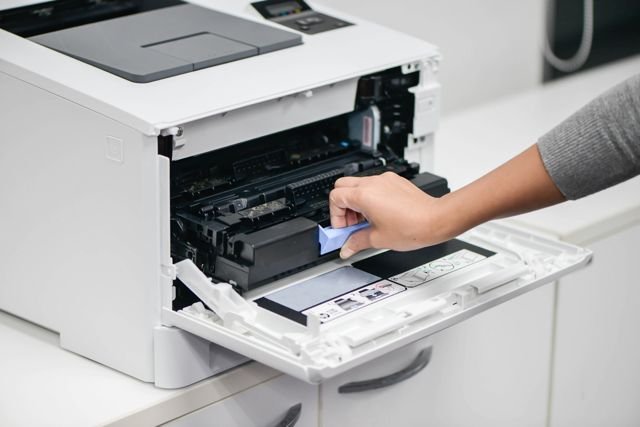
Last Tuesday, I had a client presentation in two hours. I hit print. Nothing happened. The printer just sat there — lights blinking, completely ignoring me like I owed it money.
I’ve been working from home for over four years now, and I’ll be honest: printer problems have caused me more stress than any difficult client ever has. And the worst part? Most of the fixes are embarrassingly simple once you know them.
So instead of letting you lose your mind at 9 AM before an important meeting, here are the 7 printer troubleshoot tips I now swear by. These aren’t copy-pasted from a manual — these are the things I’ve actually done, in my actual home office, with real printers.
1. Restart Everything — Yes, Everything
I know this sounds like a joke. But I can’t tell you how many times this has genuinely fixed my printer issues. Not just the printer — I mean the printer, the router, and the computer. All three.
Here’s what I do:
- Turn off the printer using the power button (don’t just yank the cord).
- Restart the router — unplug it, wait 30 seconds, plug it back in.
- Restart the computer fully (not sleep — actually restart).
- Once everything is back on, turn the printer on last.
The reason this works is that printers communicate through network sessions and driver states that can get “stuck.” A full restart clears all of that. I’ve fixed at least six “unexplainable” connection issues just with this one step alone.
2. Check the Printer Queue — It’s Probably Clogged
This one tripped me up for months. I’d try to print something and wonder why nothing was happening — only to discover there were 11 stuck print jobs from three days ago silently blocking everything.
On Windows, go to Settings → Bluetooth & Devices → Printers & Scanners, click your printer, then open the print queue. Delete everything in there, even completed jobs.
On Mac, go to System Settings → Printers & Scanners, select your printer, and open the queue from there.
If the queue won’t clear (which happens more than it should), you might need to restart the Print Spooler service. On Windows:
- Press Windows + R, type
services.msc, hit Enter. - Scroll down to Print Spooler.
- Right-click → Restart.
That usually does the trick. If you want a deeper dive into why the spooler keeps acting up, check out 8 Proven Printer Guide Fixes for Printer Spooler Problems — it covers some edge cases I hadn’t even thought of.
3. Update or Reinstall the Printer Driver
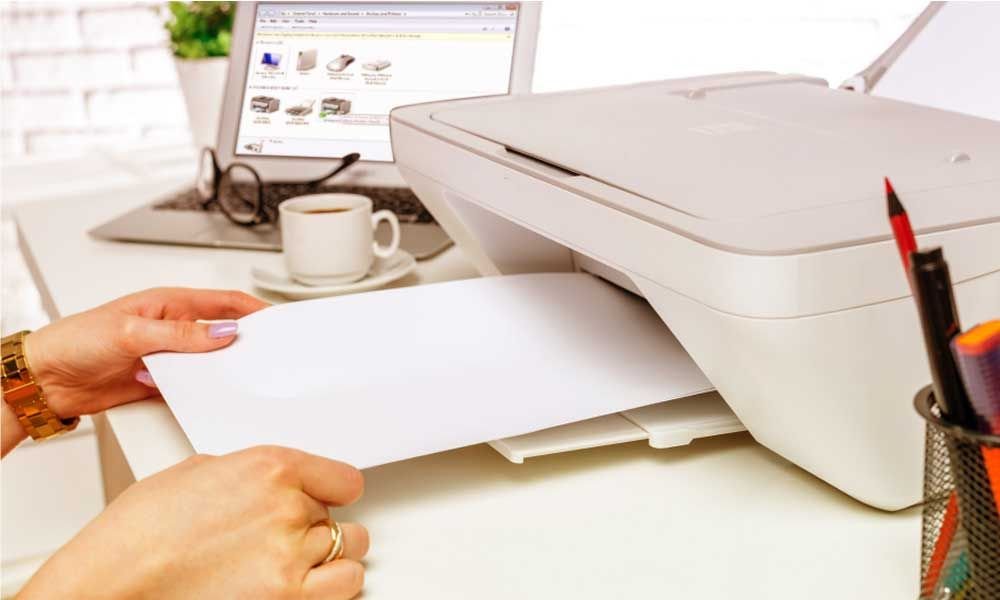
Drivers are the invisible glue between your computer and your printer. When they go bad or become outdated — especially after a Windows update — your printer can suddenly stop working without any obvious reason.
I’ve had this happen twice: once after a major Windows 11 update wiped out my HP driver silently, and another time when my Canon driver conflicted with new software I installed.
Here’s how I handle it:
Step 1: Uninstall the current driver. Go to Device Manager, find your printer, right-click, and select Uninstall device. Check the box that says “Delete the driver software for this device.”
Step 2: Go directly to the manufacturer’s website — HP, Canon, Epson, Brother, whoever made your printer — and download the latest driver for your exact model.
Step 3: Install it fresh and restart your computer after.
Don’t use the CD that came in the box unless it’s brand new. Those drivers are almost always outdated by the time you open the package.
4. Fix Wireless Connection Issues the Smart Way
Wireless printers are convenient — until they’re not. One thing most people don’t realize is that printers and computers need to be on the same Wi-Fi band. Many modern routers broadcast both 2.4GHz and 5GHz networks. If your laptop is on 5GHz and your printer is on 2.4GHz, they won’t talk to each other properly, even though they’re both technically “connected to Wi-Fi.”
My printer is an Epson EcoTank, and it took me an embarrassingly long time to figure out this was why it kept showing as offline.
Quick fixes for wireless issues:
- Make sure both devices are on the same Wi-Fi network and band.
- Assign your printer a static IP address from your router settings so it doesn’t keep getting a new one every time it reconnects. Dynamic IPs are a hidden cause of “printer offline” errors.
- Keep the printer within reasonable range of the router — thick walls and distance kill the signal.
- If you have a dual-band router, try temporarily turning off the 5GHz band, connecting the printer, then turning 5GHz back on.
For more specific wireless setup headaches, 6 Powerful Printer Guide Tips for Wireless Printer Setup breaks it down really well, especially for those first-time setup moments that nobody warns you about.
5. Deal With Paper Jams the Right Way (Not the Way You’re Probably Doing It)
The first time I got a paper jam, I did exactly what you’re not supposed to do: I yanked the paper out as fast as possible. I tore half of it, left pieces inside, and spent the next 20 minutes with a flashlight trying to fish out shredded bits of paper from inside the machine.
Lesson learned. Hard.
Here’s the right way to handle a paper jam:
- Turn the printer off first. Don’t try to clear a jam while it’s powered on.
- Open every access panel — front, back, and the tray area. Most printers have a rear panel that pops out and gives you the clearest view.
- Pull the paper out slowly and firmly in the direction it was feeding, not backward. Pulling against the feed direction is what tears it.
- Use a flashlight to check for any small torn pieces still inside.
- Turn the printer back on and run a test print before assuming it’s fixed.
Also worth noting: if you’re getting frequent jams, the issue might be your paper. Old, humid, or low-quality paper is a big culprit. Store your paper in a dry place, and fan the stack before loading it into the tray.
6. Run the Built-In Diagnostic Tools (Most People Don’t Know These Exist)
Every major printer brand has built-in diagnostic and maintenance tools that most home office users have never touched. These tools can:
- Print test pages to check for head alignment issues.
- Run automatic nozzle cleaning cycles.
- Check ink or toner levels accurately.
- Identify connectivity problems.
| Brand | How to Access Diagnostics |
|---|---|
| HP | HP Smart App → Printer Home Page → Tools |
| Epson | Epson Utility (pre-installed) or Settings on printer display |
| Canon | My Image Garden / Canon IJ Network Tool |
| Brother | Brother iPrint&Scan App or printer menu |
On HP printers especially, the HP Print and Scan Doctor tool (free download from HP’s site) has saved me multiple times. It auto-detects problems and often fixes them without you having to do anything manually. It’s the first thing I try after a basic restart now.
For Brother users, the Brother iPrint&Scan app is surprisingly powerful for diagnosing connection and print quality issues right from your phone.
7. Reset the Printer to Factory Defaults (The Nuclear Option)
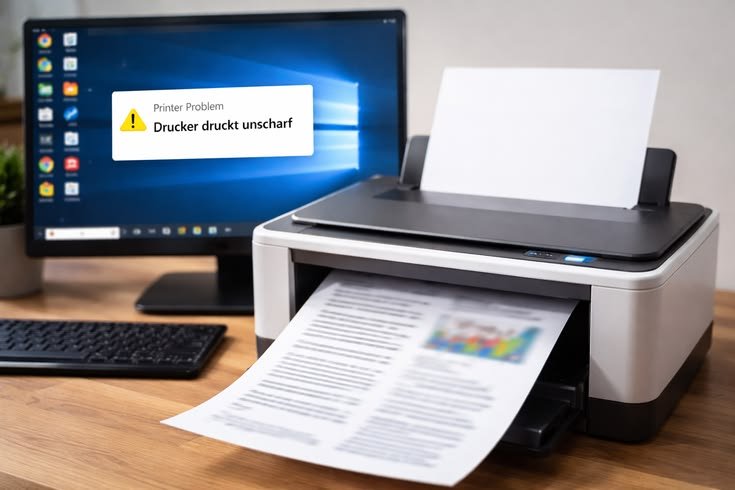
I resisted this one for a long time because it felt drastic. But after spending 90 minutes troubleshooting a wireless connection issue on my Epson that nothing else could fix, I finally did it — and the printer connected to my network in under three minutes afterward.
A factory reset wipes out all custom settings: saved networks, IP configurations, custom preferences. It’s essentially starting fresh. This is worth doing when:
- Your printer keeps showing as offline even after every other fix.
- It connects to Wi-Fi but refuses to print.
- You’ve moved to a new home or changed your router and can’t reconnect.
- Something went wrong during a firmware update.
The steps vary by model, but on most printers you can find the reset option in Settings → Restore Factory Defaults or Setup → System Administration → Restore Default Settings. Check your specific model’s manual or the manufacturer’s support page if you can’t find it.
After the reset, set the printer up again from scratch using the companion app (HP Smart, Epson Smart Panel, Canon PRINT, etc.). These apps make wireless setup much faster than doing it through the printer menu alone.
If you’re dealing with persistent offline errors specifically, 7 Powerful Printer Guide Methods to Fix Printer Offline Error has some solid step-by-step guidance worth bookmarking.
Common Mistakes That Make Things Worse
Beyond the tips above, here are a few things I’ve seen (and done) that actually make printer problems harder to fix:
Installing random third-party drivers from shady websites. Just don’t. Stick to the manufacturer’s official site.
Ignoring firmware updates. Most printers push firmware updates that fix bugs and improve connectivity. Accept them — they’re not optional extras.
Using incompatible ink cartridges. Yes, third-party cartridges are cheaper. But they can cause “ink not recognized” errors, void warranties, and sometimes damage the print head. I use them sometimes, but only from reputable brands, and I always check compatibility first.
Printing in high-quality mode for everything. This drains ink fast and slows things down. Use draft mode for everyday documents and save high quality for photos or client-facing work.
Forgetting to check paper alignment. Slightly misaligned paper causes jams and skewed prints. Make sure the paper guides in the tray are snug against the paper — not too tight, not too loose.
A Note on When to Just Call Support
There’s no shame in knowing when you’ve hit the limit of DIY fixes. If your printer is producing faint, streaky, or discolored prints even after running head cleaning cycles multiple times, the print head might be failing. That’s either a manufacturer warranty issue or a repair job.
Most major brands have solid live chat support, and HP in particular has a surprisingly helpful virtual assistant that can run remote diagnostics on your printer.
For any other connection or error code issues you run into, 9 Fast Printer Guide Fixes for Common Printer Errors is a good reference to keep handy — it covers a wide range of error scenarios across different printer brands.
Wrapping It All Up
Printer problems are rarely as complicated as they feel in the moment — especially when you’re stressed and running against the clock. Most issues come down to three things: connection problems, driver problems, or something physically stuck (paper or configuration). Work through these tips in order, and you’ll solve 90% of home office printer issues without needing to call anyone or buy anything new.
The one thing I’d leave you with: bookmark your printer manufacturer’s support page and download their companion app now, before you have a problem. You don’t want to be hunting for it at 8:55 AM when you need to print something by 9.
Also worth reading: 10 Ultimate Printer Troubleshooting Tips That Actually Work — a comprehensive guide covering everything from setup to serious recurring errors, written with real home office users in mind.