
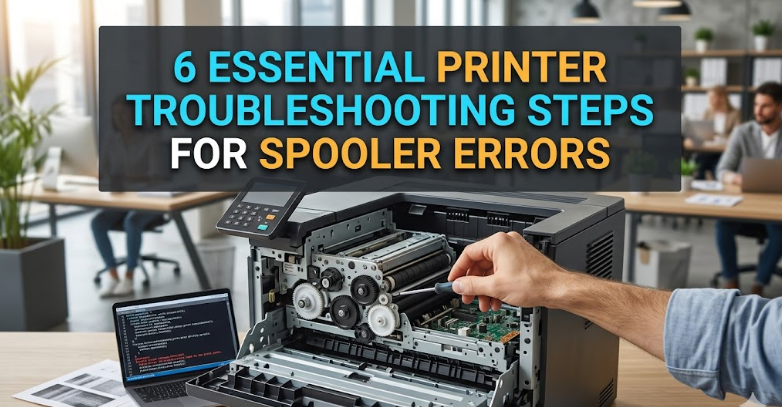
6 essential printer troubleshooting steps for spooler errors
There’s a very specific kind of frustration that comes from hitting “Print” and watching absolutely nothing happen. No noise, no blinking lights that make sense—just silence. Maybe a queue builds up, maybe it doesn’t. Sometimes documents stack endlessly, sometimes they vanish into nowhere. If you’ve ever found yourself restarting your computer out of pure desperation, you’ve likely brushed up against the quiet chaos of print spooler errors.
The print spooler, in simple terms, is the middleman between your computer and your printer. It lines up print jobs, processes them, and sends them in order. When it works, it’s invisible. When it doesn’t, it can feel like everything is broken—even if the printer itself is perfectly fine.
This guide walks through six essential steps to troubleshoot spooler errors. But instead of just throwing instructions at you, it goes deeper—explaining what’s happening, why things fail, and how to avoid repeating the same cycle of issues.
Along the way, you’ll also find small insights, practical checklists, and real-world habits that make printer problems less frequent (and less stressful).
—
step 1: restart the print spooler service properly
Most guides tell you to “restart the spooler,” but they don’t explain what that actually means—or why it works.
The print spooler is a background service running on your system. Like any service, it can get stuck. Maybe a corrupt file blocks the queue. Maybe a job partially processed and froze mid-task. Restarting clears that state.
Here’s the right way to do it—not the rushed version:
• Open the Run dialog (Windows + R)
• Type: services.msc
• Scroll to “Print Spooler”
• Right-click → Stop
Pause for a moment here. Don’t rush to restart it.
Why? Because stopping the spooler doesn’t just pause printing—it unlocks the queue. If you restart too quickly, the same problematic job may reload instantly.
After stopping it:
• Wait 10–15 seconds
• Then right-click → Start
What you’re doing here is giving the system time to release any locked files.
mini checklist: spooler restart done right
[ ] Service stopped fully
[ ] Waited before restarting
[ ] Restarted cleanly
If the issue was temporary, printing should resume immediately. If not, move forward—because something deeper is likely stuck in the queue.
—
step 2: clear the print queue manually (the hidden fix most people miss)
This is where things get interesting. Sometimes the spooler isn’t broken—it’s just stuck behind a bad job.
Think of it like a traffic jam. Restarting the spooler is like turning the traffic lights off and on. Clearing the queue is actually removing the blockage.
Here’s how to do it:
• Stop the print spooler (again, as in Step 1)
• Navigate to:
C:\Windows\System32\spool\PRINTERS
You may need administrator permission here.
Inside this folder, you’ll likely see files with extensions like:
.SPL
.SHD
These are spool files—temporary data representing queued print jobs.
Delete everything inside the folder (not the folder itself).
Then:
• Go back to Services
• Start the Print Spooler again
This clears the pipeline completely.
real-world example
A user once had a single corrupted PDF stuck in the queue. Every time they restarted the spooler, the job reloaded and froze everything again. Clearing this folder instantly solved weeks of frustration.
tip
If you’re nervous about deleting files, remember: these are temporary. They’re not your original documents—just the spooler’s working copies.
—
step 3: update or reinstall printer drivers (the root of many silent failures)
Here’s where a lot of people underestimate the problem.
Printer drivers are translators. Your computer speaks one language; your printer speaks another. If that translation layer breaks, the spooler can fail even if everything else looks fine.
Signs your driver might be the problem:
• Jobs disappear without printing
• Spooler crashes repeatedly
• Printer shows as “ready” but does nothing
What to do:
Option A: update the driver
• Go to Device Manager
• Find your printer
• Right-click → Update driver
Option B (more effective): reinstall
• Remove the printer completely
• Download the latest driver from the manufacturer’s website
• Install fresh
Why reinstalling often works better than updating:
Updates stack changes on top of existing files. Reinstalling wipes out potential corruption.
analogy
Updating is like repainting a cracked wall. Reinstalling is fixing the foundation.
quick comparison
Action | Result
Update driver | Quick, but may miss deeper issues
Reinstall driver | Slower, but more thorough
If spooler errors keep returning, this step is often the turning point.
—
step 4: check for conflicting printers or duplicate entries
This one is subtle—and surprisingly common.
Over time, systems accumulate multiple printer entries:
• Old versions of the same printer
• Offline devices
• Network printers no longer accessible
These can confuse the spooler, especially if it tries to send jobs to the wrong instance.
What to look for:
• Multiple entries with similar names
• Printers marked “offline”
• Devices you no longer use
How to fix it:
• Go to “Devices and Printers”
• Remove unnecessary printers
• Keep only the active, correct one
Then set your main printer as default.
why this matters
The spooler doesn’t always choose intelligently. If multiple drivers or ports conflict, it can stall or misroute jobs.
small habit that helps
Every few months, do a quick cleanup. Treat your printer list like your apps—if you don’t use it, remove it.
—
step 5: disable and re-enable the spooler dependencies
This step sounds technical, but it’s simpler than it appears.
The print spooler depends on other system services to function. If one of those dependencies fails, the spooler may stop working—even if it looks fine on the surface.
To check dependencies:
• Open Services
• Double-click “Print Spooler”
• Go to the “Dependencies” tab
You’ll see services like:
• Remote Procedure Call (RPC)
If any dependency isn’t running, the spooler won’t behave correctly.
What to do:
• Ensure all listed services are running
• Restart them if needed
advanced reset trick
Sometimes toggling dependencies helps:
• Stop dependent services
• Restart them in order
• Then restart the spooler
Think of it like rebooting a chain of processes instead of just one.
—
step 6: scan for system corruption or malware interference
If you’ve tried everything and the spooler still fails, the issue may not be the spooler itself.
System corruption—caused by incomplete updates, crashes, or malware—can interfere with core services.
Run a system file check:
• Open Command Prompt as administrator
• Type: sfc /scannow
• Press Enter
This scans and repairs corrupted system files.
If problems persist, try:
• DISM /Online /Cleanup-Image /RestoreHealth
Why this matters
The spooler relies on system-level components. If those are damaged, restarting or reinstalling won’t fix the root issue.
security angle
Malware can sometimes hijack printing processes or block services. Running a trusted antivirus scan is worth considering if behavior seems unusual.
—
bringing it all together
By now, you’ve probably noticed something: spooler errors aren’t random. They usually fall into patterns:
• A stuck job
• A broken driver
• A cluttered system
• A dependent service failure
Understanding this pattern helps you troubleshoot faster next time.
Instead of trying everything blindly, you can ask:
“What kind of failure does this look like?”
That simple shift turns frustration into a process.
—
practical troubleshooting flow (quick reference)
When a spooler error appears, follow this order:
- Restart spooler properly
- Clear the print queue folder
- Reinstall printer drivers
- Remove duplicate printers
- Check dependencies
- Run system repair tools
Print this list if you need to. It saves time.
—
habits that prevent spooler errors
Troubleshooting is useful—but prevention is better.
Here are small habits that reduce future issues:
• Avoid canceling print jobs mid-process repeatedly
• Keep drivers updated every few months
• Don’t overload the queue with large files all at once
• Restart your system occasionally (not just sleep mode)
• Remove unused printers regularly
These aren’t dramatic changes—but they make a noticeable difference over time.
—
a note on patience
Printer issues test patience in a very particular way. They feel simple, yet behave unpredictably. The key is not rushing through fixes.
Take a moment between steps. Observe what changes. Often, the difference between “still broken” and “fixed” is just a careful restart or a properly cleared queue.
—
frequently asked questions
- why does my print spooler keep stopping automatically?
This usually happens due to corrupted drivers, problematic print jobs, or system file issues. Reinstalling drivers and clearing the spool folder often resolves it. If it continues, check system integrity using sfc /scannow. - is it safe to delete files in the spool\printers folder?
Yes. These files are temporary and represent queued print jobs, not original documents. Deleting them simply clears the queue and does not affect your saved files. - can a virus cause spooler errors?
It’s uncommon but possible. Some malware interferes with system services. If spooler issues appear alongside other unusual behavior, running a full antivirus scan is recommended. - why do my print jobs disappear without printing?
This often points to a driver issue or misconfigured printer. The job is processed but fails before reaching the device. Reinstalling the driver usually fixes this. - how often should i update printer drivers?
Every 3–6 months is a good rule, or whenever you notice issues. Keeping drivers current reduces compatibility problems and improves stability. - what should i do if none of these steps work?
If all steps fail, consider creating a new user profile or reinstalling the operating system. Persistent spooler errors at that point usually indicate deeper system corruption.
—
final thought
Printer spooler errors feel like small technical annoyances, but they’re really signals—indicators that something in the system isn’t lining up properly.
When you stop treating them as random glitches and start seeing them as patterns, fixing them becomes far less frustrating.
And the next time your printer goes silent, you won’t panic—you’ll know exactly where to begin.






