
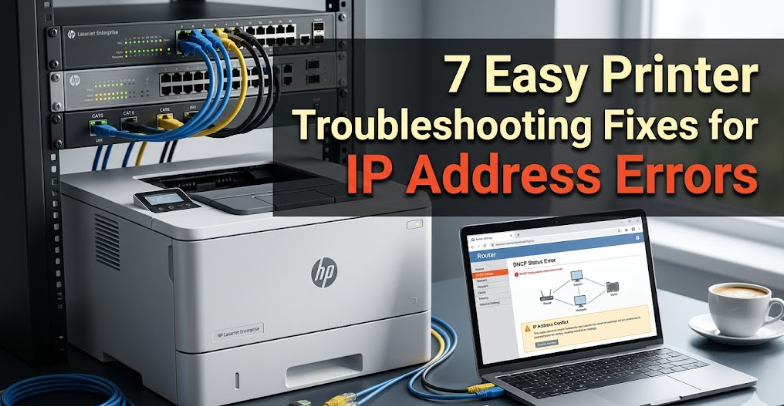
7 easy printer troubleshooting fixes for IP address errors
There is a certain kind of frustration that only a printer can create. Everything looks fine on the surface—the device is powered on, the WiFi signal is strong, and your computer insists the printer exists somewhere on the network. Yet the moment you hit “print,” nothing happens. Or worse, you get an error message about an IP address conflict, an unreachable device, or a printer that has suddenly gone offline.
If you’ve ever found yourself staring at your screen wondering how something so small could cause so much trouble, you’re not alone. IP address errors are one of the most common—and misunderstood—printer issues. The good news is that fixing them rarely requires advanced technical skills. Most of the time, it’s about understanding what’s happening behind the scenes and applying a few simple, targeted fixes.
This guide walks you through seven practical and easy fixes for printer IP address errors. Along the way, you’ll also gain a deeper understanding of how your printer communicates with your network, which will make future troubleshooting far less stressful.
what exactly is an IP address error in printers?
Before jumping into solutions, it helps to understand the problem.
Every device connected to your network—your laptop, phone, smart TV, and printer—has a unique identifier called an IP address. Think of it as a home address for devices. When your computer sends a print job, it uses that address to locate the printer.
An IP address error happens when:
- The printer’s IP address changes unexpectedly
- Two devices share the same IP address (conflict)
- The printer is assigned an invalid or unreachable address
- The computer is trying to send jobs to an outdated address
Once that link breaks, communication stops.
fix 1: restart everything (yes, really)
It may sound overly simple, but restarting your devices is one of the most effective fixes.
When you reboot your printer, router, and computer, several things happen:
- Temporary network glitches are cleared
- The router reassigns IP addresses
- Stale connections are reset
Try this sequence:
- Turn off your printer
- Unplug your router for about 60 seconds
- Restart your computer
- Plug the router back in and wait until it fully reconnects
- Turn your printer back on
This process forces all devices to re-establish their network identity.
Why it works: many IP issues are caused by temporary miscommunication between devices. Restarting acts like clearing the conversation and starting fresh.
fix 2: check the printer’s current IP address
Sometimes the printer is working perfectly—but your computer is looking in the wrong place.
Printers often receive dynamic IP addresses from the router. That means the address can change over time, especially after a restart.
To fix this:
- Print a network configuration page from your printer
- Or check the IP address in the printer’s display settings
Then compare it with the address your computer is using.
If they don’t match, your computer is sending print jobs to an outdated address.
What to do:
- Remove the printer from your computer
- Re-add it using the updated IP address
This simple correction often resolves “printer not found” errors instantly.
fix 3: assign a static IP address
If your printer’s IP keeps changing, you’re going to run into the same problem repeatedly. The solution is to give your printer a static IP address—a permanent one that doesn’t change.
Here’s the idea:
Instead of letting the router assign a random address each time, you manually set one.
Steps (general approach):
- Access your printer’s network settings
- Switch from “automatic IP” to “manual” or “static”
- Enter an IP address within your network range (e.g., 192.168.1.x)
- Save the settings
Alternatively, you can reserve an IP address through your router’s admin panel.
Why this matters:
A static IP ensures your computer always knows where to find the printer. No surprises, no mismatches.
fix 4: look for IP conflicts
An IP conflict occurs when two devices share the same address. When that happens, neither device works correctly.
Signs of an IP conflict:
- Printer randomly goes offline
- Error messages appear intermittently
- Network instability
To fix it:
- Restart your router (this often resolves conflicts automatically)
- Check connected devices in your router settings
- Assign a unique static IP to your printer
A quick tip:
Choose an IP address outside the range your router typically assigns dynamically. This reduces the chance of overlap.
fix 5: update or reinstall printer drivers
Sometimes the issue isn’t the printer—it’s how your computer communicates with it.
Printer drivers act as translators between your system and the device. If they’re outdated or corrupted, they may still point to an old IP address.
Solution:
- Go to your computer’s printer settings
- Remove the existing printer
- Download the latest driver from the manufacturer
- Reinstall the printer using the correct IP
Why it helps:
A fresh installation resets all connection settings, including IP configuration.
fix 6: verify network connection type
Printers can connect in different ways:
- WiFi
- Ethernet (wired)
- Bluetooth
If your printer switches from one connection type to another (for example, from WiFi to Ethernet), its IP address will likely change.
What to check:
- Is the printer connected to the correct network?
- Is it using the same WiFi network as your computer?
- Has a cable been plugged in recently?
Fix:
- Ensure both devices are on the same network
- Disconnect unused connections
- Reconnect the printer properly
A common mistake:
Connecting your computer to a 5 GHz network while the printer is on 2.4 GHz can sometimes create visibility issues, depending on your router.
fix 7: use the printer’s web interface
Most modern printers come with a built-in web interface. You can access it by typing the printer’s IP address into your browser.
Once inside, you can:
- Check network settings
- Confirm the IP address
- Adjust configuration
- Restart network services
This interface gives you direct control over the printer without relying on your computer’s settings.
If something looks off—like incorrect gateway or subnet values—you can fix it here.
a quick troubleshooting checklist
If you’re in a hurry, here’s a compact checklist you can follow:
- Restart printer, router, and computer
- Confirm the printer’s current IP address
- Ensure your computer uses the correct IP
- Assign a static IP to avoid future changes
- Check for IP conflicts
- Reinstall drivers if needed
- Verify both devices are on the same network
Working through these steps systematically solves most IP-related printer issues.
why these issues happen more often now
Modern networks are more complex than they used to be. Homes and offices now have dozens of connected devices, all competing for IP addresses.
Add to that:
- Automatic updates
- Router resets
- Multiple WiFi bands
- Guest networks
…and it’s easy to see why printers sometimes get “lost” in the system.
Understanding the basics of IP addressing puts you ahead of most users. It turns troubleshooting from guesswork into a logical process.
a small habit that saves big headaches
Once your printer is working again, take a moment to document its IP address.
Write it down or save it somewhere accessible.
Even better:
- Assign a static IP
- Label it clearly
This tiny step can save you a surprising amount of time later.
final thoughts
Printer problems have a reputation for being unpredictable, but IP address errors are actually quite logical once you understand them. They’re not random—they’re the result of devices losing track of each other.
The fixes outlined here aren’t complicated, but they are effective. Most of the time, you won’t need all seven—just one or two will do the trick.
The key is patience and a methodical approach. Instead of trying everything at once, go step by step. You’ll not only fix the problem but also gain confidence in handling similar issues in the future.
frequently asked questions
- why does my printer’s IP address keep changing?
This usually happens because your router assigns dynamic IP addresses automatically. Each time the printer reconnects to the network, it may receive a different address. Setting a static IP can prevent this. - how do i find my printer’s IP address quickly?
You can print a network configuration page directly from the printer or check the IP in its display menu. Many printers also show it in their settings panel. - can two printers have the same IP address?
No, each device must have a unique IP address. If two devices share one, it creates a conflict and causes connection problems. - do i need technical knowledge to set a static IP?
Not much. Most printers provide simple menus for manual IP configuration, and many routers allow easy IP reservation through their interface. - why does my computer say the printer is offline even when it’s on?
This often happens when the computer is trying to connect using an outdated IP address. Updating the printer’s IP in your system usually resolves the issue. - will resetting my router fix IP address errors permanently?
It can fix temporary issues, but if your printer uses dynamic IP addressing, the problem may return. Assigning a static IP is a more permanent solution.






