

7 smart printer troubleshooting fixes for WiFi drops
There’s a particular kind of frustration that only shows up when you’re in a hurry, a document is ready, and your wireless printer suddenly disappears from the network. One minute everything works fine, the next it’s as if the printer has quietly decided to retire without telling anyone. If you’ve ever stared at a “printer offline” message while your WiFi is clearly working for everything else, you already know how annoying these random drops can be.
Wireless printing is supposed to make life easier. No cables, no clutter, no restrictions about where you place your printer. But in reality, WiFi printers depend on several moving parts: your router, your device, the printer’s own network chip, and sometimes even your home’s layout. When one of those elements behaves unpredictably, your printer connection becomes unreliable.
What follows isn’t just a list of quick fixes. It’s a set of practical, experience-driven approaches that go beyond surface-level advice. These are the kinds of adjustments that not only fix the problem temporarily but help prevent it from coming back.
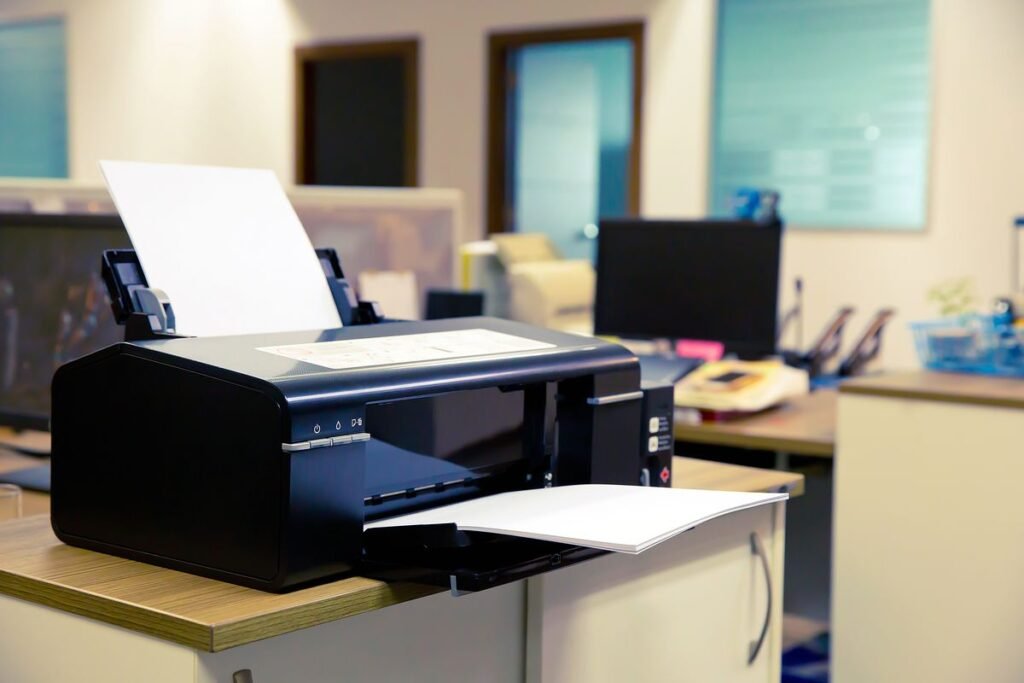
- repositioning the printer for stronger signal stability
It sounds almost too simple, but placement is often the silent culprit behind WiFi drops. Printers are rarely placed with signal quality in mind. They’re tucked into corners, pushed against walls, or hidden behind furniture to keep things neat. Unfortunately, those spots tend to be terrible for wireless connectivity.
WiFi signals weaken as they pass through obstacles. Concrete walls, metal cabinets, and even large wooden desks can interfere. If your printer is located far from the router or in a signal “dead zone,” it may connect intermittently, which looks like random drops.
Try moving the printer closer to your router, even temporarily, and observe whether the connection stabilizes. If that solves the issue, you don’t necessarily have to keep it there forever. Instead, consider improving the signal path.
A few practical adjustments:
- Keep the printer at least a few feet off the ground
- Avoid enclosing it in cabinets
- Position it in a direct line (or near-direct line) with the router when possible
- Reduce interference from devices like microwaves or cordless phones
In some homes, especially larger ones, the issue isn’t distance but layout. Thick walls and multiple floors can block signals unevenly. If that’s your case, repositioning alone might not fully solve it, but it’s still the first and most overlooked step.
- separating 2.4 GHz and 5 GHz networks
Modern routers often broadcast both 2.4 GHz and 5 GHz bands under the same network name (SSID). While this is convenient, it can confuse certain printers. Many printers are designed to work better—or exclusively—with 2.4 GHz networks.
When both bands share the same name, your router automatically switches devices between them. This is called band steering. While phones and laptops handle this seamlessly, printers sometimes struggle to maintain a stable connection when the router shifts them between bands.
The fix is straightforward: log into your router settings and give the 2.4 GHz and 5 GHz networks different names. For example:
- HomeWiFi_2.4
- HomeWiFi_5
Then reconnect your printer specifically to the 2.4 GHz network.
This small change often eliminates mysterious disconnections. It gives your printer a stable, predictable connection rather than one that keeps shifting in the background.
- assigning a static IP address to the printer
Another common reason printers seem to “drop” is actually an IP address issue. Most home networks use DHCP, which automatically assigns IP addresses to devices. Over time, these addresses can change, especially if the printer goes offline and reconnects later.
When the printer’s IP address changes, your computer or phone may still be trying to communicate with the old address. That mismatch results in failed connections, even though the printer is technically online.
Assigning a static IP solves this neatly.
Here’s the idea:
- Pick an IP address within your network range (but outside the DHCP pool if possible)
- Assign that address permanently to your printer through your router settings or printer interface
Once done, your devices will always know exactly where to find the printer.
This is one of those fixes that doesn’t feel dramatic but has a huge long-term impact. It removes an entire category of connectivity confusion.
- updating firmware on both printer and router
Firmware updates are easy to ignore. Everything seems to work well enough, so why bother? But outdated firmware is a frequent source of unstable connections.
Printer manufacturers release updates to fix bugs, improve network stability, and enhance compatibility with newer routers. Similarly, router firmware updates often include improvements for device handling and signal management.
If your printer frequently disconnects, check for firmware updates in its settings menu or through the manufacturer’s software.
Do the same for your router:
- Access the router’s admin panel
- Look for a firmware update section
- Install any available updates
This step is especially important if you’ve recently upgraded your router or internet plan. Older printer firmware may not interact smoothly with newer network hardware.
- reducing network congestion and interference
WiFi is a shared medium. Every device on your network competes for bandwidth and airtime. In busy environments—think multiple smartphones, smart TVs, streaming devices, and laptops—your printer can get lost in the noise.
While printers don’t use much bandwidth, they do need consistent communication. Heavy congestion can interrupt that flow.
Here’s how to reduce interference:
- Limit unnecessary devices on your network when troubleshooting
- Change your router’s WiFi channel to a less crowded one
- Avoid placing the router near thick walls or electronic clutter
- Consider using Quality of Service (QoS) settings to prioritize printer traffic
Interference isn’t always obvious. Even neighboring WiFi networks can overlap with yours, especially in apartments. Switching channels can make a surprising difference in stability.
- reinstalling the printer with updated drivers
Sometimes the issue isn’t the network—it’s how your device communicates with the printer. Old or corrupted drivers can cause inconsistent behavior, including sudden drops or failure to reconnect.
A clean reinstall often fixes this.
Steps to try:
- Remove the printer from your device completely
- Download the latest drivers from the manufacturer’s website
- Reinstall the printer using the updated software
- Ensure you select the correct network printer during setup
This process resets the communication pathway between your device and the printer. It’s particularly helpful after operating system updates, which can sometimes disrupt compatibility.
- using a WiFi extender or mesh system for consistent coverage
If your home or office has weak WiFi coverage in certain areas, no amount of tweaking will fully stabilize the connection. In such cases, expanding your network is the most effective solution.
A WiFi extender or mesh system can bridge gaps in coverage and provide a stronger, more consistent signal to your printer.
Mesh systems are especially effective because they create a unified network with seamless coverage. Unlike traditional extenders, they reduce the chances of connection drops when devices move between zones.
If your printer is located far from the router or in a signal-challenged area, investing in better coverage can transform reliability.
practical troubleshooting flow
If you’re unsure where to start, follow this simple order:
- Move the printer closer to the router
- Connect it to the 2.4 GHz network
- Restart both the printer and router
- Assign a static IP
- Update firmware
- Reinstall drivers
- Improve network coverage if needed
Working through these steps systematically helps isolate the problem rather than guessing randomly.
real-world perspective: why WiFi printers struggle
Wireless printers are convenient, but they’re also less forgiving than wired ones. Unlike a direct cable connection, WiFi introduces variables like signal strength, interference, and network configuration.
Printers also tend to have less powerful network hardware compared to laptops or smartphones. They’re designed for efficiency, not constant high-performance connectivity. That makes them more sensitive to small disruptions.
Understanding this helps set realistic expectations. The goal isn’t just to “fix” the printer but to create an environment where it can operate reliably.
small habits that prevent future drops
Once your printer is stable, a few habits can keep it that way:
- Avoid turning the printer off completely if possible (sleep mode is better)
- Restart your router occasionally to refresh connections
- Keep firmware updated
- Monitor network changes when adding new devices
These habits don’t take much effort but can prevent recurring issues.
conclusion
WiFi printer drops aren’t random. They’re usually the result of signal issues, network configuration, or outdated software. The challenge is that these problems often overlap, making them harder to diagnose at first glance.
By focusing on placement, network stability, and consistent addressing, you can eliminate most of the common causes. The fixes may seem small individually, but together they create a much more reliable setup.
Instead of reacting to every disconnection, you end up with a system that simply works—quietly and consistently in the background, exactly as it should.
frequently asked questions
- why does my printer keep going offline even when WiFi is working?
This usually happens due to IP address changes, weak signal strength, or band switching between 2.4 GHz and 5 GHz. Assigning a static IP and ensuring a strong connection often resolves it. - should I connect my printer to 2.4 GHz or 5 GHz?
Most printers work more reliably on 2.4 GHz networks because of better range and compatibility. If your printer supports both, 2.4 GHz is still often the more stable choice. - does restarting the router really help with printer issues?
Yes, restarting the router refreshes network connections and can resolve temporary glitches that cause printers to disconnect. - can too many devices on WiFi affect my printer?
Yes, heavy network traffic can cause delays or drops in communication. Reducing congestion or optimizing your network can improve stability. - is a wired connection better than WiFi for printers?
A wired Ethernet connection is generally more stable, but WiFi can be just as reliable if properly configured. - how often should I update my printer firmware?
Check for updates every few months or whenever you notice connectivity issues. Keeping firmware current helps maintain compatibility and stability.






