
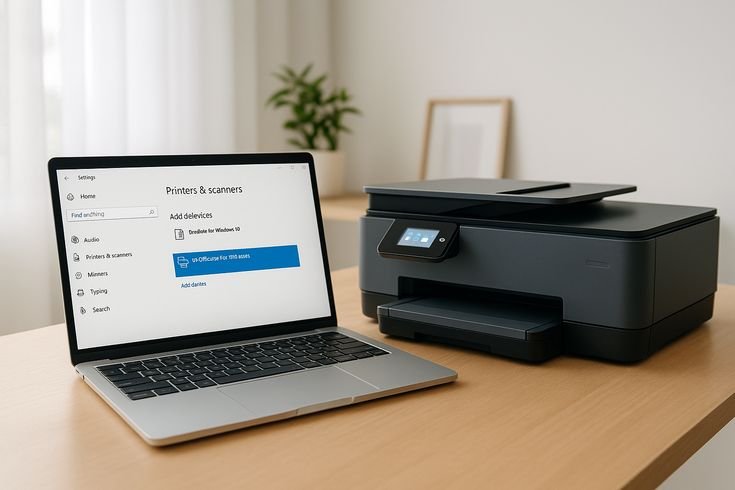
7 Honest Printer Guide Lessons I Learned While Setting Up My First Printer
Setting up your first printer seems simple—until you actually try to do it.
I still remember the day I unboxed my first printer. I thought it would take ten minutes: plug it in, connect it to Wi-Fi, install drivers, and start printing. Instead, it turned into a half-day learning experience full of trial and error, confusing instructions, driver downloads, paper jams, and unexpected configuration steps.
But that experience taught me some valuable lessons—lessons that most printer manuals never explain clearly.
If you’re setting up a printer for the first time, this honest printer guide will save you time, frustration, and maybe even money.
Below are seven practical lessons I learned the hard way while setting up my first printer.
Lesson 1: Unboxing Is More Important Than You Think
Most people rush through unboxing. I did the same—and immediately ran into problems.
Printers come with protective tapes, transport locks, foam blocks, and plastic covers that must be removed before powering on.
If even one of these remains inside, the printer may:
- Fail to start
- Make loud grinding noises
- Show cartridge errors
- Refuse to print
Checklist Before Turning the Printer On
| Step | What to Check | Why It Matters |
|---|---|---|
| Remove all orange tape | Protects moving parts during shipping | Blocks mechanisms if left |
| Remove foam inserts | Stabilizes parts during transport | Prevents carriage movement |
| Install cartridges correctly | Essential for printing | Printer won’t initialize |
| Load paper tray | Required for setup test page | Some printers require it |
| Close all covers | Safety sensors detect open covers | Printer may refuse to start |
Quick Setup Flow
Unbox Printer
     ↓
Remove Protective Materials
     ↓
Install Ink/Toner
     ↓
Load Paper
     ↓
Power On Printer
One small piece of tape can stop the entire setup process.
This is why careful unboxing is the first real step in any printer guide.
Lesson 2: Drivers Matter More Than the Printer Itself
When I first connected my printer to my laptop, nothing happened.
The computer detected the device—but it couldn’t print.
That’s when I learned about printer drivers.
A printer driver is software that allows your computer to communicate with the printer.
Without the correct driver:
- Print jobs may fail
- The printer may appear offline
- Advanced features won’t work
- Scan functions may be missing
Driver Installation Comparison
| Method | Difficulty | Reliability |
|---|---|---|
| Windows automatic driver | Easy | Medium |
| Manufacturer website | Medium | High |
| Installation CD | Easy | Medium |
| Universal drivers | Medium | Low |
Best Practice
Always download the latest driver directly from the manufacturer’s website.
Outdated drivers cause many common printer issues.
Lesson 3: Wi-Fi Setup Is the Most Frustrating Step
Wireless printing is convenient—but setting it up can be surprisingly difficult.
The first time I tried connecting my printer to Wi-Fi, the setup failed three times.
Eventually I realized the problem.
My printer only supported 2.4 GHz Wi-Fi, while my router was using 5 GHz.
Wi-Fi Compatibility Table
| Network Type | Printer Compatibility |
|---|---|
| 2.4 GHz | Supported by almost all printers |
| 5 GHz | Supported by newer printers |
| Dual Band | Usually works |
Common Wi-Fi Setup Problems
| Problem | Cause | Fix |
|---|---|---|
| Printer not detected | Different network band | Switch to 2.4 GHz |
| Setup fails | Wrong password | Re-enter password |
| Printer offline | Weak signal | Move printer closer |
| Device can’t find printer | Router isolation mode | Disable isolation |
Wi-Fi Setup Chart
Wi-Fi Setup Success Rate (My Experience)USB Setup First → Wi-Fi Configuration → 95% success
Direct Wi-Fi Setup → 60% success
App Setup → 80% success
The easiest method is often:
Connect via USB first → Configure Wi-Fi through software.
Lesson 4: Cheap Paper Causes Expensive Problems
This was one of the most surprising lessons.
I initially bought the cheapest paper available.
Within days, I started seeing:
- Paper jams
- Ink smudges
- Wrinkled pages
- Poor print quality
Later I learned that paper quality significantly affects printing performance.
Paper Weight Comparison
| Paper Type | Weight | Best For |
|---|---|---|
| Economy paper | 70 GSM | Draft printing |
| Standard office paper | 80 GSM | Everyday printing |
| Premium paper | 90–100 GSM | Reports |
| Photo paper | 200+ GSM | Photos |
Print Quality vs Paper Quality
Low Quality Paper → Ink Spread → Blurry Text
High Quality Paper → Controlled Ink → Sharp Prints
Good paper prevents:
- Printer jams
- Ink bleeding
- Roller damage
It’s a small upgrade that makes a big difference.
Lesson 5: Ink Cartridges Are a Long-Term Cost
Printers themselves are often cheap.
But the real cost comes from ink cartridges or toner.
I quickly discovered that replacing cartridges can sometimes cost more than the printer itself.
Ink Cost Comparison
| Printer Type | Cartridge Cost | Page Yield |
|---|---|---|
| Budget Inkjet | High | Low |
| Mid-range Inkjet | Medium | Medium |
| Laser Printer | Higher upfront | High yield |
Estimated Cost Per Page
| Printer Type | Black Page Cost | Color Page Cost |
|---|---|---|
| Inkjet | $0.05–$0.12 | $0.15–$0.30 |
| Laser | $0.02–$0.04 | $0.08–$0.12 |
Money-Saving Tips
- Enable draft mode
- Print in grayscale
- Use high-yield cartridges
- Avoid unnecessary color printing
Understanding ink costs early can prevent long-term expenses.
Lesson 6: Printer Errors Are Usually Simple
When my printer showed its first error message, I assumed something was seriously broken.
The message simply said:
“Printer error. Check device.”
After searching for hours, the solution was surprisingly simple.
The paper tray wasn’t fully inserted.
Common Printer Errors
| Error Message | Real Cause |
|---|---|
| Printer offline | Connection issue |
| Paper jam | Misaligned sheet |
| Cartridge not detected | Improper installation |
| Printer busy | Stuck print queue |
Troubleshooting Flowchart
Printer Error
      ↓
Check Paper Tray
      ↓
Check Cartridges
      ↓
Restart Printer
      ↓
Restart Computer
      ↓
Reinstall Drivers
Most printer problems are solved with simple troubleshooting steps.
Lesson 7: Printer Maintenance Is Often Ignored
The biggest lesson I learned is that printers require regular maintenance.
Many people assume printers work forever without care.
In reality, regular maintenance prevents:
- Clogged ink heads
- Paper jams
- Poor print quality
- Mechanical issues
Monthly Printer Maintenance Checklist
| Task | Frequency |
|---|---|
| Print test page | Weekly |
| Clean print heads | Monthly |
| Remove dust | Monthly |
| Update drivers | Every 3–6 months |
| Check rollers | Every 6 months |
Maintenance Impact Chart
Regular Maintenance → 80% fewer printing issues
No Maintenance → Frequent jams & errors
Taking a few minutes for maintenance can extend the life of your printer significantly.
My Complete First Printer Setup Timeline
| Step | Time Spent |
|---|---|
| Unboxing | 10 minutes |
| Cartridge installation | 5 minutes |
| Driver installation | 20 minutes |
| Wi-Fi setup | 40 minutes |
| Troubleshooting | 30 minutes |
Total time: ~1 hour 45 minutes
A process I expected to take 10 minutes turned into a learning experience.
But after that first setup, every printer installation became easier.
Beginner Printer Setup Checklist
Before using your printer, confirm the following:
✔ Protective tape removed
✔ Ink or toner installed correctly
✔ Paper tray loaded
✔ Drivers installed
✔ Wi-Fi connected
✔ Test page printed
If all these steps are complete, your printer is ready to use.
Final Thoughts
Setting up a printer for the first time can feel surprisingly complicated.
But the lessons I learned during my first setup taught me something important:
Most printer problems are preventable with the right knowledge.
Understanding the basics—drivers, Wi-Fi compatibility, paper quality, and maintenance—can turn a frustrating experience into a smooth one.
If you’re setting up your first printer, remember these seven lessons. They can save you hours of troubleshooting and help your printer run smoothly for years.
Frequently Asked Questions (FAQs)
1. Why is my printer not connecting to Wi-Fi?
Most connection problems happen because the printer only supports 2.4 GHz Wi-Fi networks. Try connecting to a 2.4 GHz band instead of 5 GHz.
2. Do I always need to install printer drivers?
Yes. While some operating systems install basic drivers automatically, installing the latest driver from the manufacturer ensures full functionality.
3. Why does my printer say “offline”?
A printer may appear offline because of:
- Network connection issues
- Paused print queue
- Incorrect driver installation
Restarting both the printer and computer usually fixes the issue.
4. What type of paper is best for everyday printing?
Standard 80 GSM office paper is ideal for most documents because it balances print quality and cost.
5. How often should I clean my printer?
Basic maintenance should be done once a month, including cleaning print heads and removing dust from the paper path.
6. Why are ink cartridges so expensive?
Printer manufacturers often sell printers at low prices but generate profit from ink cartridge replacements, which are part of the long-term printing cost.






