
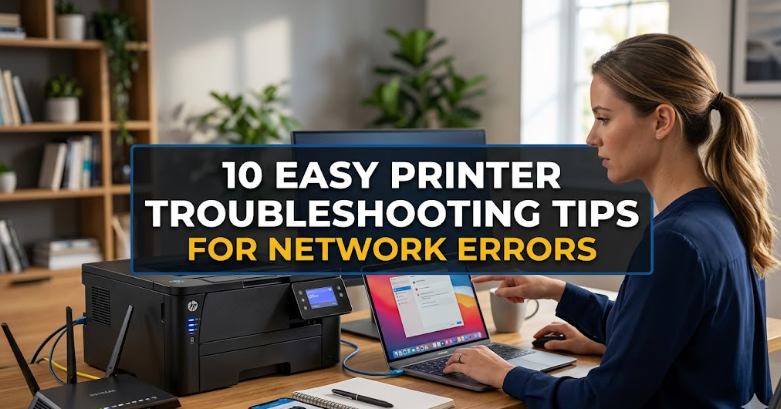
10 easy printer troubleshooting tips for network errors
There’s a particular kind of frustration that comes with hitting “print” and then… nothing happens. No whirring sound, no paper moving, no blinking light that suggests progress. Just silence. If you’ve ever dealt with a network printer, you already know that the problem is rarely as simple as “it’s broken.” Most of the time, it’s a communication issue — a quiet disagreement between devices that are supposed to be working together.
Over the years, I’ve spent more time than I’d like to admit troubleshooting printers in homes, small offices, and even makeshift workspaces. What I learned is this: network printing problems tend to repeat themselves. Once you understand the patterns, fixing them becomes far less intimidating.
This guide walks through ten practical, experience-based tips that go beyond the obvious. It’s not just about fixing the problem in front of you, but also understanding why it happened — so the next time, you’re already one step ahead.
tip 1: check the basics before diving deeper
It sounds almost too simple, but skipping the basics is one of the most common mistakes. When a printer shows as “offline” or refuses to respond, people often jump straight into complicated fixes.
Start with a quick physical and visual check:
– Is the printer powered on?
– Is it connected to the network (Wi-Fi or Ethernet)?
– Are there any warning lights or error messages on the display?
If you’re using Wi-Fi, make sure the printer is still connected to the correct network. Routers get reset, networks get renamed, and sometimes the printer simply doesn’t reconnect automatically.
A small habit I’ve developed is to always print a network configuration page directly from the printer. It tells you exactly what network it’s connected to and its current IP address. That single page can save you a lot of guessing.
tip 2: restart everything (but do it properly)
“Turn it off and on again” is a cliché for a reason — it works. But there’s a right way to do it when dealing with network printers.
Instead of just restarting your computer, follow this order:
- Turn off the printer.
- Restart your router.
- Restart your computer.
- Turn the printer back on.
Why this order? Because network issues often originate from the router. Restarting it clears temporary glitches, refreshes IP assignments, and re-establishes communication between devices.
I once spent nearly an hour troubleshooting a printer that had “disappeared” from the network, only to realize the router had been running for months without a restart. Five minutes later, everything was working again.
tip 3: verify the printer’s IP address
Network printers rely on IP addresses to communicate. If that address changes, your computer might still be looking for the printer in the wrong place.
This usually happens when:
– The router assigns a new IP address
– The printer reconnects to the network after being offline
– DHCP settings change
To fix this:
– Print the printer’s network status page
– Note the current IP address
– Compare it with the one your computer is using
If they don’t match, you’ll need to update the printer port settings on your computer.
Better yet, consider assigning a static IP address to the printer. That way, it always stays in the same place on your network. It’s a small setup step that prevents a lot of future headaches.
tip 4: set the printer as default (and double-check it)
Sometimes the issue isn’t that the printer isn’t working — it’s that your system is sending the job somewhere else.
Operating systems can quietly switch default printers, especially if:
– You’ve used another printer recently
– A virtual printer (like “Print to PDF”) takes over
– The system updates or resets preferences
Before troubleshooting anything complex, open your print dialog and confirm the correct printer is selected.
It sounds minor, but I’ve seen entire troubleshooting sessions resolved in seconds just by switching the active printer back to the right one.
tip 5: clear the print queue
A stuck print job can block everything behind it. Even if your current document is perfectly fine, it won’t print until the queue clears.
Open the print queue and look for:
– Jobs marked as “Error”
– Jobs stuck in “Printing” for too long
– Duplicate or paused jobs
Cancel all pending jobs and restart the printer. In more stubborn cases, you may need to restart the print spooler service on your computer.
Think of the queue like traffic. One stalled car can hold up the entire road. Clearing it restores flow immediately.
tip 6: reinstall or update printer drivers
Drivers are the bridge between your computer and the printer. When they’re outdated or corrupted, communication breaks down.
Signs of driver issues include:
– Printer shows as “offline” despite being connected
– Print jobs disappear without printing
– Strange formatting or missing elements
Uninstall the printer completely, then reinstall it using the latest drivers from the manufacturer’s website.
Avoid relying solely on automatic driver installations. They work most of the time, but not always. A manual install often resolves deeper compatibility issues.
tip 7: check firewall and antivirus settings
Security software can sometimes block printer communication, especially on networks. It may treat the printer as an unknown device and restrict access.
If your printer suddenly stops responding:
– Temporarily disable your firewall or antivirus
– Try printing again
– If it works, you’ve found the cause
Instead of leaving security disabled, add the printer as a trusted device or create an exception.
I’ve seen this happen particularly in office environments where stricter security settings are applied. The printer isn’t broken — it’s just being blocked.
tip 8: ensure all devices are on the same network
This sounds obvious, but it’s surprisingly easy to overlook — especially with multiple Wi-Fi networks.
For example:
– Your computer is connected to “Home_WiFi”
– Your printer is connected to “Home_WiFi_5G”
Even though they seem related, they can function as separate networks depending on router settings.
Make sure:
– Both devices are on the exact same network name (SSID)
– Guest networks are not being used
– There are no isolation settings enabled
If devices can’t “see” each other, printing won’t work — no matter how perfect everything else is.
tip 9: use the printer’s built-in troubleshooting tools
Modern printers often include diagnostic tools that can identify network issues directly.
These tools can:
– Test connectivity to the router
– Check signal strength
– Detect IP conflicts
– Suggest fixes
Access them through the printer’s display panel or web interface (by entering its IP address in a browser).
It’s easy to overlook these built-in features, but they’re designed specifically for situations like this. Sometimes the printer can explain its own problem better than you can guess it.
tip 10: reset network settings as a last resort
If nothing else works, resetting the printer’s network settings can clear hidden issues.
This process:
– Disconnects the printer from the network
– Removes saved configurations
– Allows you to set it up from scratch
After resetting:
– Reconnect to Wi-Fi
– Reassign IP settings if needed
– Reinstall the printer on your computer
It’s not the first step you should take, but it’s often the cleanest solution when problems persist.
A reset gives you a fresh start — and sometimes that’s exactly what’s needed.
bringing it all together
Network printer issues can feel unpredictable, but they usually follow a pattern. Most problems come down to communication — devices not finding each other, not understanding each other, or being blocked from interacting.
What makes troubleshooting easier is approaching it methodically:
Start simple, then move deeper only if needed.
In my experience, the majority of problems are solved within the first few steps — checking connections, restarting devices, or correcting network settings. The more complex fixes are rarely needed, but it’s good to have them in your toolkit.
Once you’ve gone through these steps a few times, you’ll start recognizing the signs immediately. That “printer offline” message won’t feel like a dead end anymore — just a clue pointing you in the right direction.
frequently asked questions
- why does my network printer keep going offline?
This usually happens due to IP address changes, weak Wi-Fi connections, or communication issues with the router. Assigning a static IP address and ensuring a stable network connection can help prevent this.
- how do i find my printer’s ip address?
You can print a network configuration page directly from the printer or check its display settings. Alternatively, you can view connected devices in your router’s admin panel.
- can multiple devices use the same network printer?
Yes, as long as they are connected to the same network and have the printer properly installed. Each device may need its own driver setup.
- what should i do if my printer is connected but not printing?
Check the print queue for stuck jobs, confirm the correct printer is selected, and restart both the printer and your computer. Also verify that the printer is not set to “offline” mode.
- do i need to reinstall my printer every time there’s an issue?
No. Reinstallation is only necessary when drivers are corrupted or settings are incorrect. Most issues can be resolved with simpler steps like restarting devices or clearing the print queue.
- is a wired connection better than wireless for printers?
In many cases, yes. Wired connections (Ethernet) are more stable and less prone to interference. If you experience frequent network issues, switching to a wired setup can improve reliability significantly.
—
If you take one thing away from all this, let it be this: printer problems are rarely random. They’re usually small, logical issues hiding behind vague error messages. Once you learn how to decode those messages, troubleshooting becomes less of a struggle and more of a process you can handle with confidence.






