
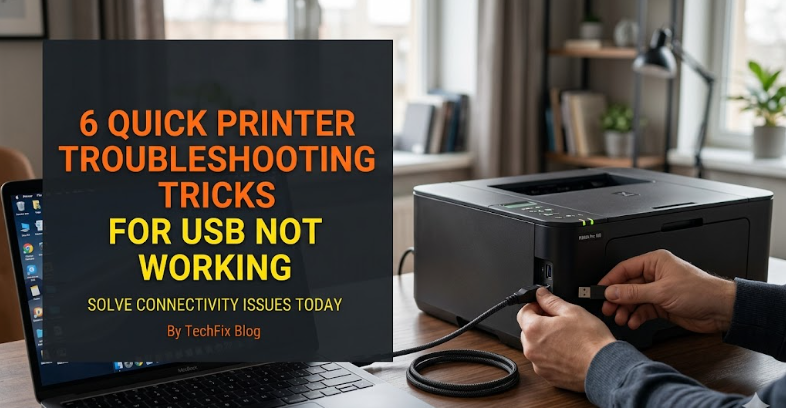
6 Quick Printer Troubleshooting Tricks for USB Not Working
USB printer connection problems are surprisingly common. One moment everything is working fine, and the next your computer refuses to recognize the printer, or the print jobs get stuck in a queue that never clears. While it can feel frustrating, USB-related printing issues are usually caused by a handful of simple problems that you can fix without technical expertise.
This guide walks through six practical troubleshooting tricks that help you quickly restore USB printer functionality, along with explanations of why these issues happen in the first place. Whether you’re using a home inkjet printer or a heavy-duty office laser printer, these steps will help you diagnose and resolve the issue efficiently.
Understanding why USB printer issues happen
Before jumping into fixes, it helps to understand what typically goes wrong. USB printing relies on a stable physical connection, correct drivers, and proper system recognition. When any of these components fail, the printer may appear “offline,” fail to respond, or not show up at all.
Some common causes include:
- Faulty or loosely connected USB cable
- Corrupted or outdated printer drivers
- Disabled USB ports or power-saving settings
- Conflicts with previous printer installations
- Operating system glitches
- Damaged printer USB interface
Now let’s go through practical solutions you can apply immediately.
- Check and replace the USB cable connection
One of the simplest but most overlooked issues is the USB cable itself. Even a slightly damaged or loose cable can interrupt communication between your computer and printer.
Start by unplugging both ends of the USB cable and plugging them back in securely. Make sure the connection is firm on both the printer and computer side. If the printer still does not respond, try using a different USB port on your computer.
If that doesn’t work, replace the cable entirely. USB cables can degrade over time, especially if they are frequently bent or moved. A low-quality or worn-out cable is one of the most common reasons printers suddenly stop working.
Also, avoid using USB hubs during troubleshooting. Plug the printer directly into your computer to rule out intermediary device issues.
- Restart both printer and computer properly
Restarting may sound too simple, but it resets temporary system errors that often block USB detection.
Follow this process:
- Turn off the printer and unplug it from the power source
- Shut down your computer completely
- Wait at least 60 seconds
- Plug the printer back in and turn it on
- Restart your computer
This sequence clears cached errors in both devices and re-establishes a fresh USB handshake.
In many cases, especially when the printer was previously working, this alone resolves the issue.
- Reinstall or update printer drivers
Drivers are the software bridge between your operating system and the printer. If they become outdated or corrupted, USB recognition can fail completely.
To fix this:
- Open your computer’s device manager or printer settings
- Locate your printer under “Printers” or “USB devices”
- Uninstall the device
- Restart your computer
- Reinstall the latest driver from the printer manufacturer’s official website
Make sure you download the correct driver version based on your operating system (Windows 10, Windows 11, macOS, etc.).
If your printer came with an installation CD, it’s still better to use updated online drivers, as older versions may not support current system updates.
- Check USB port settings and power management
Sometimes the issue is not the printer or cable but the computer’s USB settings.
On Windows systems, USB ports can enter power-saving mode, which disables them temporarily. This can interrupt printer connectivity without warning.
To fix this:
- Open Device Manager
- Expand “Universal Serial Bus controllers”
- Right-click each USB Root Hub
- Go to Properties → Power Management
- Uncheck “Allow the computer to turn off this device to save power”
Repeat this for all USB Root Hubs listed.
This ensures your computer keeps USB ports active and prevents unexpected disconnections during printing.
- Remove conflicting or duplicate printer entries
If you’ve previously installed multiple versions of the same printer, your system may be confused about which one to use. This can block USB detection or cause print jobs to fail silently.
To fix this:
- Go to Control Panel or Settings → Devices → Printers
- Look for duplicate printer entries
- Remove all old or unused versions
- Keep only the correct, currently connected printer
After cleaning up duplicates, restart your system and reconnect the printer via USB.
This step is especially important if you recently switched printers or reinstalled drivers multiple times.
- Test printer on another computer or USB port
If none of the above steps work, you need to isolate whether the issue is with your computer or the printer itself.
Try the following:
- Connect the printer to another computer using the same USB cable
- Or use a different USB port on your current device
- If possible, test with a second USB cable
If the printer works on another computer, the issue is likely software-related on your original system. If it doesn’t work anywhere, the printer’s USB port may be damaged.
This step helps you avoid unnecessary troubleshooting and identifies whether hardware repair is needed.
Extra tips to prevent USB printer issues
Once your printer is working again, a few habits can help prevent future problems:
- Avoid frequent unplugging of USB cables while devices are on
- Keep printer drivers updated regularly
- Use high-quality USB cables instead of cheap replacements
- Avoid connecting through overloaded USB hubs
- Restart your printer occasionally to clear internal memory errors
These small practices significantly improve long-term stability.
When USB troubleshooting is not enough
In some cases, USB issues may be caused by deeper system problems such as:
- Corrupted operating system files
- Malware interference
- Faulty motherboard USB controllers
- Internal printer hardware failure
If basic troubleshooting fails repeatedly, it may be worth consulting a technician or reinstalling your operating system as a last resort.
Conclusion
USB printer problems can feel disruptive, especially when you urgently need to print documents. However, most issues are caused by simple connection faults, driver problems, or system settings that can be fixed quickly.
By following the six troubleshooting tricks outlined above—checking cables, restarting devices, updating drivers, adjusting USB settings, cleaning up duplicate printers, and testing hardware—you can usually restore normal printing without professional help.
Understanding how these systems interact also helps you prevent future issues, making your printing experience smoother and more reliable.
FAQs
Why does my printer stop working suddenly when connected via USB?
This usually happens due to loose cables, outdated drivers, or temporary system glitches that interrupt communication between the printer and computer.
How do I know if my USB cable is faulty?
If the printer disconnects frequently, fails to appear on the system, or works intermittently, the cable may be damaged. Testing with another cable is the easiest way to confirm.
Why is my printer not showing up on my computer at all?
This can be caused by disabled USB ports, driver issues, or hardware problems. Checking Device Manager and reinstalling drivers often solves it.
Can a USB hub cause printer connection problems?
Yes, low-powered or overloaded USB hubs can prevent printers from being detected properly. Direct connection to the computer is recommended.
Do I need internet to fix USB printer issues?
Not always. However, you may need internet access to download updated printer drivers from the manufacturer’s website.
What should I do if nothing works?
If all troubleshooting steps fail, test the printer on another computer. If it still doesn’t work, the issue is likely hardware-related and may require repair or replacement.






