
9 Smart Printer Troubleshooting Fixes for Lagging Prints
Printing delays can turn even the simplest task into a frustrating experience. You click “Print,” expect the document in seconds, and instead watch your printer slowly respond like it is processing every page in slow motion. Lagging prints are one of the most common printer issues in homes and offices, and while they may look complicated, they are often caused by simple underlying problems.
This guide breaks down practical, real-world troubleshooting fixes that can help you restore normal printing speed. Each method focuses on a different possible cause so you can diagnose and fix the issue step by step instead of guessing randomly.
Understanding why printers start lagging
Before jumping into solutions, it helps to understand what “lagging prints” usually mean. It is not always the printer’s fault. In most cases, delays happen due to communication issues between your device and printer, overloaded print queues, outdated drivers, weak network connections, or heavy print files that take time to process.
Think of your printer like a small computer. It needs instructions, memory, and a stable connection to function smoothly. If any of these elements slow down, printing speed suffers.
Now let’s go through the most effective troubleshooting fixes.
- Clear the print queue completely
One of the most overlooked causes of lagging prints is a clogged print queue. When multiple print jobs stack up, especially failed or paused ones, your printer gets stuck processing outdated commands.
To fix this:
- Open the print queue on your computer
- Cancel all pending documents
- Restart both the printer and your device
In many cases, just clearing the queue restores normal speed immediately. If a single corrupted file is stuck, it can slow down every other print job behind it.
A good habit is to avoid sending too many print commands at once. Let each job finish before sending another.
- Restart both printer and router
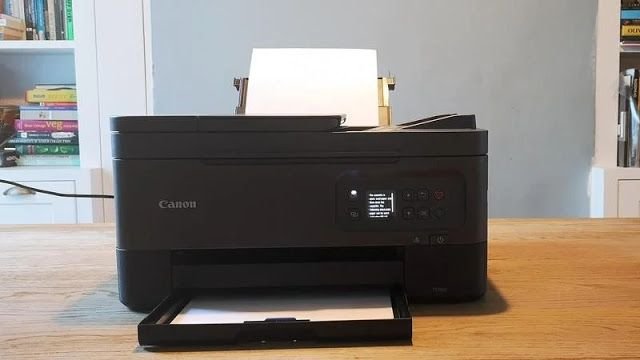
It may sound too simple, but restarting devices clears temporary glitches that often cause lag. Printers store short-term memory, and routers manage communication data. When either of them becomes overloaded, delays start appearing.
Do this properly:
- Turn off the printer
- Unplug it for 30–60 seconds
- Restart your Wi-Fi router
- Turn the printer back on
This refreshes the connection between your devices and clears minor system bugs that slow down printing.
If you are using a wireless printer, this step is even more important since network instability is a major cause of lag.
- Check your Wi-Fi or USB connection stability
A weak or unstable connection can significantly slow down print delivery. Wireless printers depend heavily on signal strength, while USB printers depend on cable quality and port performance.
For Wi-Fi printers:
- Move the printer closer to the router
- Avoid walls or metal objects blocking the signal
- Disconnect other heavy bandwidth devices if needed
For USB printers:
- Try a different USB port
- Replace old or damaged cables
- Avoid using USB hubs if possible
A stable connection ensures that print data flows smoothly without interruption.
- Reduce print file size and complexity
Large or highly detailed files take longer to process. High-resolution images, PDFs with embedded graphics, or multi-layer documents can slow down printing significantly.
To improve speed:
- Reduce image resolution before printing
- Save documents in optimized PDF formats
- Avoid unnecessary graphics or heavy formatting
Printers need to “render” each page before printing it. The heavier the file, the longer this processing takes.
If you regularly print large documents, consider breaking them into smaller batches.
- Update or reinstall printer drivers
Outdated or corrupted drivers are one of the most common hidden reasons behind lagging prints. Drivers act as translators between your computer and printer. If they are not updated, communication becomes inefficient.
To fix this:
- Visit your printer manufacturer’s official website
- Download the latest driver for your model
- Uninstall the current driver before reinstalling
After updating, restart your system.
This ensures your printer is using the most efficient instructions available, which can significantly improve speed and performance.
- Switch to a faster print quality setting
High-quality print settings consume more processing power and ink. If your printer is set to “Best Quality” or “Photo Mode,” it may intentionally slow down printing to achieve sharper output.
To improve speed:
- Go to printer settings
- Select “Draft” or “Standard” mode instead of “High Quality”
- Disable unnecessary enhancements like color correction if not needed
For everyday documents, draft mode is usually more than enough and prints much faster.
- Free up printer memory and reset settings
Printers, especially modern ones, store temporary data in memory. Over time, this memory can become overloaded, leading to slower performance.
To resolve this:
- Turn off the printer
- Hold the power button for 10–15 seconds (if supported)
- Restore factory settings if lag persists
Resetting clears internal errors and refreshes the system.
Think of it like rebooting a smartphone that has become slow after long use.
- Check for background network congestion
If multiple devices are using the same network, your printer may struggle to receive data quickly. Streaming, downloads, or cloud backups can all affect printing speed.
To improve performance:
- Pause large downloads while printing
- Disconnect unused devices from Wi-Fi
- Prioritize printer traffic on your router if possible
Network congestion is often unnoticed but plays a big role in wireless printing delays.
- Inspect printer hardware for wear or maintenance issues
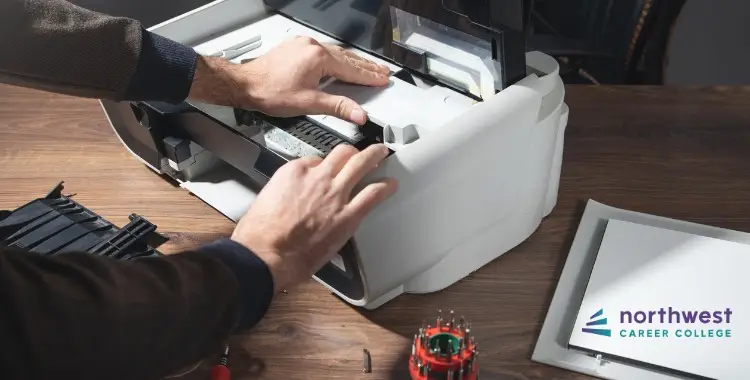
Sometimes lagging prints are caused by physical issues rather than software or connection problems. Dust buildup, aging rollers, or low memory capacity can all contribute.
Check for:
- Dust inside paper trays
- Worn-out rollers
- Low ink or toner levels
- Overheated printer components
Regular maintenance helps keep printing speed consistent. Even simple cleaning can improve performance significantly.
Conclusion
Lagging prints are frustrating, but they are usually caused by fixable issues rather than serious hardware failure. Most of the time, the problem lies in connection stability, overloaded queues, outdated drivers, or heavy file processing.
By following these nine troubleshooting fixes step by step, you can identify the root cause instead of guessing. The key is to approach the problem logically: start with simple resets, then move toward settings, software, and finally hardware checks.
A well-maintained printer should respond quickly and consistently. With regular care and smart usage habits, printing delays can become rare.
FAQs
Why is my printer suddenly printing slowly?
This usually happens due to a clogged print queue, weak connection, or high-resolution print settings. Restarting the printer and clearing the queue often fixes it.
Does Wi-Fi affect printer speed?
Yes, a weak or congested Wi-Fi network can significantly slow down wireless printing. A stable connection improves speed.
Can old drivers cause printing lag?
Absolutely. Outdated drivers are one of the most common causes of slow or delayed printing performance.
Why does high-quality printing take longer?
High-quality mode uses more data and processing power, so the printer takes additional time to render each page.
How often should I maintain my printer?
Basic cleaning and maintenance every few weeks help prevent dust buildup and performance issues.
Is factory reset safe for printers?
Yes, it is safe and often helpful for fixing persistent performance issues, but it will reset custom settings.






