
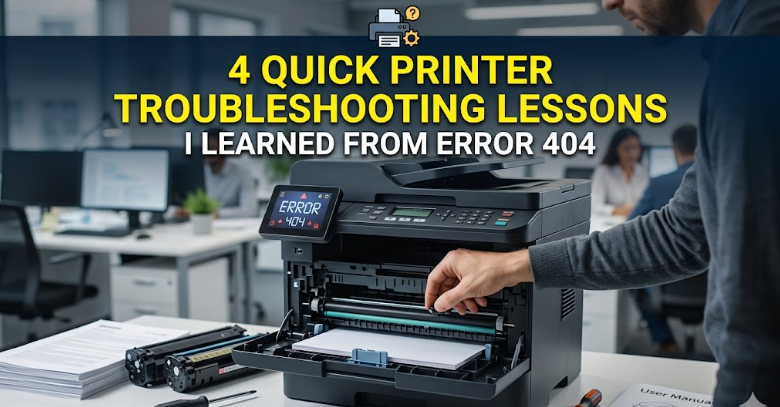
4 Quick Printer Troubleshooting Lessons I Learned from Error 404
There’s something oddly humbling about staring at a printer that refuses to cooperate. It’s not just a machine malfunctioning—it feels personal. You press print, expecting a clean sheet to slide out, and instead, you’re met with silence, blinking lights, or worse, a vague error message that seems to mock your urgency.
For me, the breaking point came with what I jokingly began calling “Error 404” of printing—not an official code, but that familiar moment when your document simply cannot be found by the printer, as if it vanished into thin air. Over time, after enough frustration, trial, and accidental discoveries, I realized these recurring problems weren’t random. They followed patterns. And once I began to understand those patterns, troubleshooting became less of a guessing game and more of a method.
What follows are four quick but surprisingly powerful lessons I learned from dealing with printer errors that felt like digital dead ends. Each lesson comes with real-world observations, practical steps, and a few insights that only come from repeated mistakes.
lesson one: the problem is rarely where you think it is
When a printer refuses to print, the instinct is to blame the printer itself. It’s right there, after all. It’s the physical object not doing its job. But one of the first lessons I learned is that printers are often innocent bystanders in a much larger chain of communication.
A print job travels through several stages: your application, your operating system, the print spooler, the network (if applicable), and finally the printer. If any link in that chain breaks, the entire process fails.
I remember a time when I spent nearly an hour checking paper trays, ink cartridges, and cables, only to discover that the document I was trying to print had never left the queue. The issue wasn’t mechanical—it was digital.
This realization shifted how I approached troubleshooting. Instead of starting with the printer, I began starting with the source.
A simple checklist that saved me countless hours:
- Confirm the document actually sent to the printer
- Check the print queue for stalled or paused jobs
- Restart the application you’re printing from
- Try printing a different file to rule out file-specific issues
Sometimes the issue is as small as a corrupted document or a frozen application. Other times, it’s a miscommunication between your device and the printer. Either way, looking upstream first can save you from unnecessary hardware tinkering.
lesson two: restarting isn’t lazy—it’s strategic
“Have you tried turning it off and on again?” It’s a phrase that has become almost cliché in tech support, but there’s a reason it persists. Restarting devices works—not by magic, but by clearing temporary states that can cause conflicts.
Printers, especially modern ones, are essentially small computers. They have memory, processes, and firmware that can get stuck or overloaded. When that happens, errors like “offline,” “not responding,” or my personal favorite, “unknown error,” start appearing.
One particular incident stands out. My printer kept showing as offline even though it was clearly powered on and connected. I checked cables, reinstalled drivers, and even switched USB ports. Nothing worked. Out of frustration, I powered everything down—the printer, my computer, and even the router.
When I turned everything back on in sequence, the printer came back to life as if nothing had ever been wrong.
That moment taught me that restarting isn’t a last resort—it’s often the most efficient first step.
A structured restart approach:
- Turn off the printer and unplug it for at least 30 seconds
- Restart your computer
- If using Wi-Fi, reboot your router
- Turn the printer back on and reconnect
This sequence helps reset communication pathways and clears temporary glitches. It’s not glamorous, but it’s incredibly effective.
lesson three: drivers are the invisible bridge
Before dealing with printer issues, I barely understood what a driver was. It sounded technical and distant, something that worked quietly in the background. But when things go wrong, drivers suddenly become very important.
A printer driver acts as a translator between your computer and the printer. Without it, your computer doesn’t know how to communicate instructions in a way the printer understands.
I learned this the hard way after upgrading my operating system. Suddenly, my printer—which had worked perfectly the day before—started producing blank pages and garbled text. At first, I thought it was an ink issue, but replacing cartridges didn’t help.
The real culprit was an outdated driver that wasn’t compatible with the new system.
Updating the driver fixed everything instantly.
Since then, I’ve treated drivers as a critical part of printer health.
What I now do regularly:
- Check for driver updates after system upgrades
- Download drivers directly from the manufacturer’s website
- Remove old or duplicate drivers that may cause conflicts
In some cases, reinstalling the driver entirely can resolve persistent issues. It’s like rebuilding the communication bridge from scratch.
lesson four: connectivity is more fragile than it looks
Wireless printing feels convenient—until it doesn’t. One moment everything works seamlessly, and the next, your printer disappears from the network as if it never existed.
Connectivity issues were the source of most of my “Error 404” experiences. The printer wasn’t broken—it was simply unreachable.
What surprised me was how many small factors could disrupt that connection:
- Changes in Wi-Fi network names or passwords
- Router updates or resets
- Devices switching between different networks
- Weak signal strength or interference
There was a time when my laptop connected to a 5GHz network while the printer remained on a 2.4GHz network. Both were technically on the same router, but they couldn’t “see” each other.
The fix required aligning both devices on the same network band.
This taught me to treat connectivity as a dynamic system rather than a static setup.
Steps that made a difference:
- Ensure both printer and device are on the same network
- Check the printer’s IP address and confirm it hasn’t changed
- Use a wired connection temporarily to isolate wireless issues
- Re-add the printer after network changes
Understanding network behavior turned a mysterious problem into a manageable one.
a deeper reflection: troubleshooting is a mindset
Beyond the technical steps, these experiences reshaped how I approach problems in general. Printer errors are frustrating not just because they interrupt your work, but because they often lack clear explanations.
Learning to troubleshoot effectively requires patience, observation, and a willingness to test assumptions.
Instead of asking, “Why isn’t this working?” I started asking:
- Where could the process be breaking down?
- What changed since the last time it worked?
- Can I isolate the problem to a specific step?
This shift in thinking made a noticeable difference—not just with printers, but with other devices and systems as well.
real-world scenarios that reinforced these lessons
One afternoon, I needed to print an important document minutes before leaving home. The printer showed no errors, but nothing happened when I clicked print.
Applying lesson one, I checked the queue and found multiple stuck jobs. Clearing them allowed the new document to print immediately.
Another time, my printer produced faded text despite full ink levels. Instead of replacing cartridges again, I remembered lesson three and updated the driver. The issue disappeared.
There was also a case where my phone could print, but my laptop couldn’t. Lesson four helped me realize they were connected to different networks. Once aligned, everything worked smoothly.
These small victories built confidence and reduced the stress that used to accompany every printer issue.

a simple troubleshooting flow you can follow
Over time, I developed a personal flow that I now use whenever something goes wrong:
Start with the source
Check the document, application, and print command
Move to the queue
Look for stuck or paused jobs
Restart devices
Printer, computer, and network
Verify drivers
Update or reinstall if necessary
Check connectivity
Ensure consistent network settings
Test again
Use a different file or device to confirm
This sequence doesn’t cover every possible issue, but it handles the majority of common problems.
why small habits make a big difference
One of the most underrated aspects of troubleshooting is prevention. Small habits can reduce the likelihood of errors significantly.
Things I now do without thinking:
- Keep firmware and drivers updated
- Avoid overloading the print queue
- Turn off the printer properly instead of unplugging it
- Periodically clean and maintain the device
These habits don’t eliminate problems entirely, but they make them less frequent and easier to resolve.
closing thoughts
Printer errors have a way of appearing at the worst possible moments. They test your patience and often feel more complicated than they should be. But as frustrating as they can be, they also offer an opportunity to understand how technology works behind the scenes.
The four lessons I learned from my own “Error 404” moments—looking beyond the obvious, embracing restarts, respecting drivers, and understanding connectivity—transformed how I handle these situations.
Troubleshooting is no longer a frantic search for solutions. It’s a process. And once you learn that process, even the most stubborn printer starts to feel a little more predictable.
frequently asked questions
- Why does my printer say offline even when it’s turned on?
This usually happens due to communication issues between your device and the printer. It could be a network mismatch, a paused queue, or a temporary glitch that can often be fixed by restarting devices or reconnecting the printer. - How do I clear a stuck print queue?
Open your printer settings, access the print queue, and cancel all pending jobs. If they don’t clear, restarting the print spooler service or rebooting your computer can help. - Do I really need to update printer drivers?
Yes, especially after operating system updates. Outdated drivers can cause compatibility issues, leading to errors, poor print quality, or complete failure to print. - Why does my printer print blank pages?
This could be due to empty or clogged ink cartridges, incorrect driver settings, or a corrupted document. Checking each of these factors can help identify the cause. - Can Wi-Fi issues affect printing?
Absolutely. If your printer and device are on different networks or if the signal is weak, the printer may appear offline or fail to receive print jobs. - Is it better to use a wired connection instead of wireless?
Wired connections are generally more stable and less prone to interference. If you experience frequent wireless issues, switching to a USB or Ethernet connection can improve reliability.






