
Meta Description: Printer Guide Discover Connection Error Solutions — Learn 11 smart solutions to fix most common printer connection issues whether they are USB-based, Wi-Fi-based or network printers.
11 Steps to Troubleshoot Printer Connection Error: Smart Printer Guide
Nothing is more frustrating than clicking “Print” and watching nothing happen. Your printer just sits there. No response. No paper. Just silence.
One of the most common issues regarding the printer is connection-related issues. They occur on Windows, Mac, home networks and office setups. But here’s the bright side — many can be resolved without a technician.
In this printer guide, you will explore 11 smart and actionable tips for getting rid of connection errors in the quickest possible time. Every tip is simple, practical and stress-tested.
Let’s get your printer functioning again.
What Causes Printer Connection Errors?
Before you dive into fixes, it’s good to know why these errors occur.
Most printer connection problems come down to one of a few things:
| Cause | Type | How Common |
|---|---|---|
| Wrong or outdated drivers | Software | Very Common |
| Loose or damaged USB cable | Hardware | Common |
| Printer offline status | Software/Settings | Very Common |
| IP address conflicts | Network | Common |
| Firewall blocking the printer | Software | Moderate |
| Wi-Fi signal issues | Network | Common |
| Print spooler errors | Software | Common |
| Outdated firmware | Software | Moderate |
Not knowing the cause means you’ll select the wrong remedy. Let’s get into each tip.
Tip 1: Return to the Basics — Restart Everything
This sounds too simple. But it does work more often than you might think.
Here’s what to restart — and in what order:
- Turn off your printer completely. Not sleep mode — completely off.
- Restart your computer.
- Reboot your router (for Wi-Fi printers).
- Wait 30 to 60 seconds.
- Turn everything back on — router first, then printer, then computer.
Why does this work? Restarting clears temporary memory, drops faulty connections and forces devices to reconnect cleanly. Many connection errors reside in this temporary layer and disappear upon reboot.
Pro Tip: Restart the router too. Wi-Fi printers drop off their network more than you might think, and the router is often the weak link.
Tip 2: Check the Physical Connection First
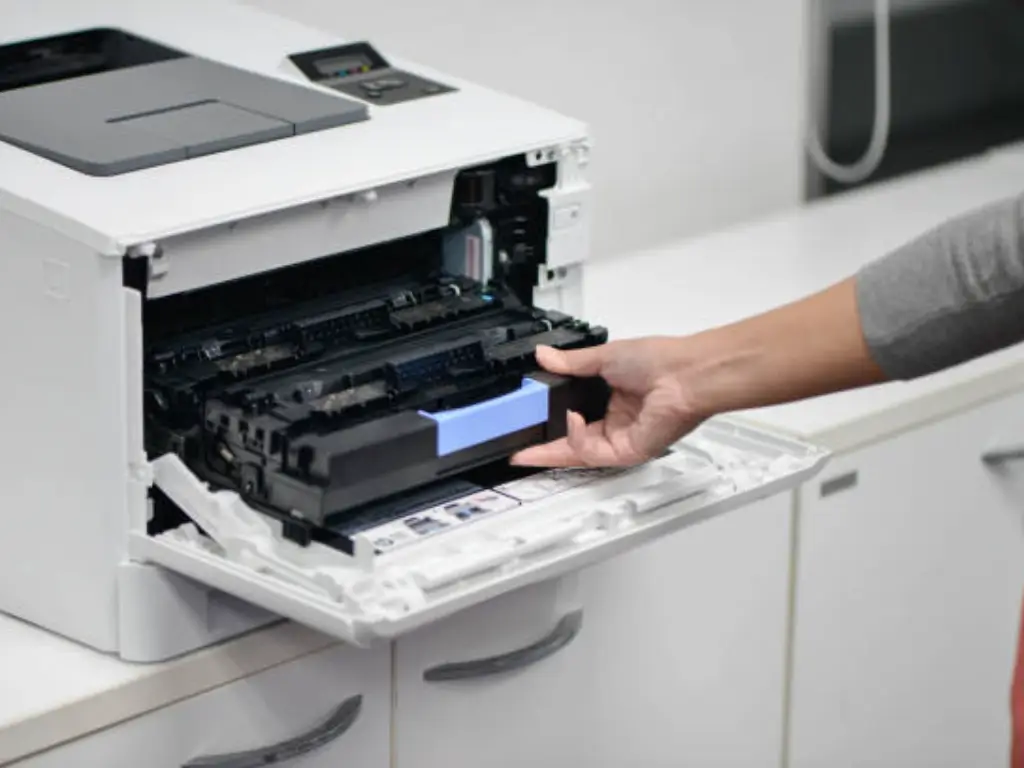
If you are connecting your printer using a USB cable, the problem may be something you can see and touch.
Run through this quick checklist:
- Is the USB cable completely plugged into the printer and computer?
- Is there any damage to the cable?
- Use a different USB port on your computer.
- Test with a different USB cable altogether.
- Check to ensure that the printer is turned on.
USB cables degrade over time. A cable that functioned perfectly six months ago could now be responsible for flaky connection drops. Replacing it costs hardly anything and frequently fixes the issue immediately.
If it’s a network printer, confirm your Ethernet cable if you use a wired connection. Check for lights blinking on the port of the router into which the printer is plugged. No lights typically means no connection.
Tip 3: Make Your Printer the Default Device
Windows and Mac both can have multiple printers installed. Every now and then, your computer sends the print job to the wrong printer.
On Windows:
- Open Settings → Bluetooth & devices → Printers & scanners.
- Click your printer.
- Select “Set as default.”
- Ensure “Let Windows manage my default printer” is disabled.
On Mac:
- Go to System Settings → Printers & Scanners.
- Find your printer in the list.
- Right-click it and select “Set as Default Printer.”
This one small change eliminates many “printer not found” errors that occur because the job was sent somewhere else entirely.
Tip 4: Switch the Printer From “Offline” to Online Mode
One of the sneakiest connection mistakes is when your printer displays as “Offline” — although it’s switched on and linked.
How to Fix It on Windows:
- Go to Control Panel → Devices and Printers.
- Right-click your printer.
- Check if “Use Printer Offline” is checked. If so — click it to uncheck it.
- Also click “See what’s printing” and cancel any stuck print jobs.
How to Fix It on Mac:
- Open System Settings → Printers & Scanners.
- Click your printer, then click “Open Print Queue.”
- If the queue is paused, click Resume.
Jammed print jobs hold everything else in the queue. Clearing the queue frequently gets the printer back online within seconds.
Tip 5: Update or Reinstall Your Printer Driver
Drivers are tiny pieces of software that allow your computer to communicate with your printer. A significant number of connection errors come from old, broken, or missing drivers.
How to Update the Driver on Windows:
- Open Device Manager (search for it in the Start menu).
- Expand “Printers” or “Print queues.”
- Right-click your printer.
- Select “Update driver.”
- Choose “Search automatically for drivers.”
How to Reinstall the Driver:
- Visit your printer manufacturer’s website (HP, Canon, Epson, Brother, etc.).
- Enter your exact printer model.
- Download the latest driver for your operating system.
- Uninstall the previous driver from Control Panel → Programs.
- Install the new one.
New drivers resolve many issues that no amount of rebooting can cure. This is particularly important after Windows or macOS updates that occasionally break driver compatibility.
Tip 6: Restart the Print Spooler Service (Windows Only)
The Print Spooler is a Windows service responsible for handling print jobs. When it crashes or freezes, your printer becomes unresponsive — even if everything else seems to be working just fine.
Here’s how to restart it:
- Press Windows + R, type
services.msc, and hit Enter. - Scroll down and locate Print Spooler.
- Right-click it and select Restart.
- If it fails to restart, click Stop first, then Start.
You can also do this from Command Prompt:
net stop spooler
net start spooler
Restart the spooler and try printing again. This fix resolves stubborn situations where the “printer not responding” error remains even after restarting the computer.
Tip 7: Check Your Wi-Fi Connection and Printer Network Settings
Wi-Fi printers must be connected to the same network as your computer. This is the main reason why wireless printer errors occur.
Quick Network Checklist:
- Is your printer on the correct Wi-Fi network? (Check the printer’s screen or print a network configuration page.)
- Is your computer on the same network? (Not a guest network — the main one.)
- Does your router broadcast on both 2.4GHz and 5GHz? Many older printers only support 2.4GHz.
How to Reconnect Your Printer to Wi-Fi:
- On the printer, go to Network Settings → Wireless Setup Wizard.
- Select your Wi-Fi network.
- Enter the password.
- Wait for the printer to connect.
- Print a test page.
If your printer and computer are on different networks (even slightly different — say 5GHz vs. 2.4GHz), they won’t see each other. This is actually a very common problem in dual-band router setups.
For more step-by-step help with wireless printer issues, visit Printer Troubleshoot Guide — a dedicated resource covering all major printer brands and connection types.
Tip 8: Assign a Static IP Address to Your Printer
This one sounds technical, but it’s actually not hard to do — and it solves a problem that keeps coming up.
Most home networks use dynamic assignment of IP addresses. This means your printer’s IP address can change each time it reconnects to the network. Your computer is unable to find the printer if its IP changes.
The fix: Assign your printer a static (fixed) IP address so it always holds the same one.
Steps (vary by printer brand):
- Print a network configuration page from your printer (typically found in the printer’s settings menu).
- Note the current IP address, subnet mask, and gateway.
- In the printer’s network settings, change from “DHCP” to “Manual” or “Static.”
- Enter the same IP address but change the last number to any number between 200–250 (e.g., 192.168.1.220).
- Save the settings.
Now your printer has the same address every time. Your computer always knows where to find it.
Tip 9: Turn Off Firewall and Security Software Temporarily
Sometimes your firewall or antivirus software blocks printer communication. This occurs frequently following software updates or when you have recently installed new security software.
How to Test If This Is the Problem:
- Temporarily disable your firewall (Windows Security or third-party software).
- Try to print.
- If it works — your firewall was the one blocking things.
- Turn your firewall back on.
- Add your printer or its software as an exception in the firewall settings.
Adding a Printer Exception in Windows Firewall:
- Go to Windows Security → Firewall & network protection.
- Click “Allow an app through firewall.”
- Find your printer software or add the printer’s IP address as an exception.
Important: Never turn your firewall off permanently. Always re-enable it after testing.
Tip 10: Use Your OS’s Built-In Printer Troubleshooter
Windows and macOS each include built-in tools that can automatically find and fix printer problems. Many people are unaware these exist.
On Windows 11/10:
- Go to Settings → System → Troubleshoot → Other troubleshooters.
- Find Printer and click Run.
- Follow the on-screen instructions.
Windows will search for common issues such as offline status, driver problems, stuck queues, and network errors — and often repair them automatically.
On Mac:
Mac doesn’t have a direct troubleshooter, but you can:
- Delete the printer from System Settings → Printers & Scanners.
- Click the “+” button to add it again.
- Let macOS discover it fresh and set up the connection again.
Simply removing and re-adding the printer usually resets all the settings back to working condition.
According to HP’s official support documentation, running the built-in printer diagnostic tool is one of the first recommended steps for resolving most common connection issues.
Tip 11: Get the Latest Firmware for Your Printer
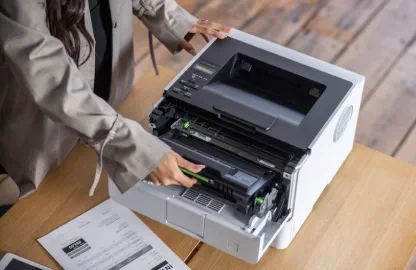
Firmware is the software that resides on the printer itself. Manufacturers release firmware updates to fix bugs, improve performance, and patch compatibility issues.
If your printer suddenly started having connection problems after a Windows or Mac update, outdated firmware is usually the cause.
How to Update Firmware:
For HP Printers:
- Open the HP Smart app or visit hp.com/support.
- Enter your model number.
- Download and install any available firmware updates.
For Epson Printers:
- Use the Epson Software Updater tool.
- Or go to epson.com/support.
For Canon Printers:
- Visit canon.com/support and search your model.
- Download the firmware update tool.
For Brother Printers:
- Go to support.brother.com.
- Select your model and download the firmware update.
Most firmware updates take less than 10 minutes and can resolve connection issues that seem completely unrelated.
Quick Overview: USB vs. Wi-Fi Printer Connection Errors
| Issue | USB Printer Fix | Wi-Fi Printer Fix |
|---|---|---|
| Printer not detected | Check cable / try different USB port | Reconnect to network |
| Printer offline | Uncheck “Use Printer Offline” | Check IP address |
| Slow printing | Update driver | Improve Wi-Fi signal |
| Keeps disconnecting | Replace the cable | Assign static IP |
| Works sometimes | Try different USB version | Check router settings |
How Long Do These Fixes Take?
| Fix | Time Required | Skill Level |
|---|---|---|
| Restart devices | 2–5 min | Beginner |
| Set default printer | 1–2 min | Beginner |
| Fix offline status | 3–5 min | Beginner |
| Update driver | 10–20 min | Intermediate |
| Restart print spooler | 2–3 min | Intermediate |
| Reconnect to Wi-Fi | 5–10 min | Beginner |
| Assign static IP | 10–15 min | Intermediate |
| Disable firewall temporarily | 5–10 min | Intermediate |
| Run built-in troubleshooter | 5–10 min | Beginner |
| Update firmware | 10–20 min | Intermediate |
When None of These Tips Work
If you’ve tried all 11 tips and your printer still won’t connect, here are some last-resort options:
- Factory reset your printer. This clears everything and returns the device to a fresh state. Consult your printer’s manual for how to do this.
- Contact manufacturer support. HP, Epson, Canon, and Brother all provide free phone and chat support.
- Check for hardware damage. Physical damage could be the culprit if you’ve dropped the printer, exposed it to moisture, or it’s simply very old.
- Consider the printer’s age. Older printers (5–7 years and older) may not work with the latest operating systems — notably after a major Windows or macOS update.
FAQs About Printer Connection Errors
Q1: My printer says “offline” but I can see it’s switched on. What gives?
That “offline” indicator generally means your computer has lost contact with the printer. This can occur due to a changed IP address, a stuck print job, or a setting in Windows that flagged it as offline manually. Fix it by following Tip 4 in this guide.
Q2: My printer was working yesterday and now it won’t work today. What changed?
A Windows or macOS update is the usual suspect. Updates can break driver compatibility or reset network settings. Try updating your printer driver (Tip 5) or firmware (Tip 11) first.
Q3: How can I tell if my printer is connected to Wi-Fi?
Most printers have a small screen that displays the network status. You can also print a “Network Configuration Page” from the printer’s settings menu. It will display the IP address and whether Wi-Fi is connected.
Q4: Can a weak Wi-Fi signal cause connection errors?
Yes, absolutely. If your printer is located far from your router, the signal may be too weak for a stable connection. Move the printer closer to the router or install a Wi-Fi extender.
Q5: Is it safe to disable my firewall to fix printer problems?
You can safely disable it temporarily for testing. But always switch it back on immediately. The real goal is to add your printer as a permanent exception in the firewall — not to leave the firewall disabled.
Q6: My printer connects but prints very slowly. Is this a connection error?
Slow printing can indicate a weak connection, especially over Wi-Fi. Print mode and large file sizes may also cause this. Check your connection quality and try printing a simple document to compare speed.
Q7: Do I have to reinstall the printer after every Windows update?
Not usually. But certain major updates (such as moving from Windows 10 to Windows 11) do require driver reinstallation. If your printer stops working after an update, reinstalling the driver (Tip 5) or running the troubleshooter (Tip 10) will usually fix it.
Q8: What is a “print spooler error”?
The print spooler is a service that manages the print queue. When it crashes, the printer appears unresponsive — even when it’s connected. Restarting the spooler (Tip 6) usually resolves this quickly.
Wrapping It Up
Printer connection errors are frustrating, but they’re almost always solvable. The trick is to go through the problem one step at a time — beginning with the easiest solutions and gradually progressing to more technical fixes if all else fails.
Here’s a quick summary of all 11 tips in this printer guide:
- Power cycle your printer, computer, and router
- Check physical cables and connections
- Make your printer the default device
- Remove the printer from offline mode
- Update or reinstall the printer driver
- Restart the Print Spooler service
- Check Wi-Fi network settings
- Assign a static IP address
- Temporarily disable the firewall and add exception settings
- Run the built-in printer troubleshooter
- Update your printer’s firmware
You can usually resolve most printer issues with the first three or four tips. Work your way down until you’ve got your printer running again — without paying a cent for a repair call.
If this printer guide was useful to you, bookmark it for the next time your printer malfunctions — because it most likely will.






