
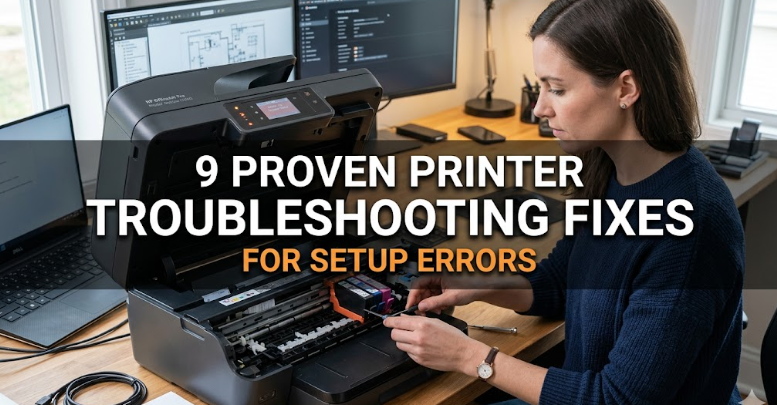
9 Proven Printer Troubleshooting Fixes for Setup Errors
Setting up a printer should be a simple process: plug it in, install drivers, connect to Wi-Fi or USB, and start printing. Yet in reality, setup errors are one of the most frustrating problems users face. Whether it’s a driver mismatch, connectivity failure, or an unresponsive device, printer setup issues can bring productivity to a halt.
This guide walks through 9 proven troubleshooting fixes that solve most printer setup errors, whether you are using HP, Canon, Epson, Brother, or any other major brand.
Instead of random guesses, these methods are structured in a logical sequence so you can move from the simplest fixes to more advanced solutions.
Understanding Printer Setup Errors
Before jumping into solutions, it helps to understand what “setup errors” actually mean.
A printer setup error typically occurs when your computer or mobile device fails to properly detect, install, or communicate with the printer. These errors can appear as:
“Printer not detected”
“Driver unavailable”
“Setup incomplete”
“Cannot connect to printer”
“Offline status”
The root causes usually fall into four categories:
Driver issues
Connectivity problems
Software conflicts
Incorrect configuration
Now let’s fix them step by step.
Fix 1: Restart Everything (Printer, PC, and Router)
It may sound too simple, but restarting devices resolves more setup errors than most advanced fixes.
Why this works:
Printers and computers often store temporary configuration data. If something gets stuck during setup, a restart clears memory and resets connections.
Steps:
Turn off the printer and unplug it for 30 seconds
Restart your computer or laptop
If using a wireless printer, restart your Wi-Fi router
Turn everything back on and try setup again
This resets communication between devices and often clears detection errors instantly.
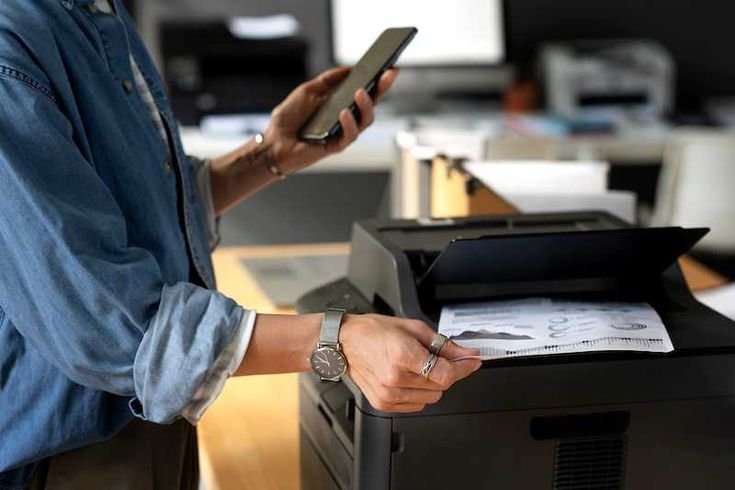
Fix 2: Check Physical Connections Properly
For USB printers, loose or faulty connections are a major cause of setup failure.
Things to check:
Ensure USB cable is firmly connected
Try a different USB port
Avoid using USB hubs or extensions
Inspect cable for damage
For network printers:
Make sure Ethernet cable is properly inserted (if wired)
Confirm router is working correctly
Check if printer is connected to the correct Wi-Fi network
A surprising number of setup failures come from something as simple as a partially connected cable.
Fix 3: Reinstall or Update Printer Drivers
Driver issues are one of the most common reasons printers fail during setup.
Why drivers matter:
Drivers act as translators between your computer and printer. If they are outdated or corrupted, communication breaks down.
Steps to fix:
Uninstall existing printer drivers from your system
Go to the official printer brand website
Download the latest driver for your model
Install it fresh and restart your computer
Tip:
Avoid using generic drivers from Windows update if possible. Manufacturer drivers are more reliable.
Fix 4: Set Printer as Default Device
Sometimes the printer is installed correctly, but your system is sending print jobs to the wrong device.
To fix this:
Go to Control Panel or Settings
Open Devices and Printers
Right-click your printer
Select “Set as Default Printer”
Why this helps:
If multiple printers are installed (including virtual ones like PDF printers), your system may not prioritize the correct one.
Fix 5: Clear Print Queue and Restart Print Spooler
A stuck print queue can block setup completion entirely.
What happens:
A failed print job gets stuck in memory and prevents new communication with the printer.
Steps:
Open Services (Windows + R → type services.msc)
Find “Print Spooler”
Click Stop
Navigate to:
C:\Windows\System32\spool\PRINTERS
Delete all files inside the folder
Go back and Start the Print Spooler again
This resets the printing system completely.
Fix 6: Verify Network Connection (For Wireless Printers)
Wireless setup errors often come from network mismatches.
Common issues:
Printer and computer on different Wi-Fi networks
Weak Wi-Fi signal
Router restrictions
Hidden SSID issues
Fix steps:
Ensure both devices are on the same Wi-Fi network
Move printer closer to router
Restart router and printer
Re-run wireless setup mode on printer
Some printers also require 2.4 GHz networks instead of 5 GHz, so check compatibility.
Fix 7: Disable Firewall or Antivirus Temporarily
Security software can block printer setup without warning.
Why this happens:
Firewalls may see printer communication as suspicious activity.
What to do:
Temporarily disable firewall/antivirus
Try printer setup again
If it works, add printer software as an exception
Important:
Do not leave protection disabled permanently—only use this for testing.
Fix 8: Run Built-in Printer Troubleshooter
Windows and macOS both include automatic troubleshooting tools.
For Windows:
Go to Settings
Click System → Troubleshoot
Select Printer Troubleshooter
Run diagnostics and apply fixes
What it does:
Detects driver issues
Fixes spooler problems
Repairs connection errors
While not perfect, it resolves many common setup failures automatically.
Fix 9: Reset Printer to Factory Settings
If nothing else works, a full reset is often the final solution.
Why this works:
It removes incorrect network settings, corrupted configurations, and failed setup attempts.
General steps:
Go to printer settings menu
Find “Restore Factory Settings” or “Reset Network Settings”
Confirm reset
Reinstall printer from scratch
After reset:
Treat the printer like a brand-new device and run setup again carefully.
Extra Tips to Prevent Setup Errors in the Future
Always install official drivers first
Keep printer firmware updated
Avoid switching networks during setup
Use stable Wi-Fi instead of public networks
Restart devices before reinstalling
Prevention saves more time than troubleshooting.
Conclusion
Printer setup errors are frustrating, but they are rarely permanent or complex. In most cases, the issue comes down to drivers, connectivity, or configuration mismatches.
By following these 9 proven fixes in order—from simple restarts to full resets—you can solve nearly all common setup problems without professional help.
The key is patience and methodical troubleshooting rather than random trial and error.
FAQs
Why does my printer keep showing setup error even after installation?
This usually happens due to driver conflicts, incomplete installation, or incorrect network settings. Reinstalling drivers often fixes the issue.
How do I fix a printer that is not detected during setup?
Check USB or Wi-Fi connection first, restart devices, and ensure drivers are installed correctly from the official website.
Why is my printer offline during setup?
This is often caused by network mismatch or spooler errors. Restarting the printer and setting it as default usually helps.
Do I need internet to install a printer?
Not always. USB printers do not require internet, but wireless printers need a network connection for setup.
What is the most common printer setup error?
Driver issues and incorrect network configuration are the most common causes of setup failure.
When should I reset my printer completely?
Only after trying all other troubleshooting steps, especially if the printer keeps failing to connect or is stuck in configuration mode.






