
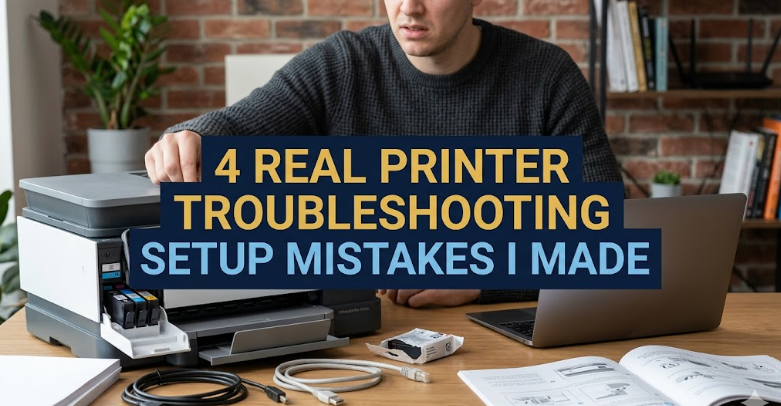
4 Real Printer Troubleshooting Setup Mistakes I Made
Introduction
Setting up a printer sounds simple on paper: plug it in, install drivers, connect to Wi-Fi, and start printing. That’s what I thought too. But my real experience was very different. Over time, I made several mistakes that led to wasted ink, endless error messages, offline printers, and a lot of frustration.
What I realized is that most printer problems during setup are not random—they usually come from small mistakes that we don’t even notice. In this article, I’ll walk you through four real mistakes I personally made while setting up printers, what went wrong, and how you can avoid repeating them.
This isn’t theory. These are real-world issues that cost me time and patience, especially during urgent printing tasks.
Mistake 1: Ignoring driver compatibility during installation
When I first started setting up printers, I assumed that installing any driver from the internet would work. I didn’t pay attention to model numbers or operating system versions. That was a big mistake.
What went wrong
I downloaded a “universal driver” thinking it would automatically detect my printer. It installed fine, but the printer never worked correctly. Sometimes it would print blank pages, sometimes it would freeze mid-job, and other times it wouldn’t even show up on the device list.
The real issue was compatibility. My printer required a specific driver version designed for Windows 10 64-bit, but I had installed a generic version meant for multiple models.
How I fixed it
After a lot of trial and error, I learned to always:
- Check the exact printer model number
- Download drivers only from the official manufacturer website
- Match the driver with my operating system version
- Avoid third-party “driver booster” tools
Once I installed the correct driver, everything started working smoothly.
Lesson learned
Never assume drivers are interchangeable. One small mismatch can break the entire setup process.
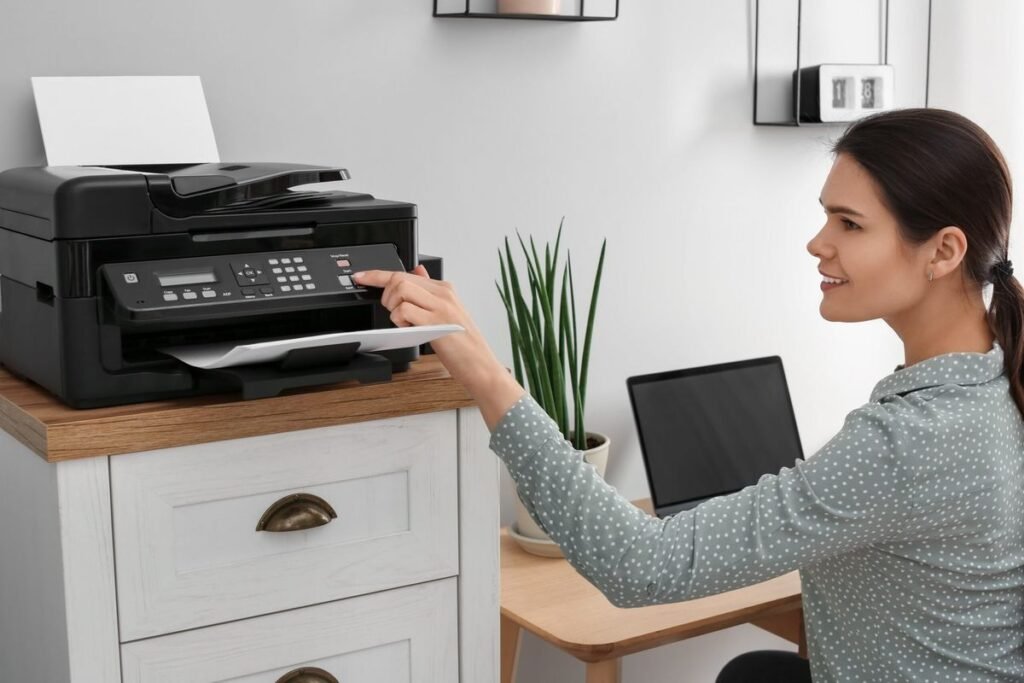
Mistake 2: Setting up Wi-Fi without checking network conditions
Wireless printers are convenient, but they can also be frustrating if the network isn’t properly prepared. I learned this the hard way.
What went wrong
I tried connecting my printer to Wi-Fi in a room far from the router. The setup seemed successful at first, but the connection kept dropping. Print jobs would get stuck in the queue or disappear completely.
At first, I thought the printer was faulty. Later, I realized the problem was weak signal strength and network instability.
How I fixed it
I made a few simple adjustments:
- Moved the printer closer to the Wi-Fi router during setup
- Restarted both the router and printer before connecting
- Switched from 5GHz to 2.4GHz for better range
- Ensured no heavy downloads were running during setup
After stabilizing the connection, the printer worked consistently without disconnecting.
Lesson learned
Printer Wi-Fi setup depends heavily on network strength. A weak signal can make even a good printer seem broken.
Mistake 3: Skipping the initial calibration and test print
When I first got a new printer, I was too excited to start printing documents. I skipped all calibration steps and went straight to printing important files. That was a mistake I quickly regretted.
What went wrong
My prints came out misaligned, colors looked dull, and text was slightly blurred. I thought the printer was defective. In reality, it just needed initial calibration.
Most printers come with built-in setup routines like alignment checks and nozzle cleaning, but I ignored them.
How I fixed it
I went back into the printer settings and ran:
- Print head alignment
- Nozzle check
- Test page print
- Color calibration tools
After completing these steps, the print quality improved dramatically.
Lesson learned
Skipping calibration is like skipping tuning on a new instrument. The hardware needs adjustment before proper use.
Mistake 4: Overlooking spooler and print queue issues
This was one of the most confusing problems I faced. Even after everything was set up correctly, my printer would randomly stop responding.
What went wrong
Print jobs would get stuck in the queue, and nothing would print. Restarting the printer didn’t help. Reinstalling drivers didn’t help either. I thought the printer had serious hardware issues.
The real problem was the print spooler service on my computer.
How I fixed it
After researching, I learned how to reset the print spooler:
- Opened Windows services
- Restarted the Print Spooler service
- Cleared all pending print jobs
- Deleted stuck files in the spool folder
Once I did that, the printer started working normally again.
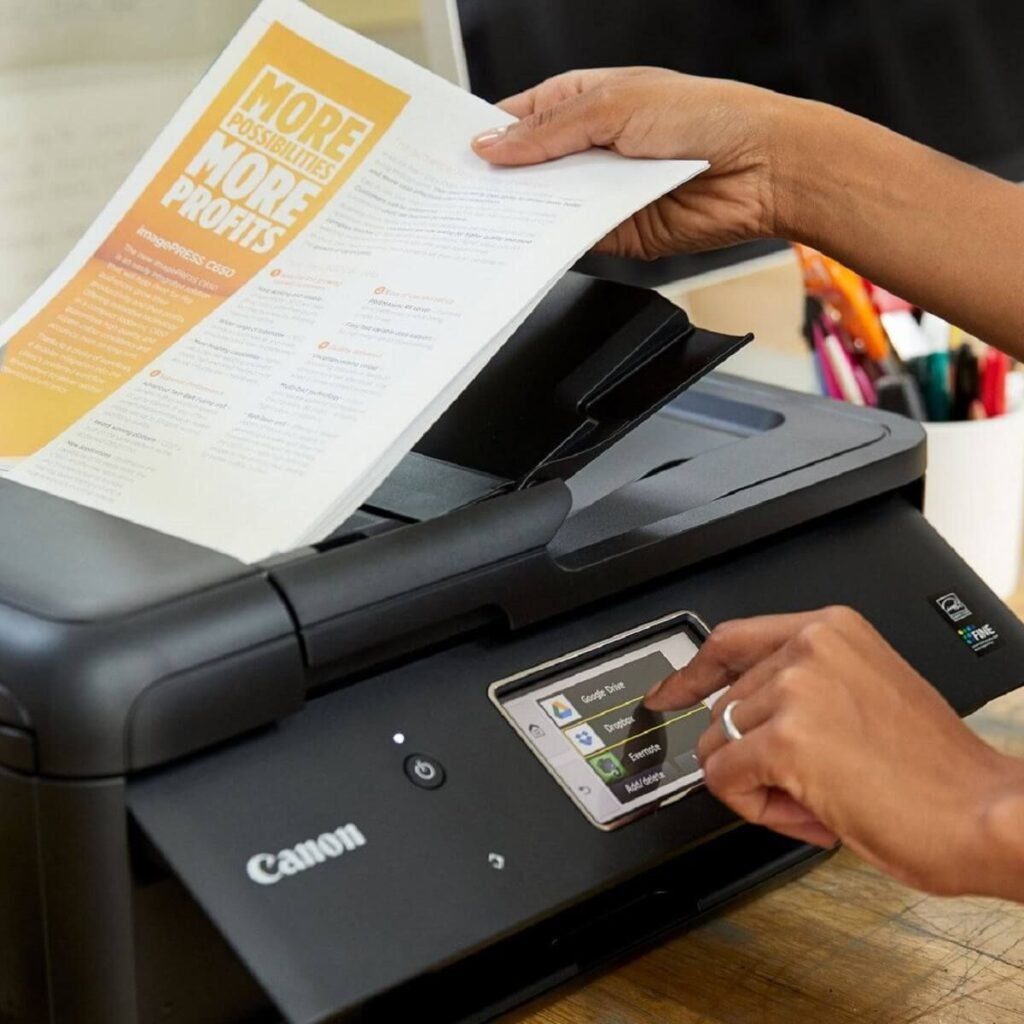
Lesson learned
Sometimes the issue isn’t the printer—it’s the system managing it.
Additional insights from my experience
After going through these mistakes, I noticed a pattern. Most printer setup problems fall into three categories:
- Software issues (drivers, spooler, firmware)
- Network issues (Wi-Fi stability, router distance)
- User setup errors (skipping steps, rushing installation)
The good news is that all of these are preventable. The key is patience and following setup instructions carefully instead of rushing through them.
Another important realization was that printer troubleshooting is not about guesswork. It’s about eliminating possible causes one by one until the real issue is found.
Final thoughts
Looking back, all my printer setup problems came from simple mistakes that I could have avoided with a bit more attention. What seemed like “technical failures” were actually basic setup oversights.
If you are setting up a printer today, take your time. Check compatibility, ensure a strong network, run calibration steps, and don’t ignore system services like the print spooler. These small steps make a huge difference in long-term performance.
Frequently Asked Questions (FAQs)
- Why does my printer show offline even when it is connected?
This usually happens due to network issues, outdated drivers, or problems with the print spooler. Restarting both the printer and router often helps. - Do I always need to install drivers for a printer?
Yes, especially for full functionality. Some basic printing may work automatically, but official drivers ensure proper performance and features. - Why are my printed pages coming out blank?
This can be due to empty cartridges, clogged print heads, or incorrect driver installation. Running a nozzle check usually helps identify the issue. - How do I fix a stuck print job in the queue?
Restart the print spooler service, cancel all pending jobs, and clear the spool folder in system settings. - Why does my wireless printer keep disconnecting?
Weak Wi-Fi signals, router distance, or interference from other devices are common causes. Switching to 2.4GHz often improves stability. - Is printer calibration really necessary?
Yes. It ensures proper alignment, color accuracy, and print quality, especially for new printers or after cartridge changes.






