
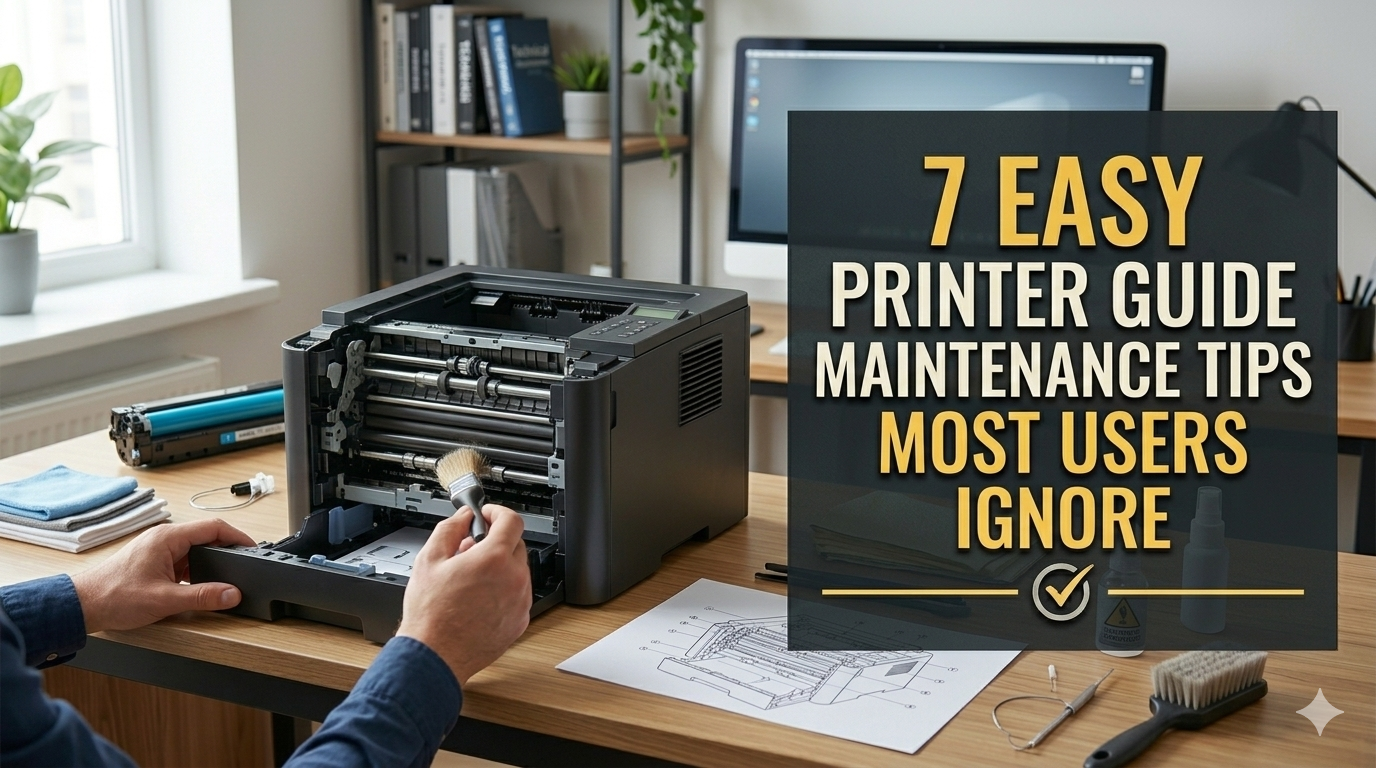
Meta Description: Printer guide maintenance tips that most users ignore can save you time, money, and frustration. Discover 7 simple habits to keep your printer running like new.
Printer Maintenance: 7 Easy Tips Most People Ignore
Printers are one of those devices that people forget — until they don’t.
You press “print,” nothing comes out and suddenly, you’re late for work or missing a deadline. The reality is that the vast majority of printer problems are entirely preventable. Even a little regular care can work wonders.
This guide explains 7 easy printer maintenance tips most people skip. These aren’t complicated. You do not require any special equipment or technical expertise. Just several easy steps that will keep your printer running smoothly for years.
Let’s get into it.
Why Printer Maintenance Actually Matters
Think about your car. You get the oil changed, check tire pressures and wash windows. Even a great car won’t run without that basic maintenance.
Printers work the same way.
Dust builds up. Ink dries out. Paper jams become more frequent. Print quality drops. Before you realize it, you’re shelling out one way or another — for repairs or a whole new printer.
Regular maintenance saves money. It also spares you the stress of trying to let a broken printer save your life when you need it.
Here’s a brief summary of what you can expect to pay for poor maintenance:
| Problem | Cause | Average Cost to Fix |
|---|---|---|
| Print head clogging | Dried ink due to sporadic use | $20–$80 (repair or replacement) |
| Paper jams | Dust, paper misalignment | $0–$50 |
| Fading prints | Low ink or dirty rollers | $15–$40 (replacement cartridge) |
| Streaky output | Dirty drum or laser unit | $50–$150 |
| Printer failure | General neglect over time | $100–$300+ |
Small habits now = big savings later.
Tip 1 — Get the Outside Clean Before It Becomes a Real Problem
Printer cleaning is something that most people never do. Dust settles on vents, buttons and paper trays. Slowly, it gets inside and wreaks havoc.
It takes fewer than five minutes to clean the outside of your printer.
What You’ll Need
- A soft, lint-free cloth
- Isopropyl alcohol (70% works fine)
- A can of compressed air
How to Do It Right
First of all, turn off and unplug the printer. Always.
Using a slightly damp cloth, wipe the top, sides and front panel. Do not soak the cloth — just moisten it.
Use the compressed air to blow dust out of paper trays, vents and any open slots. Keep the can upright so liquid doesn’t spray.
Avoid using paper towels. They shed little fibers that can enter the internal workings of the printer.
Do this once a month. Use your phone to set a reminder if you have to. This is the simplest, fastest item on this list — and it has a genuine impact.
One Thing Most People Miss
The paper input tray is a dust magnet. Completely pull it out and wipe it down. Dust that forms in the tray is the number one culprit behind paper feed issues.
Tip 2 — Stop Ignoring the Print Head
The print head is the component in your printer that places ink on paper. It has microscopic nozzles — sometimes hundreds of them — that spray ink in exact patterns.
When those nozzles dry up or become blocked, prints come out streaky, faded or with lines missing.
This is the most common printer issue. And it’s almost entirely preventable.
Why Clogs Happen
Ink dries when it sits still for too long. If you don’t print often, the ink in the nozzles dries inside and clogs them.
That’s more common with inkjet printers.
The Fix: Just Print Something Every Week
You have nothing critical to print. A test page or a colorful image every week is enough to keep the ink flowing through the nozzles.
Most printers have a built-in print head cleaning tool. Here’s how to find it:
- Windows: Control Panel → Devices and Printers → Right-click your printer → Printing Preferences → Maintenance tab
- Mac: System Settings → Printers & Scanners → Click on the printer → Options & Supplies → Utility → Open Printer Utility
If you are noticing any print quality problems, run the cleaning cycle. But don’t go overboard — running it too often wastes ink.
Signs Your Print Head Needs Attention
- Lines or streaks on printed pages
- Colors look wrong or faded
- Blank sections on printed pages
- The printer makes strange sounds during the printing process
The earlier you catch these, the easier they are to fix with a quick cleaning cycle. Neglect them too long, and you could end up needing to replace an entire print head.
Tip 3 — Use the Right Paper (This One Surprises People)
Paper isn’t just paper. Different printers are meant for various types.
Most people never even think about using the wrong paper — but it creates more problems than you might expect.
What Goes Wrong With the Wrong Paper
| Paper Issue | What It Causes |
|---|---|
| Too thin or flimsy | Paper jams, misfeeds |
| Too thick or glossy (wrong type) | Ink smearing, jams |
| Damp or humid paper | Curling, feeding problems |
| Wrong size loaded | Alignment errors, wasted prints |
How to Pick the Right Paper
Look in your printer’s manual or on the manufacturer’s website. It will include recommended paper weights (in gsm — grams per square meter).
Standard inkjet and laser printers are typically designed to work best with 75–90 gsm paper.
For photo printing, use paper that’s specifically labeled for your printer brand whenever possible. Generic photo paper can create color issues at times.
Storage Matters Too
Keep your paper in a dry place. Humidity is paper’s enemy.
Do not allow paper to remain in the tray for months on end. Take what you need, then store the remainder in a sealed package or a dry cabinet.
This little habit solves so many irritating paper jams.
Tip 4 — Keep Ink and Toner Cartridges in Good Shape
Cartridges are the most replaced part of any printer. But most users are not aware of how much their habits can influence the life of cartridges.
Don’t Wait Until the Ink Runs Out
A cartridge that is fully exhausted will cause additional strain on the print head. Change cartridges when your printer issues a low-ink warning for the first time — not after prints start fading.
Shake Toner Cartridges (Carefully)
This tip is specifically for laser printer users.
If your laser printer suddenly prints lighter than usual, remove the toner cartridge and gently rock it back and forth a few times. That redistributes the toner powder on the inside.
It can give you another 20–30% more prints until you have to replace it. Do not shake it hard — just a gentle, slow side-to-side motion.
Store Spare Cartridges the Right Way
- Keep them in their original sealed packaging until you need them
- Keep them at room temperature — not in a hot car or cold garage
- Store inkjet cartridges upright to avoid leakage
- Check the expiration date (yes, cartridges do expire)
A Note on Third-Party Cartridges
Third-party cartridges are cheaper. But they can create problems — clogged print heads, inaccurate colors and sometimes even damage to your printer.
If you use them, read reviews carefully. Some brands are good. Others aren’t worth the savings.
Tip 5 — Clear Paper Jams the Right Way (Most People Get This Wrong)
Paper jams happen to everyone. How you deal with them, however, makes a big difference.
Most people pull the paper out as quickly as they can. That can rip the paper and leave bits stuck inside. Worse, it can damage internal rollers or sensors.
How to Properly Remove a Paper Jam
Step 1: Turn the printer off. Do not attempt to remove paper while it is in operation.
Step 2: Open all access doors — front, back and any side panels your printer may have. Most printers have a rear access door that most people never open.
Step 3: Slowly and steadily pull the paper out. Always pull in the direction that the paper is traveling — usually straight out or downward. Do not pull against the paper path.
Step 4: Check for torn pieces. Even a tiny scrap remaining inside will lead to another jam. Shine a flashlight in there and look carefully.
Step 5: Close everything, power the printer back on and print a test page.
Why Jams Keep Happening
If you are getting jams regularly, something else is going on:
- Rollers are dirty or worn out
- Paper is loaded unevenly or overfilled
- Wrong paper type is being used
- Dust inside the paper path
Cleaning the rollers with a damp lint-free cloth often solves recurring jams. Rollers become shiny and slippery over time, losing grip on the paper.
For more help with persistent paper jams and other common printer issues, visit Printer Troubleshoot Guide — a reliable resource packed with step-by-step fixes for all major printer problems.
Tip 6 — Keep Your Printer’s Software and Drivers Up to Date
This one gets overlooked constantly. Printer drivers are the software that enables your computer to talk to your printer.
Old, outdated drivers lead to all sorts of weird issues:
- The computer fails to recognize the printer
- Print jobs stuck in the queue
- Settings that don’t save correctly
- Compatibility issues after computer updates
How to Update Printer Drivers
On Windows: Go to Device Manager → Find your printer → Right-click → Update Driver → Search automatically
Or go straight to the printer manufacturer’s website. Find your printer model and download the most recent driver.
On Mac: System Settings → General → Software Update. Printer drivers usually get updated through the system update.
Alternatively, visit the manufacturer’s website to see if they have specific Mac driver downloads.
Update Printer Firmware Too
Firmware is the software installed directly in the printer. Manufacturers publish firmware updates to address bugs, enhance performance and add security patches.
Most modern printers let you apply firmware updates directly through the printer’s menu or via a manufacturer app.
Look for firmware updates every few months. It only takes five minutes, and it can solve issues you didn’t even know existed.
According to HP’s official printer support documentation, keeping your printer firmware up to date is one of the most effective ways to prevent connectivity issues and improve overall performance.
Why This Is More Important Than Ever
Modern computers update frequently. Windows 11 updates, macOS updates — these changes will occasionally break compatibility with old printer drivers.
Updating your drivers ensures that the printer remains compatible regardless of changes on the computer end.
Tip 7 — Give Your Printer a Proper Break (And a Proper Restart)
This sounds simple. That’s because it is.
Most people keep their printers on all the time. Or they never fully shut them down — just put them to sleep.
Printers need a proper restart occasionally, just like computers.
Why Restarting Helps
When a printer restarts, it:
- Clears temporary memory and stuck print jobs
- Resets internal calibration
- Runs a quick self-check on startup
- Refreshes the connection with your computer or network
If your printer is misbehaving — slow to respond, giving strange error messages, unable to connect — a full restart solves it more often than you would expect.
How to Restart a Printer Properly
Don’t just hit the power button and immediately turn it back on.
Turn it off → Wait 30 seconds → Turn it back on.
That 30-second wait lets the capacitors fully discharge and the memory completely clear. It is a small thing that makes the restart actually effective.
Don’t Leave It On All the Time
Having a printer run around the clock wears out components more quickly. The fuser unit in laser printers, in particular, has a finite lifespan. Running it constantly heats it up far more than necessary.
Use your printer’s sleep or auto-off settings. Most printers can be programmed to power off automatically after a period of inactivity. This greatly prolongs the life of internal components.
Quick Reference: Monthly Printer Maintenance Checklist
Use this checklist to stay on top of your printer care without forgetting anything:
| Task | Frequency | Time Required |
|---|---|---|
| Exterior wipe-down | Monthly | 5 minutes |
| Paper tray clean-out | Monthly | 3 minutes |
| Test page print | Weekly | 1 minute |
| Print head cleaning | As needed | 5 minutes |
| Ink/toner level check | Monthly | 2 minutes |
| Drivers/firmware update | Quarterly | 10 minutes |
| Full printer restart | Monthly | 2 minutes |
| Paper roller cleaning | Every 3–6 months | 10 minutes |
| Paper storage check | Monthly | 2 minutes |
Print this out (a great use of your printer!) and stick it somewhere visible.
Common Mistakes That Shorten a Printer’s Life
People make these mistakes every single day, even the well-meaning ones:
Printing infrequently and expecting perfect results. Printers need to be used periodically to remain in good condition. Allowing them to sit for months guarantees clogged nozzles.
Overfilling the paper tray. It seems efficient. It causes jams. Do not go above the maximum fill line of the tray.
Yanking paper jams out too quickly. Take it slow. Always.
Ignoring low ink warnings. Running a printer completely dry is harmful to the print head.
Using the printer in extreme temperatures. Temperature extremes negatively impact ink, toner and internal components. Room temperature is always best.
Skipping software updates. Old drivers cause more problems than most people realize.
FAQs About Printer Maintenance
How often do I need to clean my printer? A basic exterior clean once a month works great. Clean your printer’s internals — including print heads and rollers — every 3–6 months, or when you see print quality declining.
Is it bad to leave a printer on all the time? Yes, over the long term. Using power all the time gives unnecessary heat to components. Use your printer’s auto-off or sleep feature to help it live longer.
Can I use any paper in my printer? No. The manual for your printer will always list recommended paper weight and type. Using the wrong paper causes jams, smearing, and damage.
Why does my printer keep getting paper jams? Common problems include overfilled paper trays, incorrect type of paper, dirty rollers or debris in the paper path. Most jam issues are resolved with regular cleaning and using the correct paper.
How do I know if my print head is clogged? Check printed pages for streaks, missing lines, faded areas or wrong colors. If you see these signs, run the printer’s built-in nozzle check and cleaning utility.
Do printer cartridges expire? Yes. Ink and toner cartridges do not last forever. Old ink can lead to poor print quality and clogging. Before using, always check the expiration date on stored cartridges.
Why does my printer show as offline when it is turned on? It is usually a driver or connectivity problem. Restart the printer and computer as a first step. If that doesn’t fix the problem, update your drivers and check your network connection.
How long do printers last with proper maintenance? With good maintenance, a printer can last 5 to over 10 years. Neglected printers usually fail within 2–3 years. Ongoing care really is game-changing.
Wrapping It All Up
Printer maintenance isn’t complicated. It’s just easy to ignore — until things break.
This guide covered 7 tips to help you keep your printer working great:
- Clean the outside regularly
- Take care of the print head
- Use the right paper
- Handle cartridges properly
- Clear paper jams correctly
- Keep drivers and firmware updated
- Restart and power off properly
None of these takes more than a couple of minutes. But neglecting them adds up — in repair bills, wasted ink and frustrating failures at the worst possible times.
Pick one tip from this list and get started today. Build the habit slowly. Your printer will last longer, perform better and cost you less over time.
No matter who you are, that’s a win.






