
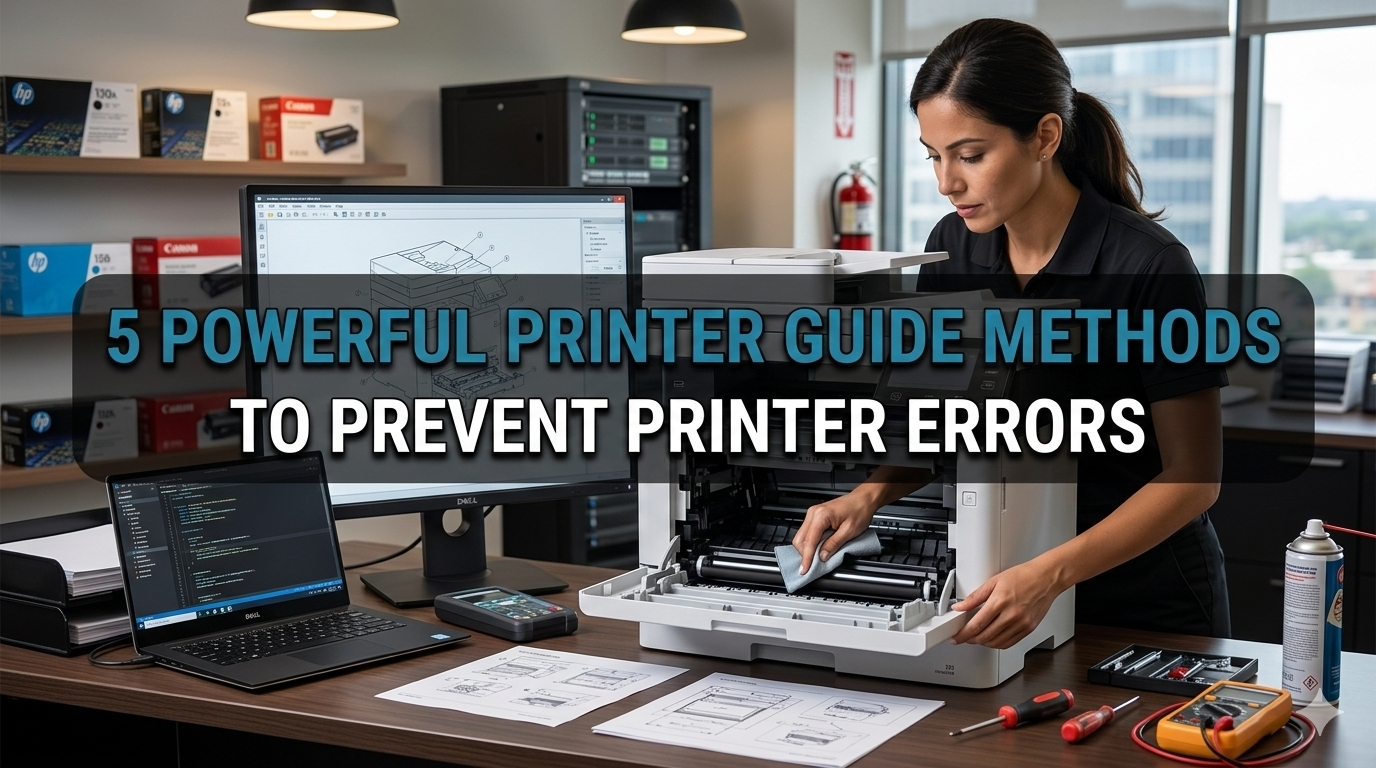
Meta Description: Printer Guide techniques are potential to get rid of frustrating printer errors. Learn about 5 amazing ways to keep printers error-free and always work.
5 Methods to Avoid Printer Errors in a Mighty Printer Guide
Printers can be a godsend — until they break on you when you need them most.
A paper jam. An error message. A light that blinks in seemingly nonsensical patterns. Sound familiar?
The bright side: Most printer problems are easily avoidable. You don’t have to be a tech expert to keep your printer running smoothly. What you need are the right printer guide tactics that work.
In this article, we’ll take you through five key steps to prevent printer errors before they even occur. These tips will save you time, money, and a lot of frustration — no matter whether your printer is used at home, at school, or in an office.
Let’s get started.
Why Printer Errors Occur in the First Place
Before diving into fixes, it’s useful to understand why printers break down so frequently.
The most common reasons for printer errors boil down to a few culprits:
- Outdated or corrupted drivers
- Dirty or clogged print heads
- Bad paper quality or incorrect paper size
- Low ink or toner levels
- Incorrect printer settings
- Connection issues (USB or Wi-Fi)
The reality is that most problems like these are very easy to avoid. With just a little bit of regular maintenance and the right setup, you can win the day.
Treat your printer like a car. If you never change the oil or check if the tires are in good shape, it is going to break down eventually. But if you maintain it well, it lasts for years.
Step 1: Always Keep Your Printer Drivers Updated
What Is a Printer Driver, and Why It Matters?
A printer driver is a small software program that enables your computer to “speak” to your printer. Your computer doesn’t know how to send print commands without it.
That communication fails when drivers go stale. You may encounter error messages such as “Printer not responding” or “Print job failed.” Those are classic symptoms of a driver issue.
Updating your drivers is one of the easiest tasks in this printer guide — and one of the most effective.
How to Update Your Printer Driver
Here’s a simple step-by-step process:
For Windows users:
- Open the Start menu and search for “Device Manager”
- Locate “Printers” and expand the entry
- Right-click on your printer and choose “Update driver”
- Select “Search automatically for updated driver software”
For Mac users:
- Go to the Apple menu and select “System Settings”
- Select “Printers & Scanners”
- Delete your printer and re-add it — macOS automatically installs the most recent driver in general
Alternatively, go directly to your printer brand’s official website (HP, Canon, Epson, Brother, etc.) and download the latest driver.
How Often Should You Update?
| Update Frequency | Recommended For |
|---|---|
| Every 3 months | Home users |
| Every 1–2 months | Office/business users |
| After every OS update | All users |
| After printer errors appear | All users |
A reminder every couple of months takes no more than five minutes and saves you from countless mistakes.
Method 2: Clean Your Printer Regularly — Inside and Out
Why Dirt and Dust Are a Printer’s Worst Enemy
Most people never think about cleaning their printer. But dust, paper dust, and dried ink accumulate over the years inside your machine.
This buildup can:
- Clog the print heads
- Cause streaky or faded prints
- Trigger paper jams
- Damage internal rollers
A clean printer is a happy printer. This step in our printer guide doesn’t require any special skills — just a few minutes and the right supplies.
Cleaning the External Parts of Your Printer
With a soft, lint-free cloth, wipe down the outside. Do not use harsh chemicals or spray liquids directly on the printer.
Pay special attention to:
- The paper tray and input slot
- The paper output area
- Any buttons or touchscreen
When the printer is not in use, keep it covered to prevent dust from building up.
Cleaning the Print Heads
Print heads are minuscule nozzles that sprinkle ink onto the paper. When they get clogged, your prints appear faded, streaky, or have missing lines.
The majority of printers have a built-in clean function. Here’s how to use it:
- Head to your printer settings (either on the printer screen or through your computer)
- Look for a tab that says “Maintenance” or “Tools”
- Choose “Clean Print Heads” or “Head Cleaning”
- Perform a cleaning cycle and print out a test page
Do this monthly if you print a lot, or whenever the quality of your prints fades.
Cleaning the Inside — Safely
For the inside of the printer:
- Use a can of compressed air to blast out accumulated dust
- Gently wipe rollers with a slightly damp cloth
- Never touch the drum or toner unit in laser printers
Pro Tip: Always remember to power down and disconnect your printer before cleaning the interior.
Method 3: Choose the Right Paper — Trust Us, It Matters More Than You Think
The Hidden Cause of Many Printer Errors
Another one that most people don’t consider: using the wrong paper causes a surprising number of printer errors.
Paper that is too thick, too thin, wet, or of low quality can:
- Cause constant paper jams
- Damage internal rollers
- Trigger sensor errors
- Produce poor print quality
This printer guide technique is designed to help you work with your printer, not against it.
What Kind of Paper Should You Use?
Check your printer’s manual for suggested paper types. Most home and office printers work well with:
| Paper Type | Best For | Avoid If |
|---|---|---|
| 20 lb bond (75 gsm) | Everyday documents | You need sharp photo prints |
| Photo paper (glossy) | Photos and graphics | Printing regular text documents |
| Cardstock | Greeting cards, flyers | Your printer doesn’t support heavy paper |
| Recycled paper | Eco-friendly printing | It’s low quality or wrinkled |
| Matte paper | Presentations | You need vibrant, glossy images |
Paper Storage Tips That Eliminate Mistakes
How you store paper is just as important as which type you use.
Follow these simple rules:
- Store paper in its unopened package until you are ready to use it
- Store paper flat — never keep it standing upright for a long time
- Keep it dry — humidity makes paper warp and curl, resulting in jams
- Do not keep paper near heat vents or in basements with high humidity
And don’t overfill the paper tray. Never exceed the maximum fill line on the tray. Overfilling is the most frequent cause of paper jams.
Fan the Paper Before Loading
This is one of those tricks that many people are unaware of: before you load paper, hold the stack and fan the pages gently.
This separates any pages that had become stuck together and lowers the chance of your printer pulling through two sheets at once — which leads to misfeeds and jams.
Method 4: Configure Your Printer Connection Properly
Wired vs. Wireless: What’s Behind Your Connection Problems?
These days, one of the most common causes of printer errors is poor connectivity. Regardless of whether you’re using USB or Wi-Fi, a wobbly connection results in:
- “Printer offline” messages
- Jobs stuck in the print queue
- Prints that never start
- Repeated error prompts
This segment of our printer guide will help you set up that connection nice and solid. For more detailed troubleshooting steps on connection issues, Printer Troubleshoot Guide is an excellent resource to bookmark.
Tips for USB-Connected Printers
If you’re using a USB cable:
- Use your printer’s original cable — third-party cables sometimes cause communication errors
- Plug directly into your computer, not into a USB hub
- Try a different USB port if you’re getting connection errors
- Inspect the cable for damage — intermittent problems are often caused by frayed cables
Do not use USB extension cables, either. The longer the cable, the more prone it may be to signal problems.
Tips for Wi-Fi-Connected Printers
Wireless printers are convenient, but they require a little extra attention.
| Common Wi-Fi Issue | Quick Fix |
|---|---|
| Printer shows offline | Restart printer and router |
| Printer not found on network | Ensure printer and computer are on same Wi-Fi band (2.4GHz vs 5GHz) |
| Slow or failed print jobs | Move printer closer to router |
| Keeps disconnecting | Assign a static IP address to the printer |
| Disconnects after sleep | Disable sleep mode or set a longer timeout |
Assigning a Static IP Address is the best thing you can do for a wireless printer. This means your printer always has the same network address, so your computer always knows exactly where to find it. You can configure this through your router’s settings page.
Keep Your Print Queue Clean
A clogged print queue is a sneaky cause of errors. Old, stuck print jobs accumulate and prevent new ones from going through.
To clear your print queue:
- Open the Start menu and search for “Printers & Scanners”
- Click your printer and select “Open print queue”
- Cancel all stuck jobs
- Restart the print spooler service if needed (search “Services” in Windows and restart “Print Spooler”)
Do this any time you notice your printer isn’t responding, even though it is connected.
Method 5: Check Ink and Toner Levels Before Each Big Print Job
Running Out Mid-Print Is a Real Problem
Nothing is more annoying than starting to print a 50-page document, only to have the printer stop halfway due to lack of ink.
Running low on ink or toner doesn’t just halt your print job — it can also damage your printer. Printing with near-empty cartridges can:
- Cause print head burnout in inkjet printers
- Leave toner residue inside laser printers
- Trigger low-ink error codes that lock the printer
This last method in our printer guide is straightforward yet frequently overlooked.

How to Check Ink or Toner Levels
On most inkjet printers:
- Open the printer software on your computer
- Find “Ink Levels” or “Cartridge Status”
- Most printers will also display this information on their own screen
On most laser printers:
- Check the printer’s control panel
- Or access the printer’s web interface (enter the printer’s IP address into a browser)
Get in the habit of checking levels before starting heavy print jobs.
Smart Ink Management Tips
| Tip | Why It Helps |
|---|---|
| Use “Draft” or “Economy” mode for regular prints | Saves ink and extends cartridge life |
| Print a test page once weekly if printer is infrequently used | Avoids dried ink in print heads |
| Store cartridges in a cool, dry place | Extends shelf life |
| Never shake an ink cartridge | Can cause leaks and clogs |
| Replace cartridge before it hits empty | Prevents damage and print errors |
OEM vs. Third-Party Cartridges
This is a question that all printer owners face at some point.
OEM (Original Equipment Manufacturer) cartridges are created by the brand of your printer (HP, Canon, Epson, etc.). They’re dependable, formulated for your particular printer, and come at a higher cost.
Third-party or compatible cartridges are cheaper, but quality varies considerably. Some work perfectly fine. Others can clog, leak, or void your printer warranty.
According to Consumer Reports, printer ink and cartridge quality can significantly impact both print output and the long-term health of your printer — so it always pays to choose wisely.
If you do go third-party, stick to well-reviewed brands and avoid the cheapest options you can find online.
Quick Reference: All 5 Methods at a Glance
| Method | Key Action | How Often |
|---|---|---|
| Update Printer Drivers | Download the latest drivers from the manufacturer | Every 1–3 months |
| Clean Your Printer | Wipe exterior, run a head cleaning cycle | Monthly |
| Use the Right Paper | Match paper type to printer specs | Every time you load paper |
| Fix Your Connection | Stable USB or assign static IP for Wi-Fi | Set up once, check monthly |
| Monitor Ink/Toner Levels | Check levels before large print jobs | Before every major print job |
Bonus Tips: Habits for a Healthy Printer
Even outside the top five methods, here are some additional habits worth building:
Restart your printer regularly. Similar to a computer, printers benefit from being fully powered down and restarted. Do this once a week.
Don’t let paper sit in the tray for weeks. Paper left alone too long absorbs moisture and causes feeding problems.
Use your printer at least once a week. Printers that don’t get used regularly develop clogged print heads and dry ink. Even printing a single test page keeps things running.
Keep your operating system updated. OS updates usually include patches for printer compatibility that resolve issues you may not even see.
Read your error codes. Never ignore an error message on your printer. Consult the manual or the manufacturer’s website. Most error codes have clear, specific solutions.
Frequently Asked Questions About Printer Errors and Prevention
Q: My printer keeps going offline. How do I stop that from happening?
A: This is typically a Wi-Fi or driver problem. Try rebooting both your printer and router. Also make sure the printer hasn’t been assigned a new IP address. Assigning a static IP address almost always solves this problem permanently.
Q: The paper I use is decent, yet my printer keeps jamming. Why?
A: Paper jams are most often caused by overfilling the paper tray, loading the paper crookedly, or dirty and worn rollers inside. Load less paper, ensure it is aligned properly, and clean the rollers with a damp cloth.
Q: When should I clean my printer’s print heads?
A: For regular users, once a month is a good habit. If you print infrequently, run a cleaning cycle whenever you notice print quality has degraded or before starting a large print job after an extended interval.
Q: Are third-party ink cartridges OK to use?
A: Yes, but be selective. Use only well-reviewed compatible cartridges from reputable brands. Don’t go for the cheapest options, as they’re more likely to leak or get clogged. And be warned — some manufacturers include disclaimers about the effect of third-party cartridges on your warranty.
Q: My printer is giving low-ink warnings, but it prints fine. Should I replace the cartridge?
A: Not immediately. Most printers issue early low-ink warnings. You might still be able to get additional prints after the warning. But don’t wait until the cartridge runs completely out — replace it before you notice significant quality issues or start a large job.
Q: My printer shows an error but there’s no paper jam and no low ink. What should I do?
A: This may be due to a firmware problem, a stuck print job in the queue, or a driver issue. Begin by clearing the print queue, restarting the printer, and looking for driver updates. If the error continues, search for that specific error code on your manufacturer’s website.
Q: Is there a problem with leaving the printer on all the time?
A: Not necessarily, but it does increase wear over time. When not in use for long periods, it’s generally a good idea to turn the printer off — especially inkjet printers, which keep their print heads capped when powered down so they don’t dry out.
Wrapping It All Up
Printer errors can be frustrating, but they’re largely preventable.
By following this printer guide, you now have five solid methods to prevent problems before they start:
- Keep your drivers updated
- Clean your printer inside and out
- Use the right type of paper
- Set up a stable connection
- Monitor your ink and toner levels
None of these steps require advanced technical knowledge. They just need a little bit of consistency.
Spend 10 minutes a month going over these basics. Your printer will reward you with smooth, reliable performance every time you hit print.
A well-maintained printer is not only less frustrating — it also keeps your machine running longer, saves you money on repairs and replacements, and delivers better-quality prints. That’s a win on every level.
Start with whichever method feels easiest for you and build from there. Small habits produce big results.






