
10 proven printer troubleshooting tips for error codes
Printers have a strange way of misbehaving at the worst possible moment. You could be minutes away from submitting an important document, printing invoices, or preparing school assignments, and suddenly an error code appears—cryptic, stubborn, and often completely unhelpful at first glance. If you’ve ever stared at a blinking light or a vague alphanumeric code wondering what went wrong, you’re not alone.
Error codes are essentially your printer’s way of communicating. The problem is that they don’t always speak in plain language. Instead, they rely on internal diagnostic systems that produce codes like “E50,” “0x97,” or “Paper Jam 13.20,” leaving users scrambling to interpret what’s happening behind the scenes.
The good news is that most printer errors are not as catastrophic as they seem. In fact, many of them can be resolved with simple, methodical troubleshooting. What matters is understanding how to approach the issue logically instead of randomly pressing buttons or restarting repeatedly in frustration.
This article explores ten proven troubleshooting tips that address a wide range of printer error codes. Each tip is designed not just to fix the immediate issue but also to help you understand why the error occurred in the first place.
understanding what error codes really mean
Before jumping into fixes, it helps to understand that error codes are usually categorized into a few broad areas. These include hardware issues, software or driver conflicts, connectivity problems, and consumable-related errors like ink or toner shortages.
When a printer shows an error code, it is essentially narrowing down the issue. The key is not to panic but to interpret that signal correctly. Sometimes the code points directly to the issue, while other times it acts as a clue that requires a bit of investigation.
tip 1: start with a proper restart, not a rushed one
It may sound too simple to matter, but restarting your printer properly can resolve a surprising number of error codes. The mistake most people make is turning the printer off and back on too quickly.
A proper restart involves powering down the printer, unplugging it from the power source, and waiting at least 2–3 minutes. This allows the internal memory and capacitors to fully reset. When you turn it back on, the printer performs a fresh initialization process, which can clear temporary glitches that triggered the error.
Many error codes are caused by momentary firmware hiccups or interrupted print jobs, and a clean restart is often enough to fix them.
tip 2: check for paper jams beyond the obvious
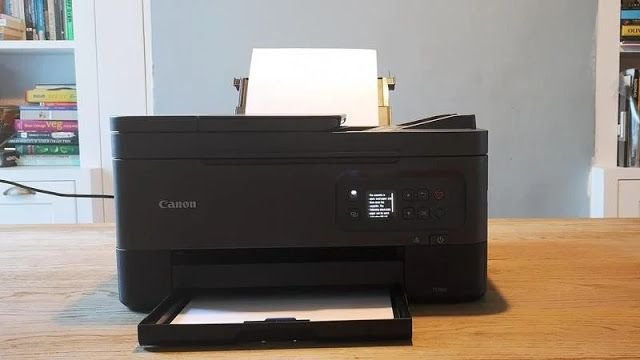
Paper jam errors are among the most common, but they’re also among the most misleading. Sometimes the printer displays a jam error even when no paper is visible.
In such cases, the issue may be caused by tiny scraps of paper stuck in rollers or hidden compartments. Open all accessible panels and carefully inspect the paper path. Use a flashlight if needed.
Also check the rear access door, input tray, and output tray. Gently rotate rollers if possible and remove any debris. Even a small piece of torn paper can trigger a persistent error code.
tip 3: verify ink and toner installation
Error codes related to ink or toner cartridges often appear when the printer cannot recognize a cartridge properly. This might be due to improper installation, dirty contacts, or incompatible cartridges.
Remove the cartridges and inspect them. Ensure that protective seals have been removed and that they are seated correctly. Clean the metal contacts gently using a lint-free cloth.
Sometimes simply reseating the cartridges resolves the issue. In other cases, replacing a faulty or expired cartridge may be necessary.
tip 4: update or reinstall printer drivers
Software-related error codes are often overlooked because users focus on the hardware. However, outdated or corrupted drivers can easily trigger communication errors between the printer and your computer.
Go to your system’s device settings and uninstall the printer driver. Then download the latest version from the manufacturer’s official website and reinstall it.
Driver updates often include bug fixes and compatibility improvements that can eliminate persistent error codes, especially those involving connectivity or print spooler issues.
tip 5: clear the print queue
Sometimes the problem isn’t with the printer itself but with the print jobs waiting in line. A stuck or corrupted print job can cause repeated error messages and prevent new documents from printing.
Open the print queue on your computer and cancel all pending jobs. Restart both the computer and the printer afterward.
This clears any backlog and allows the printer to start fresh. It’s a simple step that often resolves mysterious error codes that don’t seem tied to any physical issue.
tip 6: inspect cables and connections
Loose or damaged cables can lead to communication errors that trigger error codes. Whether you’re using a USB connection or a network setup, ensure that all cables are securely connected.
If you’re using a USB cable, try switching to a different port or using another cable. For network printers, check your Wi-Fi or Ethernet connection.
Connectivity issues often result in error codes that appear unrelated at first glance. Ensuring a stable connection can eliminate these errors entirely.
tip 7: perform a firmware update
Just like computers and smartphones, printers run on firmware that controls their internal operations. Manufacturers occasionally release firmware updates to fix bugs and improve performance.
Check your printer’s settings menu or the manufacturer’s website for available updates. Follow the instructions carefully during installation.
Firmware updates can resolve persistent or recurring error codes that are caused by known software issues within the printer itself.
tip 8: reset the printer to factory settings
If all else fails, a factory reset can bring the printer back to its original state. This step should be used cautiously, as it will erase custom settings such as network configurations.
A factory reset is particularly useful for resolving complex or unknown error codes that don’t respond to other troubleshooting methods.
After resetting, you’ll need to set up the printer again, but this fresh start often eliminates deeply rooted issues.
tip 9: check for overheating or ventilation issues
Printers generate heat during operation, and inadequate ventilation can lead to overheating. Some error codes are triggered when the printer’s internal temperature exceeds safe limits.
Ensure that the printer is placed in a well-ventilated area and that vents are not blocked. Avoid placing it near heat sources or in direct sunlight.
Allow the printer to cool down before restarting it if you suspect overheating. This can prevent recurring temperature-related error codes.
tip 10: consult the manual or error code database
While general troubleshooting is helpful, some error codes are specific to certain printer models. Consulting the user manual or the manufacturer’s online database can provide precise explanations and solutions.
Look up the exact error code displayed on your printer. This often reveals targeted steps that address the issue directly, saving time and guesswork.
Many manufacturers also provide troubleshooting guides and support forums where you can find solutions shared by other users.
building a troubleshooting mindset
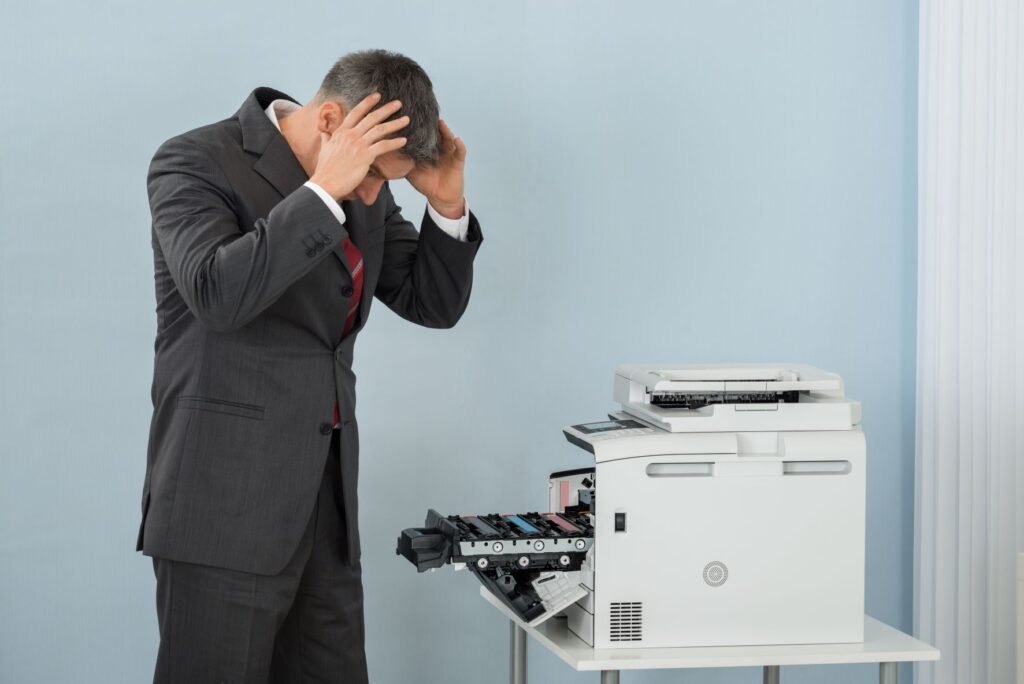
Beyond individual fixes, the most valuable skill is developing a troubleshooting mindset. Instead of reacting emotionally to error codes, approach them as puzzles to be solved.
Start with the simplest possibilities and work your way up to more complex solutions. Keep track of what you’ve tried and observe how the printer responds.
This methodical approach not only resolves issues more effectively but also builds confidence in handling future problems.
preventing future error codes
While troubleshooting is important, prevention is even better. Regular maintenance can significantly reduce the likelihood of encountering error codes.
Clean your printer periodically, use high-quality paper and cartridges, and keep the firmware and drivers updated. Avoid overloading the paper tray and handle components gently.
By taking proactive steps, you can extend the life of your printer and minimize disruptions.
the human side of printer problems
It’s worth acknowledging that printer issues can be frustrating. They often occur under pressure and disrupt important tasks. However, understanding that most problems are solvable can make a big difference.
Instead of viewing error codes as obstacles, think of them as guidance. Each code is a clue pointing toward a solution.
With patience and the right approach, even the most stubborn printer errors can be resolved.
frequently asked questions
- why does my printer keep showing error codes even after restarting
If the error persists after a restart, it may indicate a deeper issue such as a hardware fault, outdated firmware, or a stuck print job. Try clearing the print queue, checking connections, and updating drivers. - can third-party ink cartridges cause error codes
Yes, some printers are sensitive to non-original cartridges and may display compatibility or recognition errors. Using high-quality or manufacturer-approved cartridges can reduce this risk. - how do i know if an error code is hardware-related
Hardware-related errors often involve physical components like rollers, cartridges, or internal mechanisms. If you hear unusual noises or see visible issues, it’s likely a hardware problem. - is it safe to perform a factory reset on my printer
Yes, but it should be a last resort. A factory reset will erase all custom settings, so you’ll need to reconfigure the printer afterward. - why does my printer say paper jam when there is no paper
This can happen if small pieces of paper are stuck inside or if sensors are blocked. Carefully inspect the paper path and clean any debris. - when should i seek professional repair
If you’ve tried all basic troubleshooting steps and the error code persists, it may be time to consult a technician. Persistent errors could indicate internal damage that requires professional attention.
In the end, printers are complex machines, but they are not unpredictable. With a calm approach and a bit of knowledge, you can decode error messages and restore functionality without unnecessary stress.






