
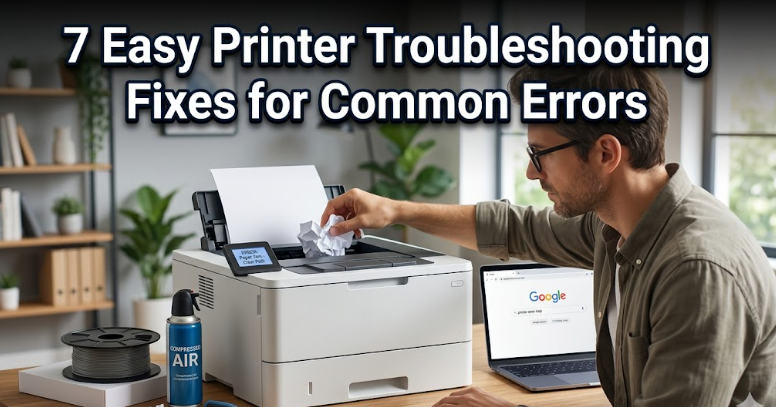
7 easy printer troubleshooting fixes for common errors
There’s something oddly frustrating about printers. You click “print,” expect a smooth hum of productivity, and instead get blinking lights, cryptic error messages, or worse—complete silence. It doesn’t matter whether you’re printing an important document five minutes before a deadline or a simple school assignment—printer issues always seem to strike at the worst possible moment.
Over time, I’ve learned that most printer problems aren’t as complicated as they initially seem. In fact, many of them can be fixed in just a few minutes with a bit of patience and a few practical steps. You don’t need to be a technician, and you definitely don’t need to panic.
This guide walks through seven easy fixes that cover the majority of common printer errors. Along the way, you’ll also find small insights, habits, and explanations that make troubleshooting feel less like guesswork and more like a simple process.
fix 1: check the basics first (power, cables, and connections)
It sounds almost too obvious, but you’d be surprised how often printer problems come down to something simple being overlooked. Before diving into complicated fixes, take a moment to check the basics.
Start with power. Is the printer actually turned on? Some printers have subtle power indicators, and it’s easy to assume they’re running when they’re not. If the display is off or unresponsive, try unplugging the printer, waiting for about 30 seconds, and plugging it back in. This small reset can sometimes clear minor internal glitches.
Next, check the cables. If you’re using a USB printer, make sure the cable is firmly connected to both the printer and the computer. Try a different USB port if available. For wireless printers, confirm that the printer is connected to the correct Wi-Fi network. A mismatch between networks is a common issue, especially in homes or offices with multiple routers.
There’s also the possibility of loose or damaged cables. If the connection seems inconsistent, switching to another cable can quickly rule that out.
A helpful habit is to think of this step as your “foundation check.” Before assuming something is broken, confirm that everything is simply connected and powered as expected.
fix 2: clear the print queue when jobs get stuck
One of the most common printer frustrations is a stuck print job. You send a document, nothing happens, and suddenly the printer refuses to print anything else.
This usually means the print queue is clogged.
On your computer, open the printer queue (you can find it in your system settings under devices or printers). If you see pending or stuck jobs, cancel them all. Sometimes, a single corrupted file can block every job behind it.
If clearing the queue doesn’t work, restart both the printer and your computer. This forces the system to refresh and often clears hidden issues in the queue.
There’s also a deeper reason why this happens. Printers rely on a service called a spooler, which temporarily stores print jobs before sending them to the printer. If the spooler encounters an error, it can freeze, leaving jobs stuck indefinitely.
A simple restart resets the spooler and gives your printer a clean slate.
Over time, you’ll notice that this fix alone resolves a surprisingly large number of printing problems.
fix 3: update or reinstall printer drivers
If your printer suddenly stops responding or behaves strangely, outdated or corrupted drivers might be the cause.
Drivers are essentially the translators between your computer and your printer. If they’re outdated or incompatible with your operating system, communication breaks down.
Start by checking if your printer drivers are up to date. You can do this through your system settings or by visiting the manufacturer’s website. Downloading the latest version ensures compatibility with recent system updates.
If updating doesn’t solve the issue, try reinstalling the drivers entirely. Remove the printer from your device list, uninstall the drivers, and then reinstall everything from scratch. It might feel like an extra step, but it often resolves deeper software conflicts.
One useful tip: if your printer worked fine before a recent system update, there’s a good chance the update disrupted driver compatibility. Reinstalling usually fixes that quickly.
Think of drivers as the language your printer understands. If the language changes or becomes outdated, communication fails until it’s corrected.
fix 4: fix paper jams the right way
Paper jams are perhaps the most classic printer problem—and also one of the most mishandled.
When a jam occurs, resist the urge to pull the paper out forcefully. Doing so can tear the paper and leave fragments inside the printer, which leads to repeated jams.
Instead, turn off the printer and carefully open the access panels. Gently remove the jammed paper by pulling it in the direction of the paper path. If you feel resistance, stop and check for additional obstructions.
Also inspect the rollers. Dust, debris, or worn-out rollers can cause frequent jams. Cleaning them with a soft, lint-free cloth can improve performance.
Another overlooked factor is paper quality. Using low-quality, damp, or wrinkled paper increases the chances of jams. Storing paper in a dry, flat environment makes a noticeable difference.
Over time, you’ll realize that preventing jams is easier than fixing them. Proper paper handling and gentle removal techniques go a long way in keeping your printer running smoothly.
fix 5: resolve low ink or toner errors properly
Low ink warnings can be confusing. Sometimes the printer refuses to print even when there seems to be ink left, while other times it prints faint or streaky pages.
Start by checking the ink or toner levels through your printer’s software or display panel. If levels are genuinely low, replacing the cartridge is the most reliable solution.
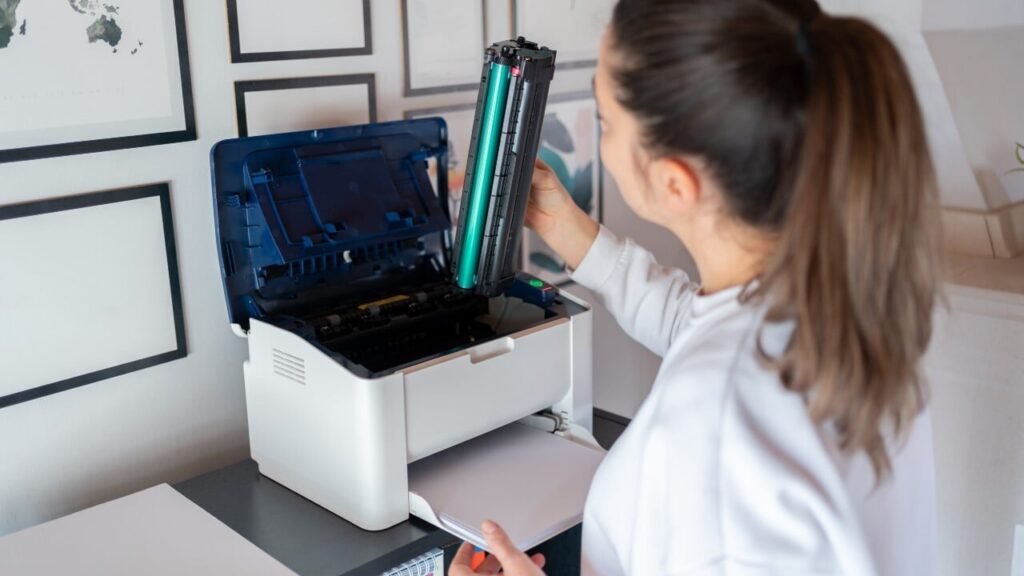
However, if the cartridge is new and the printer still shows a low ink error, try removing and reinstalling it. Make sure it clicks into place properly. Sometimes the issue is simply poor contact between the cartridge and the printer.
Cleaning the cartridge contacts with a dry cloth can also help. Dust or residue can interfere with detection.
For inkjet printers, running a nozzle cleaning cycle can improve print quality if you’re seeing streaks or faded output. This process clears dried ink from the print head.
It’s also worth noting that third-party cartridges, while cost-effective, can sometimes cause compatibility issues. If problems persist, switching to manufacturer-recommended cartridges can help isolate the issue.
Ink and toner problems often feel more serious than they are. In most cases, a simple reseat, clean, or replacement resolves the issue quickly.
fix 6: troubleshoot wireless printing issues
Wireless printing is convenient—until it stops working.
If your printer isn’t responding over Wi-Fi, the first step is to confirm that both the printer and your device are connected to the same network. This is especially important in environments with multiple networks or guest connections.
Restarting your router, printer, and computer can often restore connectivity. It sounds simple, but it resets network connections and clears temporary glitches.
Another common issue is IP address changes. Some routers assign new IP addresses to devices periodically, which can confuse your computer. Re-adding the printer using its current IP address usually fixes this.
If the connection remains unstable, consider placing the printer closer to the router. Weak signals can cause intermittent issues that are difficult to diagnose.
For a more stable setup, some users switch to a wired connection, especially in office environments where reliability matters more than convenience.
Wireless issues can feel unpredictable, but they usually come down to connectivity, network settings, or signal strength.
fix 7: reset the printer to factory settings
When everything else fails, a factory reset can bring your printer back to a clean state.
This step removes custom settings, network configurations, and stored errors, effectively giving you a fresh start. It’s particularly useful when dealing with persistent or unexplained issues.
To perform a reset, access your printer’s settings menu and look for the reset or restore option. The exact steps vary by model, but most printers include this feature.
After the reset, you’ll need to reconnect the printer to your network and reinstall it on your devices. While this takes a bit of time, it often resolves problems that other fixes cannot.
Think of a factory reset as a last resort—not because it’s risky, but because it requires reconfiguration. When used appropriately, it’s one of the most effective troubleshooting tools available.
bringing it all together
Printer problems can feel overwhelming, especially when you’re under pressure. But most issues follow predictable patterns. By working through these seven fixes—starting with the simplest—you can solve the majority of common errors without outside help.
What makes troubleshooting easier over time is familiarity. The more you encounter these issues, the quicker you recognize them. A blinking light or error message stops being a mystery and becomes a clue.
Instead of reacting with frustration, you start approaching the problem methodically. Check connections. Clear the queue. Update drivers. Inspect paper. Verify ink. Test the network. Reset if needed.
It’s a process, not a guessing game.
And once you’ve gone through it a few times, you’ll realize something surprising: printers aren’t as unpredictable as they seem. They just require a bit of patience and a willingness to look at the basics before assuming the worst.
frequently asked questions
- why is my printer showing offline even when it’s turned on?
This usually happens due to connectivity issues. Your computer might not be communicating with the printer properly. Check the network connection, restart both devices, and make sure the correct printer is set as the default.
- how often should i update my printer drivers?
You don’t need to update drivers constantly, but it’s a good idea to check after major operating system updates or if you notice performance issues. Keeping drivers reasonably up to date helps maintain compatibility.
- what should i do if my printer keeps jamming paper?
Frequent jams are often caused by poor paper quality, dirty rollers, or incorrect paper loading. Use high-quality paper, store it properly, and clean the rollers periodically to reduce jams.
- can i use third-party ink cartridges safely?
Yes, but compatibility can vary. Some printers work well with third-party cartridges, while others may show errors or reduced quality. If you experience issues, switching to original cartridges can help determine the cause.
- why are my prints coming out faded or streaky?
This is usually due to low ink, clogged print heads, or dirty cartridges. Running a cleaning cycle and checking ink levels often resolves the issue.
- is it safe to reset my printer to factory settings?
Yes, it’s safe. A factory reset simply restores default settings. However, you’ll need to reconnect the printer to your network and reinstall it on your devices afterward.
By keeping these fixes and answers in mind, you’ll be better prepared the next time your printer decides to act up. Instead of frustration, you’ll have a clear path forward—and that makes all the difference.






