
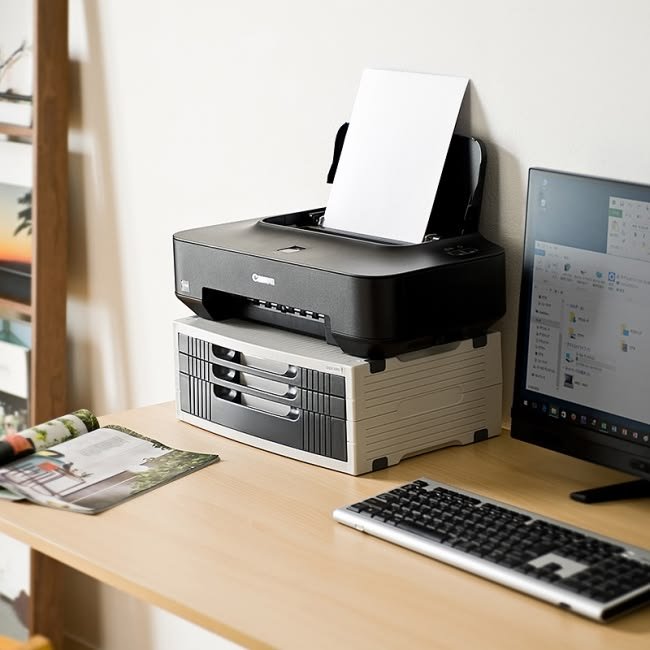
11 Easy Printer Troubleshooting Ways to Save Ink
There’s something oddly frustrating about watching a printer chew through ink like it’s an all-you-can-eat buffet. You replace a cartridge, print a handful of documents, and suddenly you’re back to that blinking low-ink warning. Over time, this doesn’t just become an annoyance—it becomes an expensive habit.
What many people don’t realize is that excessive ink consumption is often less about how much you print and more about how your printer is set up, maintained, and used. Small inefficiencies stack up. Poor settings, neglected maintenance, and avoidable mistakes can silently drain your cartridges long before they should run out.
This article explores practical, real-world troubleshooting methods that can significantly reduce ink usage. These aren’t complicated technical fixes. Instead, they are straightforward adjustments and habits that can extend the life of your cartridges while maintaining acceptable print quality.
If you’ve ever felt like your printer is working against you, this guide will help you take back control.
- Adjust print quality settings before hitting “Print”
Most printers are configured by default to prioritize quality over efficiency. That sounds good on paper, but in everyday use, it’s often unnecessary.
When you print documents like drafts, internal notes, or simple text pages, high-resolution printing wastes ink. Switching to “Draft” or “Economy” mode can reduce ink usage dramatically—sometimes by up to 50%.
Try this simple habit:
Before printing, pause for a moment and ask yourself if the document really needs to look perfect. If the answer is no, switch to a lower quality setting.
Example:
A 20-page draft report printed in high quality might use significantly more ink than the same document printed in draft mode. Over a month, that difference adds up.
Troubleshooting tip:
If your printer doesn’t seem to respect your settings, reinstall or update the printer driver. Sometimes outdated drivers override user preferences.
- Use grayscale printing when color isn’t necessary
Color cartridges tend to drain faster—and they’re usually more expensive to replace.
If you’re printing documents that don’t require color (like contracts, study notes, or invoices), switching to grayscale printing can preserve your color ink for when you actually need it.
Common mistake:
Many users assume printing black text automatically uses only black ink. In reality, some printers mix colors to produce richer blacks unless you explicitly select grayscale mode.
What to do:
Open your print settings and choose “Print in Grayscale” or “Black Ink Only.” This forces the printer to rely on the black cartridge.
Troubleshooting tip:
If your printer still uses color ink in grayscale mode, check advanced settings or firmware updates—some models require deeper configuration changes.
- Preview documents to avoid unnecessary prints
It sounds basic, but skipping the print preview step is one of the most common ways people waste ink.
Formatting errors, blank pages, or misplaced content often go unnoticed until after printing. By then, the ink is already spent.
Make this a habit:
Always preview your document before printing. Look for:
– Extra blank pages
– Oversized images
– Misaligned text
Real-world example:
Printing a web page without previewing it can result in pages filled with ads, banners, or empty margins—none of which you actually need.
Troubleshooting tip:
If your documents frequently print incorrectly, check your page setup settings (paper size, margins, scaling). Incorrect configurations often lead to wasted pages.
- Clean printheads only when necessary
Printhead cleaning is essential, but overusing it can consume a surprising amount of ink.
Most printers have an automatic cleaning function that flushes ink through the nozzles to clear clogs. While useful, this process uses ink—even if there isn’t a real problem.
Balanced approach:
Run a cleaning cycle only when you notice:
– Faded prints
– Missing lines
– Streaks
Avoid running multiple cleaning cycles back-to-back unless absolutely necessary.
Troubleshooting tip:
If print quality doesn’t improve after one or two cleaning cycles, the issue might not be a clog. It could be:
– Low ink levels
– Misaligned cartridges
– Poor paper quality
In such cases, repeated cleaning only wastes ink without solving the problem.
- Turn off the printer properly
It might seem trivial, but how you power off your printer affects ink usage.
When you use the printer’s power button, it often parks the printhead in a secure position, preventing the ink from drying out. If you unplug the printer directly or cut power abruptly, the printhead may remain exposed, leading to clogs.
Clogs lead to more cleaning cycles, and more cleaning cycles mean more ink consumption.
Best practice:
Always turn off the printer using its built-in power button.
Troubleshooting tip:
If your printer frequently requires cleaning after being idle, improper shutdown could be part of the problem.
- Print regularly to prevent ink drying
Ironically, not using your printer can waste ink.
When a printer sits idle for too long, ink can dry inside the nozzles. This leads to clogs, which then require cleaning cycles to fix—again consuming more ink.
Simple routine:
Print a small test page once every week or two. It doesn’t have to be anything important—a simple text page is enough to keep the ink flowing.
Troubleshooting tip:
If you notice recurring clogs despite regular use, environmental factors like heat and low humidity may be accelerating ink drying.
- Choose the right font for everyday printing
Not all fonts are created equal when it comes to ink usage.
Some fonts use thicker lines and more space, which increases ink consumption. Others are designed to be more efficient.
Examples of ink-saving fonts:
– Arial
– Calibri
– Century Gothic
These fonts use less ink compared to heavier fonts like Impact or bold serif styles.
Practical tip:
If you print frequently, consider setting an ink-efficient font as your default in word processing software.
Troubleshooting tip:
If documents look faint after switching fonts, adjust the print density slightly instead of reverting to a heavier font.
- Avoid unnecessary color backgrounds and images
Documents with colored backgrounds, large images, or graphics consume significantly more ink than plain text pages.
Even subtle design choices—like shaded tables or colored headers—can increase ink usage over time.
What to check:
Before printing, remove or simplify:
– Background colors
– Large images
– Decorative elements
Real-world scenario:
Printing a presentation with full-color slides can drain cartridges quickly. Instead, consider printing handouts in grayscale or text-only format.
Troubleshooting tip:
If you must print graphics, reduce image resolution or use draft mode to limit ink usage.
- Use high-quality paper to reduce reprints
It might sound counterintuitive, but cheap paper can lead to higher ink consumption.
Low-quality paper may:
– Absorb too much ink
– Cause smudging
– Lead to unclear prints
This often results in reprinting documents, which doubles ink usage.
Better approach:
Use paper that matches your printer’s specifications. It doesn’t have to be premium, just reliable and compatible.
Troubleshooting tip:
If prints look blurry or uneven, try switching paper types in the printer settings to match the paper you’re using.
- Update printer drivers and firmware
Outdated drivers can cause inefficiencies, including excessive ink usage.
Manufacturers often release updates that improve performance, fix bugs, and optimize ink consumption.
What to do:
Check for updates periodically and install them as needed.
Troubleshooting tip:
If your printer suddenly starts using more ink than usual, a software issue might be the cause. Updating drivers can sometimes resolve this.
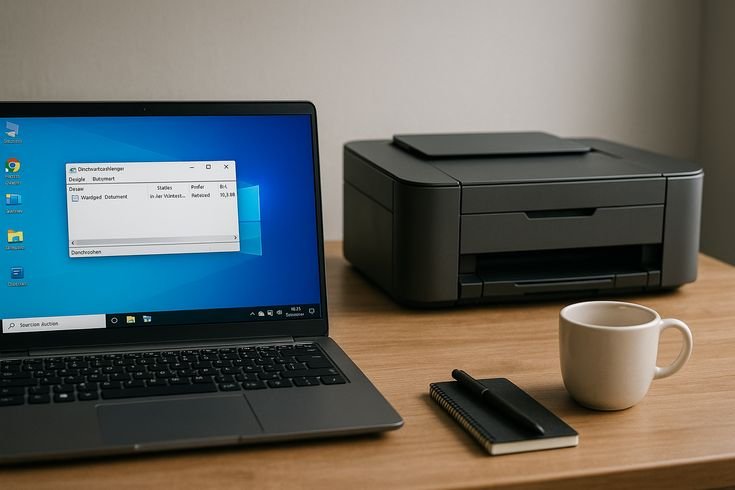
- Monitor ink usage patterns
You can’t fix what you don’t track.
Many modern printers provide insights into ink usage. Reviewing these patterns can help you identify wasteful habits.
Ask yourself:
– Are you printing more color pages than necessary?
– Are frequent cleaning cycles consuming ink?
– Are certain documents using more ink than expected?
By paying attention to these patterns, you can make targeted adjustments.
Troubleshooting tip:
If your printer doesn’t provide usage data, keep a simple log of cartridge replacements and print volume. Even rough tracking can reveal trends.
Bringing it all together
Saving ink isn’t about one big change—it’s about a series of small, consistent improvements.
Switching to draft mode here, avoiding unnecessary color there, printing regularly, and maintaining your printer properly—these actions may seem minor on their own. But together, they can extend cartridge life significantly.
Think of your printer less like a machine and more like a system. Every setting, every habit, every choice contributes to how efficiently it operates.
And the best part? None of these solutions require expensive upgrades or technical expertise. They’re practical, accessible, and effective.
Frequently Asked Questions
- Why does my printer run out of ink so quickly even with light use?
This often happens due to automatic maintenance cycles, inefficient settings, or ink drying out during periods of inactivity. Switching to draft mode, printing regularly, and avoiding unnecessary cleaning cycles can help.
- Does turning off the printer save ink?
Yes—if done correctly. Using the printer’s power button allows it to park the printhead properly, preventing clogs and reducing the need for ink-consuming cleaning cycles.
- Is it cheaper to print in black and white than color?
In most cases, yes. Color printing uses multiple cartridges and typically consumes more ink per page. Grayscale printing is a simple way to reduce costs.
- How often should I clean my printer’s printhead?
Only when necessary. If you notice streaks or faded prints, run one cleaning cycle. Avoid repeated cleanings unless the issue persists.
- Can the type of paper affect ink usage?
Indirectly, yes. Poor-quality paper can lead to smudging or unclear prints, which may require reprinting. Using suitable paper helps avoid waste.
- Do fonts really make a difference in ink consumption?
Surprisingly, yes. Some fonts use more ink due to thicker lines or spacing. Choosing efficient fonts can reduce ink usage over time, especially for high-volume printing.
By applying these simple troubleshooting techniques, you’ll not only save ink but also reduce frustration, improve print quality, and extend the overall life of your printer.






