

11 Easy Printer Troubleshooting Ideas for Quick Installation
Installing a printer should be one of those simple tech tasks that just works. Plug it in, install drivers, connect to Wi-Fi, and print. But in reality, many users face unexpected issues during setup. Printers can be surprisingly sensitive to small errors—wrong drivers, weak connections, outdated firmware, or even simple cable issues.
This guide walks through 11 practical troubleshooting ideas that help you fix installation problems quickly and get your printer working without unnecessary stress.
- Check all physical connections first
Before diving into software or settings, start with the basics. Many installation failures come from loose or incorrect cable connections.
If you’re using a USB printer, make sure the cable is firmly connected to both the printer and computer. Try switching USB ports if the printer is not detected. Avoid using damaged or very long cables, as they can interrupt data transfer.
For wireless printers, ensure the printer is properly powered on and connected to a stable network.
A surprising number of “installation errors” disappear once the physical setup is corrected.
- Restart both printer and computer
It may sound too simple, but restarting both devices clears temporary glitches that block installation.
Printers often store temporary memory states that interfere with driver installation. Restarting resets this memory.
Turn off the printer, unplug it for about 30 seconds, restart your computer, and then power the printer back on. Try the installation again.
This step alone solves many first-time setup problems.
- Use the correct driver version
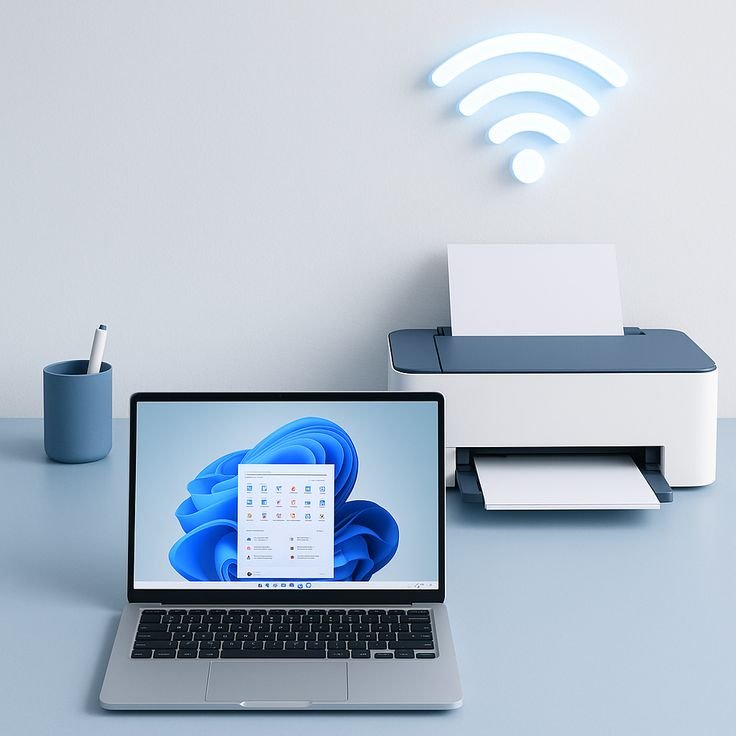
One of the most common installation failures happens when users install the wrong driver.
Each printer model requires a specific driver, and using a generic one can lead to detection errors or incomplete setup.
Always download drivers from the official manufacturer website. Avoid third-party driver tools unless absolutely necessary.
If you’re unsure about your model, check the label on the printer or the box it came in.
- Disable firewall or antivirus temporarily
Security software can sometimes block printer installation files or network communication.
During installation, temporarily disable firewall or antivirus protection and try again. Once installation is complete, you can turn them back on.
If this solves the issue, add your printer software to the exception list so it doesn’t get blocked again.
- Set printer as default device
Sometimes the printer installs correctly but does not respond because it isn’t set as the default printer.
Go to your computer’s control panel or settings, find “Devices and Printers,” and select your printer as default.
This ensures all print jobs are automatically sent to the correct device.
- Check network connection stability
For wireless printers, unstable Wi-Fi is one of the biggest setup obstacles.
Make sure your printer and computer are connected to the same network. Dual-band routers (2.4GHz and 5GHz) can also create confusion—some printers only support 2.4GHz.
If the signal is weak, move the printer closer to the router or restart the router.
A stable connection is essential for smooth installation.
- Clear pending print queue
A stuck print queue can block new printer installations or cause the device to appear offline.
Open the print queue on your computer and delete all pending tasks. If needed, restart the “Print Spooler” service in system settings.
This refreshes the printing system and removes hidden errors.
- Update operating system and firmware
Outdated software often causes compatibility issues during installation.
Make sure your operating system is fully updated. Printer manufacturers also release firmware updates that improve compatibility and fix bugs.
Updating both ensures smoother communication between your computer and printer.
- Reinstall printer software completely
If installation keeps failing, remove all existing printer software and start fresh.
Uninstall the printer from your device list, delete drivers, and restart your computer. Then reinstall using the latest setup file.
A clean installation eliminates corrupted files that may be causing the issue.
- Try a different USB port or cable
If you’re using a wired printer, hardware faults can easily interrupt setup.
Switch to another USB port or try a different cable. Sometimes ports provide different power levels, and some cables only support charging, not data transfer.
Testing alternatives helps isolate the real problem quickly.
- Run printer troubleshooting tool
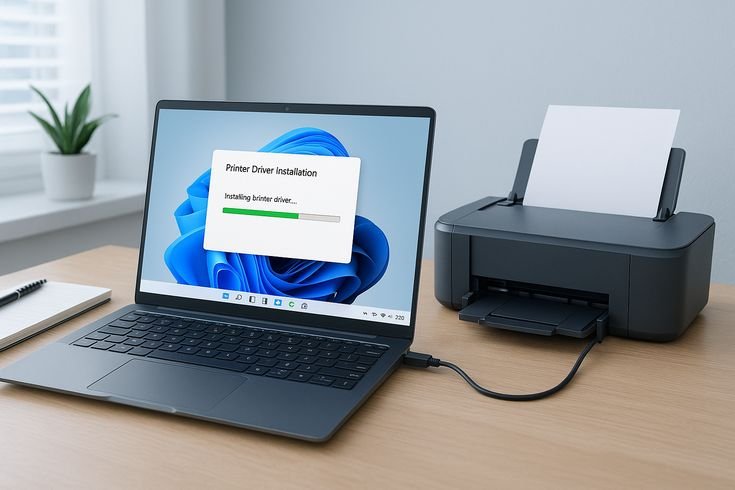
Most operating systems include built-in troubleshooting tools for printers.
These tools automatically detect issues like driver conflicts, connection errors, or spooler problems.
Running this tool can save time and often fixes installation issues without manual adjustments.
Conclusion
Printer installation problems can be frustrating, but most issues come from simple causes—wrong drivers, weak connections, or minor system glitches. By following these 11 troubleshooting ideas, you can resolve most setup problems quickly without needing technical support.
The key is to start simple, stay methodical, and eliminate one possible issue at a time. Once your printer is properly installed, future use becomes smooth and hassle-free.
FAQs
- Why is my printer not detected during installation?
This usually happens due to incorrect drivers, faulty cables, or network issues. Check connections first and reinstall the correct driver. - Can antivirus block printer installation?
Yes, some antivirus programs block installation files or network access. Temporarily disabling them can help identify the issue. - Why does my wireless printer keep going offline?
It may be due to weak Wi-Fi signal, router issues, or different network bands (2.4GHz vs 5GHz). - Do I need internet to install a printer?
Not always. USB printers do not require internet, but wireless printers need network access for setup. - What should I do if printer installation keeps failing repeatedly?
Try uninstalling all drivers, restarting your system, and performing a clean reinstall using official software. - How often should I update printer drivers?
Updating every few months or whenever you face compatibility issues is usually enough.






