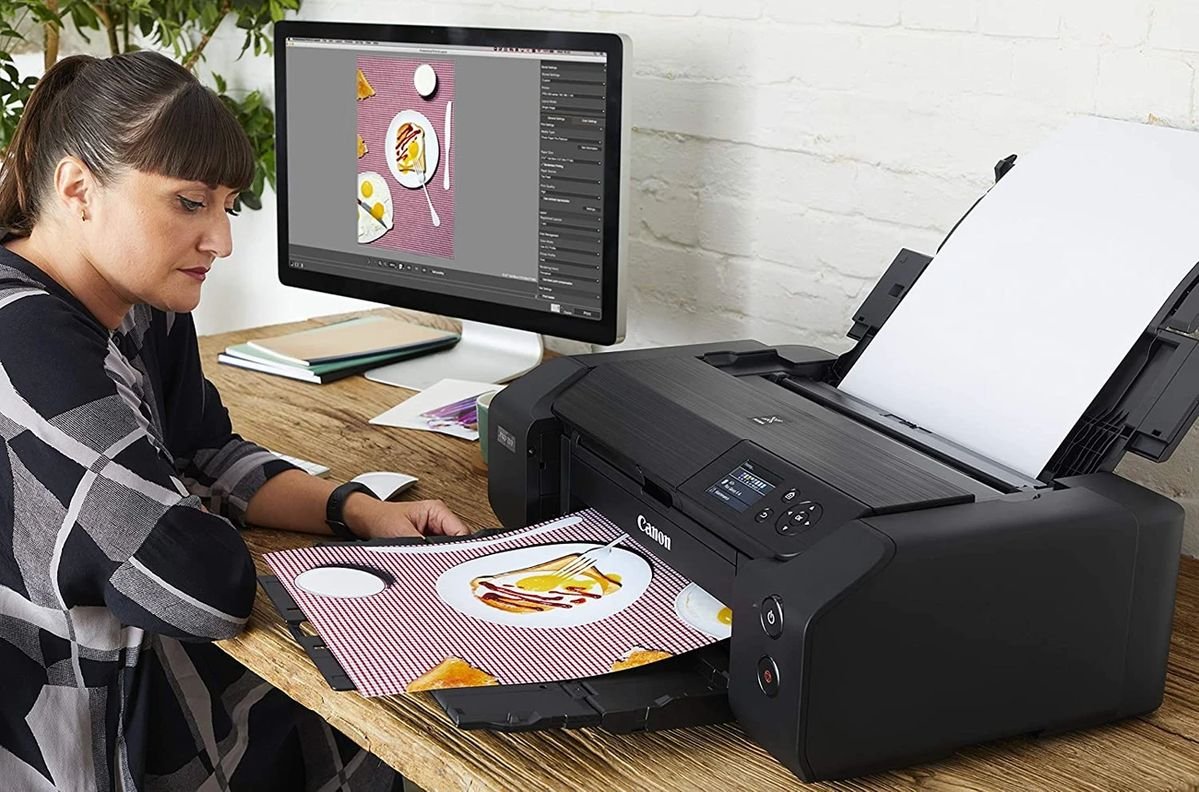
Let me tell you something embarrassing. A few months back, I printed maybe 30 pages of a work report, and by page 20, the text was so faded I could barely read it. My ink cartridge had just been replaced two weeks before. Two weeks. I was furious.
After way too many hours of Googling, trial and error, and honestly a couple of wasted cartridges, I figured out what I was doing wrong — and more importantly, how to fix it. If you’re tired of replacing ink or toner way sooner than you should be, these tips are for you.
1. Stop Printing in Default Mode Every Single Time
This was my biggest mistake for years. I just hit “Print” and never changed a single setting. Turns out, your printer’s default mode is almost always set to “Normal” or even “High Quality,” which burns through ink way faster than necessary.
Most of what we print daily — emails, drafts, internal documents — doesn’t need to look like a magazine spread. Here’s what I do now:
Step-by-step to change your print quality:
- Open your document and hit Ctrl + P (or Cmd + P on Mac).
- Click on “Printer Properties” or “More Settings.”
- Look for “Print Quality” or “Quality/Speed” settings.
- Switch to “Draft” or “Economy” mode for everyday printing.
- Save it as your default if you want — you can always bump it up for important stuff.
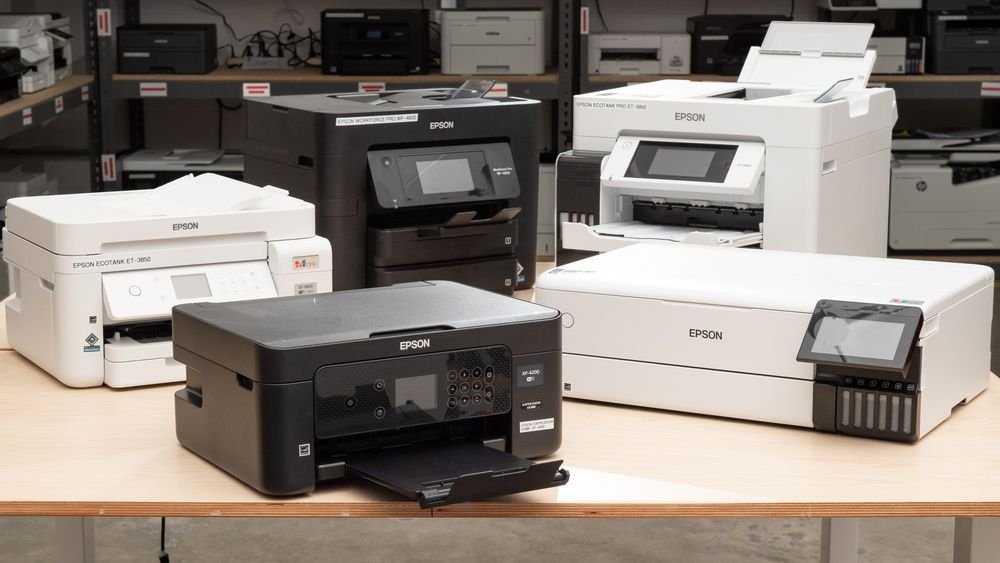
On HP printers, this setting is usually under the “Paper/Quality” tab. Canon users will find it under “Quick Setup.” Epson has a dedicated “Economy” checkbox right in the main print dialog. Brother printers label it as “Resolution” — just drop it from 600dpi to 300dpi for daily prints.
The difference in ink usage between High Quality and Draft mode can be anywhere from 30% to 50%. That’s nearly half your cartridge saved for when it actually matters.
2. Never Let Your Printer Sit Idle for Too Long
Here’s something most people don’t know: inkjet printers are literally designed to be used regularly. The ink inside the print head nozzles starts to dry out if you leave the printer sitting for weeks without use. And when that happens? Your printer runs a cleaning cycle automatically — or you run one manually — and that cleaning process uses a surprising amount of ink.
I left my Epson EcoTank sitting for about three weeks once while I was traveling. When I came back, it ran four automatic cleaning cycles before it would print normally. Four. Each cleaning cycle uses a small but real amount of ink.
What to do instead:
- Print at least one page per week — even a test page or a random photo. This keeps the nozzles clear.
- If you know you won’t be using it for a while, print a full-color page before shutting it down.
- For laser printers and toner-based machines, this is less of an issue — toner doesn’t dry out — but you should still run a test print monthly to keep rollers and drums in good condition.
A handy trick: I set a weekly reminder on my phone every Sunday to print something — anything — just to keep things flowing. Sounds silly but it’s saved me a lot of ink over time.
For more useful tricks that keep your printer running without constant issues, check out 9 Proven Printer Guide Ink Saving Tips That Actually Work.
3. Use the Right Paper — It Matters More Than You Think
I used to think paper was paper. Grabbed whatever was on sale at the nearest store. Big mistake.
The type of paper you use directly affects how much ink gets absorbed — and how quickly your cartridge depletes. Rough or low-quality paper absorbs way more ink per page compared to smoother, higher-quality stock. This is especially true for inkjet printers.
Here’s a quick comparison of common paper types and their ink usage:
| Paper Type | Ink Absorption | Best For |
|---|---|---|
| Standard 75gsm Copier Paper | High | Drafts, internal docs |
| 90-100gsm Multipurpose Paper | Medium | Everyday printing |
| Inkjet-Specific Paper | Low-Medium | Photos, presentations |
| Glossy Photo Paper | Low (controlled) | High-quality photos |
| Recycled Paper | Very High | Avoid for inkjet |
Recycled paper, especially cheaper versions, can be incredibly porous. Every page you print on it is like your printer gulping extra ink for no reason. I switched to a decent 90gsm paper and noticed my cartridges literally lasting longer — same print jobs, fewer replacements.
For laser printers, the stakes are a bit different. Toner is a powder that fuses to paper with heat, so paper texture matters less for toner consumption. But using paper that’s too thin can cause paper jams and damage your drum over time, which is an expensive fix.
4. Don’t Ignore the Ink/Toner Level Warnings (But Don’t Panic Either)
Okay, two things here that seem contradictory but both matter.
First: When your printer flashes “Low Ink,” it doesn’t mean it’s empty. Most printers trigger this warning when there’s still 15–30% of ink left. This is partly a manufacturer tactic to get you buying cartridges more often, but it’s also a safety buffer so you don’t run dry mid-document.
Second: Ignoring the warning completely can genuinely damage your printer. Running an inkjet cartridge bone dry can cause the print head to overheat. With laser printers, running toner to absolute zero can leave residue on the drum that’s hard to clean.
What I actually do:
- When the low ink warning appears, I keep going — but I note it and order a replacement.
- I don’t replace it until print quality visibly drops or streaks start appearing.
- For laser toner specifically, when I get the warning, I remove the cartridge, give it a gentle horizontal shake (side to side, not up-down), and reinstall it. This redistributes the remaining toner and usually gets me another 50–100 pages.
The shake trick sounds like a myth, but it’s actually recommended by several printer manufacturers in their official manuals. I’ve squeezed an extra week out of a toner cartridge doing this multiple times.
If your printer keeps showing offline or error messages around this time, it might not just be the toner — check out 7 Powerful Printer Guide Methods to Fix Printer Offline Error for a clear walkthrough.
5. Run Maintenance the Right Way — Not Just When Things Break
Most people only open their printer settings when something goes wrong. That’s like only checking your car’s oil when the engine light comes on. Proactive maintenance keeps ink and toner lasting longer and prevents a lot of those annoying mid-print failures.
Here’s my actual maintenance routine — and yes, I put it on a calendar:
Weekly:
- Print one test page to prevent nozzle clogging (inkjet only).
- Make sure no paper is stuck or partially fed.
Monthly:
- Run a Nozzle Check or Print Head Alignment from your printer’s settings menu.
- Wipe down the exterior and paper feed tray with a dry or slightly damp cloth.
- Check paper tray for dust — dust gets into the printer and causes streaks.
Every 3–6 Months:
- Run a Deep Cleaning Cycle (but only if needed — it uses more ink than a standard clean).
- For laser printers, open the machine and gently clean the drum with a lint-free cloth if you’re comfortable doing so. Otherwise, take it to a shop — it’s usually a quick, cheap job.
- Check for firmware updates. Yes, this matters. Firmware updates often include optimizations for ink usage and print quality.
Printer software tools worth knowing:
- HP Smart (iOS/Android/Windows) — gives you real ink levels and lets you run diagnostics from your phone.
- Epson Printer Utility — great for print head cleaning and nozzle checks.
- Canon My Printer — helps with alignment and maintenance on Canon machines.
- Brother iPrint&Scan — covers Brother printers across platforms.
These apps are free, and honestly, half the printer problems people complain about could be fixed in two minutes using the diagnostics built into these tools.
I also keep a small log (just in my phone’s notes app) of when I last replaced cartridges, what mode I was printing in, and approximately how many pages I got. Sounds over the top, but after six months you start to see patterns — like how one printer chews through cyan twice as fast as the other colors (which is a sign of a miscalibration, by the way).
Common Mistakes That Are Quietly Killing Your Ink
Since I’ve been doing this a while, I’ve made most of these at some point. Here are the ones I see most often:
Printing from the browser without adjusting settings. Browser print previews rarely optimize for ink. Always use your operating system’s print dialog or the app’s native print function where possible.
Using third-party ink cartridges carelessly. Look, I get it — they’re cheaper. But not all third-party cartridges are equal. Some are perfectly fine; others clog your print head within a week. If you go third-party, stick to well-reviewed brands and avoid suspiciously cheap ones.
Ignoring the print spooler. A backed-up or corrupt print queue can cause your printer to print the same job multiple times, burning ink unnecessarily. If your printer is acting weird, clear the print queue first. It takes 30 seconds and fixes more problems than you’d expect. For help with this, 8 Proven Printer Guide Fixes for Printer Spooler Problems has a solid step-by-step breakdown.
Storing spare cartridges in the wrong place. Ink cartridges should be stored at room temperature, away from direct sunlight, and ideally in their original sealed packaging. I once kept a spare in my car’s glove compartment through summer — the heat partially dried it out before I even installed it.
Canceling print jobs incorrectly. Just hitting the X on your computer doesn’t always stop the printer. If a bad job is stuck, cancel it from both the computer queue AND the printer itself (using the cancel button on the machine).
A Quick Look at Ink vs. Toner Longevity
People often ask me whether inkjet or laser is better for long-term cost savings. Honestly, it depends on how much you print.
| Factor | Inkjet | Laser/Toner |
|---|---|---|
| Idle damage risk | High (nozzle drying) | Low |
| Cost per page | Higher for color | Lower overall |
| Cartridge shelf life (unused) | 1–2 years | 2–3 years |
| Print volume per cartridge | Lower | Higher |
| Maintenance effort | More frequent | Less frequent |
If you print a lot — like, 200+ pages a month — laser is almost always more economical in the long run. If you print occasionally and need photo quality, inkjet is still the way to go, but you’ll need to be more diligent about maintenance.
Final Thoughts
Honestly, none of this is complicated. It’s just stuff most of us were never told when we first plugged in a printer and hoped for the best. The biggest wins for me have been switching to draft mode for everyday printing and actually using the printer weekly instead of letting it sit.
Small habits really do add up. I went from replacing ink every 5–6 weeks to getting nearly 3 months out of a cartridge with the same amount of printing. That’s real money saved — and a lot less frustration staring at faded text or blinking error lights.
If you want to go deeper on keeping your printer in top shape long-term, this article is worth a read: 10 Smart Printer Guide Maintenance Habits That Extend Printer Life