

10 ultimate printer troubleshooting tips that actually work
Printers have a reputation for misbehaving at the worst possible time. You sit down to print an important document, and suddenly nothing happens. Or worse, the printer starts printing blank pages, refuses to connect, or throws a cryptic error message that makes no sense. The good news is that most printer problems are not as complicated as they seem. They usually come down to a handful of common issues that can be fixed with the right approach.
This guide walks through 10 practical troubleshooting tips that actually solve most printer problems, whether you’re using a home inkjet printer, a laser printer in an office, or a wireless all-in-one machine.
- Start with the simplest fix: restart everything
It sounds almost too basic, but restarting your devices solves a surprisingly large number of printer issues. Printers, computers, and routers all rely on temporary data connections that can freeze or glitch.
Turn off your printer completely and unplug it from the power source for about 30–60 seconds. Restart your computer as well. If your printer is wireless, restart your Wi-Fi router too.
This clears temporary memory errors and resets communication between devices. Many “printer not responding” issues disappear at this stage.
- Check cable connections and power supply
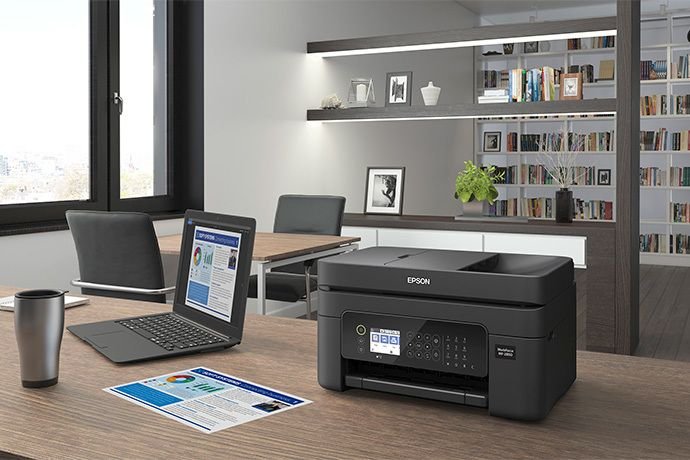
Loose or damaged cables are one of the most overlooked causes of printer problems. A slightly unplugged USB cable or a faulty power connection can prevent your printer from functioning properly.
If you’re using a wired printer, check both ends of the USB or Ethernet cable. Make sure they are firmly connected. Try switching to a different port if needed.
For wireless printers, ensure the power cable is secure and the printer is actually turning on properly. Look for blinking lights or error indicators that may signal power instability.
- Make sure the printer is set as default
Sometimes your computer sends print jobs to the wrong device, especially if multiple printers are installed.
On Windows or Mac, go to your printer settings and confirm that your preferred printer is set as the default. If it isn’t, set it manually.
This step is especially important in offices or shared environments where multiple printers are available on the same network.
- Clear the print queue
A stuck print job can block everything else from printing. This happens more often than most users realize.
Open your print queue from your computer settings and check if there are any pending documents. Cancel all jobs and clear the queue completely.
Then restart both the printer and the computer. This resets the printing process and often resolves issues like “printer offline” or “documents not printing.”
- Update or reinstall printer drivers
Printer drivers are software that help your computer communicate with your printer. If they are outdated, corrupted, or incompatible, your printer may stop working properly.
Go to your printer manufacturer’s official website and download the latest drivers for your model. Install them and restart your computer.
If updating doesn’t help, uninstall the printer completely and reinstall it from scratch. This ensures a clean connection between your system and the printer.
- Check Wi-Fi and network connection
Wireless printers depend heavily on stable internet connections. If your printer is not responding, the issue may not be the printer itself but the network.
Make sure your printer is connected to the same Wi-Fi network as your computer or mobile device. Many printers disconnect when the router is restarted or when the network name changes.
If needed, reconnect the printer manually through its control panel or mobile app. Also, avoid placing the printer too far from the router, as weak signals can cause frequent disconnections.
- Inspect ink or toner levels
Low or empty ink cartridges are a classic reason for poor print quality or blank pages.
Check your printer’s ink or toner status from the display panel or software dashboard. Replace cartridges that are low or empty.
Even if ink levels appear sufficient, dried-out ink can still cause printing issues, especially in inkjet printers that are not used frequently. Running a cleaning cycle can help restore proper ink flow.
- Run the printer’s built-in troubleshooting tool
Most modern printers come with built-in diagnostic tools that automatically detect and fix common issues.
Access the printer settings from your computer or the printer’s control panel and look for options like “Troubleshooting,” “Maintenance,” or “Diagnostics.”
These tools can identify problems such as misaligned print heads, connectivity issues, or paper feed errors and fix them automatically or guide you through the solution.
- Clean the printer hardware
Dust, paper debris, and ink buildup can interfere with printer performance over time.
Open the printer carefully and remove any visible dust or paper fragments. Use a soft, dry cloth to clean internal components. For inkjet printers, printhead cleaning cycles can help restore print quality.
Avoid using water or harsh chemicals. Regular cleaning every few months can significantly reduce recurring issues.
- Reset the printer to factory settings
If everything else fails, a full reset may be necessary. This restores the printer to its original settings and clears persistent software or configuration errors.
Most printers have a reset option in the settings menu. After resetting, you will need to reconnect it to Wi-Fi and reinstall drivers.
This step is often the final solution for stubborn issues like repeated offline status, connectivity failures, or unexplained errors.
Conclusion
Printer problems can be frustrating, but they are usually solvable without technical expertise. Most issues come down to connectivity, outdated software, or simple mechanical glitches. By following these 10 troubleshooting tips step by step, you can resolve the majority of printer issues at home or in the office without needing professional repair.
The key is to stay methodical: start simple, check connections, clear software issues, and only then move to deeper fixes like resets or hardware cleaning.
With regular maintenance and a little patience, your printer can stay reliable for a long time.
Frequently asked questions (FAQs)
- Why does my printer show offline even when it is on?
This usually happens due to network issues, outdated drivers, or incorrect printer settings. Restarting both the printer and router often fixes it. - Why is my printer printing blank pages?
Blank pages are commonly caused by empty ink cartridges, clogged printheads, or incorrect cartridge installation. - How often should I clean my printer?
For regular home use, cleaning every 2–3 months is enough. If you print frequently, monthly cleaning is recommended. - Why is my wireless printer not connecting to Wi-Fi?
This may be due to incorrect Wi-Fi credentials, weak signal strength, or router changes. Reconnecting the printer usually resolves the issue. - Do printer drivers really matter?
Yes, drivers are essential. Without updated drivers, your computer may not communicate properly with the printer. - When should I replace my printer instead of repairing it?
If repair costs are high, the printer is very old, or parts are no longer available, replacement is usually more cost-effective.






