
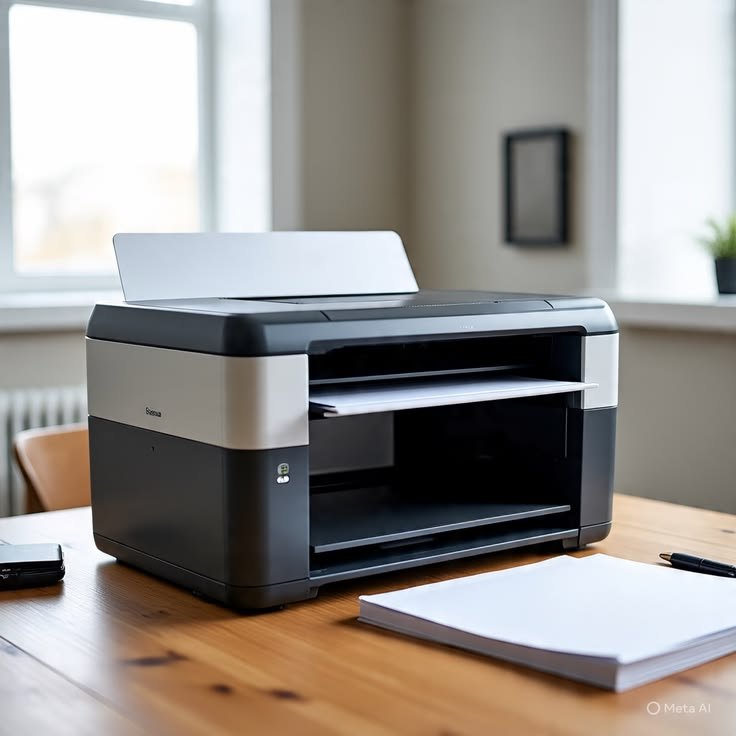
7 Smart Printer Troubleshooting Fixes for Network Setup
Setting up a printer on a network sounds simple until it suddenly isn’t. One moment the device is detected, the next it vanishes from your computer list like it never existed. Whether you’re working in a small office or trying to connect a home printer to multiple devices, network setup issues can be frustrating and time-consuming.
The good news is that most of these problems follow predictable patterns. Once you understand what usually goes wrong, fixing them becomes much easier. Below are seven smart troubleshooting fixes that help resolve common printer network setup issues without needing advanced technical skills.
- checking basic network connectivity first
Before diving into advanced settings, the most overlooked step is also the most important: checking whether your printer and devices are actually on the same network.
Many printers fail to appear simply because they are connected to a different Wi-Fi network than the computer. This often happens in homes with dual-band routers (2.4GHz and 5GHz networks) or offices with multiple access points.
Start by confirming:
- The printer is connected to Wi-Fi
- The Wi-Fi name (SSID) matches your computer’s network
- The router is functioning normally
A quick restart of the router can also help reset any temporary IP conflicts that block printer detection.
- restarting devices in the correct order
Restarting sounds too simple, but it solves a surprisingly large number of network printer issues. The key is doing it in the correct sequence.
Follow this order:
- Turn off the printer
- Restart the router
- Restart the computer or phone
- Turn the printer back on
This sequence ensures that the printer receives a fresh IP address from the router and reconnects properly to the network. Many connection failures happen because devices are holding onto outdated network information.
If the printer has a display panel, you may also want to check if it shows “Connected” or “Ready” after reboot.
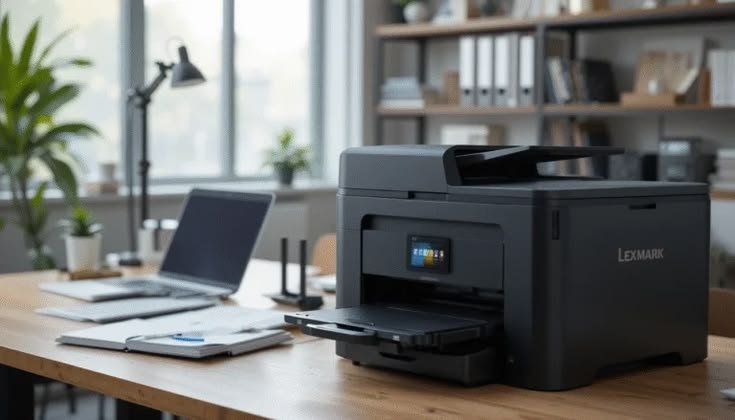
- assigning a static IP address to the printer
One of the most common hidden causes of network printing issues is changing IP addresses. Most routers assign dynamic IPs, meaning your printer’s address can change every time it reconnects. When this happens, your computer can’t find it anymore.
A smart fix is assigning a static IP address.
You can do this in two ways:
- Through the printer’s network settings menu
- Through your router’s admin panel
Once set, the printer always keeps the same IP address, making it easier for all devices to find it consistently.
This fix is especially useful in offices or households where multiple people print frequently.
- reinstalling or updating printer drivers
Drivers act as the communication bridge between your computer and printer. If they are outdated, corrupted, or incompatible, network printing will fail even if the connection itself is fine.
To fix this:
- Uninstall the current printer driver from your system
- Download the latest version from the official printer manufacturer’s website
- Install it again and restart your system
In some cases, Windows or macOS may automatically install a generic driver, which doesn’t always support full network functionality. Installing the official driver ensures better compatibility and performance.
If the printer worked before but suddenly stopped appearing, a driver issue is often the cause.
- disabling firewall or antivirus blocking printer access
Security software is designed to protect your system, but sometimes it becomes overly protective and blocks printer communication on the network.
Firewalls can prevent:
- Printer discovery on Wi-Fi
- Data transfer between devices
- Network scanning for available printers
To test if this is the issue:
- Temporarily disable firewall or antivirus
- Try reconnecting the printer
If it works after disabling security software, you’ll need to add the printer as an exception in the firewall settings rather than leaving protection turned off permanently.
This is a common issue in office environments where strict security policies are enabled.
- using the correct network discovery settings
Many users overlook network discovery settings in their operating system. If these are turned off, your computer simply won’t “see” the printer, even if it’s properly connected.
On Windows systems:
- Go to Network and Sharing Center
- Turn on Network Discovery
- Enable File and Printer Sharing
On macOS:
- Ensure “Printers & Scanners” is properly configured
- Re-add the printer if necessary
Also make sure the network profile is set to “Private” rather than “Public,” as public settings often restrict device visibility.
- resetting the printer network settings
If all else fails, resetting the printer’s network settings can clear hidden configuration issues.
This step restores the printer’s network setup to factory defaults, removing:
- Saved Wi-Fi credentials
- Old IP configurations
- Corrupted network profiles
After reset:
- Reconnect the printer to Wi-Fi from scratch
- Reinstall it on your computer
While this may feel like starting over, it often resolves stubborn connection issues that other fixes cannot.
Most printers have a “Network Reset” option in their settings menu or require holding a specific button combination.
additional practical tips for stable printer networking
Beyond the main fixes, a few extra habits can prevent future issues:
- Keep firmware updated: Printer manufacturers release updates that improve connectivity stability.
- Avoid overcrowded Wi-Fi channels: Too many devices can slow or interrupt communication.
- Place the printer closer to the router: Weak signals cause frequent disconnects.
- Avoid switching networks frequently: Constant switching confuses device recognition.
Small adjustments like these help maintain long-term stability in network printing environments.
common mistakes people make during printer setup
Many printer problems are not technical failures but setup mistakes. Some of the most common include:
- Connecting printer to guest Wi-Fi instead of main network
- Skipping driver installation and relying on auto-detection
- Ignoring firmware updates
- Not checking IP conflicts on routers
- Using outdated USB setup instructions for wireless printers
Avoiding these mistakes alone can eliminate most setup issues.
when to consider hardware issues
If you’ve tried all troubleshooting steps and the printer still refuses to connect, the issue may be hardware-related. Possible signs include:
- Printer not detecting any networks at all
- Frequent disconnections even after reset
- Network port malfunction (for wired printers)
- Internal Wi-Fi module failure
In such cases, professional repair or manufacturer support may be required.
conclusion
Printer network setup issues can feel complicated, but most of them come down to a handful of predictable causes: network mismatch, IP conflicts, driver issues, or blocked communication settings.
By following the seven smart troubleshooting fixes above, you can usually restore connectivity without needing technical assistance. The key is to approach the problem step by step instead of trying random solutions.
Once your printer is properly configured on the network, it typically stays stable for long periods with minimal maintenance.
frequently asked questions (FAQs)
- why does my printer keep going offline on the network?
This usually happens due to changing IP addresses, weak Wi-Fi signals, or power-saving modes that disconnect the printer from the network. - how do I find my printer’s IP address?
You can check it through the printer’s control panel, network settings page, or by printing a network configuration sheet. - why is my computer not detecting the printer?
It may be due to disabled network discovery, firewall restrictions, or the printer being connected to a different Wi-Fi network. - do I need internet for network printing?
No, you only need a local network connection. Internet access is not required unless using cloud printing services. - how often should I update printer drivers?
It’s a good idea to check for updates every few months or whenever you experience connectivity issues. - can too many devices affect printer connectivity?
Yes, overcrowded networks can cause delays, IP conflicts, and unstable connections, especially on older routers.






