
7 Smart Printer Troubleshooting Tips for Wireless Setup
Wireless printers are incredibly convenient—until they stop connecting. One moment you’re printing smoothly, and the next your device refuses to find the printer, the Wi-Fi light starts blinking, or the print job just sits in the queue forever. The good news is that most wireless printer problems are not hardware failures. They usually come down to network issues, incorrect setup steps, or small configuration mistakes.
This guide breaks down 7 smart, practical troubleshooting tips that actually help fix wireless printer setup issues. These are based on real-world problems people commonly face when connecting printers to Wi-Fi networks at home or in offices.
- Check the basics of your Wi-Fi connection first
Before diving into advanced settings or reinstalling drivers, start with the simplest possible issue: your internet connection itself.
Many wireless printer problems happen because the printer and the device (laptop, phone, or desktop) are not on the same network. This sounds obvious, but it’s one of the most overlooked mistakes.
What to check:
- Make sure your Wi-Fi router is turned on and working properly
- Confirm that your phone or computer is actually connected to Wi-Fi
- Check if the internet is stable (open a website to confirm)
- Restart your router if pages are loading slowly or not at all
Also, many modern routers broadcast two networks: 2.4 GHz and 5 GHz. Some printers only support 2.4 GHz, so if your device is connected to 5 GHz while the printer is trying to connect to 2.4 GHz, they won’t see each other.
A quick fix is to connect both devices to the same frequency band.
- Restart everything (yes, everything)
It might sound too simple, but restarting devices clears temporary glitches that block wireless connections.
Restart in this order:
- Turn off the printer
- Turn off the Wi-Fi router
- Restart your computer or phone
- Turn the router back on and wait 2–3 minutes
- Turn on the printer last
Why this works:
Printers and routers store temporary network sessions. If those sessions get stuck or corrupted, the printer may appear offline or fail to connect. A full restart resets those sessions and forces a fresh connection.
Many users report that this single step fixes the issue without needing anything else.
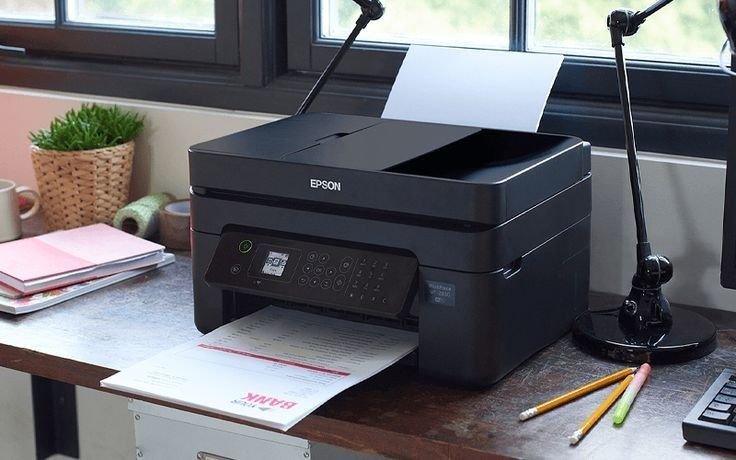
- Reconnect the printer to Wi-Fi manually
If the printer was previously working but suddenly stopped, it may have lost its network settings. In this case, reconnecting it manually is often the best solution.
Most wireless printers have a control panel or display screen where you can:
- Go to Network Settings or Wireless Setup
- Select your Wi-Fi network name (SSID)
- Enter your Wi-Fi password carefully
If your printer doesn’t have a screen, you can usually use one of these methods:
- WPS button method (press router WPS button, then printer WPS button)
- Manufacturer mobile app setup (HP Smart, Canon PRINT, Epson Smart Panel, etc.)
- USB temporary setup via computer
Important tip:
Make sure you enter the Wi-Fi password exactly as it is—case-sensitive errors are a very common reason for setup failure.
- Move the printer closer to the router
Wireless printers are sensitive to distance and interference. If your printer is placed too far from the router, the signal may be too weak for a stable connection.
Signs of weak signal:
- Printer connects but goes offline randomly
- Slow printing or delayed response
- Frequent disconnection from Wi-Fi
Try this:
- Move the printer closer to the router temporarily for setup
- Avoid placing it behind thick walls or metal objects
- Keep it away from microwaves, cordless phones, and large electronics
Once the printer is successfully connected, you can slowly move it back to its desired location while checking if it stays connected.
- Update or reinstall printer drivers
Even if your Wi-Fi connection is perfect, outdated or corrupted printer drivers can prevent proper communication between your device and printer.
Drivers are the software that allows your computer to “talk” to the printer.
What you should do:
- Go to the printer manufacturer’s official website
- Download the latest driver for your model
- Install it and restart your computer
If the printer was previously installed:
- Remove the printer from your device settings
- Reinstall it fresh after updating drivers
This step is especially important if:
- You recently upgraded your operating system
- The printer worked before but suddenly stopped
- You see errors like “driver unavailable” or “printer not responding”
- Assign a static IP address to your printer
This is a more advanced but highly effective fix for recurring wireless issues.
Normally, routers assign a dynamic IP address to devices. This means your printer’s address can change over time, causing connection problems.
Setting a static IP ensures your printer always uses the same network address.
Why it helps:
- Prevents printer from going offline randomly
- Makes it easier for computers to find the printer
- Improves stability in office environments
You can set a static IP from:
- Printer’s network settings menu
- Router’s admin panel (recommended for long-term stability)
If you’re not familiar with router settings, it may be helpful to follow your printer brand’s official guide for static IP setup.
- Reset network settings on the printer
If nothing else works, resetting the printer’s network settings can give you a clean slate.
This does NOT erase your printer’s general settings—it only removes saved Wi-Fi networks.
Steps usually include:
- Go to Settings on the printer
- Find “Network Reset” or “Restore Network Defaults”
- Confirm reset
- Reconnect printer to Wi-Fi from scratch
After reset:
- Treat it like a brand-new setup
- Re-enter Wi-Fi credentials carefully
- Reinstall printer on your devices
This step is especially useful if:
- You changed your Wi-Fi router recently
- You forgot previous network configurations
- The printer keeps connecting to the wrong network
Extra practical tips that often get ignored
Beyond the main fixes, here are a few small but powerful checks:
- Disable VPN temporarily during setup
- Turn off firewall briefly if printer is not detected
- Ensure printer firmware is updated
- Avoid using guest Wi-Fi networks for printers
- Check if MAC address filtering is enabled on router
Sometimes the issue is not the printer itself but a security setting on your router blocking new devices.
Conclusion
Wireless printer setup issues can be frustrating, but they are usually solvable without technical expertise. In most cases, the problem comes down to network mismatch, weak signals, outdated drivers, or incorrect setup steps.
By systematically working through these 7 smart troubleshooting tips—starting from basic checks and moving toward advanced fixes—you can usually restore your printer connection without professional help.
The key is to be patient and methodical rather than randomly changing settings. Wireless systems are sensitive, but once configured correctly, they are very stable.
FAQs
- Why does my wireless printer keep going offline?
This usually happens due to weak Wi-Fi signals, IP address changes, or the printer switching networks. Restarting the router and assigning a static IP often helps. - Why can’t my computer find my printer on Wi-Fi?
Most likely causes include different Wi-Fi networks, disabled printer discovery settings, or outdated drivers. - Do all printers support 5 GHz Wi-Fi?
No. Many printers only support 2.4 GHz networks, which is a common cause of setup issues. - How do I reset my printer’s Wi-Fi settings?
You can usually find this option in the printer’s settings menu under Network Reset or Restore Defaults. - Why does my printer connect but not print?
This is often caused by driver issues, print queue errors, or firewall blocking communication. - Is it better to use USB or wireless printing?
USB is more stable, but wireless printing is more convenient. Once properly set up, wireless printing works reliably for most users.






