
8 Quick Printer Troubleshooting Fixes to Avoid Breakdowns
Printers have a way of acting up at the worst possible moment. Whether it’s a critical report due in minutes or a batch of documents waiting to be delivered, a malfunctioning printer can quickly turn a calm workflow into a stressful situation. Yet, most printer problems aren’t as mysterious or catastrophic as they seem. In fact, many issues stem from small oversights, minor maintenance gaps, or easily fixable errors.
This guide dives deep into eight practical and quick troubleshooting fixes that can help you avoid printer breakdowns altogether. Rather than offering surface-level advice, this article blends practical insight, real-world scenarios, and preventative thinking so that you can not only fix issues but also reduce the likelihood of encountering them in the first place.
Understanding the anatomy of printer problems
Before jumping into solutions, it’s important to recognize a simple truth: printers are a combination of hardware, software, and consumables. When something goes wrong, the root cause often lies in one of these three areas—or a combination of them.
Hardware includes rollers, print heads, sensors, and paper trays. Software involves drivers, firmware, and connectivity settings. Consumables refer to ink cartridges, toner, and paper quality. Ignoring any one of these components can lead to repeated issues.
Fix 1: Reset and restart with intention
It may sound basic, but restarting your printer is one of the most effective troubleshooting steps. However, many people perform a restart incorrectly, treating it as a quick off-and-on action.
Instead, try a full reset approach. Turn off the printer, unplug it from the power source, and wait for at least 60 seconds. This allows internal memory and temporary errors to clear. While waiting, also restart your computer or device connected to the printer.
When you reconnect everything, you’re not just rebooting—you’re giving both devices a clean slate. This step often resolves communication errors, stuck print queues, and random glitches.
A small habit to adopt: perform a full restart once a week if your printer is heavily used. It prevents minor errors from accumulating.
Fix 2: Check paper path and alignment
Paper jams are among the most common printer issues, but they’re often handled incorrectly. Pulling paper out forcefully can damage internal rollers and sensors, leading to recurring jams.
When a jam occurs, open all accessible panels and gently remove the paper in the direction of the feed. Avoid tearing the paper, as small fragments left inside can cause future issues.
Even if there’s no visible jam, misaligned paper can trigger errors. Make sure the paper stack is neat, not overfilled, and properly adjusted with the tray guides. Warped or damp paper can also lead to feeding problems.
Try this quick check:
- Remove all paper
- Fan the stack to reduce static
- Reload it evenly
- Adjust guides snugly but not tightly
This simple process often eliminates multiple feeding-related problems.
Fix 3: Clean the print head and internal components
Over time, dust, dried ink, and debris accumulate inside the printer. This buildup affects print quality and can eventually lead to hardware strain.
Most printers have a built-in cleaning function accessible through their settings menu. Running this process clears clogged nozzles and improves output quality.
However, manual cleaning can also be helpful. Use a lint-free cloth and a small amount of isopropyl alcohol to gently clean accessible areas like rollers and cartridge contacts. Avoid touching sensitive components directly.
Signs that cleaning is needed include:
- Streaky or faded prints
- Missing lines in text or images
- Smudges on paper
Regular cleaning isn’t just about quality—it extends the lifespan of your printer.
Fix 4: Update or reinstall printer drivers
Software issues are often overlooked because they’re not visible. Outdated or corrupted drivers can cause communication failures between your computer and printer.
If your printer suddenly stops responding or behaves unpredictably, check for driver updates. Visit the manufacturer’s website and download the latest version compatible with your operating system.
In some cases, reinstalling the driver completely is more effective than updating. Remove the existing driver, restart your computer, and then install a fresh copy.
This process resolves:
- Printing delays
- Connection errors
- Incomplete print jobs
Think of drivers as translators. If the translation is flawed, the printer can’t understand what to do.
Fix 5: Manage ink and toner wisely
Running out of ink or toner isn’t the only issue—improper handling of cartridges can also cause problems.
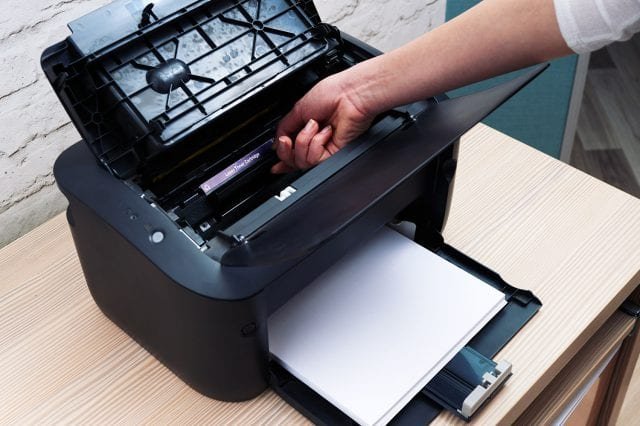
Always install cartridges correctly and ensure they click into place. If a cartridge isn’t recognized, remove it and reinstall it carefully.
Avoid letting ink levels drop too low before replacing cartridges. Extremely low levels can lead to air entering the system, which affects print quality.
If you’re using third-party cartridges, ensure they’re compatible with your printer model. Poor-quality cartridges can leak, clog nozzles, or trigger error messages.
A practical habit: keep a spare cartridge ready. This avoids last-minute disruptions and allows you to replace consumables before they become a problem.
Fix 6: Clear the print queue regularly
A clogged print queue can bring your entire printing process to a halt. Sometimes, a single failed document can block all subsequent jobs.
If your printer isn’t responding, check the print queue on your computer. Cancel all pending jobs and restart the printer.
In more stubborn cases, you may need to stop and restart the print spooler service (on systems that use one). This clears hidden or stuck tasks.
Why this matters: a jammed queue creates confusion between your device and the printer, making it seem like the printer is malfunctioning when it’s actually a software bottleneck.
Fix 7: Ensure stable connectivity
Modern printers rely heavily on wireless or network connections. A weak or unstable connection can cause intermittent failures.
If you’re using Wi-Fi, ensure the printer is within range of the router. Avoid placing it near thick walls or electronic devices that cause interference.
For troubleshooting:
- Restart your router
- Reconnect the printer to the network
- Check that your device and printer are on the same network
If problems persist, consider using a wired connection. Ethernet or USB connections are more stable and reduce the chances of communication errors.
Connectivity issues often masquerade as hardware problems, so it’s worth checking this area early.
Fix 8: Monitor firmware and system updates
Firmware is the internal software that controls your printer’s operations. Manufacturers release updates to fix bugs, improve performance, and enhance compatibility.
Ignoring firmware updates can leave your printer vulnerable to glitches and inefficiencies.
Check your printer’s settings menu or the manufacturer’s website for available updates. Follow instructions carefully, as interruptions during firmware updates can cause serious issues.
Keeping firmware updated ensures:
- Better compatibility with new devices
- Improved reliability
- Reduced error frequency
Think of firmware updates as maintenance for the printer’s brain.
Building a preventative mindset
Fixing problems is helpful, but preventing them is even better. Developing a few simple habits can significantly reduce the likelihood of printer breakdowns.
Use your printer regularly. Long periods of inactivity can cause ink to dry and components to stiffen. Even printing a single page weekly helps maintain functionality.
Store your printer in a clean, dust-free environment. Excessive dust can clog internal parts and affect performance.
Handle paper and cartridges carefully. Small mistakes in handling often lead to bigger issues over time.
Keep a simple maintenance checklist. This could include cleaning, checking ink levels, and updating software on a monthly basis.
Real-world scenario: when small issues snowball
Imagine a small office where the printer starts producing faint prints. Instead of addressing the issue, the team continues using it. Over time, the print quality worsens, paper jams become frequent, and eventually, the printer stops working entirely.
In this case, the root problem might have been a clogged print head or low ink levels—both easily fixable. But neglect turned a minor issue into a major breakdown.
This scenario highlights the importance of early intervention. Quick fixes are most effective when applied promptly.
Understanding when to seek professional help
Not all problems can be solved at home. If your printer shows persistent hardware errors, unusual noises, or physical damage, it may require professional repair.
Attempting to fix complex internal issues without proper knowledge can worsen the situation. Knowing your limits is part of effective troubleshooting.
However, by applying the eight fixes discussed here, you can handle the majority of common issues without external assistance.
The psychology of troubleshooting
Interestingly, printer issues often feel more frustrating than they actually are. This is partly because they interrupt workflows and create urgency.
Approaching troubleshooting with a calm and methodical mindset makes a significant difference. Instead of jumping to conclusions, start with the simplest fixes and work your way up.
This approach not only saves time but also builds confidence in handling technical problems.
A quick reference checklist
Here’s a compact version of the eight fixes for easy recall:
- Restart the printer and connected devices
- Check and align paper properly
- Clean print heads and internal parts
- Update or reinstall drivers
- Manage ink and toner effectively
- Clear the print queue
- Ensure stable connectivity
- Keep firmware updated
Keeping this checklist handy can help you resolve issues quickly without unnecessary stress.
FAQs
- Why does my printer keep showing offline even when it’s connected?
This usually happens due to communication issues between the printer and your device. Restart both devices, check network settings, and ensure the correct printer is selected as default.
- How often should I clean my printer?
For regular users, cleaning once a month is sufficient. If you notice print quality issues, run a cleaning cycle immediately.
- Can using cheap paper damage my printer?
Yes, low-quality paper can cause jams, leave residue, and wear down internal components faster. It’s worth investing in good-quality paper.
- What should I do if my printer doesn’t recognize a new cartridge?
Remove and reinstall the cartridge, ensuring it’s properly seated. If the issue persists, check compatibility or update the printer firmware.
- Is it safe to leave my printer on all the time?
It depends on usage. For frequent use, keeping it on is fine. For occasional use, turning it off can save energy and reduce wear.
- When should I replace my printer instead of repairing it?
If repair costs are high, parts are unavailable, or the printer frequently breaks down despite maintenance, replacement may be more cost-effective.
Conclusion
Printer breakdowns rarely happen without warning. They’re usually the result of small, manageable issues that go unnoticed or unresolved. By applying these eight quick troubleshooting fixes, you can not only address problems as they arise but also prevent them from escalating.
The key lies in consistency—regular maintenance, timely updates, and mindful usage. With a proactive approach, your printer can remain reliable, efficient, and ready whenever you need it.






