
9 powerful printer troubleshooting hacks for bluetooth problems
If you have ever tried to print a document over Bluetooth and watched nothing happen, you already know how frustrating the experience can be. There is something uniquely irritating about wireless failures—no cables to inspect, no obvious signs of what went wrong, just a quiet printer that refuses to cooperate. Bluetooth printing, while convenient, brings its own set of quirks. From pairing failures to invisible devices, intermittent drops, and ghost connections, the problems can feel random.
This guide is not just a list of tips. It is a practical, experience-driven walkthrough of what actually works when Bluetooth printing breaks down. You will find not only the “what” but also the “why,” along with small habits, observations, and mental models that help you troubleshoot smarter rather than harder.
Before diving into the hacks, it helps to understand a simple truth: most Bluetooth printing issues are not caused by a single fault. They are usually the result of small misalignments—settings, interference, outdated firmware, or confused device memory. The goal here is to identify and correct those misalignments quickly.
hack 1: reset the invisible handshake
Bluetooth works through a pairing handshake between two devices. When that handshake becomes corrupted, the connection may appear to exist but fails silently.
Instead of just reconnecting, take a deeper reset approach:
- Turn off Bluetooth on both devices.
- Restart both the printer and your phone or computer.
- Forget the device from your Bluetooth settings.
- Re-pair from scratch.
Think of this like clearing a conversation that got stuck mid-sentence. By forcing both devices to start fresh, you eliminate cached errors that often persist across sessions.
A small habit that helps: whenever you see a device listed as “paired but not connected,” treat it with suspicion. It may look fine, but it often hides handshake issues.
hack 2: reduce signal clutter in your environment
Bluetooth operates on the 2.4 GHz frequency band, which is also used by Wi-Fi routers, microwaves, wireless keyboards, and even some LED lights. That means your printer is competing with a crowd.
If your connection drops or behaves inconsistently, try this:
- Move the printer closer to your device.
- Turn off nearby Bluetooth devices temporarily.
- Switch your Wi-Fi router to a 5 GHz band if possible.
A surprising insight: even something as simple as a metal desk or a thick wall can disrupt Bluetooth signals. If your printer works perfectly in one spot but not another, the environment is likely the culprit.
Try this quick experiment:
Place your printer and device within one meter of each other and attempt printing. If it works flawlessly, distance or interference is the issue.
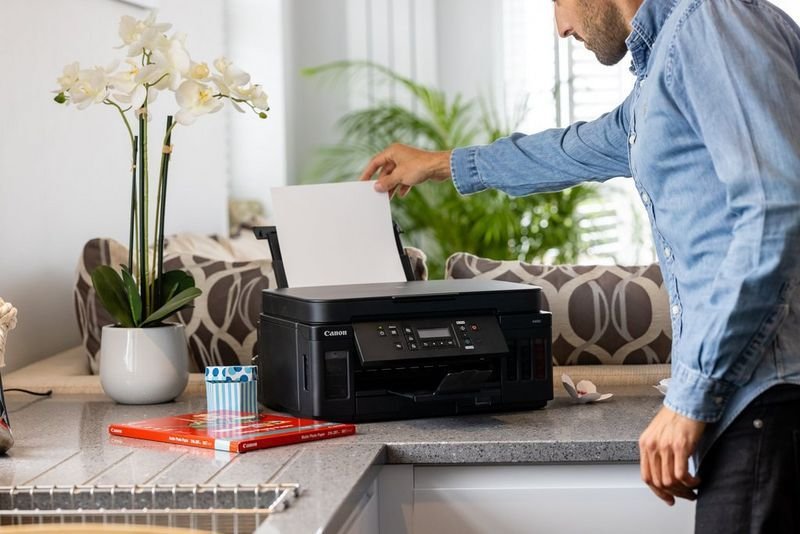
hack 3: update firmware and drivers before blaming hardware
Many users assume Bluetooth problems mean the printer is faulty. In reality, outdated firmware is a far more common cause.
Printer manufacturers regularly release updates to improve connectivity and fix bugs. Unfortunately, these updates are often overlooked.
Steps to follow:
- Visit the manufacturer’s website.
- Download the latest firmware for your printer model.
- Install any available driver updates on your computer or app updates on your phone.
One overlooked detail: even if your phone is updated, the printing app itself may not be. Always check both.
Think of firmware as the printer’s “brain.” If it is running outdated instructions, no amount of troubleshooting on the outside will fully fix the problem.
hack 4: clear the printer’s memory of old pairings
Printers can remember multiple Bluetooth devices. Over time, this memory becomes cluttered, especially if you have paired different phones, tablets, or laptops.
This can lead to confusion where the printer tries to connect to an old device instead of your current one.
Solution:
- Access the printer’s Bluetooth settings.
- Remove all previously paired devices.
- Reconnect only the device you are using.
This is similar to decluttering your workspace. Too many remembered connections can slow down or block new ones.
A useful routine: every few months, clear your printer’s pairing list. It prevents buildup and keeps connections clean.
hack 5: check power-saving modes that silently disconnect
Many printers and mobile devices use aggressive power-saving features to conserve energy. Unfortunately, these features often disable Bluetooth or reduce its performance without clear notification.
Common symptoms include:
- The printer disappears after a few minutes.
- Printing works once but fails on the next attempt.
- Connection drops when the device screen turns off.
To fix this:
- Disable power-saving mode on your printer.
- Keep your device awake during printing.
- Adjust Bluetooth settings to stay active.
A small but effective trick: initiate printing immediately after waking both devices. Waiting too long may trigger power-saving behavior again.
hack 6: use the right app instead of default printing
Not all Bluetooth printing works well through default system settings. Many printers require or perform better with their dedicated apps.
If you are struggling:
- Install the official app for your printer brand.
- Connect through the app instead of system Bluetooth.
- Print directly from the app interface.
These apps are optimized for communication with the printer and often bypass limitations in standard Bluetooth protocols.
This is one of those hacks that feels almost too simple, but it often makes a dramatic difference.
hack 7: reset network settings on your device
Sometimes the problem is not the printer at all—it is your phone or computer. Network settings can become corrupted, affecting Bluetooth behavior.
Resetting network settings can resolve hidden issues:
- Go to your device settings.
- Find the network reset option.
- Reset Bluetooth and network configurations.
Be aware that this will remove saved Wi-Fi networks and Bluetooth pairings, so you will need to reconnect afterward.
Think of this as a deep clean for your device’s connectivity system. It removes conflicts you may not even know exist.
hack 8: test with another device to isolate the problem
When troubleshooting, it is easy to assume where the fault lies. Testing with another device gives you clarity.
Try this:
- Connect the printer to a different phone or laptop.
- Attempt to print the same document.
If it works, your original device is the issue. If it fails, the printer or environment is likely responsible.
This simple test can save hours of guesswork. It transforms troubleshooting from speculation into evidence-based action.
hack 9: perform a full factory reset as a last resort
If all else fails, a factory reset can restore your printer to its original state.
Steps:
- Locate the reset option in the printer settings.
- Follow the manufacturer’s instructions carefully.
- Reconfigure Bluetooth from scratch.
This is the most powerful reset available, but it should be used carefully. It will erase all settings, including Wi-Fi and preferences.
Think of it as pressing a “start over” button. When everything else fails, it often succeeds because it removes every possible conflict.
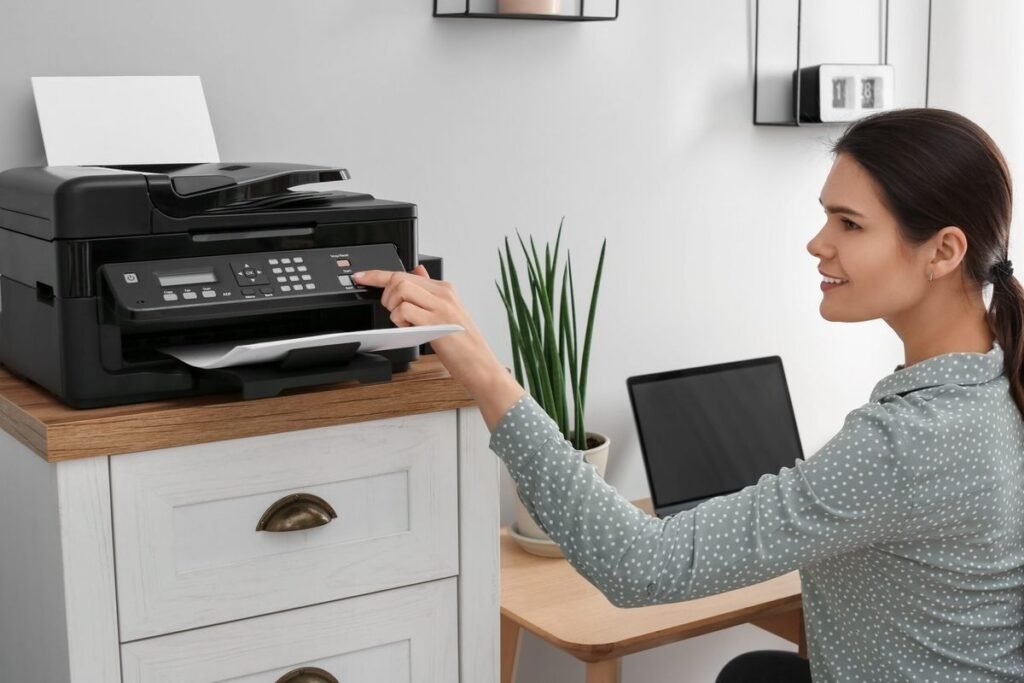
a practical troubleshooting flow you can follow
Instead of jumping randomly between fixes, follow this simple sequence:
- Restart both devices.
- Forget and re-pair Bluetooth.
- Move devices closer together.
- Check for interference.
- Update firmware and apps.
- Clear old pairings.
- Test with another device.
- Reset network settings.
- Perform factory reset if needed.
This structured approach saves time and reduces frustration.
real-world observation: why bluetooth printing feels unreliable
Bluetooth printing often gets a bad reputation, but the technology itself is not inherently unreliable. The issue is that it operates in a shared space with many variables.
Unlike wired connections, Bluetooth depends on:
- Signal strength
- Environmental conditions
- Device compatibility
- Software stability
When even one of these factors is slightly off, problems can occur.
Understanding this helps shift your mindset. Instead of seeing Bluetooth issues as random, you start to see patterns and causes.
small habits that prevent future problems
Prevention is always easier than troubleshooting. Here are a few habits that make a big difference:
- Keep devices updated regularly.
- Avoid pairing too many devices with one printer.
- Turn off Bluetooth when not in use.
- Place your printer in an open, accessible location.
- Use manufacturer apps when available.
These habits reduce the chances of encountering issues in the first place.
a short reflective exercise
Take a moment to think about your own setup:
- How far is your printer from your device?
- How many devices are paired with it?
- When was the last time you updated its firmware?
Answering these questions often reveals the root of the problem without any technical steps.
frequently asked questions
- why does my bluetooth printer connect but not print?
This usually happens due to incomplete pairing, outdated drivers, or app issues. Even if the connection appears active, the communication channel may be broken. Re-pairing and updating software often resolves this.
- how far can bluetooth printing work reliably?
Most Bluetooth devices work best within 5 to 10 meters. However, walls, furniture, and interference can reduce this range significantly. For best results, keep devices within a few meters.
- can multiple devices connect to a bluetooth printer at the same time?
Typically, no. Most Bluetooth printers handle one active connection at a time. If multiple devices are paired, they may compete for connection, causing confusion or failure.
- why does my printer keep disconnecting?
Common causes include power-saving modes, signal interference, and weak battery levels. Ensuring stable power and reducing interference can help maintain a steady connection.
- do i need a special app for bluetooth printing?
Not always, but using the manufacturer’s app often improves reliability. These apps are designed to communicate efficiently with the printer and can bypass common issues.
- is bluetooth printing slower than wifi printing?
Yes, generally. Bluetooth has lower data transfer speeds compared to Wi-Fi. It is suitable for small documents but may feel slow for large files or images.
closing thoughts
Bluetooth printing problems can feel unpredictable, but they are rarely unsolvable. With the right approach, you can turn a frustrating experience into a manageable one.
The key is not just knowing the fixes, but understanding the system behind them. Once you see how Bluetooth connections behave, troubleshooting becomes less about trial and error and more about informed decisions.
The next time your printer refuses to cooperate, you will not be stuck wondering what went wrong. You will have a clear path forward—and that alone makes all the difference.






