
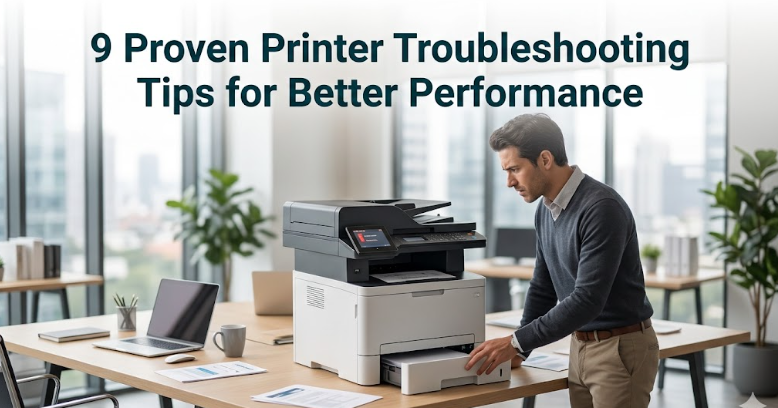
9 proven printer troubleshooting tips for better performance
Anyone who has spent even a small amount of time around printers knows they have a personality of their own. One day they hum along quietly, pushing out crisp documents without complaint. The next day, they refuse to cooperate, blinking error lights as if communicating in some secret language. The truth is, printers are not as unpredictable as they seem. Most issues come down to a handful of recurring causes, and once you learn to recognize them, you can fix problems quickly and even prevent them altogether.
This guide is not just a list of tips—it is a practical, experience-driven approach to understanding how printers behave and how you can keep them working efficiently. Think of it as a combination of workshop notes, real-life fixes, and small habits that make a big difference over time.
tip 1: keep the printer clean where it actually matters
Many people think cleaning a printer means wiping the outside surface. While that helps with dust, it does nothing for performance. The real trouble builds up inside—on rollers, printheads, and paper paths.
Dust and paper fibers accumulate slowly. Over time, they interfere with paper feeding and ink transfer. You may notice faint lines, smudges, or paper jams that seem to appear randomly. These are not random at all; they are signs of buildup.
A simple cleaning routine can prevent this:
- Open the printer and gently remove loose dust with a soft brush or compressed air.
- Wipe rollers with a lint-free cloth slightly dampened with water.
- Run the printer’s built-in cleaning cycle for printheads if available.
What makes this tip powerful is consistency. Cleaning once every few months can extend your printer’s life far more than reacting after problems start.
tip 2: use the right paper, not just any paper
Paper quality is often overlooked. Many assume all paper is the same, but it isn’t. Cheap or unsuitable paper can cause jams, poor print quality, and even internal wear.
Different printers are designed for specific paper weights and finishes. Feeding glossy paper into a printer not designed for it can result in smears. Using paper that is too thin may lead to curling or double feeding.
A simple habit is to check:
- Recommended paper weight in the printer manual
- Proper storage of paper (dry, flat, and away from humidity)
A small upgrade in paper quality can noticeably improve output and reduce mechanical strain on the printer.
tip 3: don’t ignore firmware and driver updates
Software plays a bigger role in printing than most people realize. Drivers and firmware act as translators between your computer and printer. When they are outdated, communication errors can occur.
These errors show up in subtle ways:
- Jobs stuck in the queue
- Incomplete prints
- Random disconnects
Updating drivers ensures compatibility with your operating system. Firmware updates often fix known bugs and improve performance.
Set a reminder to check for updates every few months, especially if you notice unusual behavior. It is a small step that can solve issues you might otherwise struggle to diagnose.
tip 4: watch your ink and toner habits
Ink and toner problems are among the most common causes of poor print quality. But the issue is not just running out—it is how cartridges are used and maintained.
For inkjet printers:
- Avoid letting cartridges sit unused for long periods, as ink can dry and clog nozzles.
- Print a test page occasionally to keep ink flowing.
For laser printers:
- Shake toner cartridges gently if prints become faint.
- Replace cartridges before they are completely empty to avoid damage.
Another overlooked factor is cartridge quality. While cheaper alternatives may seem appealing, they can lead to inconsistent output and even harm internal components.
tip 5: handle paper jams properly, not forcefully
Few things are more frustrating than a paper jam. The instinct is often to pull the paper out quickly, but this can make things worse.
Paper can tear inside the printer, leaving small fragments that continue to cause problems. Sensors may also be damaged if too much force is used.
A better approach:
- Turn off the printer before removing jammed paper.
- Pull the paper in the direction of the normal paper path.
- Check for leftover pieces carefully.
Taking an extra minute here can save you from repeated jams later.
tip 6: manage the print queue like a pro
The print queue is like a waiting line for documents. When something goes wrong, it can block everything behind it.
You might see:
- Documents stuck in “printing” status
- Multiple copies printing unexpectedly
- Delays even when the printer is idle
Clearing the queue can often resolve these issues:
- Cancel all pending jobs
- Restart the printer
- Restart the print spooler service if needed
Understanding this simple system can turn a confusing problem into an easy fix.
tip 7: give your printer a stable environment
Printers are more sensitive to their surroundings than most people think. Temperature, humidity, and placement all affect performance.
For example:
- High humidity can cause paper to absorb moisture and jam.
- Dusty environments increase internal buildup.
- Uneven surfaces can affect paper feeding.
Place your printer:
- On a flat, stable surface
- Away from direct sunlight and moisture
- In a relatively clean area
This tip may seem basic, but it addresses the root of many recurring issues.
tip 8: run diagnostic tools before guessing
Modern printers come with built-in diagnostic tools. These are often ignored, but they can provide valuable insights.
Diagnostic features may include:
- Test prints
- Alignment checks
- Error reports
Instead of guessing what went wrong, run these tools first. They can point you directly to the problem, saving time and effort.
Think of it like a health check for your printer—it tells you what needs attention before things get worse.
tip 9: restart smarter, not just more often
“Turn it off and on again” is a classic piece of advice, and it works more often than people expect. But there is a right way to do it.
A proper restart involves:
- Turning off the printer
- Unplugging it for a minute
- Restarting your computer as well
This clears temporary errors and resets communication between devices.
However, restarting should not replace proper troubleshooting. If the same issue keeps returning, it is a sign of a deeper problem that needs attention.
bringing it all together
What makes these nine tips effective is not just what they fix individually, but how they work together. A clean printer performs better. Good paper reduces strain. Updated software ensures smooth communication. Proper handling prevents damage.
When you combine these habits, you create a system where problems are less likely to occur in the first place. Instead of reacting to issues, you stay ahead of them.
It is also worth noting that printers reward consistency. Small, regular actions—cleaning, checking supplies, updating software—have a bigger impact than occasional deep fixes.
a short real-world scenario
Imagine you are preparing an important document. You hit print, and the printer produces faded, streaky pages. Instead of panicking, you go through a quick checklist:
- Check ink levels: low
- Run a cleaning cycle: improves slightly
- Replace cartridge: problem solved
What could have been a stressful situation becomes manageable because you understand the process.
This is the real benefit of troubleshooting knowledge—it gives you control.
common mistakes to avoid
Even experienced users make mistakes that affect printer performance. Some of the most common include:
- Ignoring early warning signs like faint prints or unusual noises
- Using incompatible supplies
- Overloading the paper tray
- Skipping regular maintenance
Avoiding these mistakes is just as important as following the tips themselves.
faq section
- why does my printer print blank pages even when ink is available?
This usually happens due to clogged printheads or incorrect cartridge installation. Running a cleaning cycle or reinstalling the cartridge often resolves the issue. - how often should i clean my printer?
For regular home use, cleaning every 2–3 months is sufficient. In dusty environments or heavy use, monthly cleaning may be better. - can using cheap ink damage my printer?
Yes, low-quality ink can clog nozzles, produce inconsistent prints, and sometimes damage internal components over time. - what should i do if my printer keeps going offline?
Check the connection first (USB or Wi-Fi), then update drivers and restart both the printer and your computer. Network settings may also need adjustment. - why does my printer keep jamming even with good paper?
Frequent jams can be caused by worn rollers, internal debris, or improper loading. Cleaning rollers and checking alignment usually helps. - is it better to leave my printer on or turn it off?
For frequent use, leaving it on can prevent ink from drying. For occasional use, turning it off saves energy and reduces wear.
final thoughts
Printers may never become completely trouble-free, but they do not have to be frustrating. With the right approach, most problems become predictable and easy to fix.
The key is not just knowing what to do, but building habits that keep your printer in good condition. Over time, these small efforts lead to better performance, fewer interruptions, and a longer lifespan for your device.
In the end, a well-maintained printer is not just a machine—it is a reliable partner in your daily tasks.






