
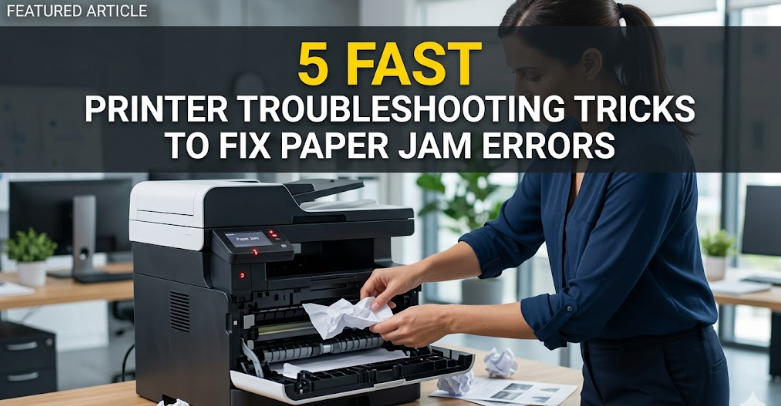
paper jams are one of those annoyances that seem small at first, but quickly turn into a full-blown disruption—especially when you’re in the middle of printing something important. whether it’s a home printer that suddenly refuses to cooperate or an office machine that halts a workflow, paper jam errors have a way of testing patience. the good news is that most of these issues can be resolved quickly without technical expertise, expensive repairs, or hours of frustration.
this guide goes beyond the usual surface-level advice. instead of just listing fixes, it walks you through practical, fast troubleshooting tricks you can actually apply in real situations. along the way, you’ll also understand why jams happen in the first place, so you’re not just fixing the problem—you’re preventing it from coming back.
understanding what really causes a paper jam
before jumping into solutions, it helps to know what you’re dealing with. a paper jam isn’t always about paper getting stuck. sometimes it’s about misalignment, worn rollers, humidity, incorrect paper types, or even dust buildup inside the printer.
most printers feed paper using rubber rollers. these rollers grab sheets one at a time and move them through the internal path. if the rollers lose grip, pull multiple sheets, or fail to guide paper properly, jams happen. similarly, if paper is curled, damp, or too thick, it can easily get stuck.
paper jams are often symptoms rather than isolated issues. once you understand that, troubleshooting becomes much easier.
trick 1: the “slow pull” method for safe removal
the instinct when facing a jam is to yank the paper out quickly. that’s usually the worst thing you can do. pulling too hard or in the wrong direction can tear the sheet, leaving small fragments inside the printer. those fragments are invisible troublemakers—they cause repeated jams later.
instead, use the slow pull method.
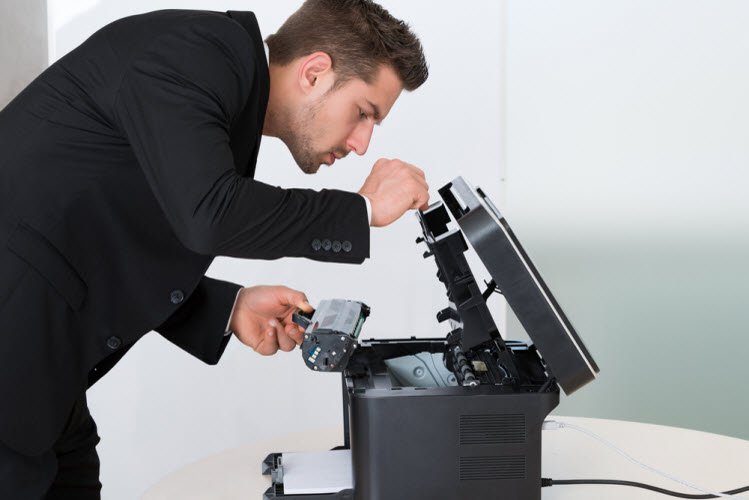
first, turn off the printer. this is important because it stops the rollers and prevents internal movement while you’re working. then open the access panels—front, back, or both depending on your printer model.
when you locate the jammed paper, grip it gently with both hands and pull it in the direction the paper normally travels. move slowly and steadily. if you feel resistance, don’t force it. try adjusting the angle slightly and continue with even pressure.
if the paper tears, don’t panic. use a flashlight to inspect inside the printer and carefully remove any remaining bits. tweezers can help, but be gentle to avoid damaging internal components.
this method works fast because it reduces the risk of creating additional jams while fixing the current one.
trick 2: reset the paper path with a quick internal check
sometimes, even after removing jammed paper, the printer continues to display an error. this usually means something inside the paper path is still out of place or obstructed.
a quick internal reset can fix this.
start by removing the paper tray completely. fan the stack of paper—this separates sheets that may be stuck together due to static or humidity. then reinsert the tray properly, ensuring it clicks into place.
next, open all accessible compartments. look for anything unusual: small scraps of paper, dust buildup, or misaligned rollers. even a tiny obstruction can trigger a jam error.
after checking everything, close all panels securely. printers often have sensors that detect whether doors are properly closed. if something isn’t aligned, the machine may interpret it as a jam.
finally, power the printer back on. this resets internal sensors and often clears lingering error messages.
this trick is quick because it doesn’t require tools or disassembly, yet it solves a surprising number of persistent jam issues.
trick 3: use the right paper—and prepare it properly
this might sound obvious, but incorrect paper is one of the most common causes of jams. not all paper is created equal, and printers are designed to handle specific types, weights, and sizes.
using paper that’s too thick, too thin, or slightly warped can disrupt the feeding process. even high-quality paper can cause problems if it’s stored improperly.
before loading paper, take a moment to prepare it.
tap the stack on a flat surface to align the edges. then fan the sheets slightly to reduce static buildup. check for curled corners or bent edges—remove any damaged sheets.
make sure the paper guides in the tray are snug but not too tight. they should hold the paper in place without bending it.
also, avoid overloading the tray. filling it beyond capacity increases pressure on the rollers, making it harder for the printer to pick up one sheet at a time.
this trick works fast because it addresses the root cause of many jams. instead of reacting to errors, you’re preventing them from happening.
trick 4: clean the rollers for better grip
over time, printer rollers accumulate dust, paper fibers, and even oil from handling. this reduces their ability to grip paper properly, leading to misfeeds and jams.
cleaning the rollers is one of the fastest ways to restore performance.
turn off the printer and unplug it for safety. open the access panels to locate the rollers—they’re usually rubber and positioned along the paper path.
use a lint-free cloth slightly dampened with water. gently wipe the rollers while rotating them manually if possible. avoid using excessive moisture, as it can damage components.
for stubborn buildup, a small amount of isopropyl alcohol can help, but use it sparingly.
once cleaned, let the rollers dry completely before closing the printer and turning it back on.
this simple maintenance step can dramatically improve paper feeding. it’s quick, effective, and often overlooked.
trick 5: adjust printer settings for smoother feeding
sometimes the issue isn’t mechanical—it’s digital. printer settings play a big role in how paper is handled.
if the printer is set to a different paper type than what you’re using, it may adjust feeding speed or pressure incorrectly. for example, printing on “cardstock” mode while using regular paper can lead to jams.
check your printer settings on your computer or control panel. ensure the paper type, size, and tray selection match what’s actually loaded.
also, consider reducing print speed or quality settings if jams occur frequently. high-speed printing increases the chances of misfeeds, especially with older printers.
this trick is fast because it requires no physical effort—just a few clicks—but can eliminate recurring issues.
a quick real-world scenario
imagine you’re printing an important document right before a deadline. suddenly, the printer stops with a paper jam error. instead of panicking, you apply these tricks in sequence.
you turn off the printer and use the slow pull method to remove the jammed sheet. then you check the paper path and notice a small torn piece stuck near the rollers. you remove it carefully.
next, you fan and reload the paper, ensuring it’s aligned properly. you quickly wipe the rollers, noticing they were slightly dusty. finally, you double-check the printer settings.
you turn the printer back on, hit print, and everything runs smoothly.
what could have been a frustrating delay becomes a quick fix.
preventing future jams without extra effort
fixing a jam is one thing, but preventing it is even better. small habits can make a big difference.
store paper in a cool, dry place. humidity can cause sheets to stick together or warp.
use the printer regularly. long periods of inactivity can lead to dust buildup and roller issues.
avoid mixing different types of paper in the same tray. consistency helps the printer handle sheets more effectively.
perform occasional cleaning, even if there are no visible issues. a few minutes of maintenance can save hours of troubleshooting later.
these habits don’t require much time, but they keep your printer running smoothly.
when quick fixes aren’t enough
while these tricks solve most paper jam issues, there are cases where the problem runs deeper. worn-out rollers, damaged sensors, or internal mechanical faults may require professional repair.
if jams occur frequently despite following all troubleshooting steps, it might be time to consider servicing or replacing the printer.
however, for everyday situations, the five tricks covered here are more than enough to handle common problems quickly.
frequently asked questions
- why does my printer keep saying there’s a paper jam when there isn’t one
this usually happens when small pieces of paper are stuck inside or sensors are blocked by dust. even if you can’t see anything, a thorough internal check and cleaning often resolves the issue. - can using low-quality paper really cause jams
yes, low-quality paper can have uneven thickness, rough edges, or excess dust. all of these factors can interfere with smooth feeding and increase the chances of jams. - is it safe to use tools like tweezers inside a printer
it can be safe if done carefully. use non-metallic or blunt tweezers and avoid touching delicate components. always turn off and unplug the printer before attempting this. - how often should i clean the printer rollers
for regular home use, cleaning every few months is usually enough. in high-usage environments, monthly cleaning may be beneficial to maintain performance. - what should i do if paper tears inside the printer
remove as much as you can see, then inspect the paper path thoroughly. even small fragments can cause repeated jams, so take your time to ensure everything is cleared. - does humidity affect printer performance
yes, high humidity can make paper absorb moisture, causing it to curl or stick together. this increases the likelihood of jams and feeding issues.
closing thoughts
paper jams might seem like minor inconveniences, but they often reveal how printers rely on precision and proper handling. the five fast troubleshooting tricks shared here are not just quick fixes—they’re practical habits that improve overall printing reliability.
by understanding the causes, applying the right techniques, and maintaining your printer regularly, you can turn a frustrating problem into a manageable task. instead of dreading the next jam, you’ll know exactly what to do—and how to do it quickly.






