
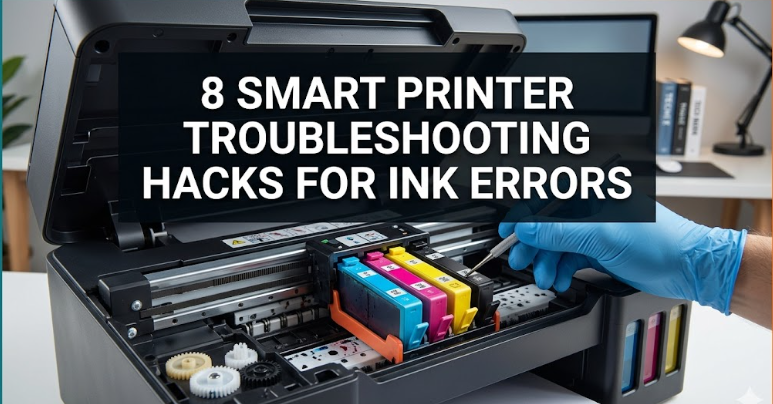
8 smart printer troubleshooting hacks for ink errors
If you’ve ever stood in front of your printer watching it stubbornly refuse to cooperate, you already know how oddly personal printer problems can feel. Ink errors, in particular, seem to arrive at the worst possible moment—right before a deadline, a meeting, or an important submission. The screen flashes a vague warning, the cartridge looks fine, and yet nothing prints. It’s frustrating, time-consuming, and often unnecessarily expensive if handled the wrong way.
But here’s the thing: most ink-related printer issues aren’t as mysterious as they appear. Beneath those blinking lights and cryptic messages are fairly predictable causes—dried ink, poor cartridge contact, outdated firmware, or even environmental conditions. Once you understand these underlying reasons, troubleshooting becomes less about guesswork and more about method.
This article isn’t just a list of quick fixes. It’s a practical walkthrough of eight smart, field-tested hacks that go beyond the obvious. Along the way, you’ll also find small checklists, scenarios, and cautionary notes that make the advice actionable in real-world situations.
hack 1: reset the cartridge connection properly (not just reinstall it)
Most people assume that removing and reinserting an ink cartridge is enough. It often isn’t. Printers rely on delicate electrical contacts to detect cartridges, and even a thin layer of dust, ink residue, or static interference can cause recognition failures.
Instead of simply snapping the cartridge back in, try this more deliberate approach:
step-by-step quick reset routine:
- turn off the printer completely and unplug it
- remove the cartridge carefully
- inspect the gold or copper contact points
- use a lint-free cloth slightly dampened with distilled water
- gently wipe both the cartridge contacts and the corresponding printer contacts
- let everything dry fully before reinserting
This method clears micro-residue that can block signal transmission. It’s especially effective when your printer shows messages like “cartridge not recognized” or “ink system failure.”
small note:
Avoid using alcohol wipes unless specified by the manufacturer. They can degrade certain coatings over time.
hack 2: run a deep cleaning cycle strategically (not repeatedly)
Printers usually offer cleaning or deep cleaning modes. Many users run them repeatedly when prints come out faded or streaky. That’s a mistake. Each cleaning cycle consumes ink, and overuse can actually worsen clogging by drying ink further.
Instead, follow a structured cleaning plan:
smart cleaning sequence:
- print a nozzle check pattern
- run a standard cleaning cycle
- wait 10–15 minutes
- run a second cleaning only if needed
- print another test page
If the problem persists, pause. Give the printer several hours before attempting a deep cleaning. This allows ink to rehydrate slightly inside the nozzles.
real-life scenario:
If you’ve been printing infrequently, especially in dry climates, ink dries faster. In such cases, patience between cleaning cycles is more effective than repetition.
hack 3: store and handle cartridges the right way
Ink cartridges are more sensitive than they look. Improper storage can lead to air bubbles, dried ink, or pressure imbalance—all of which trigger errors.
best practices:
- keep cartridges sealed until use
- store them upright
- avoid extreme temperatures (too hot or too cold)
- don’t leave cartridges outside the printer for long periods
quick comparison:
common mistake | better alternative
leaving cartridge exposed | store in original packaging
placing near window | keep in a cool, shaded area
handling contacts directly | hold from sides only
This may sound basic, but it solves a surprising number of intermittent ink issues.
hack 4: update firmware to eliminate false ink errors
Sometimes the problem isn’t physical at all—it’s digital. Printer firmware controls how the device communicates with cartridges. If it’s outdated, it may misinterpret signals or reject compatible cartridges.
signs firmware might be the issue:
- sudden errors after installing a new cartridge
- cartridges work in another printer but not yours
- persistent “incompatible cartridge” messages
solution:
Visit the manufacturer’s official support page, download the latest firmware, and follow update instructions carefully.
important insight:
Firmware updates sometimes also improve ink usage efficiency and print quality. It’s not just about fixing errors—it’s about optimizing performance.
hack 5: use the “power reset” trick for stubborn ink system failures
This is one of those simple hacks that feels too basic to work—but often does.
power reset method:
- turn off the printer
- unplug it from the wall (not just from the device)
- wait at least 5 minutes
- press and hold the power button for 15 seconds (while unplugged)
- plug it back in and turn it on
This clears residual electrical charge and resets internal sensors.
why it works:
Printers store temporary data in volatile memory. A full power drain forces the system to recalibrate, often clearing false ink system errors.
hack 6: align print heads to fix misleading ink issues
Sometimes what looks like an ink problem is actually a misalignment issue. When print heads are slightly off, the output can appear faded, uneven, or streaky.
symptoms:
- text appears shadowed
- colors don’t line up
- lines look broken
solution:
Run the printer’s alignment tool from the settings menu. This process adjusts how ink is deposited on the page.
extra tip:
After alignment, print a high-quality test image. This helps confirm whether the issue was alignment or actual ink flow.
hack 7: use compatible cartridges wisely (not blindly)
Third-party or compatible cartridges can save money, but they can also introduce complications if chosen poorly.
common pitfalls:
- low-quality chips that fail recognition
- inconsistent ink viscosity
- poor sealing leading to leaks
how to choose better:
- buy from reputable sellers
- check reviews specifically mentioning your printer model
- avoid extremely cheap options—they often cut corners
balanced perspective:
Compatible cartridges aren’t inherently bad. Many work perfectly well. The key is quality control and compatibility verification.
hack 8: prevent ink errors with regular “maintenance prints”
Printers hate inactivity. When left unused, ink dries in the nozzles, leading to clogs and errors.
simple habit:
Print a small test page once a week.
example content for maintenance print:
- black text paragraph
- color blocks (cyan, magenta, yellow)
- a simple image
This keeps ink flowing and prevents buildup.
routine tracker:
week | printed?
week 1 | yes
week 2 | no
week 3 | yes
Even something as small as this can dramatically reduce ink-related problems over time.
bringing it all together
Ink errors aren’t random—they’re patterns waiting to be understood. Whether it’s a connection issue, a maintenance gap, or a software glitch, each problem has a logical explanation. The difference between constant frustration and smooth printing often comes down to how you approach troubleshooting.
Instead of reacting impulsively—running multiple cleanings, replacing cartridges unnecessarily, or assuming the printer is broken—these hacks encourage a more measured approach. Observe, diagnose, and act with intention.
Over time, you’ll notice something interesting: printer issues start to feel less like obstacles and more like puzzles you already know how to solve.
frequently asked questions
- why does my printer say low ink even after replacing the cartridge?
This usually happens due to improper cartridge detection or outdated firmware. Try cleaning the contacts and performing a power reset. In some cases, the printer needs to be manually reset to recognize new cartridges. - can I continue printing with low ink warnings?
Yes, but print quality may degrade. Some printers also stop functioning entirely to protect internal components. It’s best to monitor output closely and replace cartridges when quality drops. - how often should I clean my printer heads?
Only when needed. Running cleaning cycles too frequently wastes ink. Use them when you notice streaks, fading, or missing colors, and always follow a structured approach. - are compatible cartridges safe for my printer?
They can be, provided they are high-quality and designed for your specific model. Poor-quality cartridges can cause recognition errors or even leaks. - what causes ink to dry inside the printer?
Infrequent use, dry environments, and improper storage are the main causes. Regular maintenance prints and proper storage conditions help prevent this issue. - is it worth repairing a printer with constant ink errors?
If the issues persist after trying all troubleshooting steps, it may indicate a deeper hardware problem. In such cases, compare repair costs with the price of a new printer before deciding.
By applying these strategies consistently, you move from reacting to printer problems to staying ahead of them. And once that shift happens, those frustrating ink errors start losing their power over your workflow.






