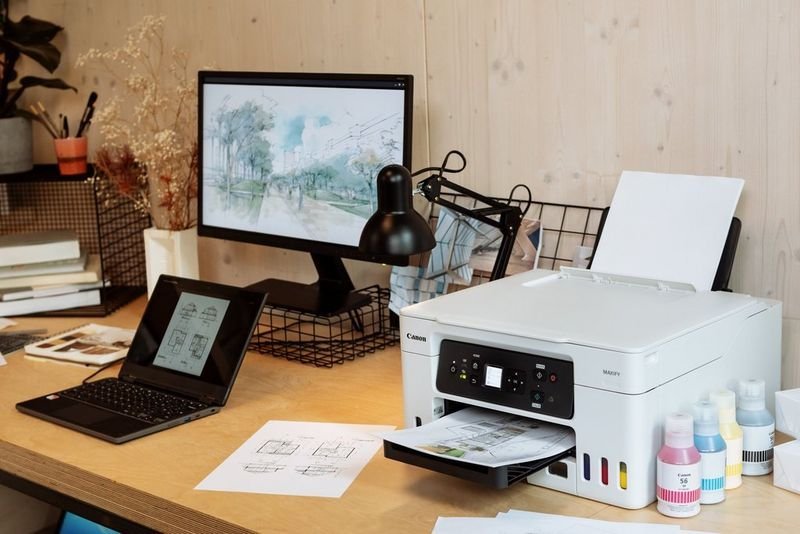
It was a Sunday evening, and I had a job application to print — cover letter, resume, the whole thing. Deadline was the next morning. I hit print, walked to my HP printer, and… nothing. Just silence. I went back to my laptop and saw those two dreaded words: Printer Offline.
I’m not going to lie — I panicked a little. Then I got frustrated. Then I went full detective mode and spent the next hour figuring out what was actually wrong. By the end of it, I had not only fixed the issue but learned more about printer troubleshooting than I had in the previous five years combined.
If you’re reading this right now with your printer sitting there doing absolutely nothing, take a breath. I’ve been exactly where you are, and I’m going to walk you through the five things that actually worked for me — no fluff, no “have you tried turning it off and on again” nonsense (well, okay, one of them involves that, but stay with me).
1. Check the Obvious Stuff First — I Learned This the Hard Way
Before you go digging into settings and drivers, just do a quick physical check. I know it sounds embarrassingly simple, but the first time my printer went offline, the issue was literally that the USB cable had come slightly loose from the back of the printer. Slightly. Not fully unplugged — just enough to break the connection.
Here’s what I check every single time now before doing anything else:
- Is the printer actually on? (Not sleep mode — fully on)
- Are all cables snugly connected? (USB or ethernet if you’re wired)
- Is the printer showing any error lights or messages on its display?
- Is there paper in the tray? Is there a paper jam?
- Is the ink or toner critically low?
Some printers will show as “offline” even when there’s just a paper jam. Your computer doesn’t know the difference — it just knows the printer isn’t responding.
Also check if your printer is set as the default printer. This trips people up constantly. You might be sending jobs to an old printer that no longer exists on your network, while your current printer sits there waiting.
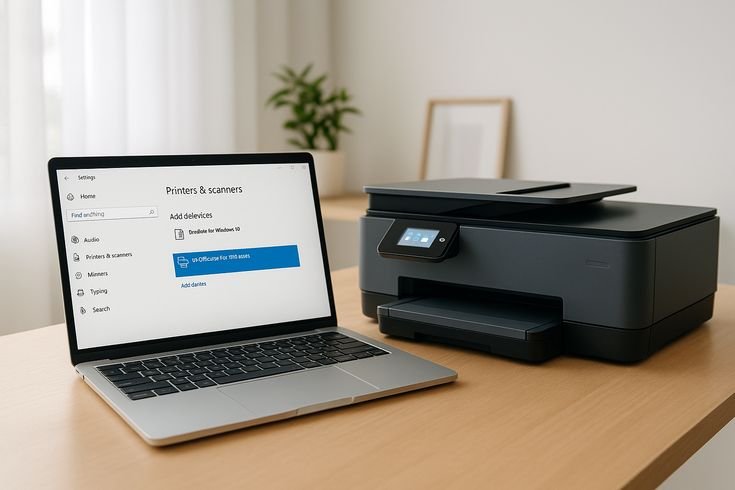
On Windows: Go to Settings → Bluetooth & devices → Printers & scanners. Click your printer and make sure “Set as default” is enabled.
On Mac: Go to System Settings → Printers & Scanners. Right-click your printer and set it as default.
That alone fixed my problem once. It took me 45 minutes of frustration before I found it — don’t repeat my mistake.
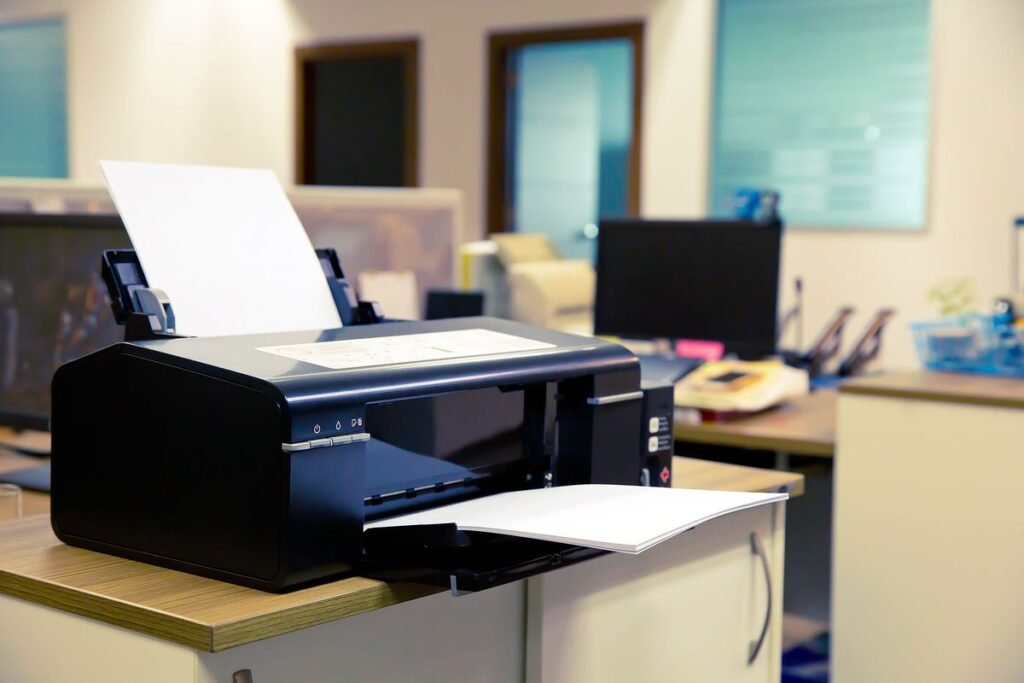
2. Disable “Use Printer Offline” Mode — This One Got Me Good
Windows has this built-in setting called “Use Printer Offline” and honestly, it’s caused me more headaches than I can count. When this mode is turned on, Windows essentially pretends your printer doesn’t exist. It queues jobs but never sends them.
The maddening part? You can accidentally enable this without realizing it. A bad connection, a failed print job, a Windows update — any of these can flip this setting without you touching anything.
Here’s exactly how to turn it off:
- Open the Control Panel (yes, the old one — just search it in your Start menu)
- Go to Devices and Printers
- Right-click on your printer
- Click “See what’s printing”
- In the new window, click the Printer menu at the top
- If you see a checkmark next to “Use Printer Offline”, click it to uncheck it
That’s it. Seriously. Half the time this is all it takes.
After I discovered this setting existed, I started recommending it to everyone. My dad called me once saying his Canon printer had “broken” and he was about to buy a new one. I walked him through these steps over the phone and his printer was working in three minutes. He still talks about it.
3. Restart the Print Spooler Service — The Hidden Fix Most People Don’t Know
This one sounds technical but it’s genuinely straightforward, and it’s probably the most powerful fix on this list. The Print Spooler is a Windows service that manages all print jobs. When it crashes or gets stuck (which happens more than it should), your printer appears offline even when everything is physically fine.
Think of it like a traffic controller for your print jobs. If the controller goes to sleep on the job, all the cars just sit there.
Here’s how to restart it:
- Press Windows + R on your keyboard
- Type services.msc and hit Enter
- Scroll down to find Print Spooler
- Right-click it and select Restart
- If it won’t restart, select Stop, wait 10 seconds, then Start
There’s also a slightly faster method using Command Prompt if you’re comfortable with it:
net stop spooler
net start spooler
Run those two lines as Administrator and you’re done.
Now here’s the extra step that makes this work even better — after restarting the spooler, clear out the print queue folder. Corrupted print jobs sitting in the queue can prevent the spooler from working properly even after restart.
Navigate to: C:\Windows\System32\spool\PRINTERS
Stop the spooler first, delete everything inside that folder (don’t delete the folder itself), then restart the spooler. This cleared a stuck queue for me once that had been building up for weeks without me realizing it.
For more connection-related troubleshooting, I found a lot of useful context in this guide on 9 Fast Printer Guide Fixes When Your Printer Won’t Connect — definitely worth a read if your issue seems network-related.
4. Update or Reinstall the Printer Driver — Don’t Skip This Step
I used to roll my eyes whenever someone suggested reinstalling drivers. It felt like one of those vague tech support answers that means “I have no idea what’s wrong.” But after dealing with a persistent offline error on my Brother laser printer for two weeks, I finally tried it — and it worked immediately.
Here’s the thing about drivers: they get corrupted. A Windows update can break compatibility. A failed installation can leave behind broken files. And when the driver is broken, your printer might show up in your devices list but behave as if it’s not there at all.
How to properly reinstall a printer driver:
Step 1: Uninstall the current driver
- Go to Settings → Bluetooth & devices → Printers & scanners
- Click your printer → Remove device
- Then go to Device Manager (search it in Start), find your printer under “Printers,” right-click and select “Uninstall device”
- Check the box that says “Delete the driver software for this device”
Step 2: Download the latest driver
- Go directly to your manufacturer’s website:
- HP: support.hp.com
- Canon: usa.canon.com/support
- Epson: epson.com/support
- Brother: support.brother.com
- Enter your exact model number and download the driver for your Windows or Mac version
Step 3: Run the installer
- Don’t just install the driver — use the full software package if available. It includes diagnostic tools that can catch setup issues automatically.
Step 4: Restart your computer before testing
This process took me about 20 minutes the first time. Worth every second. I’ve also found that using the manufacturer’s official software (like HP Smart or Canon PRINT) instead of Windows’ generic driver can make a real difference in connection stability.
5. Fix the IP Address Issue for Wireless Printers — This One Surprised Me
If you have a wireless printer, there’s a good chance your offline error isn’t a software issue at all — it’s an IP address conflict. This happened to me with my Epson EcoTank and it completely stumped me for days.
Here’s what happens: your router assigns IP addresses dynamically (this is called DHCP). Most of the time that’s fine. But sometimes your printer gets assigned a different IP address after a router restart or after being off for a while. Your computer is still trying to reach the old IP address — and getting nothing back.
| Symptom | Likely Cause |
|---|---|
| Printer offline only after router restart | IP address changed |
| Printer works sometimes, offline other times | Dynamic IP conflict |
| Works on one device, offline on another | Device-specific IP mismatch |
| Offline after being powered off for a while | DHCP lease renewed with new IP |
How to fix this properly:
Option A: Assign a Static IP Address to Your Printer
This is the permanent fix. Log into your router (usually 192.168.1.1 or 192.168.0.1 in your browser) and find the DHCP reservation settings. Assign your printer’s MAC address a fixed IP address. Now it will always have the same address, and your computer will always find it.
Option B: Update the Printer Port in Windows
If you don’t want to mess with router settings:
- Go to Devices and Printers
- Right-click your printer → Printer properties
- Click the Ports tab
- Find the port your printer is using and click Configure Port
- Update the IP address to match your printer’s current IP (you can find this by printing a network configuration page from your printer’s menu)
Option C: Delete and Re-add the Printer
Sometimes the quickest fix is to remove the printer entirely and add it again fresh. Windows will discover the current IP during setup.
I use this tip from 6 Powerful Printer Guide Tips for Wireless Printer Setup as a reference whenever I’m dealing with wireless headaches — the section on IP management is genuinely helpful.
Common Mistakes I Made (So You Don’t Have To)
Mistake 1: Restarting the printer without restarting the computer These two need to reconnect to each other. Restarting only one side of the equation often doesn’t fix the handshake issue.
Mistake 2: Ignoring the print queue A stuck print job can hold everything hostage. Before doing anything else, open your print queue and cancel all pending jobs.
Mistake 3: Using Windows Update drivers instead of manufacturer drivers Windows’ automatic driver isn’t always the best or most current. Always go to the manufacturer’s site directly.
Mistake 4: Not checking if a VPN was running This one bit me once. I had a VPN running on my laptop that was interfering with local network discovery. My printer was physically right there on the same WiFi, but the VPN was routing traffic in a way that blocked it. Turned off the VPN — printer came online instantly.
Mistake 5: Assuming it’s the printer’s fault Sometimes the issue is the router, the USB hub, or even the cable. I once spent two hours troubleshooting a printer before realizing the USB cable was just faulty. Swapped the cable and everything worked.
Quick Reference: What to Try Based on Your Situation
| Your Situation | Start With |
|---|---|
| Wired printer suddenly offline | Check cable, restart print spooler |
| Wireless printer offline after reboot | Check IP address / router settings |
| Printer offline after Windows update | Reinstall driver from manufacturer |
| Print jobs stuck in queue | Clear queue, restart spooler |
| Printer offline on one computer only | Check default printer setting, reinstall driver on that machine |
| Printer worked yesterday, nothing changed | Disable “Use Printer Offline” mode |
A Few Things Worth Knowing About Different Printer Brands
Different manufacturers handle offline states slightly differently, and knowing this saves time.
HP printers often have an app called HP Smart that can diagnose and fix offline issues automatically. Download it from the Microsoft Store or hp.com — it’s actually quite good and has fixed my HP DeskJet issues without me doing anything manual.
Canon printers tend to be sensitive to driver versions. If you recently updated Windows and your Canon went offline, rolling back or reinstalling the driver is almost always the fix.
Epson printers (especially the EcoTank series) have wireless setup utilities that can reconfigure the network connection without a full reinstall. Check Epson’s website for your model.
Brother printers are generally very stable but can have IP address issues on larger networks. Their web-based admin panel (accessible via your printer’s IP in a browser) is actually really useful for network configuration.
For those dealing with Windows-specific errors alongside the offline issue, there’s a solid walkthrough at 9 Powerful Printer Guide Steps to Fix Windows Printer Errors that covers some scenarios I didn’t get into here.
When Nothing Works
If you’ve tried all five of these methods and your printer is still offline, there are a few more things to consider:
- Firewall or antivirus blocking the printer connection (temporarily disable and test)
- Outdated firmware on the printer itself (check the manufacturer’s website for firmware updates)
- Network isolation settings on your router (some routers have “AP Isolation” that prevents devices from talking to each other)
- Hardware failure — if the printer is old and nothing works, the network card or USB controller inside may have failed
At that point, it might be worth calling the manufacturer’s support line. Most brands have free support for setup and connectivity issues, even outside warranty.
The printer offline error is one of those things that feels catastrophic in the moment but is almost always fixable with the right approach. I’ve now fixed it so many times — for myself, for family members, for coworkers — that it barely stresses me out anymore. The key is working through it systematically rather than clicking everything in a panic.
Start with the simple stuff, work your way to the more technical fixes, and you’ll have it sorted faster than you think.
Also worth reading: If you want to avoid these issues showing up again in the future, check out 10 Smart Printer Guide Maintenance Habits That Extend Printer Life — some genuinely useful habits in there that I’ve added to my own routine.