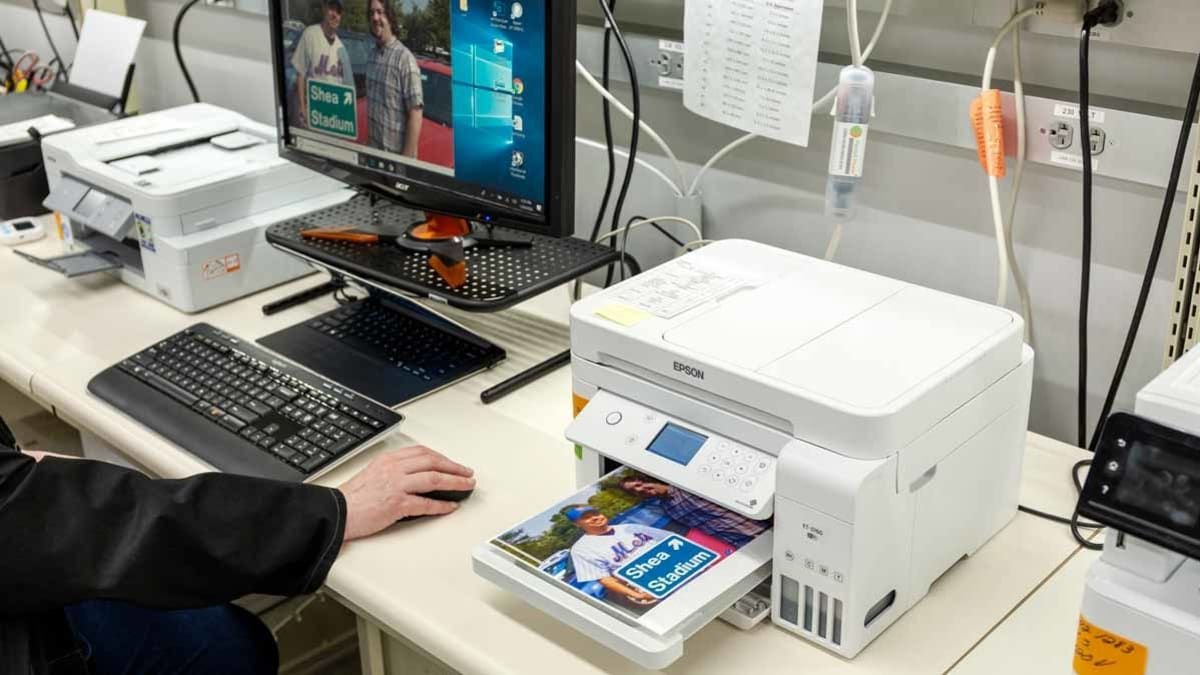
So here’s what happened to me last winter. I had a 20-page report due for a client meeting at 9 AM, and my network printer — which had been working perfectly fine the evening before — just refused to print. Not even an error message. Just sitting there, showing “Ready” on the panel, completely ignoring my existence.
I spent 45 minutes trying random stuff before I finally figured it out (spoiler: it was a stale IP address issue). That morning changed how I approach network printer problems entirely. No more guessing. No more restarting everything and hoping for magic.
If your printer is connected to a network — either at home or in an office — and things keep going sideways, these are the nine tips that have actually worked for me and the people I’ve helped since then.
1. Start With the Network, Not the Printer
This is the mistake almost everyone makes — including me, until I stopped. When a network printer isn’t responding, the first instinct is to restart the printer or reinstall the driver. But half the time, the printer is perfectly fine. The problem is the network it’s sitting on.
Before you touch the printer settings, check these three things:
- Is the printer connected to the same Wi-Fi network (or subnet) as your computer?
- Is your router actually broadcasting properly? (Try loading a webpage to confirm internet is live)
- Is the printer’s network indicator light on and solid, or blinking like it’s lost?
A lot of home routers have both a 2.4GHz and 5GHz band. If your laptop is on 5GHz and your printer is on 2.4GHz, they may not talk to each other properly depending on your router settings. I’ve seen this exact thing confuse three people in my own family.
Fix: Connect both devices to the same band and try again.
2. Assign a Static IP to Your Printer
This one tip probably saved me the most time over the years. By default, most printers get a dynamic IP from your router via DHCP. That means every time the printer restarts or the router reboots, it might get a different IP address — and your computer is still looking for it at the old one.
How to fix it:
- Print a network configuration page from your printer (usually under Settings > Reports > Network Config)
- Note the current IP address
- Log into your router’s admin page (usually 192.168.1.1 or 192.168.0.1)
- Find the DHCP reservation or “static lease” section
- Bind your printer’s MAC address to a fixed IP
Once I did this for my HP LaserJet, it never disappeared from the network again. Seriously, do this first if you haven’t already.
For a deeper dive into connection-related fixes, check out 9 Fast Printer Guide Fixes When Your Printer Won’t Connect — it covers this and a bunch of related scenarios really well.
3. Check and Restart the Print Spooler
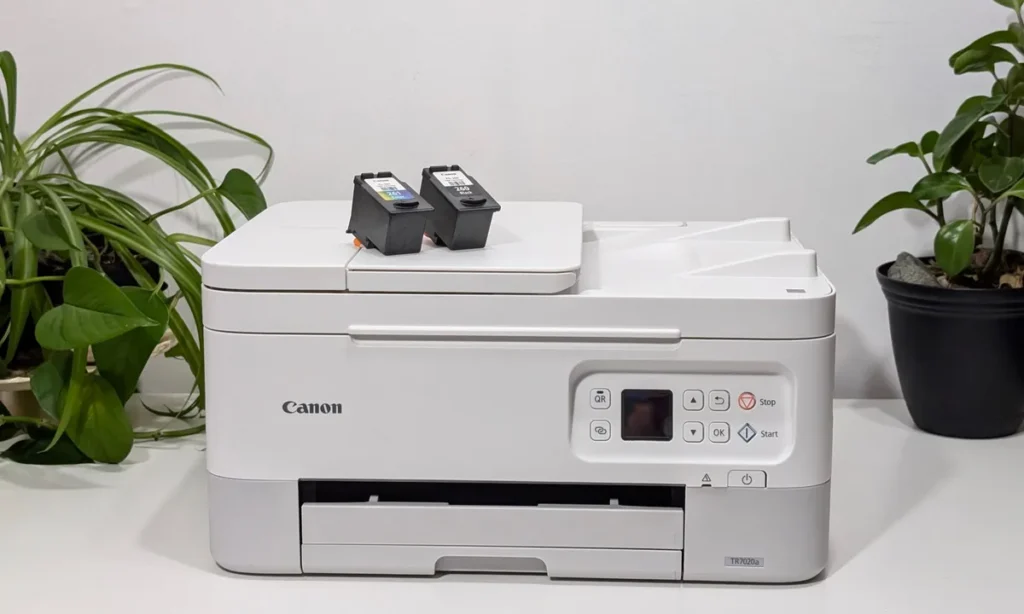
The Print Spooler is a Windows service that manages all print jobs. When it gets stuck — and it does get stuck, more often than it should — your printer just stops responding even though everything else looks fine.
Here’s how to reset it quickly on Windows:
- Press
Win + R, typeservices.msc, hit Enter - Scroll down to Print Spooler
- Right-click → Stop
- Navigate to
C:\Windows\System32\spool\PRINTERSand delete all files inside (not the folder itself) - Go back to Services → Right-click Print Spooler → Start
This has rescued me more times than I can count. It takes under two minutes and works surprisingly well for “printer not responding” situations.
If you’re dealing with spooler problems repeatedly, 8 Proven Printer Guide Fixes for Printer Spooler Problems goes into much more depth on why this happens and how to prevent it.
4. Update or Reinstall the Printer Driver
Old or corrupted drivers are silent killers of network printing. The printer might show up in your devices list, accept the job, and then nothing happens — because the driver is sending commands in a format the printer no longer understands (or vice versa after a Windows update).
Here’s what I do:
- Go to Device Manager → find your printer
- Right-click → Uninstall device (check the box to delete driver software)
- Go to the manufacturer’s website directly — not Windows Update — and download the latest driver
- Install it fresh
For HP printers, I always go to hp.com/support. For Canon, Brother, and Epson, their support pages are similarly straightforward. Avoid third-party driver sites — half of them bundle junk software.
One thing people get wrong: they just update the driver without uninstalling the old one. That often leaves conflicting files behind. Full uninstall first, then fresh install. Makes a difference.
5. Use the Correct Port Configuration
This one is a bit technical but stick with me — it’s worth understanding. When Windows sets up a network printer, it creates a “port” that points to your printer’s IP address. If that IP changes (see tip #2), the port is now pointing at nothing.
How to check:
- Go to Control Panel → Devices and Printers
- Right-click your printer → Printer Properties
- Click the Ports tab
- Look at the IP address listed — does it match your printer’s current IP?
If not, either update the port to the new IP, or better yet, go back and set a static IP so this never happens again.
I’ve seen office setups where this was the cause of recurring “printer offline” errors for months. Nobody connected it to the IP change until we actually looked at the port settings.
6. Temporarily Disable the Firewall and Antivirus to Test
Your firewall or antivirus software might be blocking the communication between your computer and the network printer. This sounds extreme, but I’ve run into this situation with both Windows Defender and third-party tools like Norton.
The point isn’t to leave it disabled — it’s just to test.
- Temporarily turn off Windows Firewall
- Try printing
- If it works, the firewall was the problem
Then instead of leaving it off (please don’t), go into your firewall settings and add a rule to allow printer traffic. Specifically, ports 9100 (raw printing), 445 (SMB for shared printers), and 631 (IPP, used by many network printers) should be open for local network traffic.
7. Check the Printer’s Built-In Web Interface
Most modern network printers have a tiny web server built in. You can access it just by typing the printer’s IP address into your browser. This is one of those features most people never discover, but it’s incredibly useful.
From the printer’s web interface you can:
- See the current network status (Wi-Fi signal strength, IP, DNS)
- Check ink or toner levels
- View the print job history
- Update firmware directly
- Reset network settings
When my Brother MFC printer started acting up after a firmware update, I caught it through the web interface — it was stuck on an old subnet mask that didn’t match the new router configuration.
To access it: find your printer’s IP (print a network config page), type it into Chrome or Firefox, and you’ll see a clean dashboard. No software needed.
8. Run a Ping Test to Confirm Connectivity
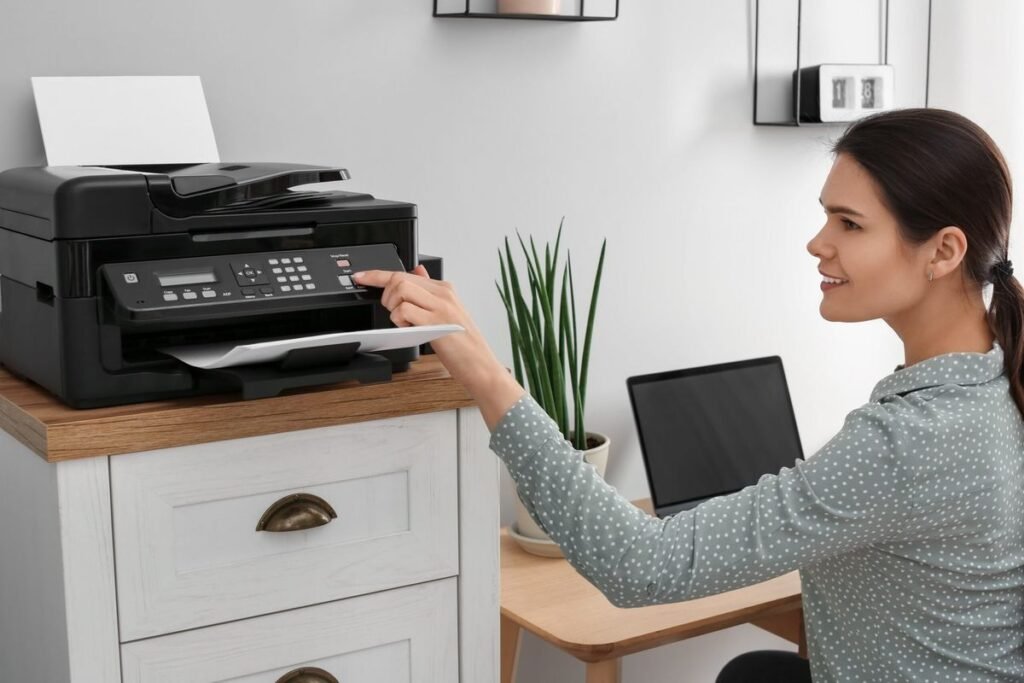
Before spending an hour reinstalling drivers and reconfiguring ports, just run a ping test. It takes 10 seconds and tells you immediately whether your computer can even see the printer on the network.
On Windows:
- Press
Win + R, typecmd, hit Enter - Type:
ping [printer IP address]— e.g.,ping 192.168.1.105 - Hit Enter
If you get replies, the computer and printer are communicating. If you get “Request timed out,” the problem is purely network-level — no driver fix in the world will help until you sort that out first.
This simple test has helped me skip hours of unnecessary troubleshooting. It narrows down the problem to either “network issue” or “software/driver issue” in about 10 seconds.
For more hands-on troubleshooting strategies like this, 9 Proven Printer Troubleshooting Tips That Actually Work is a solid read.
9. Reset the Printer’s Network Settings and Reconnect
Sometimes the cleanest solution is starting fresh. If you’ve tried everything and the printer still won’t cooperate on the network, resetting its network settings to factory defaults and setting it up again often fixes whatever weird configuration had gotten stuck.
Most printers have a “Network Reset” or “Restore Network Defaults” option somewhere in the Settings menu. For some models, it’s a button hold combination (check your manual or the manufacturer’s support page).
After resetting:
- Reconnect it to your Wi-Fi using WPS or the printer’s control panel
- Print a fresh network config page to confirm the new IP
- Set up a static IP again (see tip #2)
- Reinstall or reconfigure the printer on your computer
Yes, it’s a bit of work. But I’ve seen this resolve issues that no amount of driver reinstalls or port changes could fix. Sometimes there’s just some corrupted network config sitting in the printer’s memory, and a clean slate is the answer.
Common Mistakes to Avoid
Since I’ve been through this enough times, let me save you from the ones that wasted the most of my time:
Restarting the printer before checking the network. Nine times out of ten, the printer is fine. The network is not.
Downloading drivers from random websites. Always go to the manufacturer’s official support page. Third-party driver sites are full of bundled adware and outdated files.
Ignoring the 2.4GHz vs 5GHz band split. This is the cause of so many “my printer just stopped working” complaints after someone got a new router. Always verify both devices are on the same band.
Not clearing the print queue. A stuck job at the top of the queue will block every new job behind it. Clear the spooler, delete stuck jobs, and start fresh.
Skipping the ping test. If you’re spending time on drivers and ports before confirming basic network connectivity, you might be solving the wrong problem entirely.
Final Thoughts
Network printing genuinely doesn’t have to be this painful. The problem is that most of us (myself included, once upon a time) treat it like a black box and just restart things randomly until something works.
Once you understand that a network printer is basically just a device on your local network — with an IP address, a port it listens on, and a driver that translates commands — troubleshooting becomes a lot more logical. You’re not guessing anymore. You’re tracing the path from your computer to the printer and figuring out exactly where it breaks.
Start with the network. Assign a static IP. Keep your drivers current. And when all else fails, the reset button exists for a reason.
If you’re new to setting up or managing printers and want a broader foundation, I’d genuinely recommend going through 10 Ultimate Printer Troubleshooting Tips That Actually Work — it covers a wide range of scenarios from setup to error recovery in a way that’s easy to follow even if you’re not particularly technical.
Network printing can be reliable. You just have to set it up right the first time.