
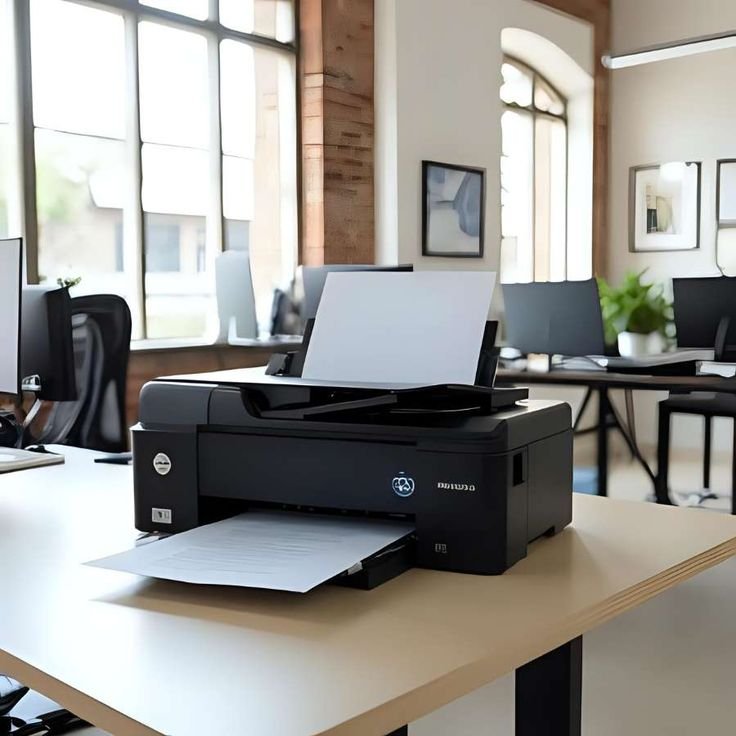
11 Easy Printer Troubleshooting Fixes for Any Problem
Printers are one of those devices that seem simple until they stop working. One minute everything is fine, and the next you’re dealing with paper jams, blank pages, offline errors, or stubborn connectivity issues. Whether you use a printer at home, in an office, or for school work, problems are almost unavoidable over time.
The good news is that most printer issues don’t require a technician. In fact, many can be solved in minutes with a few simple checks and adjustments. This guide walks you through 11 easy troubleshooting fixes that can help you solve almost any printer problem.
- Check basic power and connection first
It sounds too simple, but many printer problems start here. A loose power cable or disconnected USB/Wi-Fi link can make your printer appear completely broken.
Make sure:
- The printer is properly plugged into a working power outlet
- The power button is turned on (check for lights or display activity)
- USB cables are securely connected if you are using a wired printer
- For wireless printers, confirm that Wi-Fi is active
Sometimes the issue is not the printer itself, but the connection between your device and the printer.
- Restart everything (printer, computer, and router)
Restarting is one of the most effective troubleshooting methods. It clears temporary glitches that may be blocking communication between devices.
Turn off:
- Printer
- Computer or laptop
- Wi-Fi router (for wireless printers)
Wait about 30–60 seconds, then turn everything back on.
This refresh often fixes offline errors, delayed printing, and network issues without any further steps.
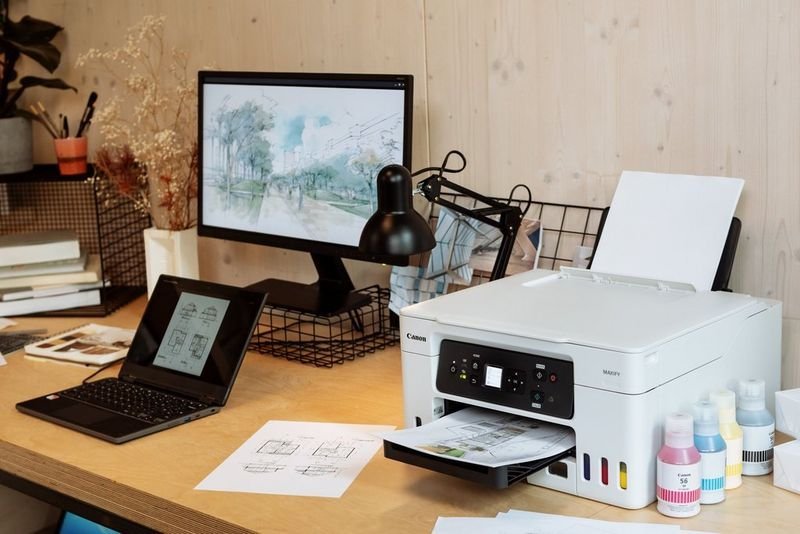
- Check for paper jams or misfeeds
Paper jams are one of the most common printer problems. Even a small piece of stuck paper can stop everything.
To fix:
- Turn off the printer before checking inside
- Open all access panels carefully
- Remove any jammed paper slowly to avoid tearing
- Check paper tray alignment
- Make sure paper is not curled, damp, or overloaded
Also ensure you are using the correct paper size and type for your printer.
- Verify ink or toner levels
If your printer is printing blank pages or faded text, low ink or toner is often the cause.
Check:
- Ink levels through printer software or display screen
- Toner cartridge status (for laser printers)
- Whether cartridges are properly installed
Even if ink cartridges are not empty, they may be clogged or dried out, especially if the printer hasn’t been used for a while.
- Clean printheads or nozzles
Clogged printheads can cause streaks, missing colors, or completely blank prints.
Most printers have a built-in cleaning function:
- Go to printer settings on your computer
- Select “Maintenance” or “Tools”
- Choose “Clean Printhead” or “Nozzle Cleaning”
You may need to run the process more than once for best results.
For stubborn clogs, a deeper cleaning cycle may be required.
- Make sure the printer is set as default
Sometimes documents don’t print simply because the wrong printer is selected.
To fix this:
- Open your computer’s printer settings
- Check the list of available printers
- Set your main printer as “Default”
- Remove or disable unused printers if needed
This ensures your device always sends print jobs to the correct machine.
- Update or reinstall printer drivers
Drivers are software that help your computer communicate with the printer. If they are outdated or corrupted, printing problems can occur.
Steps:
- Go to your printer manufacturer’s website
- Download the latest driver for your model
- Install and restart your computer
If issues persist, uninstall the current driver completely and reinstall a fresh version.
- Check Wi-Fi connection for wireless printers
Wireless printers depend heavily on stable internet connections. If the signal is weak or disconnected, printing will fail.
Try:
- Reconnecting printer to Wi-Fi network
- Moving printer closer to the router
- Restarting the router
- Ensuring both printer and device are on the same network
Dual-band routers (2.4GHz and 5GHz) can sometimes confuse printers, so make sure you’re connected to the supported band.
- Clear print queue problems
A stuck print job can block all future printing attempts.
To clear it:
- Open “Devices and Printers” on your computer
- Select your printer
- Open “See what’s printing”
- Cancel all pending documents
Restart the printer afterward to fully reset the queue.
- Check for hardware issues
If none of the software fixes work, the problem may be physical.
Look for:
- Damaged cables
- Broken paper rollers
- Loose internal components
- Overheated printer parts
If you notice unusual noises or repeated errors, the printer may need professional servicing.
- Reset the printer to factory settings
When everything else fails, a factory reset can restore your printer to its original working state.
This will:
- Clear settings
- Remove network connections
- Reset internal configurations
After resetting:
- Reconnect the printer to Wi-Fi
- Reinstall drivers if needed
- Set up preferences again
This step often resolves persistent or mysterious issues.
Final thoughts
Printer problems can be frustrating, especially when they happen at the worst possible time. But in most cases, the solution is simpler than it seems. From checking cables to clearing print queues or updating drivers, these 11 fixes cover almost every common issue you’re likely to face.
The key is to troubleshoot step by step instead of guessing. Start with the simplest solutions and move toward more advanced ones only if needed. With a little patience, most printers can be brought back to normal without professional help.
FAQs
- Why is my printer not responding even though it is turned on?
This usually happens due to connection issues, outdated drivers, or a stuck print queue. Restarting both the printer and computer often helps. - How do I fix a paper jam that keeps happening?
Check for worn rollers, use proper paper type, avoid overloading the tray, and ensure paper is not damp or curled. - Why is my printer printing blank pages?
This is commonly caused by empty ink cartridges, clogged printheads, or incorrect cartridge installation. - How often should I clean my printer?
Basic cleaning should be done every few months, but printhead cleaning may be needed whenever print quality drops. - Why does my wireless printer keep going offline?
This is usually due to weak Wi-Fi signal, router issues, or the printer being on a different network than your device. - Do I need to update printer drivers regularly?
Yes, updating drivers helps fix bugs, improve compatibility, and ensure smooth communication between your device and printer.






