
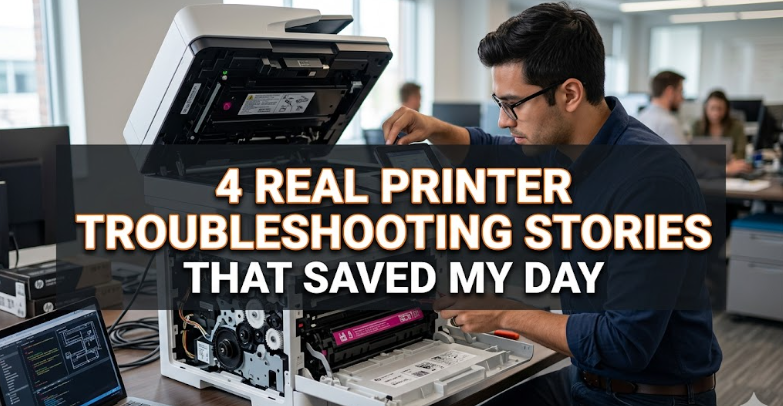
4 Real Printer Troubleshooting Stories That Saved My Day
Printers have a strange personality. When they work, they feel invisible—just another quiet office tool doing its job. But the moment something goes wrong, they become the center of attention, usually at the worst possible time. Over the years, I’ve had my fair share of printer disasters, and each one taught me something I never forgot.
These aren’t theoretical fixes or textbook solutions. These are real situations where I had to think fast, experiment, fail a few times, and eventually bring a stubborn printer back to life. Each story here captures a moment where troubleshooting saved deadlines, presentations, and sometimes even reputations.
Story 1: The “No Ink” Error That Wasn’t Really About Ink
It was early morning, and I was preparing documents for an important client meeting. Everything was ready—slides printed, handouts arranged—except the printer suddenly refused to cooperate.
The screen showed: “Ink Cartridge Empty.”
That would have been fine if I hadn’t just replaced both cartridges the night before.
My first instinct was frustration. New ink, same error. I reinstalled the cartridges, restarted the printer, even checked the ink levels through the software. Everything looked full.
Still the same error.
I almost gave up and considered rushing to a print shop when I noticed something small: the protective tape on one cartridge hadn’t fully detached. It was barely visible, stuck along the edge of the nozzle.
I removed it properly, cleaned the cartridge contacts with a soft cloth, reinserted both cartridges, and restarted the printer.
This time, it worked instantly.
Lesson learned: Not all ink errors are about ink. Sometimes it’s about communication between the cartridge and the printer. Even a tiny obstruction can break that connection.
That day, I made it to the meeting on time—with freshly printed documents and a slightly bruised ego.
Story 2: The Wireless Printer That “Disappeared” From the Network
This one happened during a weekend when I decided to work from home. My printer had always been reliable on Wi-Fi—until it suddenly vanished from all devices.
Laptop? Printer not found.
Phone? No connection.
Printer screen? Connected to Wi-Fi just fine.
It was like the printer existed in a parallel universe.
I restarted the router. Nothing.
I restarted the printer. Still nothing.
I even reinstalled drivers. No change.
After nearly an hour of frustration, I decided to treat it like a network problem instead of a printer problem.
I checked the IP address from the printer settings. It showed something strange: 169.254.x.x
That’s a self-assigned address—meaning the printer wasn’t actually getting a proper network connection.
The issue turned out to be simple but sneaky: the router had updated its security settings, blocking older wireless authentication protocols.
The fix involved:
- Removing the printer from saved devices
- Reconnecting it manually using WPS
- Updating firmware through the printer settings
Once done, it reappeared on every device like nothing had happened.
Lesson learned: Wireless printers don’t just “disconnect.” They renegotiate their identity with the network—and sometimes that negotiation fails silently.
Story 3: The Mysterious Paper Jam That Had No Paper
This one was particularly annoying.
The printer kept showing “Paper Jam – Clear Tray 2.” The problem? Tray 2 was completely empty.
I opened every possible panel. No paper. No scraps. No visible obstruction.
Still, the error wouldn’t go away.
At this point, I assumed it was a sensor issue. But before calling a technician, I decided to dig deeper.
I used a flashlight and slowly inspected the paper feed path. Everything looked fine until I noticed something unusual near a roller: a tiny torn piece of sticky label—almost invisible unless the light hit it just right.
It wasn’t paper. It was adhesive residue from an old label print job that had peeled off and stuck to the roller sensor.
Every time the printer tried to feed paper, the sensor misread the obstruction.
I carefully cleaned the roller using a lint-free cloth slightly dampened with isopropyl alcohol. After a few manual rotations, the residue came off.
I closed the printer, restarted it, and the error disappeared immediately.
Lesson learned: Paper jams aren’t always paper jams. Printers are sensitive to even microscopic debris.
Story 4: The Print Quality Disaster Before a Major Presentation
This was the most stressful situation of all.
I was preparing final printed slides for a presentation that had taken weeks to build. When I printed the first page, my stomach dropped.
Everything looked faded. Colors were washed out. Text looked like it had been printed underwater.
I checked ink levels—fine.
I ran a nozzle check—slightly clogged.
I ran cleaning cycles—no improvement.
Time was running out.
Instead of repeating the same cleaning cycle, I tried something different: a deep printhead alignment followed by a high-quality test print on plain paper.
Still weak output.
Then I remembered something often overlooked—paper type settings.
The printer was set to “Plain Paper – Draft Mode” from a previous quick print job. That setting was throttling ink usage heavily.
I switched it to:
- “Photo Paper / High Quality”
- Disabled “Eco Mode”
- Increased print density manually
Then I ran another test page.
The difference was immediate. Colors became rich again, text sharp and clean.
Lesson learned: Sometimes printers aren’t broken—they’re just obeying old instructions you forgot you gave them.
Story 5: The Overheating Printer That Kept Shutting Down (Bonus Experience)
This happened during a long printing session for bulk documents.
After about 20 pages, the printer would shut off completely. No error message. No warning. Just silence.
At first, I thought it was a power issue. I changed sockets. Same result.
Then I noticed something: the printer was sitting in a tight corner near a wall with almost no airflow.
After extended use, it was overheating.
I moved it to a more open space, cleaned the internal vents, and let it cool down for 20 minutes.
After that, it ran perfectly—even during longer print runs.
Lesson learned: Printers need breathing space too. Heat buildup is one of the most overlooked causes of sudden shutdowns.
Final Thoughts
Every printer problem feels like a mystery at first. But over time, you start noticing patterns. Most issues come down to a few core areas:
- Connectivity (especially wireless confusion)
- Physical obstructions (even tiny ones)
- Software settings (often overlooked)
- Maintenance habits (cleaning, placement, ventilation)
What feels like a major breakdown is often just a small misalignment somewhere in the system.
And the real skill in troubleshooting isn’t panic—it’s patience. The ability to slow down, isolate variables, and test one thing at a time is what turns frustrating failures into quick recoveries.
FAQs
- Why does my printer show errors even when everything looks fine?
Many printer errors come from sensors or software settings rather than visible hardware issues. Even small obstructions or incorrect configurations can trigger false alerts. - What is the most common cause of wireless printer failure?
Usually, it’s network changes like router updates, IP conflicts, or authentication mismatches rather than the printer itself. - How do I fix poor print quality quickly?
Start by checking print settings, disabling eco or draft modes, and running a nozzle check. Ink levels and paper type settings also matter a lot. - Can dust really affect printer performance?
Yes. Dust can block rollers, interfere with sensors, and even affect print quality over time if not cleaned regularly. - Why does my printer randomly disconnect?
This can happen due to weak Wi-Fi signals, outdated firmware, or IP address conflicts between devices. - How often should I maintain my printer?
Light cleaning every few weeks and deeper maintenance every few months is ideal, depending on usage frequency.






