

8 Proven Printer Troubleshooting Tips for All Printers
Printers are one of those devices that seem simple until they stop working. Whether you’re using a home inkjet printer, a small office laser printer, or a wireless all-in-one device, problems can appear without warning. Paper jams, faded prints, offline errors, and connectivity issues are all common frustrations.
The good news is that most printer problems are not as serious as they seem. In fact, many issues can be solved with a few practical troubleshooting steps. This guide walks through 8 proven printer troubleshooting tips that work for nearly all printer types and brands.
Understanding how printers fail in everyday use
Before jumping into fixes, it helps to understand why printers misbehave. Most issues come from a few main causes:
- outdated or corrupted drivers
- poor connection between printer and device
- clogged ink nozzles or toner issues
- paper loading mistakes
- software conflicts
- network or Wi-Fi instability
- low maintenance or dust buildup
Printers are mechanical and digital devices combined, so even a small disruption in either area can stop them from working properly. The following tips are designed to address both sides.
- Restart everything before anything else
It sounds too simple, but restarting is one of the most effective printer troubleshooting steps.
Turn off your printer, unplug it from the power source, and wait at least 60 seconds. Also restart your computer or phone.
Why this works:
Printers store temporary data in memory. Sometimes that memory becomes stuck or overloaded, causing errors like “printer not responding” or print jobs stuck in queue.
A full restart clears temporary glitches and re-establishes communication between devices.
Extra tip:
If your printer is connected to a Wi-Fi network, restart your router as well. Many “offline” errors are actually network-related.
- Check printer connections carefully
A loose or incorrect connection is one of the most overlooked issues.
For wired printers:
- Ensure the USB cable is properly inserted at both ends
- Try switching to a different USB port
- Replace the cable if it looks damaged
For wireless printers:
- Confirm the printer is connected to the correct Wi-Fi network
- Check if the Wi-Fi light is stable and not blinking
- Reconnect the printer to the network if needed
For network printers in offices:
- Verify the printer IP address has not changed
- Make sure the device and printer are on the same network
A stable connection is the foundation of smooth printing.
- Clear print queue and restart print spooler
A stuck print job can block everything else.
On Windows or Mac systems, documents often get stuck in a print queue. When that happens, nothing prints until the queue is cleared.
Steps to fix:
- Open the print queue on your computer
- Cancel all pending documents
- Restart the printer
If the problem continues:
Restart the print spooler service (on Windows systems). This service manages print jobs, and restarting it often resolves hidden errors.
Why it matters:
Even a single corrupted file in the queue can freeze all printing activity.
- Update or reinstall printer drivers
Drivers are the communication bridge between your printer and device. If they are outdated or corrupted, problems will appear.
Signs of driver issues:
- Printer shows as “offline” even when connected
- Print commands do nothing
- Strange formatting or blank pages
How to fix:
- Visit your printer manufacturer’s official website
- Download the latest drivers for your model
- Install and restart your device
If updating doesn’t help, uninstall the current driver completely and reinstall a fresh version.
Pro tip:
Avoid using random third-party driver tools. Always use official sources for safety and compatibility.
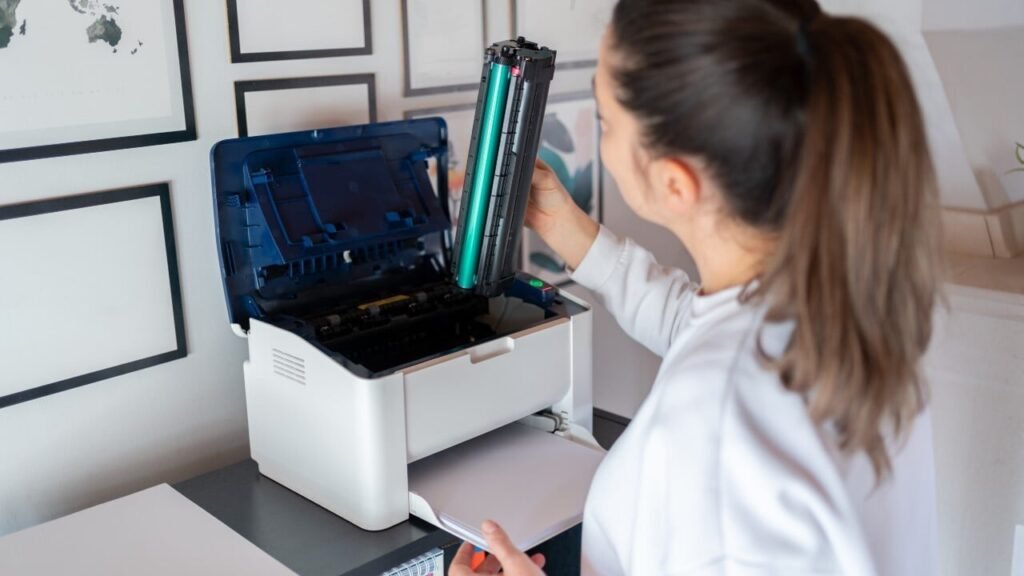
- Inspect ink or toner levels and cartridge health
Many printing issues come from ink or toner problems.
Check for:
- Low ink or toner levels
- Dried ink in cartridges
- Improperly installed cartridges
- Expired toner cartridges
Inkjet printers especially suffer from clogged nozzles if not used regularly.
Quick fixes:
- Remove and gently shake toner cartridges
- Run the printer’s built-in cleaning cycle
- Replace empty or faulty cartridges
If prints look faded, streaky, or incomplete, this is often the cause.
- Fix paper jams and loading issues properly
Paper jams are one of the most common printer problems.
However, pulling paper out forcefully can damage internal parts.
Correct method:
- Turn off the printer
- Open all access panels
- Gently remove stuck paper in the direction of the paper path
- Check for small torn pieces inside
- Reload paper correctly aligned in the tray
Common mistakes to avoid:
- Overfilling the paper tray
- Using wrinkled or damp paper
- Mixing different paper sizes in one tray
A clean paper path ensures smooth printing every time.
- Run built-in printer diagnostic tools
Most modern printers come with built-in troubleshooting tools.
These tools can:
- Detect connectivity issues
- Identify hardware problems
- Clean print heads automatically
- Align cartridges
- Test print quality
You can usually access them through:
- Printer settings menu
- Mobile printer apps
- Computer printer properties panel
Why this is useful:
Instead of guessing the problem, diagnostics provide direct insights and sometimes fix issues automatically.
- Reset the printer to factory settings when all else fails
If nothing works, a factory reset can restore your printer to original settings.
This should be your last option because it removes:
- Wi-Fi settings
- Saved preferences
- Custom configurations
How it helps:
It clears deep software errors and resets internal memory.
After resetting:
- Reconnect the printer to Wi-Fi
- Reinstall drivers if needed
- Reconfigure settings
Many persistent issues disappear after a clean reset.
Final thoughts on printer troubleshooting
Printers may seem frustrating, but most problems follow predictable patterns. Whether it’s a connection issue, a driver conflict, or a simple paper jam, the majority of errors can be fixed without technical expertise.
The key is to approach problems step by step instead of randomly trying fixes. Start with simple solutions like restarting and checking connections, then move to more advanced steps like driver updates or factory resets.
With regular maintenance and careful usage, printers can remain reliable for years.
Frequently asked questions (FAQs)
- Why does my printer keep going offline?
This usually happens due to network issues, outdated drivers, or the printer connecting to the wrong Wi-Fi network. Restarting the router and printer often fixes it. - How do I fix a printer that won’t print anything?
Check the print queue, ensure ink or toner is available, verify connections, and restart both printer and device. Also check if the correct printer is selected. - Why are my printed pages coming out blank?
This is commonly caused by empty ink cartridges, clogged print heads, or improperly installed toner. - What should I do if my printer is printing slowly?
Slow printing can result from high-resolution settings, outdated drivers, or weak network connections. Try reducing print quality or updating drivers. - How often should I clean my printer?
Basic cleaning every few weeks is ideal, especially for inkjet printers. Regular use also helps prevent ink from drying inside nozzles. - Can I use any paper type in my printer?
Not always. Using the wrong paper type can cause jams or poor print quality. Always check your printer’s recommended paper specifications.






