
6 Essential Printer Troubleshooting Tricks for Quick Fixes
Printers are one of those devices that seem simple until they stop working right when you need them most. Whether it’s a paper jam before an important meeting or a mysterious “offline” error, printer problems can quickly become frustrating. The good news is that many of these issues don’t require technical expertise or expensive repairs. With a few essential troubleshooting tricks, you can often get your printer working again within minutes.
This article explores six practical printer troubleshooting tricks that can help you fix common issues quickly, save time, and avoid unnecessary stress. Each method is based on real-world printer behavior and applies to most inkjet and laser printers used at home or in small offices.
- Restart everything properly (printer, computer, and connection)
One of the simplest yet most overlooked troubleshooting steps is restarting the entire printing system. Many printer issues are caused by temporary communication glitches between your device and the printer.
Start by turning off your printer completely. Unplug the power cable from the wall and wait at least 30 to 60 seconds. This short pause allows the internal memory to reset fully. While the printer is off, restart your computer or laptop as well. If you are using a wireless printer, also restart your Wi-Fi router.
After everything is powered back on, try printing again. This process clears minor software bugs, resets network connections, and often resolves issues like:
- Printer showing offline status
- Jobs stuck in the print queue
- Random printing delays
- Unresponsive printer commands
It may seem too simple, but a full restart solves a surprising number of everyday printer problems.
- Check print queue and clear stuck documents
A clogged print queue is another common reason printers stop working properly. When one document gets stuck, it can block all other printing tasks behind it.
To fix this, open the print queue on your computer:
On Windows:
Go to Settings → Devices → Printers & Scanners → Select your printer → Open queue
On Mac:
Go to System Settings → Printers & Scanners → Select printer → Open Print Queue
Once inside, cancel all pending documents. If a file refuses to delete, restart the print spooler service or reboot your system.
Clearing the queue helps resolve:
- Repeated printing of the same page
- Jobs stuck in “pending” or “error” state
- Printer not responding despite being online
After clearing the queue, try printing a simple test page first before sending large documents.
- Inspect ink or toner levels and cartridge health
Low or faulty ink/toner cartridges are a major cause of printing issues, especially faded prints or blank pages. Even if your printer shows that ink is available, cartridges can sometimes be partially clogged or improperly seated.
Check the ink or toner levels through your printer software or display panel. If levels are low, replace the cartridge.
If ink levels are fine but printing quality is poor, remove the cartridges and gently clean the contact points using a lint-free cloth. Then reinstall them properly.
Common symptoms related to cartridge issues include:
- Faded or streaky prints
- Missing colors
- Completely blank pages
- Error messages about ink system failure
For inkjet printers, also check if the printhead is clogged. Running a built-in cleaning cycle from the printer settings can often restore proper ink flow.
- Fix paper jams and misfeeds carefully
Paper jams are among the most frustrating printer issues, but they are usually easy to fix if handled correctly. The key is to avoid pulling paper aggressively, as this can damage internal rollers.
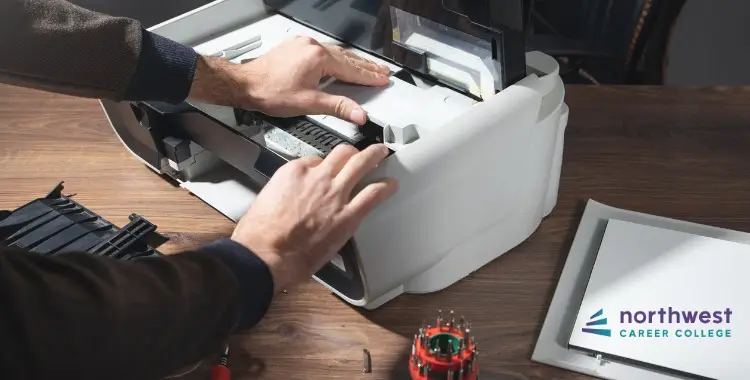
Turn off the printer first. Then gently open all access panels and carefully remove any visible paper. Always pull in the direction of the paper path, not backward.
After removing jammed sheets, check for:
- Small torn paper pieces inside rollers
- Misaligned paper in the tray
- Overfilled paper tray
- Damaged or curled paper
Once cleared, reload the paper properly and make sure the guides are snug but not too tight. Many jams happen simply because the paper is not aligned correctly or is too damp due to humidity.
- Update or reinstall printer drivers
Printer drivers act as the communication bridge between your computer and printer. If they are outdated, corrupted, or incompatible, printing problems are almost guaranteed.
To fix this, visit your printer manufacturer’s official website and download the latest driver for your model. Uninstall the old driver first if necessary, then install the new one.
Updating drivers can resolve issues like:
- Printer not detected by computer
- Random printing errors
- Slow printing performance
- Incomplete or distorted print jobs
If updating doesn’t work, reinstalling the driver from scratch often solves deeper software conflicts.
For wireless printers, also ensure that firmware updates are installed, as they improve connectivity and fix known bugs.
- Resolve connectivity issues (USB and Wi-Fi)
Modern printers rely heavily on stable connections. Whether you are using a USB cable or Wi-Fi, connection problems are a frequent source of printing failures.
For USB printers:
- Try a different USB port
- Replace the cable if it looks damaged
- Avoid using long or low-quality cables
For wireless printers:
- Ensure printer and computer are on the same Wi-Fi network
- Restart your router
- Move the printer closer to the router if signal is weak
- Reconnect the printer to Wi-Fi through settings
A weak or unstable connection can cause delays, missing print jobs, or the printer appearing offline even when it is powered on.
Bonus tip: run the built-in diagnostic tools
Most modern printers come with built-in troubleshooting tools. These automated diagnostics can detect and fix common issues such as alignment problems, connectivity errors, and print quality issues.
Running these tools periodically can help maintain printer health and prevent future breakdowns.
Conclusion
Printer problems can feel complicated, but most of them are caused by a small set of common issues: connection errors, software glitches, ink problems, or simple paper misfeeds. By following these six essential troubleshooting tricks, you can solve most printing issues quickly without needing professional repair.
The key is to approach problems step-by-step instead of guessing randomly. Start with simple fixes like restarting and clearing queues, then move toward deeper solutions like driver updates or hardware checks. With a little patience, your printer can usually be restored to full working condition in minutes.
FAQs
- Why does my printer keep showing offline even when it is on?
This usually happens due to connection issues, outdated drivers, or a paused print queue. Restarting both the printer and computer often fixes it. - What should I do if my printer is not printing anything at all?
Check ink levels, ensure cartridges are installed correctly, clear the print queue, and verify that the printer is selected as default. - How often should I update printer drivers?
It is recommended to check for driver updates every few months or whenever you experience printing issues. - Can Wi-Fi really affect printer performance?
Yes, a weak or unstable Wi-Fi connection can cause delays, incomplete print jobs, or make the printer appear offline. - Why are my printed pages coming out faded?
This is usually due to low ink or clogged printheads. Running a cleaning cycle or replacing cartridges typically solves the issue. - What is the fastest way to fix a paper jam?
Turn off the printer, gently remove the jammed paper without forcing it, check for leftover scraps, and reload paper correctly.






