
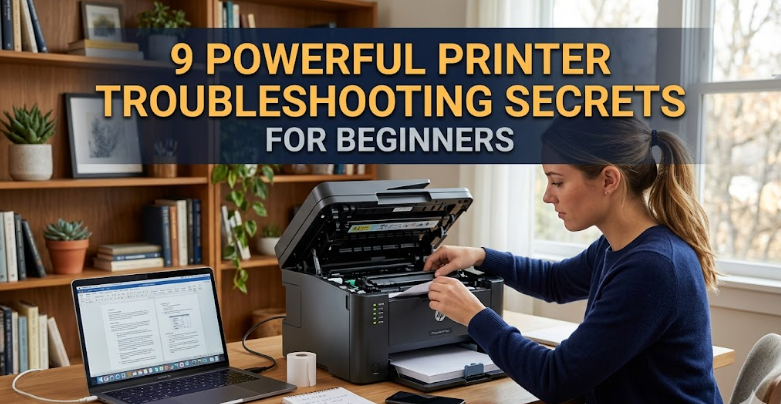
9 powerful printer troubleshooting secrets for beginners
Printers are one of those devices that seem simple until they suddenly stop working right when you need them most. Whether it’s a wireless printer refusing to connect, paper getting stuck, or prints coming out faded, most beginners feel frustrated quickly. The good news is that most printer problems are not as complicated as they seem. Once you understand a few core principles, you can fix a large number of issues without calling technical support.
This guide walks through nine powerful troubleshooting secrets that beginners can use to diagnose and fix common printer problems efficiently. These are practical, real-world methods that technicians often rely on, but explained in a simple way anyone can follow.
- Start with the simplest reset before anything else
One of the most overlooked troubleshooting steps is also the easiest: restarting the printer and the connected device.
Printers, especially modern wireless ones, operate with internal memory and temporary cache. Sometimes this system gets stuck due to a small error, and the printer behaves unpredictably.
A proper reset means:
- Turn off the printer completely
- Unplug the power cable from the wall
- Wait at least 60 seconds
- Restart your computer or phone
- Plug the printer back in and turn it on
This process clears temporary memory glitches. Many beginners skip this step and jump into complex solutions, but in reality, a reset solves a surprisingly large number of problems like offline errors, unresponsive commands, and failed print queues.
- Check printer status before assuming it is broken
Another common mistake is assuming the printer is faulty when it is actually in “offline” or “paused” mode.
On most systems, printers can switch modes automatically due to connection drops or software conflicts.
To check:
- Open your device’s printer settings
- Look at the printer status
- Make sure it is set to “Ready” or “Online”
- Remove any “Pause Printing” option if enabled
If the printer is offline, it will not respond even if everything else is working correctly. Many beginners spend hours checking hardware when the problem is just a simple software toggle.
- Clean the print queue regularly
A blocked print queue is one of the most frustrating but common issues. When multiple print jobs get stuck, the printer may stop responding entirely.
This happens when:
- A previous print job fails
- Large files overload memory
- The connection is interrupted during printing
To fix it:
- Open the print queue from your computer
- Cancel all pending documents
- Restart the print spooler service if needed
- Reboot both printer and computer
Think of the print queue like a traffic jam. Once it clears, everything starts moving again normally.
- Always inspect ink or toner levels properly
Low ink or toner is an obvious issue, but beginners often misinterpret the warning signs. Some printers show “low ink” even when there is still usable ink left, while others fail to detect cartridges correctly.
Signs of ink-related issues include:
- Faded prints
- Missing colors
- Blank pages
- Streaks or uneven printing
What to do:
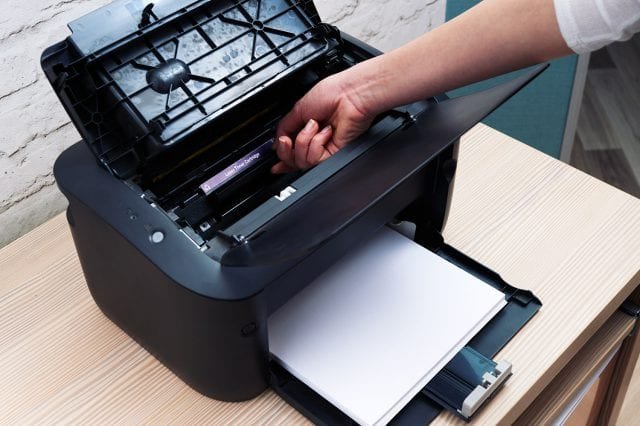
- Remove and reinsert cartridges
- Check for protective tape left on new cartridges
- Run a nozzle cleaning cycle
- Replace cartridges if cleaning doesn’t help
It’s also important to understand that even if black ink is full, color cartridges can still affect printing in some models.
- Wi-Fi connection is often the real problem
In modern printers, connectivity is one of the biggest sources of trouble. A printer may appear broken when in reality it has simply lost connection to Wi-Fi.
Common causes include:
- Router reset or update
- Weak signal strength
- Changed Wi-Fi password
- Printer connected to a different network
To troubleshoot:
- Reconnect the printer to Wi-Fi manually
- Move the printer closer to the router
- Restart the router
- Ensure both devices are on the same network band (2.4GHz vs 5GHz)
Wireless printers depend heavily on stable signals, so even small disruptions can break communication.
- Update or reinstall printer drivers
Drivers are the bridge between your computer and the printer. If they are outdated or corrupted, communication fails.
Symptoms of driver issues:
- Printer not detected
- Random error messages
- Printing starts but never completes
Fix steps:
- Visit the printer manufacturer’s website
- Download the latest drivers
- Uninstall old drivers before reinstalling
- Restart system after installation
Beginners often ignore drivers, but this is one of the most critical troubleshooting steps.
- Paper issues are more complex than they seem
Paper jams are not always caused by actual paper stuck inside. Sometimes even a small misalignment can trigger an error.
Causes include:
- Incorrect paper size settings
- Damaged or curled paper
- Dust inside paper rollers
- Overfilled paper tray
How to fix:
- Remove all paper and reload carefully
- Fan the paper stack before loading
- Check rollers for dust or debris
- Align paper guides properly
Even slightly damp paper can cause repeated jams, so storage conditions also matter.
- Run built-in printer diagnostics
Most modern printers come with built-in diagnostic tools. These tools can automatically detect and fix common issues like:
- Print head alignment
- Nozzle blockages
- Connectivity problems
- Calibration errors
Running diagnostics is often faster than manual troubleshooting. It helps identify problems beginners may not notice.
You can usually access diagnostics through:
- Printer control panel
- Manufacturer software on your computer
- Mobile printer apps
- Know when to stop troubleshooting and reset factory settings
If nothing works, a factory reset can restore the printer to its original condition. This is often a last resort but very effective.
A factory reset can fix:
- Persistent connection issues
- Software corruption
- Incorrect internal settings
However, it also removes saved Wi-Fi networks and preferences, so you will need to set it up again afterward.
Always use this option when:
- Multiple troubleshooting steps fail
- Printer behaves unpredictably
- Errors keep repeating after fixes
Sometimes starting fresh is faster than continuing to patch problems.
Conclusion
Printer problems can feel overwhelming, especially for beginners, but most issues follow predictable patterns. The key is not panic, but a structured approach. Start simple with resets, then move toward software, connectivity, and hardware checks. In most cases, the solution is already built into the printer itself—you just need to know where to look.
Once you understand these nine troubleshooting secrets, you will be able to handle most everyday printer problems without external help. It becomes less about technical knowledge and more about following a logical process.
FAQs
- Why does my printer keep going offline even when it is connected?
This usually happens due to weak Wi-Fi signals, driver issues, or the printer switching to power-saving mode. Restarting the router and reconnecting the printer often solves it. - What should I do if my printer prints blank pages?
Check ink or toner levels, clean the print head, and ensure cartridges are installed correctly. Also verify that protective seals have been removed from new cartridges. - How do I fix a paper jam that I can’t see?
Turn off the printer, open all access panels, and gently check rollers for small torn paper pieces. Even tiny fragments can trigger jam errors. - Why is my printer printing faded documents?
This is usually due to low ink, clogged nozzles, or incorrect print settings. Running a cleaning cycle often restores print quality. - Do I need to update printer drivers regularly?
Yes, updating drivers ensures compatibility with your operating system and fixes known bugs. It can also improve performance and connectivity. - When should I consider replacing my printer instead of fixing it?
If your printer requires frequent repairs, has high repair costs, or is no longer supported by the manufacturer, replacement is often more cost-effective than continued troubleshooting.






