

5 Fast Printer Troubleshooting Fixes You Can Try Now
Printers are one of those devices that usually behave well until the exact moment you really need them. Then suddenly, they jam, refuse to connect, print blank pages, or start blinking lights like they’re trying to send Morse code. The good news is that most printer problems are not as serious as they look. In fact, many of them can be solved in just a few minutes without calling technical support or spending money on repairs.
This article focuses on five fast printer troubleshooting fixes you can try immediately. These are practical, real-world solutions that work across most home and office printers, whether you use inkjet or laser models. Along with the fixes, you’ll also find explanations of why these issues happen and how to prevent them in the future.
By the end, you’ll have a clearer understanding of how printers behave and how to deal with common problems confidently.
Fix 1: Restart everything (printer, computer, and connection)
It sounds almost too simple, but restarting remains one of the most effective printer troubleshooting methods. Many printer issues are caused by temporary communication glitches between your device and the printer.
Why this works:
Printers today are essentially small computers. They store temporary data in memory, handle multiple requests, and communicate over Wi-Fi or cables. Sometimes that communication gets stuck. Restarting clears memory buffers and resets the connection.
How to do it properly:
- Turn off your printer completely using the power button.
- Unplug the power cable from the socket.
- Shut down your computer or laptop.
- Wait at least 30–60 seconds.
- Plug everything back in and turn devices on one by one.
Extra tip:
If you are using a wireless printer, also restart your Wi-Fi router. Many connection failures come from unstable network signals rather than the printer itself.
What problems this fixes:
- Printer not responding
- Jobs stuck in queue
- Printer showing offline status
- Random printing delays
This step alone resolves a surprisingly large number of everyday printing issues.
Fix 2: Check printer connection (USB or Wi-Fi)
One of the most overlooked issues is a broken or weak connection between your printer and device. Even if everything looks fine, the connection may not be stable.
For USB printers:
- Remove the cable and plug it into a different USB port.
- Avoid using USB hubs if possible.
- Try a different cable if printing still fails.
For wireless printers:
- Make sure the printer is connected to the correct Wi-Fi network.
- Check if your phone or computer is on the same network.
- Move the printer closer to the router if the signal is weak.
- Reconnect the Wi-Fi setup from the printer settings menu if needed.
Why connection issues happen:
Wi-Fi printers depend heavily on network stability. Even small changes like a router restart, password update, or signal interference can disconnect the printer silently.
Signs of connection problems:
- Printer appears “offline” even when turned on
- Print jobs disappear without printing
- Delayed response after sending a document
A stable connection is the foundation of smooth printing, so this step is always worth checking early.
Fix 3: Clear the print queue
Sometimes your printer isn’t broken at all—it’s just stuck behind a pile of old print jobs.
What is a print queue?
It’s a list of documents waiting to be printed. If one file in the queue becomes corrupted, it can block everything else.
How to clear it (Windows):
- Go to Control Panel.
- Click Devices and Printers.
- Right-click your printer.
- Select “See what’s printing.”
- Cancel all documents in the queue.
On Mac:
- Go to System Settings.
- Open Printers & Scanners.
- Select your printer.
- Open print queue and clear all jobs.
Why this fixes issues:
A stuck print job can freeze the entire system. Even after fixing the original document, the printer may still try to process it unless the queue is cleared.
Common symptoms:
- Nothing prints even though commands are sent
- Printer shows “processing” forever
- Old documents suddenly print after reboot
After clearing the queue, try printing a simple test page to confirm everything is working again.
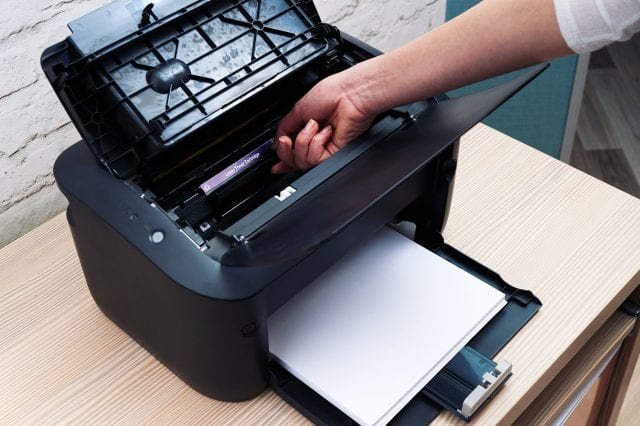
Fix 4: Check ink or toner levels and cartridge placement
Low ink or improperly installed cartridges are another major cause of printing problems.
Even if your printer says it has ink, the cartridges might not be seated properly or may have dried out.
What to check:
- Ink or toner levels from printer settings
- Physical installation of cartridges
- Protective tape removed from new cartridges
- Expired or dried ink in unused printers
For inkjet printers:
Ink can dry out if the printer is not used regularly. This leads to missing colors or streaky prints.
For laser printers:
Toner issues often come from uneven distribution. Gently shaking the cartridge can sometimes restore print quality temporarily.
Signs of cartridge problems:
- Faded prints
- Missing colors (especially black or cyan)
- Blank pages
- Streaks or lines on paper
Quick fix steps:
- Remove cartridges carefully.
- Check for dust or leakage.
- Reinsert firmly until you hear a click.
- Run a cleaning cycle from printer settings.
Preventive tip:
Print at least once a week to keep ink flowing and prevent clogging.
Fix 5: Update or reinstall printer drivers
Printer drivers act like translators between your computer and printer. If they are outdated or corrupted, communication breaks down.
Why driver issues happen:
- Operating system updates
- Old printer software
- Missing installation files
- Conflicts with other devices
How to update drivers:
- Go to your printer manufacturer’s official website.
- Search your printer model.
- Download the latest driver.
- Install and restart your computer.
Alternative method:
You can also uninstall the printer from your system and reinstall it fresh. This often clears hidden configuration issues.
Signs you need driver updates:
- Printer not detected by computer
- Random error messages
- Poor print quality despite good ink
- Features not working (like scanning or duplex printing)
This fix is especially important after major Windows or macOS updates.
Bonus quick checks (worth trying anytime)
If the above steps don’t fully solve the issue, a few additional fast checks can help:
- Ensure paper is loaded correctly and not jammed
- Check printer lid is fully closed
- Look for error lights or blinking indicators
- Run built-in printer diagnostics
- Try printing from another device
Many problems that seem technical are actually caused by small physical issues like paper alignment or sensor blockage.
Preventing future printer issues
Fixing problems is useful, but preventing them saves time in the long run. A few simple habits can keep your printer running smoothly:
- Keep printer clean and dust-free
- Use it regularly to avoid ink drying
- Keep firmware and drivers updated
- Avoid overloading print queue with large jobs
- Use recommended paper types only
- Turn off printer properly after use
Treating your printer with a bit of routine care reduces breakdowns significantly.
Conclusion
Most printer issues are not as complicated as they seem at first glance. In fact, many can be solved in minutes using basic troubleshooting steps like restarting devices, checking connections, clearing print queues, inspecting ink levels, and updating drivers.
The key is to approach the problem step by step instead of assuming the printer is broken. In many cases, the solution is simple, and once you know what to look for, you can fix it quickly without stress or extra cost.
With these five fast fixes, you’re better prepared to handle the most common printer problems and keep your device running smoothly whenever you need it.
FAQs
- Why is my printer not responding even though it is turned on?
This usually happens due to connection issues or a stuck print queue. Restarting the printer and clearing the queue often fixes it. - How do I fix a printer that is showing offline?
Check Wi-Fi or USB connection, restart both printer and computer, and make sure the correct printer is set as default. - Why does my printer print blank pages?
This can be caused by empty cartridges, dried ink, or improper installation of ink/toner. - How often should I update printer drivers?
It is recommended to check for updates every few months or whenever your operating system updates. - What should I do if print quality is poor?
Check ink levels, run a cleaning cycle, and ensure you are using proper paper and correct print settings. - Can restarting the printer really fix problems?
Yes, restarting clears temporary memory errors and resets communication between devices, solving many common issues quickly.






