
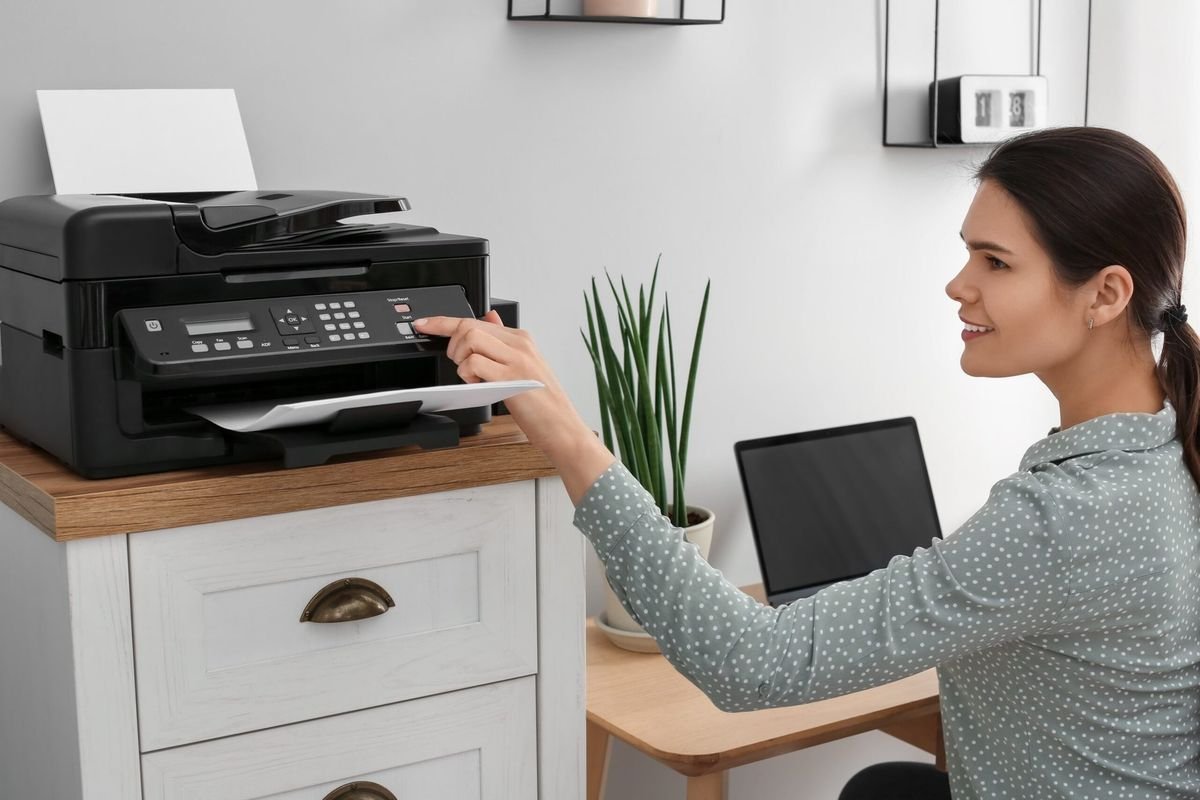
So there I was, standing in my home office at 11 PM, trying to print a boarding pass directly from my phone. My flight was at 6 AM. My HP printer was sitting right there, connected via Bluetooth, supposedly ready to go — and absolutely nothing was happening. Just a spinning wheel on my phone screen and a printer that acted like I didn’t exist.
If you’ve been there, you know that specific kind of frustration. It’s not like the printer is broken. It’s not like your phone is broken. Everything seems fine. But Bluetooth and mobile printing have their own weird set of quirks that nobody really warns you about when you buy the device.
After that night (and many similar disasters since), I’ve learned a lot through trial, error, and a fair amount of cursing. Here are 6 genuinely useful tips that actually made a difference for me — not generic advice you’ll find on the box.
1. Your Bluetooth “Paired” Doesn’t Mean “Connected” — Here’s the Real Fix
This one tripped me up for the longest time. I’d see my printer listed under paired Bluetooth devices on my Android phone, assume everything was fine, and then wonder why nothing printed.
Here’s the thing — Bluetooth pairing and Bluetooth connection are two different states. Just because a device shows up in your paired list doesn’t mean it’s actively communicating.
What to do:
- Go to your phone’s Bluetooth settings and tap the printer device name.
- If there’s an option to “Connect” separately from “Pair,” do that.
- On iPhones, this works a bit differently. Apple routes most printer communication through AirPrint, not raw Bluetooth, so you need to make sure the printer and iPhone are on the same Wi-Fi network, not just Bluetooth-paired.
- On Android, apps like HP Smart, Canon PRINT, or Epson iPrint handle the connection much more reliably than the generic Bluetooth stack. Open the app and let it find the printer — don’t rely on system Bluetooth alone.
The mistake I kept making was trusting the system settings panel and not using the manufacturer’s app. Once I switched to using HP Smart exclusively for my HP printer, the drop in connection failures was immediate.
2. Forget PIN Codes — This One Setting Causes Most Bluetooth Print Failures
Here’s something that almost nobody mentions in setup guides: Bluetooth authentication modes.
Some printers, especially older models, default to a security mode that requires a PIN during pairing. You pair it once, enter “0000” or “1234,” and think you’re done. But later, the printer may reset its Bluetooth module (this happens after firmware updates or power cycles), and suddenly it wants a PIN again — except now your phone thinks it’s already paired and doesn’t prompt for one.
The result? Silent failure. Your phone says “Sent to printer” but nothing happens.
Fix this:
- On your phone, forget the printer from the Bluetooth paired devices list completely.
- Turn the printer off, wait 30 seconds, turn it back on.
- Put the printer into pairing/discoverable mode manually — usually holding a Bluetooth button on the printer for 3–5 seconds until a light blinks.
- Re-pair fresh from your phone.
I also learned to check if my printer had a Bluetooth settings reset option in its menu. Running that before re-pairing solved a connection issue that had been driving me crazy for two weeks.
For deeper driver-related issues that sometimes cause silent print failures, this guide on 4 Quick Printer Guide Ways to Fix Driver Error Problems is genuinely useful.
3. The Mobile Printing App You’re Using Might Be the Actual Problem
I spent a long time blaming my printer for problems that were actually caused by a badly coded third-party printing app.
There are a lot of generic “print from phone” apps on the Play Store and App Store. Some of them are fine. Many of them are poorly maintained, use outdated Bluetooth protocols, and just don’t play well with modern printers.
My recommendation — stick to the manufacturer’s official app:
| Printer Brand | Official App | Platform |
|---|---|---|
| HP | HP Smart | iOS & Android |
| Canon | Canon PRINT Inkjet/SELPHY | iOS & Android |
| Epson | Epson iPrint | iOS & Android |
| Brother | Brother iPrint&Scan | iOS & Android |
| Samsung (now HP) | HP Smart | iOS & Android |
These apps are regularly updated, support the latest Bluetooth and Wi-Fi Direct protocols, and have built-in troubleshooting that actually works.
One more thing: if you’re printing from iOS, AirPrint is usually the cleanest option when available. It doesn’t use Bluetooth at all — it runs over Wi-Fi — but it’s seamless when the printer supports it. Check if your printer is AirPrint-compatible before spending time troubleshooting Bluetooth.
4. Wi-Fi Direct vs. Bluetooth — Knowing Which One You’re Actually Using Changes Everything
This was probably the biggest revelation I had. I thought I was printing via Bluetooth, but my printer was actually using Wi-Fi Direct — and treating it like Bluetooth was causing all my configuration problems.
Here’s the difference in plain English:
- Bluetooth printing: Your phone connects directly to the printer via Bluetooth radio. Short range (~10 meters), no router needed, simpler but sometimes less stable.
- Wi-Fi Direct: Your printer creates its own mini Wi-Fi network. Your phone connects to that network directly. Faster, more reliable for large files, but your phone temporarily loses its regular internet connection while printing.
- AirPrint / Google Cloud Print (deprecated): Routes print jobs through your home Wi-Fi network. Requires printer and device on the same network.
A lot of modern printers advertise “wireless printing” and actually mean Wi-Fi Direct — not Bluetooth. If you’re trying to configure it as Bluetooth and it’s actually Wi-Fi Direct, nothing will work correctly no matter what you do.
How to check:
- Look in your printer’s wireless settings menu (usually under “Wireless” or “Network” on the screen).
- Check if there’s a “Wi-Fi Direct” option that’s turned on.
- On your phone’s Wi-Fi list, you might see a network named something like “DIRECT-xx-HP-Envy” — that’s your printer’s Wi-Fi Direct signal.
Once I realized I needed to connect to that Wi-Fi Direct network instead of pairing via Bluetooth, my print success rate went from about 40% to nearly 100%.
If you’re dealing with broader wireless connection issues, 6 Powerful Printer Guide Tips for Wireless Printer Setup covers a lot of the ground I had to learn the hard way.
5. Phone OS Updates Break Bluetooth Printing More Than Anything Else
Nobody talks about this enough: when your phone gets a major OS update, it can completely disrupt your existing Bluetooth printing setup. I’ve had this happen twice — once after an Android 13 update and once after an iOS 16 update on a family member’s iPhone.
The update changes how the OS manages Bluetooth connections, sometimes altering permissions, resetting connection priorities, or changing the Bluetooth stack behavior. Your printer app might not have caught up to that update yet.
What to check after a phone OS update:
- Re-check app permissions — Go to Settings > Apps > [your printer app] > Permissions, and make sure it still has access to Bluetooth, Location (yes, Bluetooth on Android sometimes requires location permission — annoying but true), and Nearby Devices.
- Update the printer app itself — Check the App Store or Play Store for an update. Manufacturers usually push compatibility patches within a week or two of major OS releases.
- Clear app cache — Settings > Apps > [printer app] > Storage > Clear Cache. This fixed a weird bug for me where the app could “see” the printer but couldn’t send jobs.
- Restart the printer’s Bluetooth module — On most printers, this means turning it off and on. Some have a dedicated wireless reset option.
The pattern I’ve noticed is that problems show up right after a phone update, and then fix themselves about 2–3 weeks later once the printer app gets updated. If you need to print urgently in that window, switching to Wi-Fi Direct or a USB cable connection is your best workaround.
For handling all kinds of connection errors systematically, 11 Smart Printer Guide Tips to Fix Connection Errors has a solid step-by-step breakdown that applies to mobile printing too.
6. The “Airplane Mode Trick” That Actually Fixes Stuck Bluetooth Print Jobs
This sounds weird, but stay with me. I learned this from an IT guy who services office printers, and it’s saved me probably a dozen times.
When a Bluetooth print job gets stuck — it’s in the queue, the printer seems to have received it, but nothing is printing — the problem is often that the Bluetooth connection dropped mid-transfer and the job is now in a corrupted state on both the phone and the printer.
The fix:
- Cancel the stuck print job from your phone’s print queue.
- Turn on Airplane Mode on your phone for 10 seconds. This kills all wireless connections cleanly.
- Turn Airplane Mode off.
- Let Bluetooth reconnect to the printer.
- Resend the print job.
The reason this works better than just toggling Bluetooth off and on is that Airplane Mode does a hard reset of all radio hardware simultaneously, clearing any half-open connections that were keeping the Bluetooth stack busy.
On the printer side, if jobs are still stuck:
- Access your printer’s settings and look for a “Cancel All Jobs” or “Clear Queue” option.
- Alternatively, turning the printer off completely resets its job queue on most models.
One more thing — if you’re printing from an iPhone and jobs keep getting stuck, check if Background App Refresh is enabled for your printer app. Without it, if you switch away from the app while printing, it can lose the connection mid-job.
Common Mistakes I See People Make
A few quick ones worth mentioning because I’ve made all of them:
- Printing high-resolution photos over Bluetooth: Bluetooth is slow. A 10MB photo file will take forever and often fails mid-transfer. Use Wi-Fi Direct or email-to-print for large files.
- Standing too far from the printer: Bluetooth range is shorter than you think, especially with walls in between. Stay within 5–6 meters for reliable connections.
- Ignoring firmware updates on the printer: Just like your phone, your printer’s firmware affects Bluetooth compatibility. Check for updates in the printer’s settings menu or the manufacturer’s app.
- Having multiple devices trying to connect simultaneously: Most printers can only handle one active Bluetooth connection at a time. If your tablet is already connected, your phone won’t get through.
A Quick Reality Check on Bluetooth Printing
Here’s an honest table of what Bluetooth mobile printing is actually good for and where it falls short:
| Use Case | Bluetooth Printing | Wi-Fi / AirPrint |
|---|---|---|
| Quick document printing | ✅ Great | ✅ Great |
| High-res photo printing | ⚠️ Slow/risky | ✅ Better choice |
| Multi-page documents | ⚠️ Can drop | ✅ More reliable |
| No Wi-Fi available | ✅ Only option | ❌ Needs network |
| Office/shared printer | ❌ Not ideal | ✅ Better choice |
| Travel/portable printer | ✅ Perfect | ⚠️ Depends |
Bluetooth and mobile printing are genuinely convenient when they work — and genuinely maddening when they don’t. But most of the problems aren’t hardware failures. They’re configuration quirks, app issues, or small setting mismatches that are completely fixable once you know what to look for.
The biggest shift for me was stopping the habit of assuming something was connected just because it looked connected. Now I always verify through the manufacturer’s app, keep both my phone OS and printer firmware updated, and default to Wi-Fi Direct whenever I’m printing anything larger than a simple one-page document.
Give these tips a try before you call anyone or spend money on anything. Nine times out of ten, one of them will sort it.
If you found this helpful, you might also want to check out 9 Powerful Printer Troubleshooting Hacks for Bluetooth Problems — it goes even deeper into Bluetooth-specific fixes for all major printer brands.