
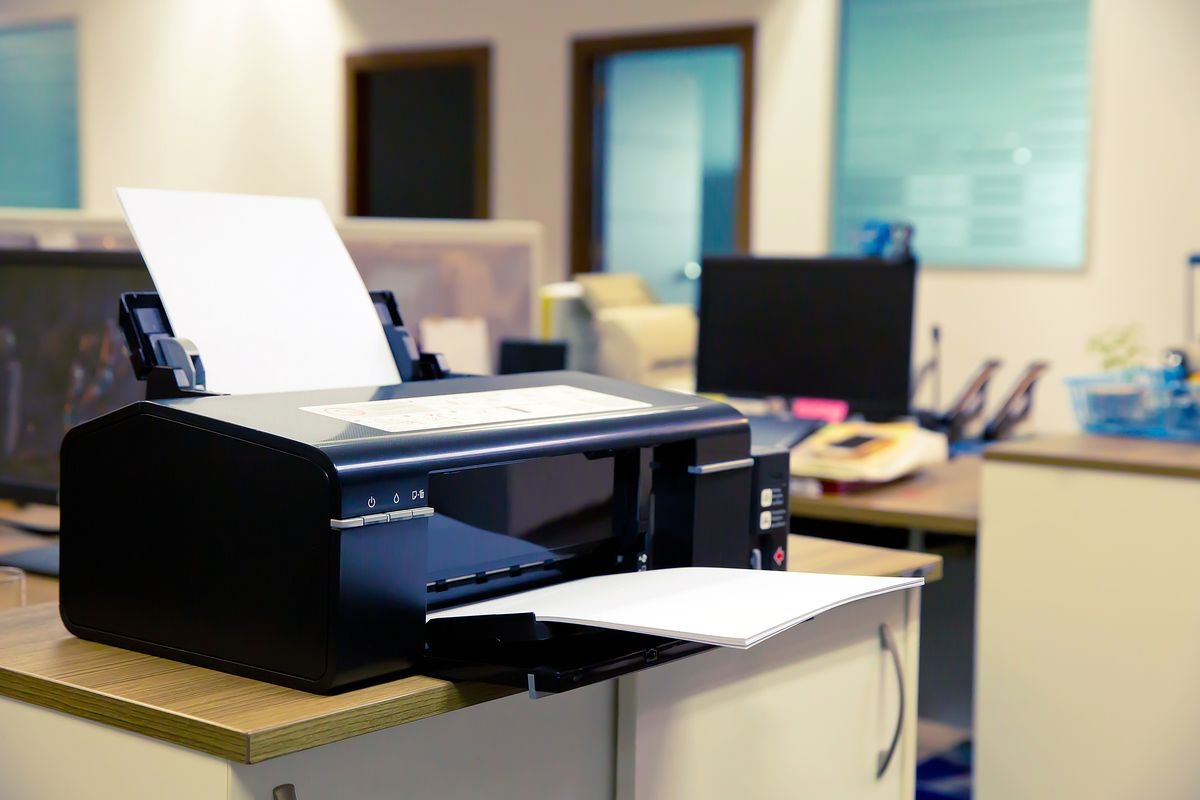
Let me tell you about the morning I almost threw my HP printer out the window.
It was 8:45 AM. I had a client presentation at 9:30, and I needed to print a 12-page report. I hit print. Nothing happened. I hit print again. Still nothing. The printer was on, connected to Wi-Fi, ink was fine — and yet it just sat there like it had given up on life.
I spent 20 minutes frantically Googling, restarting everything, and sweating through my shirt before I finally got it working. And the fix? Embarrassingly simple.
That experience turned me into someone who actually learned how printers work — not just how to press the button and hope. Since then, I’ve dealt with paper jams, ghost jobs stuck in the queue, offline errors, driver disasters, and ink that lies about being empty. I’ve seen it all.
So here are 10 real, practical printer troubleshoot tips that I’ve personally used to stop print failures — the kind that actually work, not just “turn it off and on again.”
1. Check the Print Queue First — It’s Almost Always the Culprit
Seriously, before you do anything else — open the print queue.
Go to Settings → Bluetooth & Devices → Printers & Scanners on Windows, click your printer, and hit Open print queue. On a Mac, it’s under System Settings → Printers & Scanners.
Half the time, there’s a stuck job in there from three days ago that’s blocking everything else. The printer sees it, panics, and refuses to print anything new.
What to do:
- Cancel ALL jobs in the queue
- If they won’t cancel, you need to restart the Print Spooler service (more on that in tip #5)
- Then try printing again
I can’t tell you how many times this single step fixed what felt like a catastrophic failure. It takes 30 seconds. Do it first.
2. Restart Everything — But in the Right Order
“Have you tried turning it off and on again?” — yes, I know, eye-roll. But here’s the thing: most people restart the wrong way.
The correct restart order matters:
- Turn off the printer completely (not just sleep — actually power off)
- Restart your computer
- Turn your router off, wait 30 seconds, turn it back on
- Wait for the router to fully reconnect
- Now turn the printer back on
Why this order? Because your printer gets an IP address from the router. If the router restarts after the printer, they might not sync properly. And if your computer is still cached to the old connection, nothing talks to anything.
I used to just restart the printer alone and wonder why it didn’t help. Doing the full cycle in sequence made a noticeable difference.
3. Update or Reinstall the Printer Driver
Outdated or corrupted drivers are one of the top reasons printers fail silently. No error message, no obvious clue — the printer just… doesn’t print.
How to check:
- On Windows, open Device Manager, find your printer, right-click → Update driver
- Or go directly to the manufacturer’s website (HP, Canon, Epson, Brother — they all have driver download pages)
- Search your exact model number and download the latest driver
Pro tip: Don’t just update — sometimes you need to fully uninstall the old driver first. Go to Control Panel → Devices and Printers, right-click your printer, remove it, then install fresh.
This fixed a Canon PIXMA issue I had where it would accept the print job but never actually print. No error, no noise, just silence. New driver = problem solved instantly.
For more detail on this, this guide on 4 Quick Printer Guide Ways to Fix Driver Error Problems walks through it really clearly.
4. Set the Right Printer as Default
Okay, this one sounds too basic — but I’ve caught myself doing this embarrassing mistake multiple times.
When you have multiple printers installed (or have ever connected to a printer at an office, hotel, or friend’s place), Windows sometimes quietly switches your default printer. So you’re sending jobs to “HP LaserJet Pro (Work)” when you’re sitting at home with your “Epson EcoTank.”
Fix it:
- Go to Settings → Bluetooth & Devices → Printers & Scanners
- Turn OFF “Let Windows manage my default printer”
- Click your actual printer and hit Set as default
On Mac: System Settings → Printers & Scanners → Default printer dropdown.
Such a small thing. Such a big source of confusion.
5. Restart the Print Spooler Service (Windows)
The Print Spooler is the background service that manages all print jobs on Windows. When it crashes or freezes — which happens more than Microsoft would like to admit — your printer becomes completely unresponsive.
Here’s how to restart it:
- Press Win + R, type
services.msc, hit Enter - Scroll down to Print Spooler
- Right-click → Stop
- Now open File Explorer and go to:
C:\Windows\System32\spool\PRINTERS - Delete everything inside that folder (not the folder itself)
- Go back to Services, right-click Print Spooler → Start
That folder you cleared? It holds all the queued print jobs. Clearing it alongside restarting the service is the combo that actually works.
I’ve done this probably a dozen times over the years. It’s become second nature. If a printer is completely frozen on Windows, this is my go-to fix — and it works about 80% of the time.
6. Fix Wi-Fi Connection Issues the Smart Way
Wireless printers are convenient until they’re not. And they have this charming habit of randomly going offline even when everything looks connected.
Common Wi-Fi printer problems and fixes:
| Problem | Likely Cause | Fix |
|---|---|---|
| Printer shows offline | IP address changed | Assign a static IP to printer |
| Can’t find printer on network | Different Wi-Fi band | Make sure printer and PC are on same band (2.4GHz vs 5GHz) |
| Connects, then drops | Router channel conflict | Change router channel in settings |
| Works only sometimes | Weak signal | Move printer closer to router |
The static IP fix is the most underrated one. By default, routers assign dynamic IP addresses — meaning your printer’s address can change every time it reconnects. Your computer then can’t find it.
Set a static IP:
- Log into your router (usually 192.168.1.1 or 192.168.0.1)
- Find your printer in the connected devices list
- Assign it a reserved/static IP address
After I did this for my home Epson, it stopped going offline randomly. Zero issues since.
Check out these 6 Powerful Printer Guide Tips for Wireless Printer Setup if you’re dealing with persistent Wi-Fi printer headaches.
7. Clear and Reset Ink Cartridge Recognition Issues
Your printer says the ink is empty. You just installed a new cartridge. The printer still says it’s empty.
This is infuriating — and weirdly common, especially with third-party cartridges.
What’s happening: Printers use a chip on the cartridge to track ink levels. Sometimes this chip doesn’t reset properly, or isn’t recognized by the printer.
Things to try:
- Remove the cartridge, wipe the gold contacts gently with a dry lint-free cloth, reinsert
- Turn the printer off, remove cartridge, wait 2 minutes, reinstall, power on
- Check if your printer has a “cartridge reset” option in its settings menu
- If using third-party ink, check if your printer model has compatibility issues (some HP printers actively block non-HP cartridges via firmware updates)
One time I bought a pack of third-party Epson cartridges, and the printer flat-out refused them after a firmware update. Had to roll back the firmware. Not ideal, but it worked.
Quick comparison: OEM vs Third-Party Cartridges
| Factor | OEM Cartridge | Third-Party |
|---|---|---|
| Compatibility | Always works | Sometimes blocked |
| Cost | Higher | Lower |
| Print quality | Manufacturer-guaranteed | Varies |
| Chip recognition | Reliable | Can be hit or miss |
8. Handle Paper Jam Errors — Even When There’s No Paper
Ghost paper jams are a real thing. The printer screams “paper jam!” but when you open it up, there’s nothing there.
This usually means:
- A tiny torn piece of paper is stuck somewhere inside
- The rollers are dirty and slipping
- A sensor is dusty and triggering a false alarm
Step-by-step for clearing a real or ghost jam:
- Turn the printer off before you start pulling anything
- Open every access panel — front, back, and the tray underneath if your model has one
- Use a flashlight to look inside — even a small torn corner of paper can trigger the sensor
- If rollers look dirty, dampen a lint-free cloth with water (not soaking) and gently clean them
- Power back on and run a test print
For sensor dust: some printers have a small rubber roller near the paper pickup. That area collects dust and causes false jam errors. A can of compressed air aimed in there can work wonders.
9. Use the Built-In Troubleshooter (It’s Actually Useful Sometimes)
I used to ignore Windows’ built-in printer troubleshooter because it felt like a placebo. Click through some screens, “No issues found,” problem still exists.
But I was using it wrong.
The right way to use it:
On Windows 11: Settings → System → Troubleshoot → Other troubleshooters → Printer → Run
Let it actually run completely, and pay attention to what it reports. Even if it says “couldn’t fix the problem,” the error it identifies tells you what to search for.
Also — check the Windows Event Viewer (search it in Start menu). Under Windows Logs → Application, filter for errors around the time you tried to print. The actual error codes there are far more useful than any generic “printer not responding” message.
It’s not glamorous, but it gives you real data. I found a DLL conflict this way once that I never would have discovered otherwise.
10. Do a Full Factory Reset on the Printer
When everything else fails and you’re about to buy a new printer — try a factory reset first.
Every major printer brand has this option, though the steps vary:
- HP: Usually found in the printer’s control panel under Settings → Restore/Reset
- Canon: Hold specific button combinations during startup (check your manual or Canon’s support page)
- Epson: Settings menu → Restore Default Settings
- Brother: Menu → Initial Setup → Reset → Factory Reset
A factory reset wipes all network settings, saved configurations, and whatever weird state the printer got itself into. After resetting, you set it up fresh like it’s brand new.
I did this with a Brother laser printer that had been behaving strangely for weeks — random offline drops, slow print jobs, jobs not completing. After the factory reset and a clean driver install, it ran perfectly.
It feels like a drastic step, but it takes maybe 15 minutes and can save you from buying a replacement.
For more detailed troubleshooting steps that go beyond the basics, this comprehensive guide on 10 Ultimate Printer Troubleshooting Tips That Actually Work is worth bookmarking.
Common Mistakes People Make (That Make Things Worse)
Before you go, let me save you from a few things I’ve done that made printer problems significantly worse:
Mistake 1: Hitting “Print” over and over when it’s not working This floods the queue with duplicate jobs and makes it even harder to clear. One click, then stop and diagnose.
Mistake 2: Updating firmware without checking the changelog HP in particular pushes firmware updates that sometimes break third-party cartridge compatibility. Read what the update does before you apply it.
Mistake 3: Pulling paper out of a jam while the printer is on Always power off first. Pulling paper while the rollers are live can tear it further inside and damage the rollers.
Mistake 4: Ignoring small error codes That little blinking light or error number on your printer’s display is telling you something specific. Look it up — it’s almost always documented on the manufacturer’s support site.
Mistake 5: Skipping the basics and going straight to reinstalling Half the time it’s just the print queue, the default printer setting, or the spooler. These take two minutes to check. Start there.
A Quick Reference Table
| Symptom | First Thing to Check |
|---|---|
| Printer not responding | Print queue + Spooler service |
| Printer offline | Wi-Fi connection + static IP |
| Jobs sent but nothing prints | Default printer setting |
| Paper jam but no paper | Torn piece inside + dirty rollers |
| Cartridge not recognized | Chip contacts + firmware version |
| Slow printing | Driver update + USB vs Wi-Fi speed |
| Random print failures | Factory reset + fresh driver install |
Printer problems are almost never as complicated as they feel in the moment. The panic makes them worse. Most issues trace back to a stuck job, a confused driver, or a lost network connection — all fixable in under 10 minutes once you know what to look for.
The key is having a system: check the queue, check the connection, check the driver, check the spooler. Work through it methodically rather than clicking everything randomly.
And honestly? Since I built that habit, my printer has become dramatically less annoying. It’s still not perfect — no printer ever is — but it’s manageable.
If you’re dealing with a printer that keeps disconnecting from Wi-Fi specifically, this article breaks it down really well: 7 Smart Printer Troubleshooting Fixes for WiFi Drops